
Getting around the client app
Welcome to your coaching app. This guide shows you where everything lives, so you can find your plan, log your day and reach your coach.
It's for the Kahunas app you open from your coach's link or from the icon on your home screen. Your coach's logo and colours may look a little different from the pictures here. Your coach decides which sections you get, so your app may show fewer items than this guide. If you haven't added the app to your home screen yet, follow Installing the Kahunas app.
The bar at the bottom and the icons at the top
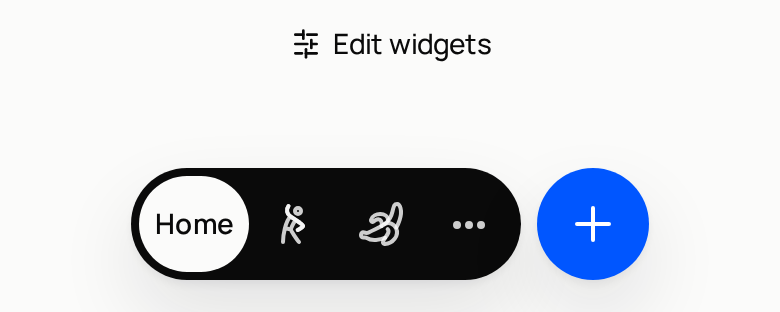
The bar at the bottom of every main screen takes you around the app. Tap an icon to open that section. The section you're in shows its name.
- Home shows your day at a glance.
- Workouts holds your training plan.
- Nutrition holds your meal plan and food log.
- More, the three dots, opens everything else, including your settings.
Your coach chooses which two sections sit between Home and More. Most use Workouts and Nutrition, and any section that doesn't fit in the bar moves under More. You'll see Workouts and Nutrition even before your coach assigns you a plan. They just say nothing is assigned yet, and you can still log your own meals in Nutrition. Which sections you get at all depends on what your coaching includes, so a section it doesn't cover won't appear.
The round blue + button beside the bar is your shortcut for logging. See Quick actions.
At the top of the screen you'll see:
- The bell opens Notifications. A red dot means you have something new.
- The speech bubble opens Messages, your chat with your coach. A number shows how many messages you haven't read.
- Your profile picture opens Settings. On Home it sits beside your name instead.
- A cloud icon with a number appears only when something you logged is waiting to be sent. It changes to a red alert icon if something needs your attention. See Using the app without signal.

Home
Home greets you by name and shows what needs your attention today. From top to bottom, you'll find:
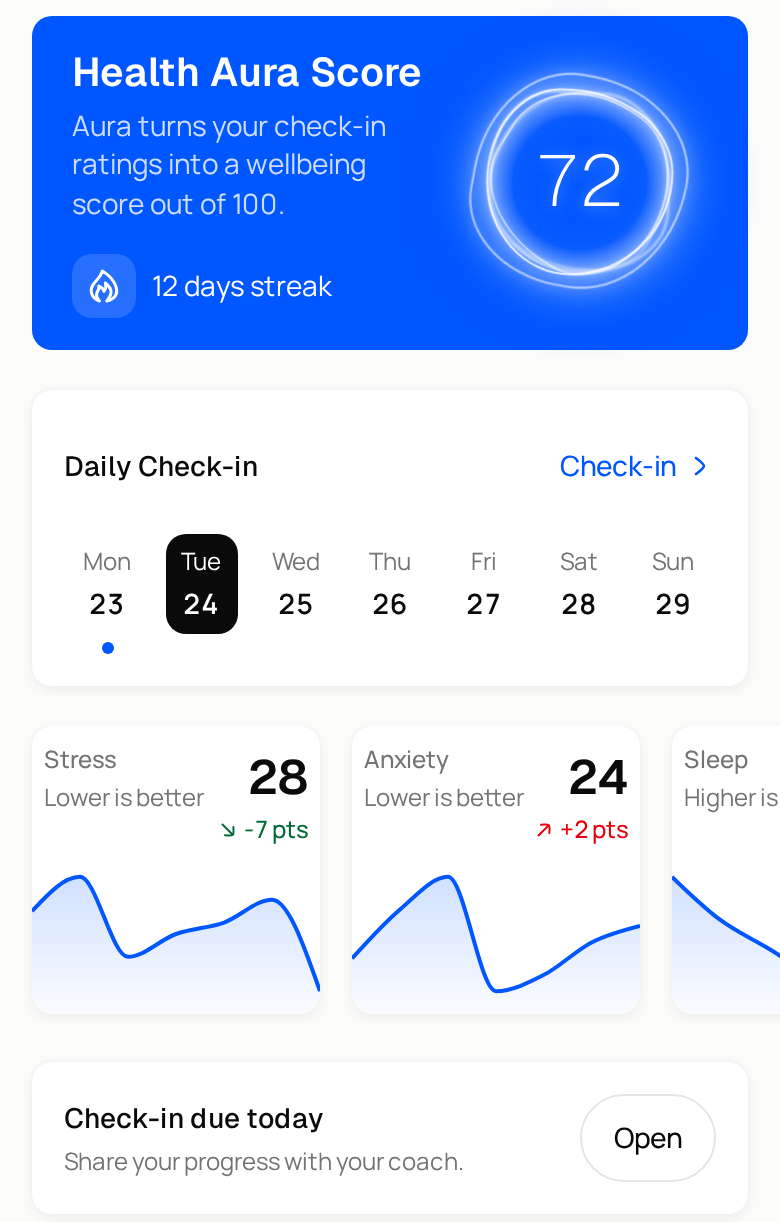
- Your Health Aura Score. See Health Aura below. The card also shows your streak, such as 12 days streak, for each day in a row you've used the app.
- Daily Check-in. This week's days, with the days you've completed marked. Tap Check-in to fill in today's daily habits.
- Your wellbeing cards. Stress, Anxiety, Sleep, Mood and Wellbeing. Swipe sideways to see them all.
- Things to do. Cards for anything waiting on you, such as Check-in due today, a late check-in, a reply from your coach or your first questionnaire. Tap Open, Read or View on the card.
- Your trackers. Cards for your next workout, today's food, water, steps, sleep, weight, goals and, if you track it, your cycle. You can add water straight from the Water card.
- Edit widgets. Choose which cards show on Home, and hold and drag them to change the order. Your choice is saved to your account, so Home looks the same on every device you use. Cards your coach tracks stay on.
Health Aura
Your Health Aura Score turns the ratings you give in your check-ins and daily habits into one wellbeing score out of 100. A higher score is better. Ratings from the same day count as one day.
- It unlocks after 5 days of ratings, once those ratings give Kahunas enough to work out at least two of its wellbeing scores. Until then, the circle shows -- and a note tells you how many more check-ins you need.
- The five cards below it show Stress, Anxiety, Sleep, Mood and Wellbeing. They start updating from your first rated day. One rating can feed more than one card, so you don't rate each card separately. A card shows -- until your ratings give it a score.
- Stress and Anxiety say Lower is better. Sleep, Mood and Wellbeing say Higher is better. The small number, such as +2 pts, shows how much the score moved over your last few rated days. Green means it moved the right way and red means the wrong way.
- To see your score over time, tap More, then Progress. The Health Aura card appears there when you had a score during the period picked at the top, which starts at 1 month. Choose 3 months or All to look further back. Tap the card to see how your score has changed across your most recent rated days.
Quick actions: the + button
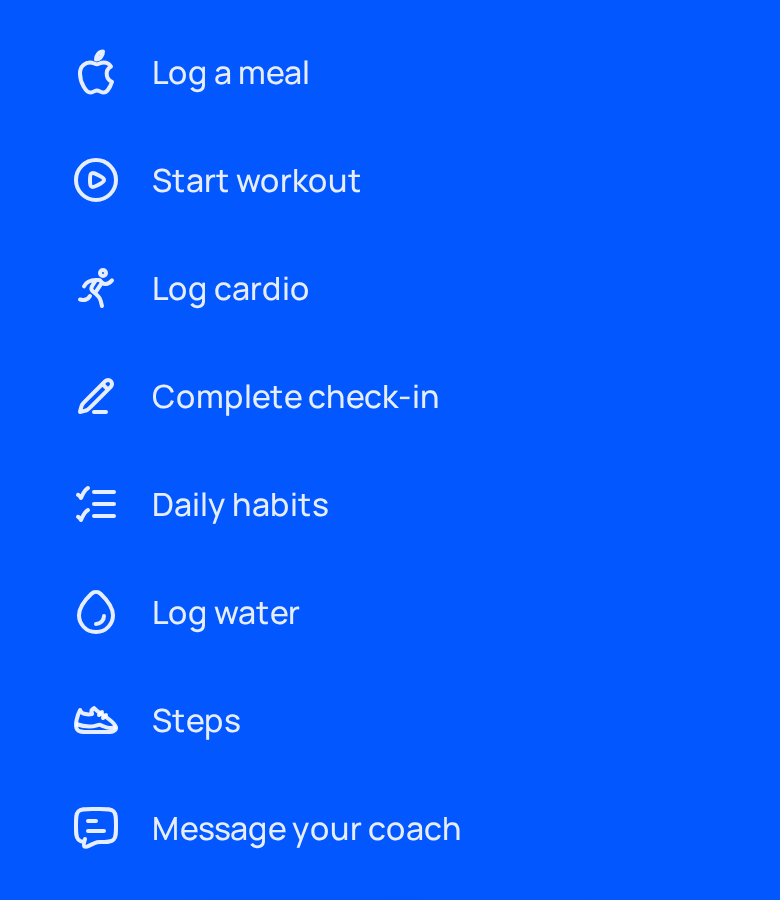
Tap the blue + button for shortcuts. The list changes with the screen you're on and only shows what your coach uses. It generally leaves out the screen you're already on, but a shortcut that logs something right where you are, such as Log weight on your Weight screen, can still appear. When only one shortcut fits, + opens it straight away.
- On Home: Start workout, Log a meal and Complete check-in. If you track your cycle, you'll also see Log period and How I'm feeling.
- On Progress: the full list, including Log cardio, Daily habits, Log water, Steps and Message your coach.
- On Workouts: on the screen that lists your programs, + opens Log cardio straight away. Inside a program or on Workout history, it shows Start workout and Log cardio.
- On Nutrition: Create a meal, Create a food, Add from My meals and Add food. When your plan has a meal coming up, the last one names it, such as Add food to Lunch.
- On your Weight, Sleep, Water or Steps screen: + logs that item, such as Log weight.
Content and Courses don't show the + button. Some screens fill the whole screen and hide the bottom bar and + button until you go back, such as Messages, Calendar, your check-in, Daily habits and a workout in progress.
If you're left-handed, you can move the + button to the other side. Tap More, then Settings, then Profile & settings. Under Left or right handed, choose Left-handed. This is saved to your account, so it applies on all your devices.
Workouts
Tap Workouts in the bottom bar to see your training plan.
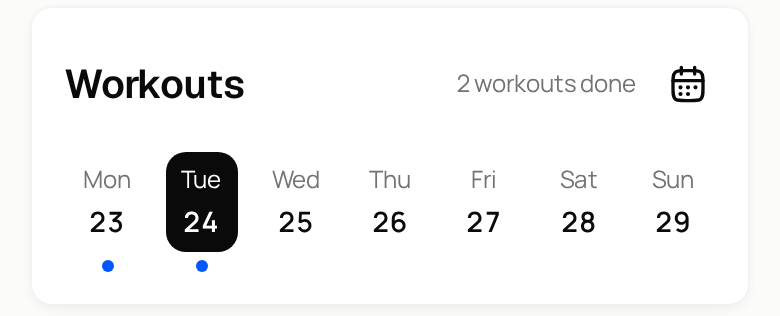
- The Workouts card at the top shows this week and how many workouts you've done. The calendar icon opens Workout history, where you'll also find your personal records. See Where clients see personal bests.
- If you have one program, the tab opens straight into it.
- If you have more than one, your programs are listed. When you have a session coming up, a card for your next workout with a Start workout button appears above them. Tap a program to see its days.
- To train, tap Start workout. Each set has boxes for the weight and reps. Fill them in and tap Done to log the set. A timed exercise doesn't ask for reps. Enter the weight if the set asks for one, then tap Done when the set is finished. When you've finished, tap Finish workout. A summary opens where you can rate how hard the workout was and add a note. Tap Complete workout to save it.
- To record cardio you did outside your plan, use +, then Log cardio. See Viewing and logging cardio.
If your coach hasn't assigned a program yet, the screen says No plans assigned yet.
Nutrition
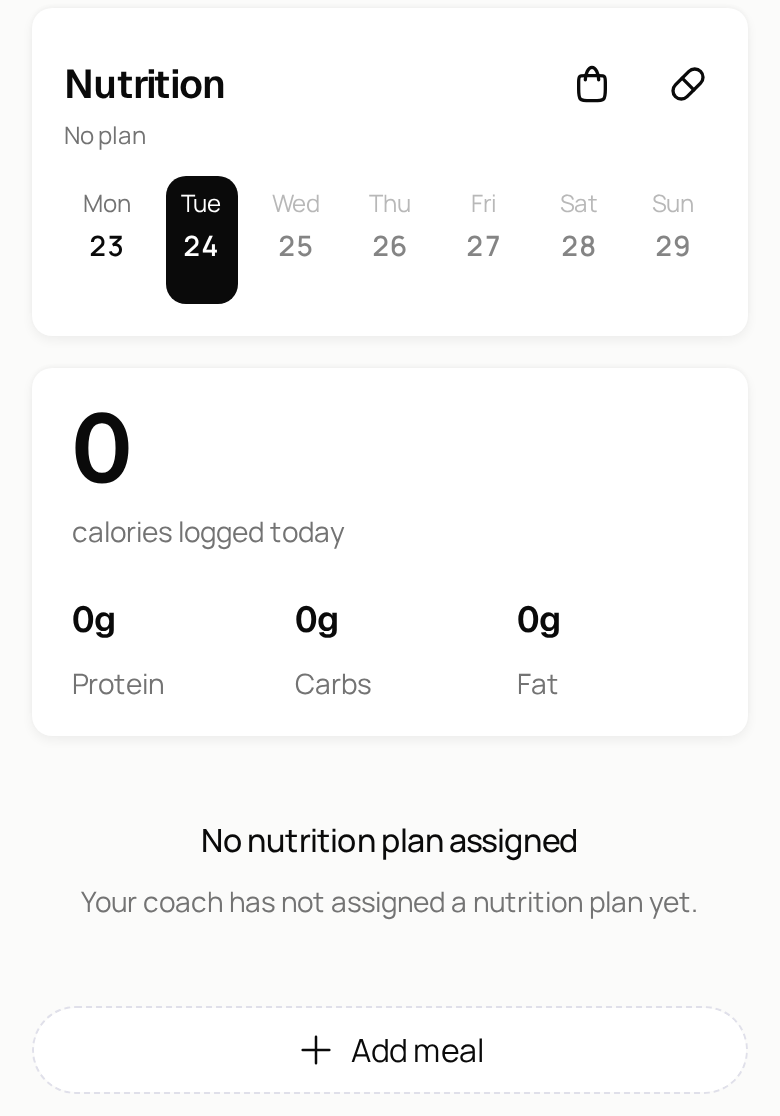
Tap Nutrition in the bottom bar to see your meal plan and log your food.
- The Nutrition card shows your plan's name and this week. Tap a day to see it.
- The totals card shows what you've eaten that day when your coach shows calorie and macro numbers. When your coach has set a calorie target, it compares what you've eaten with your target for calories, protein, carbs and fat. Some coaches hide the numbers and show how many of the day's meals you've logged instead.
- Your meals for the day appear below. Meals your coach planned already include their foods, and you can log them as they are. A meal that says Your coach set a target for this meal. Add what you ate. has a target only, so you add your own foods. Use Add meal for anything else you ate. Meals you add yourself show with the foods you logged.
- The basket icon opens your Shopping list. The pill icon opens your Supplements and only appears when your coach has set some.
If your coach hasn't set a nutrition plan, the screen says No nutrition plan assigned. When your coach shows calorie and macro numbers, it also shows the calories you've logged. You can still log what you eat. To log one food without the rest of a planned meal, see Logging a single food.
More
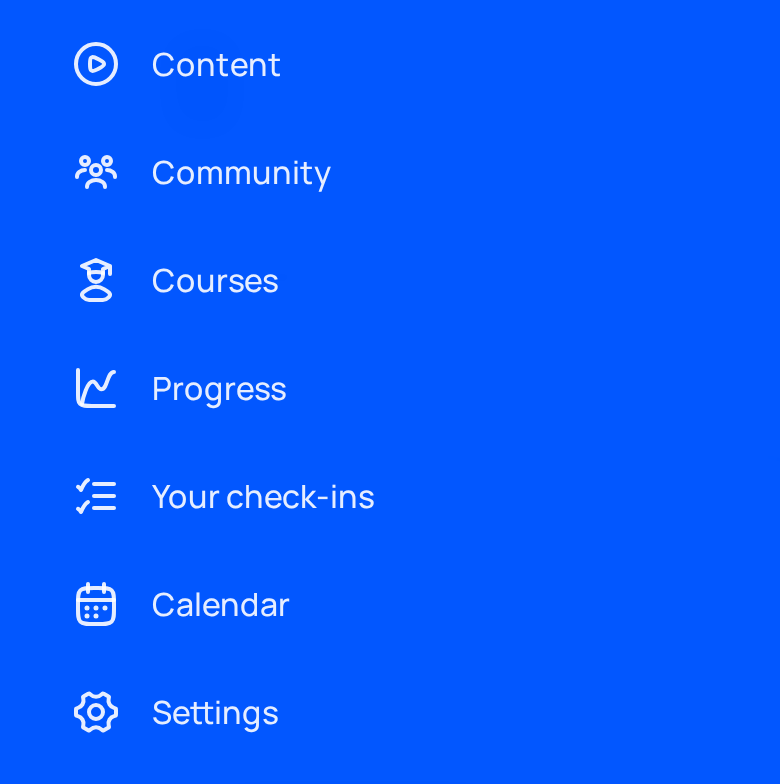
Tap More, the three dots, to open the rest of the app. Depending on what your coach uses with you, you may see:
- Workouts, Nutrition, Content, Community and Courses, when they aren't in your bottom bar.
- Challenges, when you've joined one.
- Progress, with your Health Aura, body and daily trackers, check-in answers, habits, goals, check-in history and progress photos.
- Your check-ins, with the check-ins you've sent and whether your coach has replied.
- Calendar, with your coach's events and the workouts and cardio you've logged, by date.
- Settings, for your account and preferences.
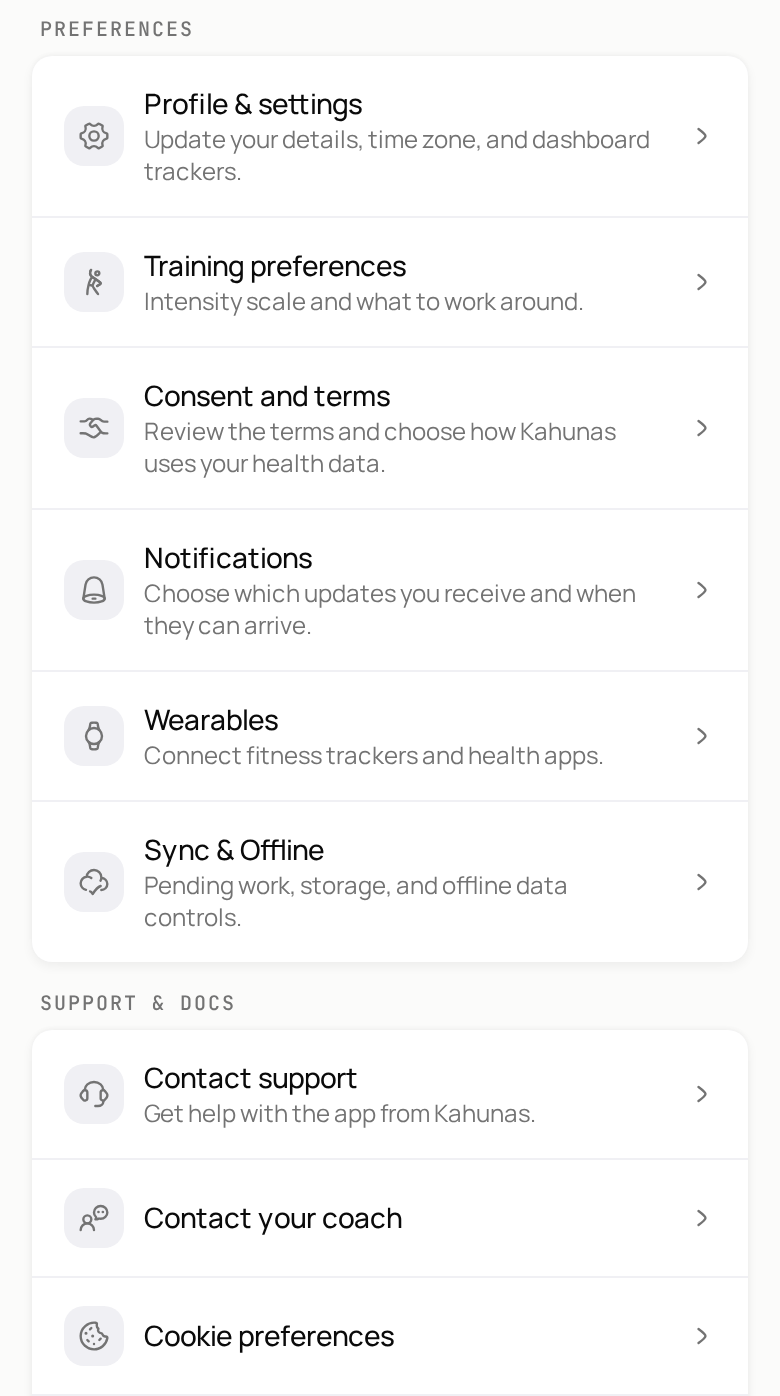
In Settings you'll find:
- My account, with your packages and billing.
- Profile & settings, for your details, time zone, which trackers show on Home and the left or right handed setting.
- Training preferences, for your intensity scale and anything to work around. It's there whenever your coaching includes workouts, even before a plan is assigned.
- Consent and terms, to review the terms and choose how Kahunas uses your health data.
- Notifications, to choose which updates you get and when.
- Wearables, to connect fitness trackers and health apps, when they're available to you.
- Sync & Offline, to see anything waiting to be sent.
- Support & docs, with Cookie preferences and Privacy policy, and Contact your coach when your coach messages with you. Your app may also show a row to get help with the app from Kahunas.
- Sign out, at the bottom.
Using the app without signal
Your phone keeps some of your plan so you can still use parts of the app when your signal drops. Don't rely on every screen being there.
- Some screens keep a copy that was saved on your phone, with the note You're offline. Showing what was saved on this device. Opening a screen doesn't guarantee it's kept, and a saved copy can expire.
- Home doesn't keep a saved copy. If you open the app without a connection, Home says Home isn't available offline.
- If a screen hasn't been saved, the app asks you to connect to the internet to load it.
- Some things you log, such as workout sets, can save on your phone and send when you're back online. A cloud icon with a number appears at the top while items are waiting. If something needs your attention, it changes to a red alert icon, so tap it.
- To check what's waiting, tap More, then Settings, then Sync & Offline.
If something is missing or not working
- A plan isn't there. Workouts says No plans assigned yet until your coach assigns you a program. Nutrition says No nutrition plan assigned until your coach assigns a meal plan, but you can still add and log your own meals there. Ask your coach: tap the speech bubble at the top, or tap More, then Settings, then Contact your coach.
- A whole section isn't there. Which sections you see depends on what your coaching includes. If you expected one, ask your coach.
- The app shows an error or won't work properly. Look under Support & docs in Settings. If you see a row that says Get help with the app from Kahunas, tap it to ask Kahunas for help. If not, message your coach.
- You can't log in. Use Forgot password? on your coach's login page. See Reset a password from the login page.