







Setting up automations
Automations send messages to your clients when something happens, such as a birthday, a completed check-in or an updated plan. Kahunas has one automation for each event. You don't create automations from scratch. You choose the event, add your steps and turn it on or off.
Open Automations
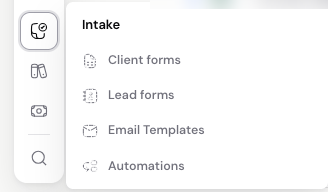
Open Intake → Automations.
The page is called Automations, "Rules that catch what you miss." Under Your automations you'll see every event with an Off / On switch. The badge at the top right shows how many are on, such as 12 of 13 on.
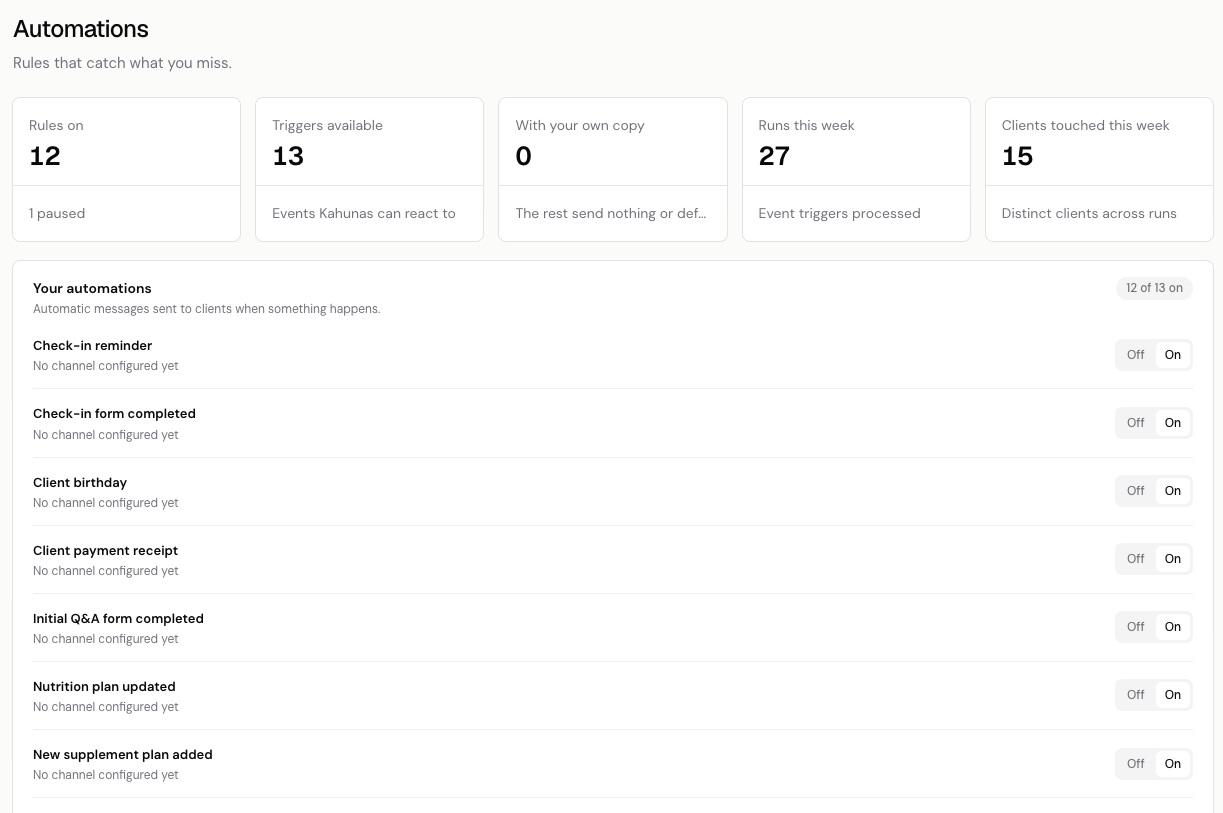
The events cover:
- Client birthday
- Check-ins: Check-in reminder, Missed check-in and Check-in form completed
- Initial Q&A form completed
- New client created
- Workout, nutrition and supplement plans: a New … plan added and a … plan updated event for each
- Client payment receipt
Your list shows every event available on your account.
Automations need the Automations add-on. Team members also need the Automations permission.
Read the overview
The cards at the top summarise your automations:
| Card | What it shows |
|---|---|
| Rules on | How many automations are on. The line underneath shows how many are paused (switched Off). |
| Triggers available | The events Kahunas can react to. |
| With your own copy | How many automations use your own message. |
| Runs this week | Event triggers processed this week. |
| Clients touched this week | Distinct clients across those runs. |
Each row also shows how it sends, such as Sends by Email. A row that's On but says No channel configured yet has no message of yours, so it won't send your wording. These totals count processed events. They don't confirm that a message was delivered or read.
Add your message
Select an automation's name to open it. This example uses Supplement plan updated.
The editor shows the event name, the Enable workflow switch, Cancel and Save. If the automation has no steps, you'll see No steps yet. Select Add step to start.
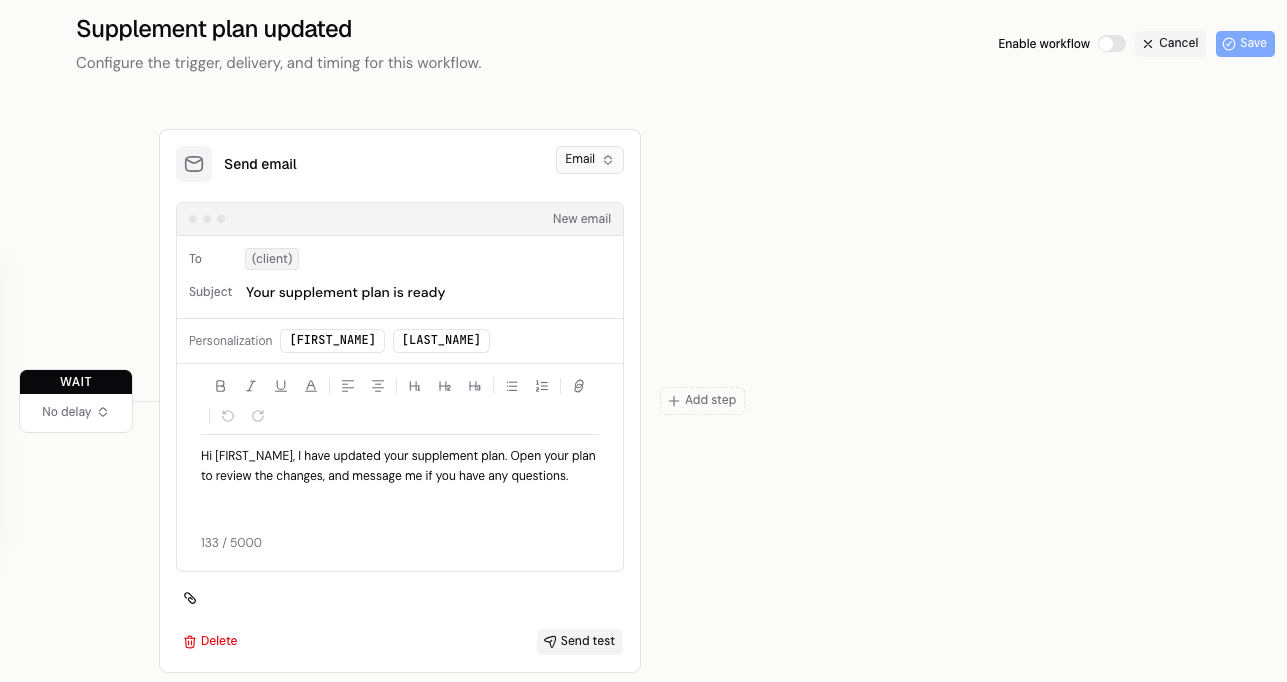
A new step starts as Send email:
- To is filled in as (client).
- Enter a Subject, such as "Your supplement plan is ready".
- Write the message. Use the toolbar for bold, lists, headings and links.
- Select FIRST_NAME or LAST_NAME under Personalization to add the client's name.
For example:
Hi FIRST_NAME, I have updated your supplement plan. Open your plan to review the changes, and message me if you have any questions.
Select the paperclip to add an attachment. Select Delete to remove a step.
Choose email, push, chat or webhook
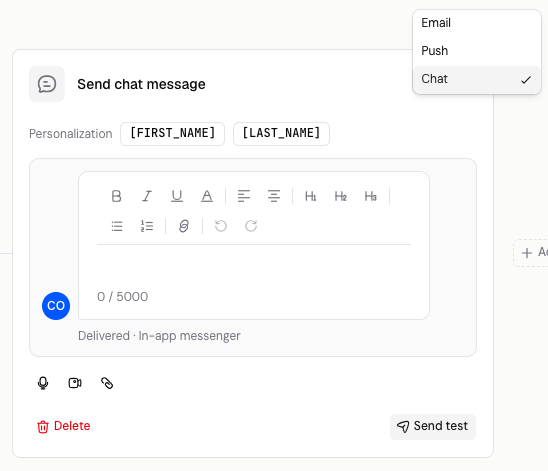
Open the action menu at the top right of the step. It shows Email on a new step.
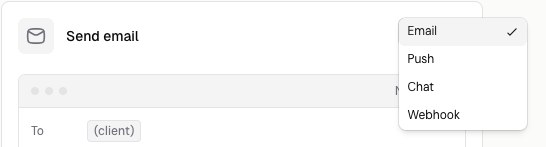
| Action | What you enter |
|---|---|
| A subject and a formatted message, with an optional attachment. | |
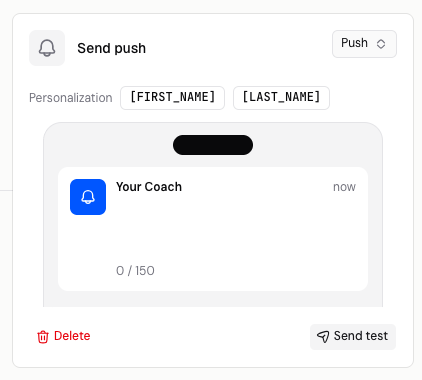
| Push | A short notification, up to 150 characters. The phone preview shows how it will look. |
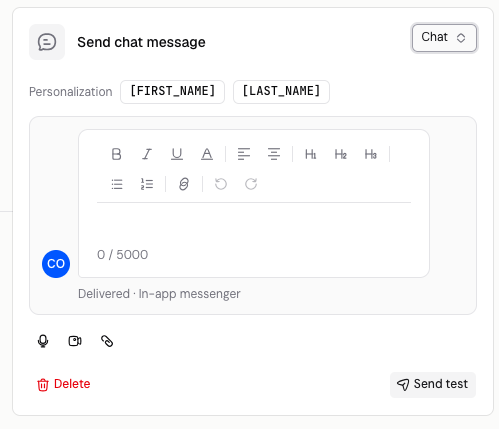
| Chat | A formatted message delivered in the in-app messenger. You can add a file, a video or a voice note. |
| Webhook | A web address to send the event to another service. First step only. |
Send the event to a webhook
Choose Webhook on the first step to send the event to another service, such as Zapier. The step becomes Send to webhook. Paste the address into Enter a new URL to replace. Until you save one, it shows No webhook URL stored.
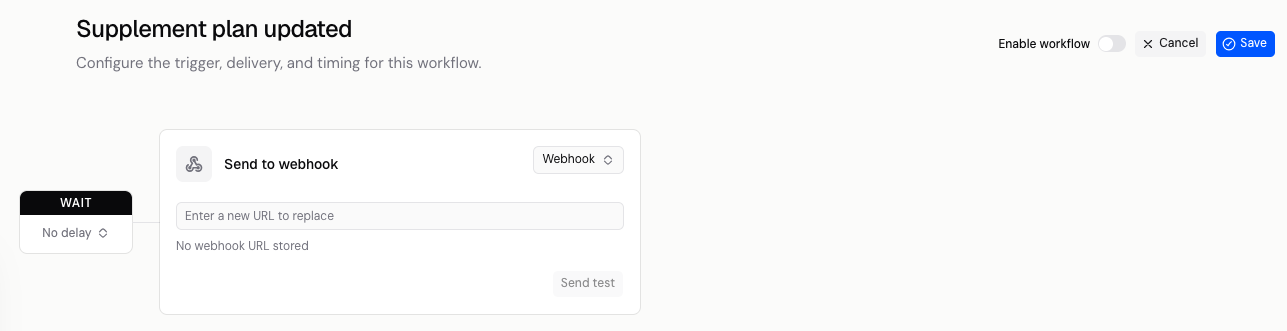
Webhook is only offered on the first step. Later steps offer Email, Push and Chat.
Set the timing
Each step has a WAIT card before it. Choose No delay, or enter an amount and choose minutes, hours, days or weeks.
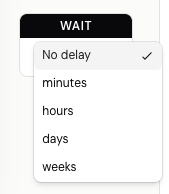
Select Add step to build a sequence. A new step is added after the last one with a wait of 1 hour before it. Change that wait to suit your message.
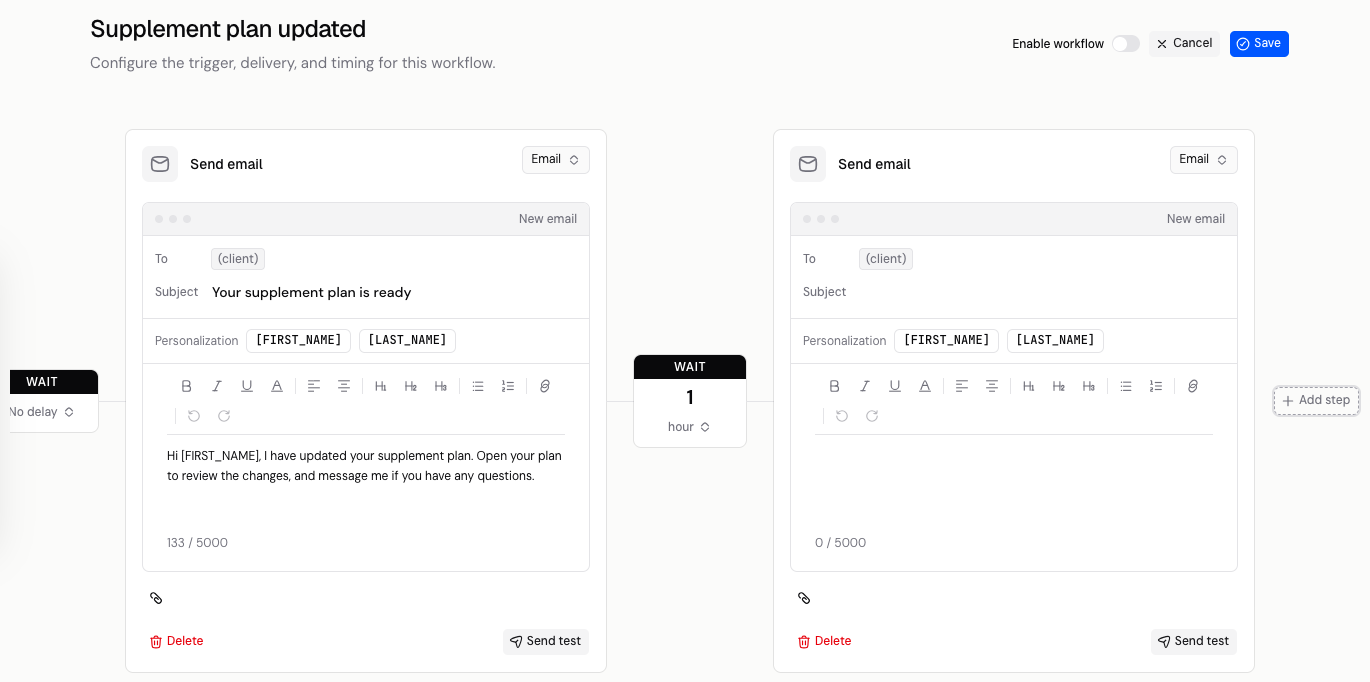
The first wait sets the delay after the event. Each later wait counts from the step before it. A sequence can cover up to 365 days.
Kahunas sends time-based events, such as Client birthday, Check-in reminder and Missed check-in, in the client's own time zone.
Check the timing on the next real client event before you rely on a delay.
Save your changes
Select Save when you've finished editing. Save stays unavailable until you've made a change.
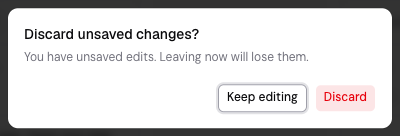
If you select Cancel with unsaved edits, Kahunas asks Discard unsaved changes? Select Keep editing to go back, or Discard to leave without saving.
Check a test message
Select Send test on a step to try its message before your clients get it. Read the subject and message, check links and make sure the name looks right.
A webhook's Send test makes a real request to the address you entered. Check the other service first, because the test may start actions there.
Turn an automation on or off
There are two ways:
- In the editor, turn on Enable workflow, then select Save.
- In the list, select On or Off on the automation's row.
An automation that's Off is counted as paused in the overview. Turn it back On when you're ready.
Payment receipts work differently
Client payment receipt only changes the wording of the receipt email. Clients always get a payment receipt, and switching this automation Off doesn't stop receipts.
If something needs fixing
- A row is On but nothing of yours sends: check whether it says No channel configured yet. Open it and add a step with a message. Steps without a message aren't sent.
- Webhook isn't in the menu: it's only offered on the first step.
- Save is unavailable: make a change first.
- A webhook fails: check the address and the receiving service.
- A message doesn't arrive: check that the automation is On, the event has happened for that client and the client's details are complete.
- Your edits disappeared: you may have selected Discard. Open the automation, make the changes again and select Save.
To ask AI about your clients or get draft plans, see Getting started with Crew. To send a message yourself, see Messaging your clients.
If you still need help, use Contact support on this help site and describe where you got stuck.