







Creating an initial questionnaire
Find out about a new client’s goals, experience and routine before you plan their coaching. Use an Initial Q&A for these onboarding questions. For progress updates each week, use a check-in form.
Read video transcript
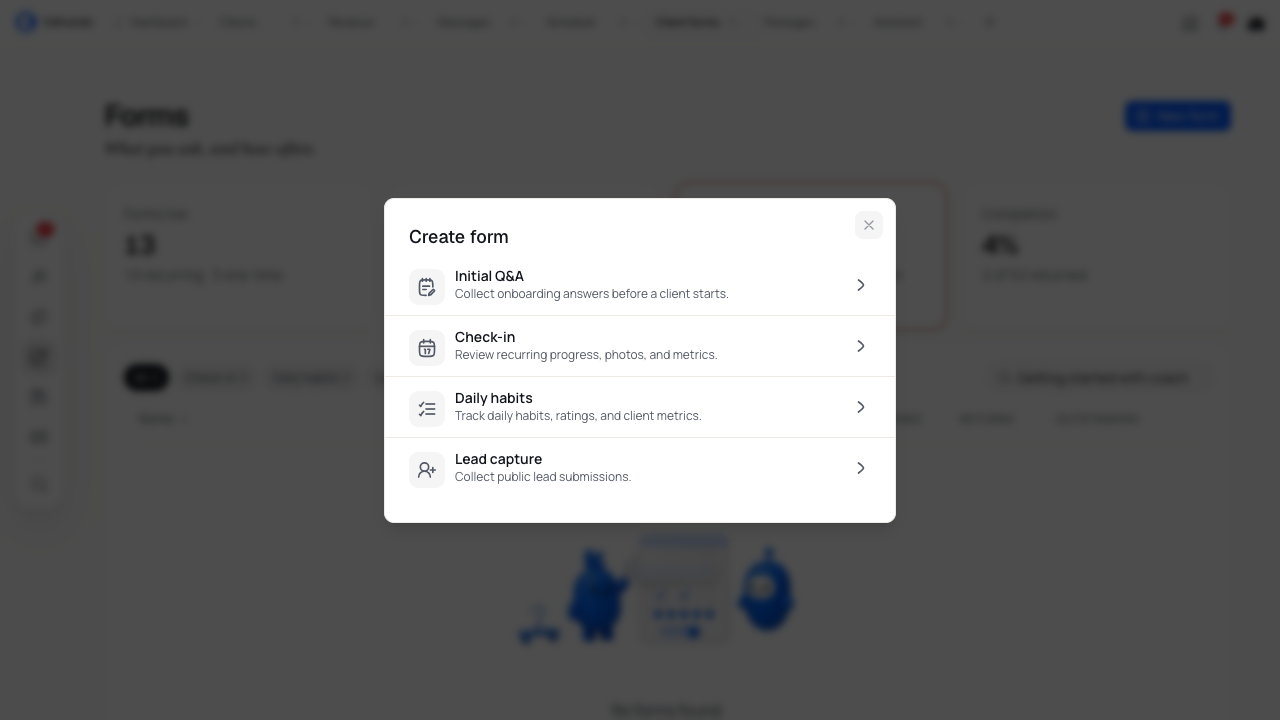
Open Intake, then Client forms. Choose New form and Initial Q and A. Give your questionnaire a name, then add a Long text input. Ask what your client wants to achieve with coaching. Make the answer required before your client can submit. Check your wording, then choose Save and close. Your questionnaire is ready to assign.
Create your questionnaire
- Open Intake → Client forms.
- Select New form, then Initial Q&A.
- Select Untitled form and give it a name, such as Getting to know you.
- Add a Description if your clients need instructions before they start.
Choosing Initial Q&A creates an empty form in your library. Use Save & close after you add or change questions. You can find your questionnaires under Q&A in the forms library.
Add your questions
- Select Add a question.
- Choose a question type, such as Long text input.
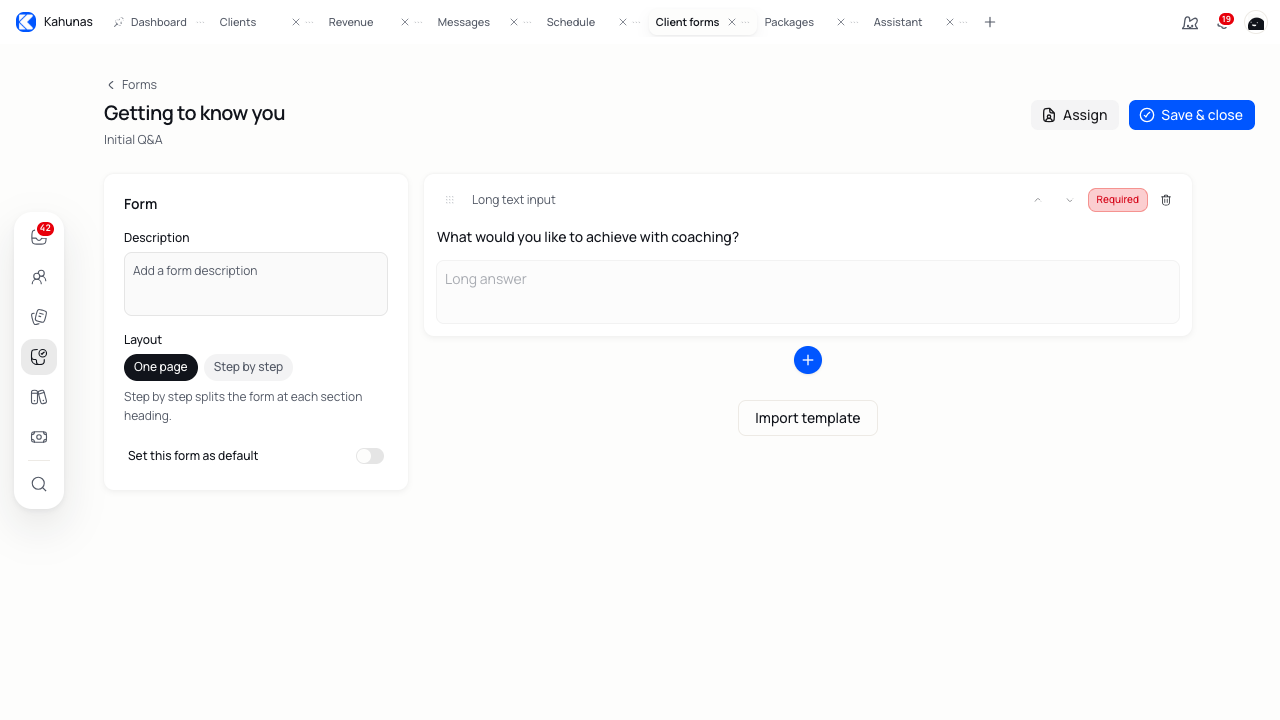
- Select Question label and write your question. For example: “What would you like to achieve with coaching?”
- Choose Required if the client must answer it. Leave other questions Optional.
- Add the next question.
Ask for information you will use. A few useful starting points are the client’s main goal, current routine, training experience and the support they want from you.
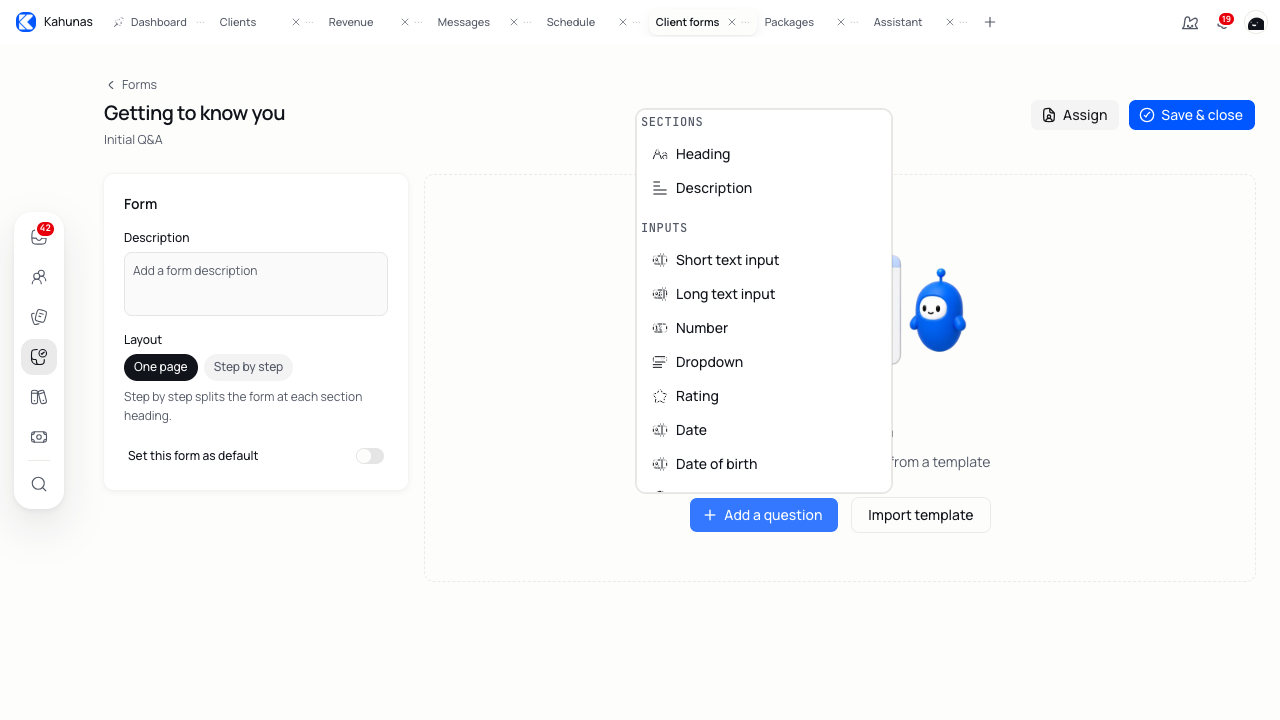
Choose a question type
| Type | Use it for |
|---|---|
| Short text input | A brief answer, such as a preferred name. |
| Long text input | Goals, experience or anything that needs more detail. |
| Number | A numeric answer, such as training days per week. Include the unit in your question where needed. |
| Dropdown | One answer from a list of choices. |
| Single choice | One answer with the choices visible together. |
| Multiple choice | More than one answer, such as available training equipment. |
| Rating | A rating, such as confidence in maintaining a routine. |
| Date | A calendar date, such as the client’s intended start date. |
| Date of birth | The client’s birth date. You can add one Date of birth field per questionnaire. |
| An email address. | |
| URL | A web address. |
| Add Image | A photo the client uploads. |
| Upload Video | A video the client uploads. |
| Attach File | A file the client attaches. |
| Signature | A signature the client provides. |
Use Heading and Description to add section titles and instructions. Clients do not answer these blocks.
Accounts using the older mobile app offer fewer question types. Those accounts do not offer Heading, Description, Attach File, URL, Signature or a step-by-step layout. Choose from the types shown in your builder.
Write answer choices
For Dropdown, Single choice and Multiple choice:
- Select the question.
- Edit each answer under Options.
- Select Add option for another choice.
- Click outside the option or press Enter to finish editing it.
For “How much strength training have you done?”, you could use “I’m new to it”, “Some experience” and “Several years”. Use choices that your clients can tell apart.
Start with a template
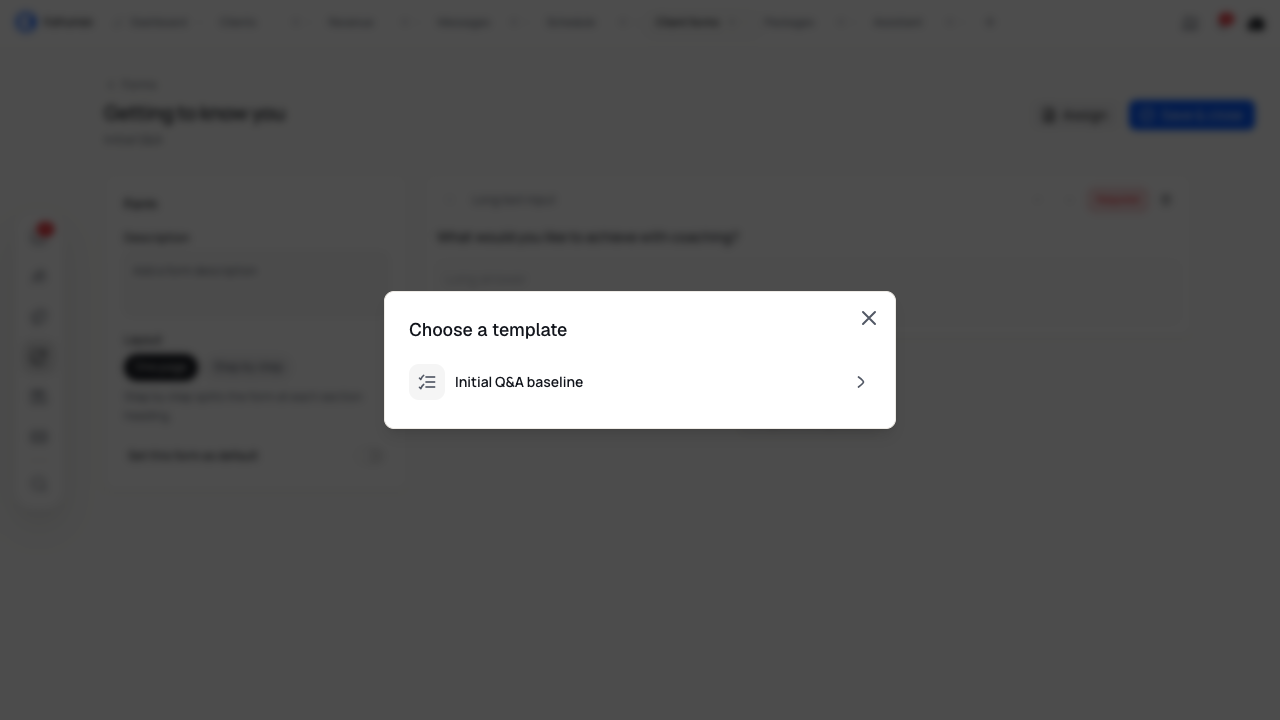
Select Import template → Initial Q&A baseline to add these questions:
- First name
- Last name
- Email address
- What are your main goals?
The name and email questions start as required. The goals question starts as optional. Change the wording and required settings to suit your coaching.
If your form already has questions, importing the template adds its questions after them. Review the result and remove anything you do not need before saving.
Draft a questionnaire with Assistant
If your account supports AI form creation, you can ask Assistant to draft an Initial Q&A. Describe who you coach and the information you need. For example: “Create an initial questionnaire for clients starting strength training. Ask about their goals, experience, equipment and weekly routine.”
Review the proposed structure and question wording before you approve and build the form. Check the saved questionnaire in the builder before assigning it. See Getting started with Crew for how Crew works.
Organize the form
Drag a question using its reorder handle, or use Move up and Move down. Use the insertion control between questions to add a question in that spot. Select Delete field to remove one.
You can group a longer questionnaire under headings such as “Your goals”, “Your routine” and “Training experience”. Add a description where a question needs context.
Under Layout, choose:
- One page to show the form on one page.
- Step by step to divide it at each Heading.
Review your questionnaire
Read through the form in the builder before saving. Check the question wording, answer choices and Required settings. Remove repeated questions and make sure each new field has a clear label.
The answer fields in the builder show the type of answer you are asking for. You cannot submit a client response from here.
Save your changes
Select Save & close and wait for Form saved. You return to the forms library. Reopen your questionnaire to check the saved questions.
Saving a questionnaire does not assign it to clients. There is no separate Publish step for the questionnaire.
Choose a default questionnaire
Open the questionnaire and select Set this form as default. If you already have a default Initial Q&A, read the confirmation and select Yes to replace it.
You can have one default for each form type. Your first active Initial Q&A becomes the default when you create it. To change it later, choose another questionnaire as the default.
The default setting takes effect as soon as you confirm it. Save & close saves your question edits as a separate action. Setting a default does not replace a current client’s questionnaire; check the selection when you set up their package or invite.
Assign it to existing clients
- Open the saved questionnaire and select Assign. You can use Form actions → Assign from the library too.
- Search for and select the clients.
- Read the assignment summary.
- Select Assign form and wait for Form assigned.
Each client can have one active Initial Q&A. If a selected client already has another questionnaire, the dialog uses Replace. Check that you want to change the questionnaire before assigning it.
Save your questions before assigning the form so your clients receive the version you have reviewed.
Include it in a new client’s invite
When adding a client, check Initial Q&A in their onboarding choices. Select the questionnaire you want them to complete, then finish the invite flow.
Choosing a package can fill this choice from the package’s saved questionnaire. Check it before you send the invite, especially if you changed the selected package.
Add a questionnaire to a coaching package
- Open Revenue → Packages and edit the package.
- Go to Attach coaching resources.
- Under Questionnaire, select your saved Initial Q&A.
- Review the package and finish its save or publish flow.

Use this choice for clients who join that package in future. Saving the package does not replace questionnaires for clients already on it. Use Assign on the questionnaire to choose those clients.
See Creating a coaching package for the package’s other settings.
Read submitted answers
Open People → Clients, choose the client and select Initial Q&A. Read their answers under Onboarding questionnaire. You can see the submission date, answer count and available photos.
No Initial Q&A yet means the client has no submitted answers to show. An assignment alone does not create a response.
Correct a submitted answer
Select Edit on the client’s submitted questionnaire. Update the answers, then select Save changes. Use Cancel to leave without saving.
This changes that client’s response. To change the questions for future responses, edit the form in Client forms instead. Existing signatures appear for review; you cannot redraw them in this editor.
Download or print a response
Select Download on the submitted questionnaire. Check the answers and photos, then select Print. Choose a printer or your browser’s PDF destination.
Use Back to Initial Q&A to return to the client’s answers.
Ask the client to complete it again
A submitted questionnaire stops appearing as pending for that client. To request another response:
- Open the client’s Initial Q&A.
- Select Reset on the response.
- Read Reset this Initial Q&A? and select Reset Q&A.
The client can complete their assigned questionnaire again. Reset removes that response from the current profile view. Download a copy first if you need to keep it for reference.
Remove a response from the profile
Select Delete on the response. Read Delete this Initial Q&A response?, then choose Delete response to remove it from the profile.
Use Reset when you want the client to answer again. Deleting a response and deleting the questionnaire from your library are separate actions.
Follow up on an outstanding questionnaire
Use the outstanding forms list in Client forms to find clients who have not returned an assigned questionnaire. Select Chase for the client, or review the recipients under Chase all.
Edit the Message, check the recipients and select Send reminder when you are ready. The reminder goes to the client as a direct message. After a successful chase, you must wait 24 hours before chasing that client again.
Manage your questionnaire library
Use Q&A to narrow the library to initial questionnaires. Search by name and open a form’s Form actions for these tasks:
| Action | Result |
|---|---|
| Edit form | Open the questionnaire and update its questions. |
| Duplicate | Create a separate copy of the questions and settings. Rename the copy before using it. The copy does not become the default or inherit client assignments. |
| Archive | Hide a form from new assignments while keeping submitted data linked. |
| Restore | Return an archived form to the active library. |
| Delete | Remove the questionnaire definition from the library. |
You cannot archive or delete a form with active client assignments. If it is your default and other questionnaires remain, choose another default first. A restored questionnaire can become the default when no active default exists; check its setting after restoring it.
If something doesn’t look right
| What you see | What to check |
|---|---|
| Rename the new field | Replace the generic type name in Question label with your question, then save. |
| Your latest edits are missing | Reopen the form after Form saved. Question changes need Save & close. |
| A message says the form changed elsewhere | Reopen the latest saved version before trying again. |
| A client has no questionnaire to complete | Check their active assignment and whether they already submitted it. Check any payment step they still need to complete. |
| A questionnaire is missing from a package’s choices | Check that the form is active and is an Initial Q&A, then search by name. |
| A field type or layout option is missing | Check the types your account offers. Older mobile app accounts have a smaller selection. |
| A client or action is missing | Check your team access to that client and feature. |
For recurring progress questions, create a check-in form. Use documents and signatures for your document workflow.
Create a coaching package
Set your coaching price and billing terms, include forms and plans, and save or publish a package. Learn how to share it and manage changes.
Managing documents and signatures
Create coaching agreements, choose your default terms, keep document versions and track client signatures in Kahunas.