







Setting up daily habits
Help clients keep track of the small actions you agree on together. Use daily habits to record walks, sleep, energy or anything else you want to discuss between check-ins.
Read video transcript
Open Intake, then Client forms. Choose New form and Daily habits. Name your form, then add a Habit question. Ask about a daily action, like taking a planned walk. Clients can answer Yes, No, or Not Required Today. Make it required, check the wording, and choose Save and close. Your form is ready to assign.
Create a daily habits form
- Open Intake → Client forms.
- Select New form, then choose Daily habits in Create form.
- Select the title and enter a name you will recognise, such as Daily foundations.
- Add a short Description to explain what you want clients to record.
Choosing the form type creates an empty form in your library. Use Save & close after adding your questions to store your changes.
Start with a template
Select Import template, then Daily habits baseline. It includes Hit steps goal, Sleep quality, Morning weight and Sleep duration.
Edit the questions to suit your coaching. Delete anything you do not need. If your form already has questions, importing the template adds its questions after them.
Add a habit question
- Select Add a question and choose Habit.
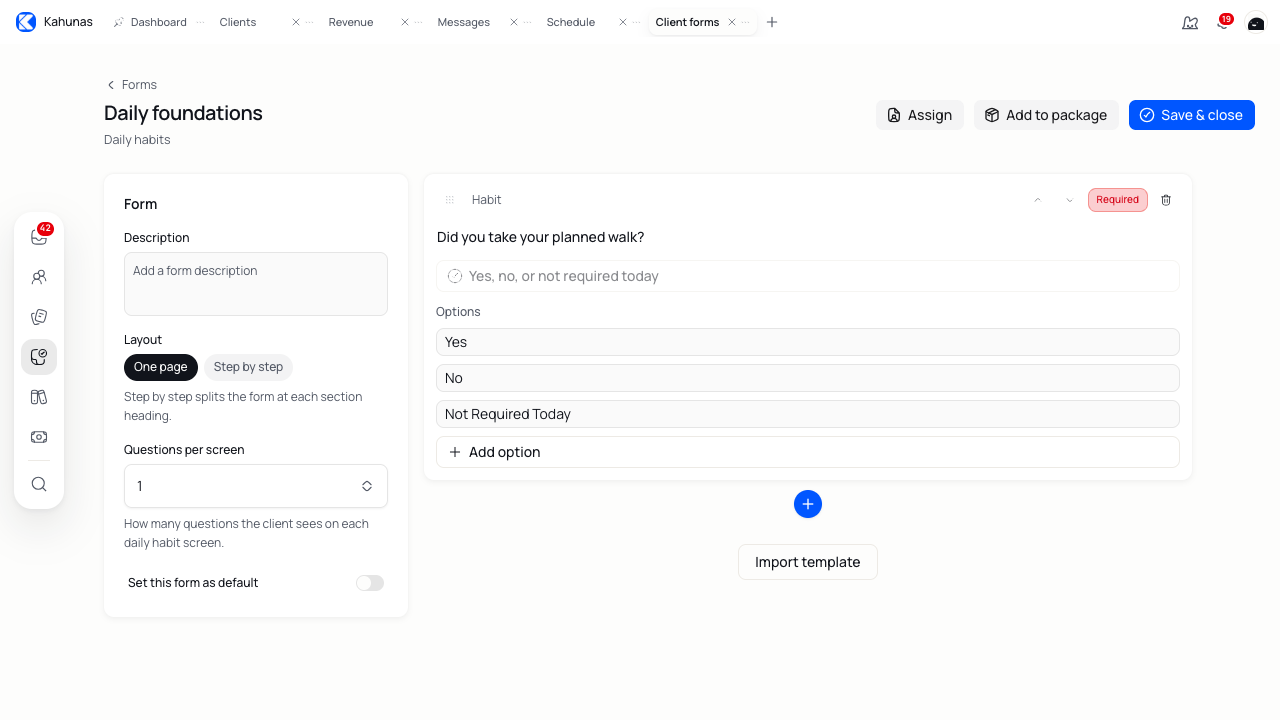
- Enter a specific Question label, such as Did you take your planned walk?
- Choose Required if the client needs to answer it, or Optional if they can leave it blank.
- Review the answer choices: Yes, No and Not Required Today.
Use Not Required Today for an action that was not part of that day's plan. A client who needed to do the action but did not complete it should choose No.
Choose the right question type
Daily habits supports eight question types.
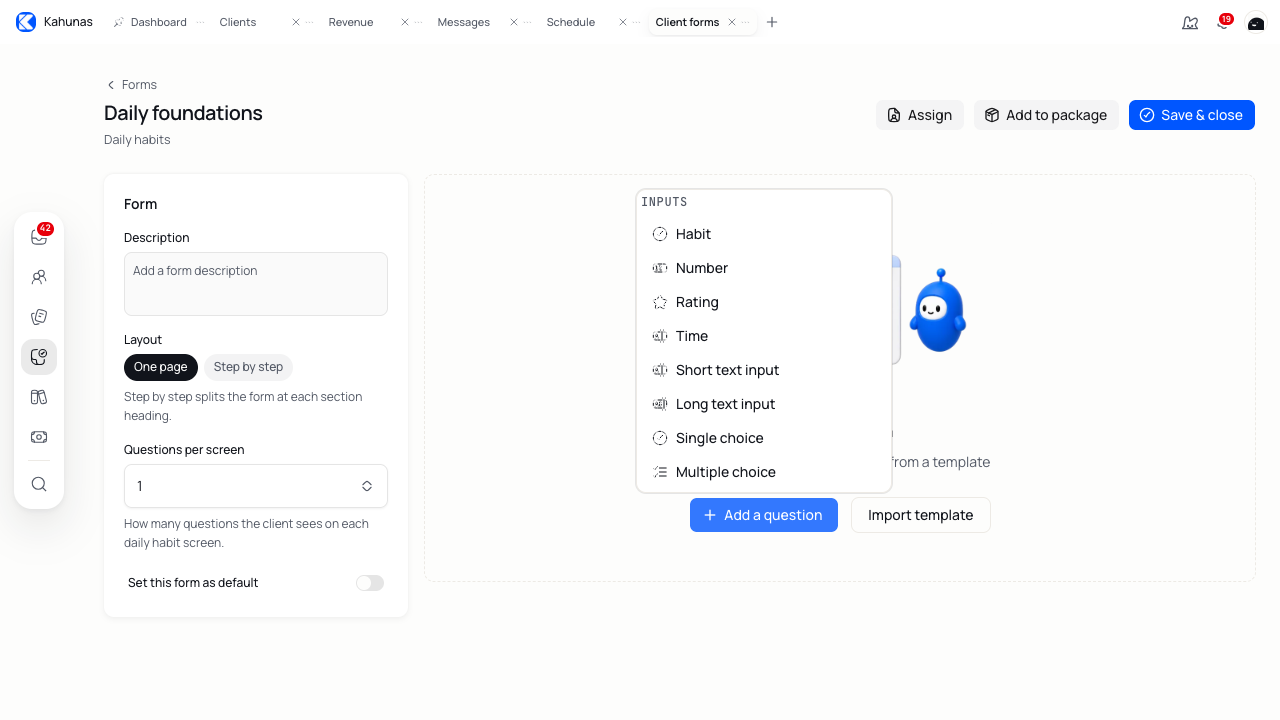
| Question type | Use it for | Example |
|---|---|---|
| Habit | An action with Yes, No or Not Required Today answers | Did you take your planned walk? |
| Number | A number you want to track | How many steps did you take? |
| Rating | A score | How was your energy today? |
| Time | A time or duration | How long did you sleep? |
| Short text input | A brief answer | What helped you stay on track? |
| Long text input | More detail or context | Tell me about anything that made today difficult. |
| Single choice | One answer from your list | Low, steady or high energy |
| Multiple choice | More than one answer from your list | Which meals did you prepare at home? |
Include units in number questions, such as kilograms or minutes. For a rating, explain what a low or high score means so you and your client read it the same way.
Edit choices and arrange questions
For choice questions, enter the answers under Options. Use Add option to add another answer, and replace the placeholder text before saving.
Select a question to edit its label or required setting. Use Move up and Move down to change the order, or drag its reorder handle. Use Delete field to remove a question you no longer need.
Keep related questions together. For example, ask about sleep duration and sleep quality before moving on to activity.
Set how many questions clients see
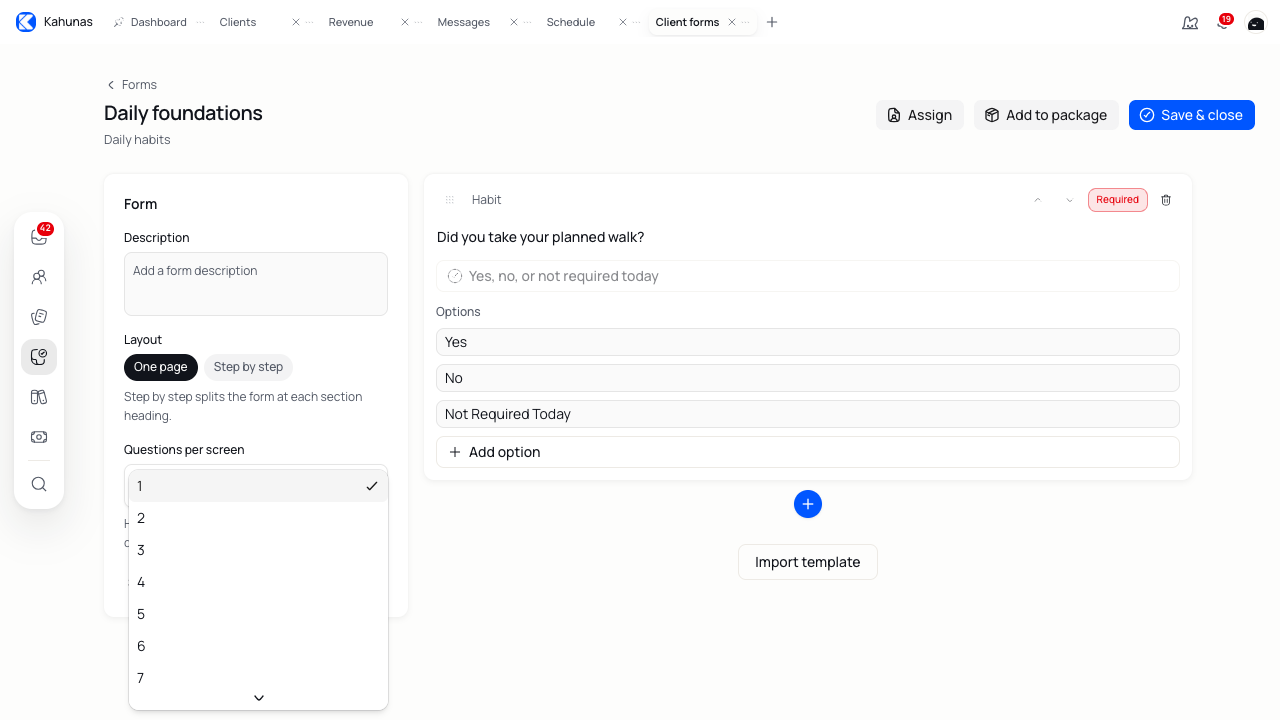
Use Questions per screen to choose between 1 and 10 questions on each daily habit screen. One question per screen keeps the task focused; a few short questions together can reduce the number of screens.
You may also see Layout choices for One page and Step by step. Use Questions per screen to control the daily habit logging screens. Accounts using the older mobile app do not show these layout settings.
Review your form
Read through the questions in the builder. Check the wording, order, required settings and answer choices. Replace labels such as Number with the question you want to ask.
Read the form as your client would: can they tell what to record, which units to use and when to choose Not Required Today?
Save and reopen the form
Select Save & close. After Form saved, you return to the library. Reopen the form and check that your changes are there.
Daily habits forms do not need a separate publish step. Save the form before assigning it.
Choose a default form
Turn on Set this form as default if you want this to be your default daily habits form. Confirm the change if Kahunas asks you to replace another default.
This setting saves when you change it. It does not save your question edits or assign the form to existing clients. Use Save & close for question changes and Assign for assignments.
The first active daily habits form you create can become the default. Check the default badge before changing another form.
Assign the form to clients
- Open the saved form and select Assign.
- Search for and select the clients who need it.
- Review the existing-assignment summary.
- Choose Add or Replace, where offered.
- Select Assign form. Look for Form assigned before leaving.
Add keeps the client's other daily habits forms. Replace ends their existing daily habits assignments and assigns this form. Accounts using the older mobile app use replacement only.
You can also assign a form from the client's Plans & Forms tab. When inviting a new client, review the daily habits selection before sending the invitation. See Adding a new client.
Daily habits use a daily cadence. You do not need to set a check-in weekday for this form.
Assign to a package's current clients
Use this when the clients already belong to the package and you want them to use the same daily habits form.
- Open the saved form and select Add to package.
- In Attach to package, choose the Package.
- Review the client count and any existing assignments.
- Select Assign form and confirm the replacement warning if one appears.
This replaces daily habits forms for the package's current active clients within your access. It does not set the package's form for future clients.
Choose a form for future package clients
- Open Revenue → Packages and edit the package.
- Go to Attach coaching resources.
- Choose your form under Daily habit.
- Review and save the package through its remaining steps.

Kahunas uses this package choice when setting up future clients. Saving the package does not change daily habits assignments for its current clients. Use Add to package in the form builder for those clients.
See Creating a coaching package for the full package setup.
Review daily logs
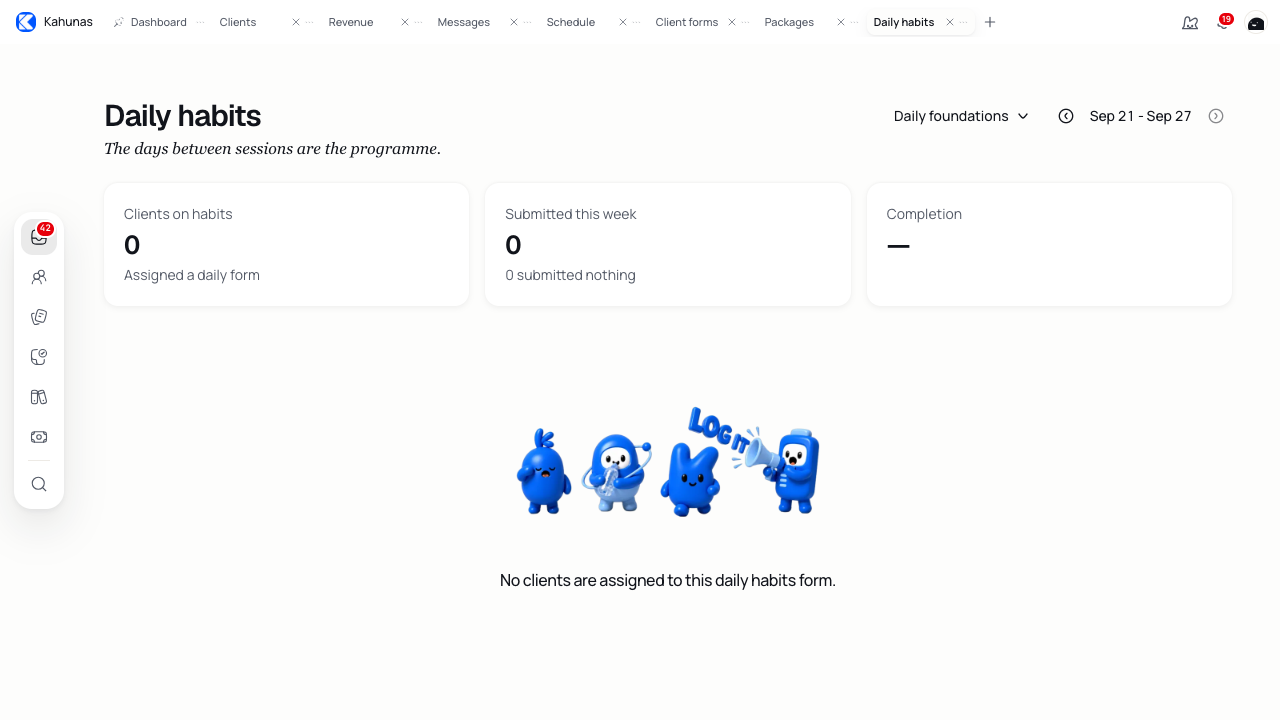
- Open Inbox → Daily habits.
- Choose All forms or a specific Daily habits form.
- Use Previous week or Next week to reach the week you want to review.
- Search for a client or use Submitted this week and Nothing submitted to narrow the list.
- Select a client row to open their Habits page.
A submitted day means the client logged their form. It does not mean they answered Yes to each habit. Read their answers before deciding what to discuss.
The summary cards describe the selected form and week. Searching for one client or changing the submission filter narrows the list without changing those totals.
Read an individual client's week
On the client's Habits page, review their answers across the week. The page shows habit completion, numeric averages, notes and summary figures such as Best streak and Missed days.
| Day status | Meaning |
|---|---|
| Logged | The client submitted a daily habits log. Read each answer for the result. |
| Missed | A due day passed without a log. |
| Not yet due | The day is not due for a log yet. |
| Before the form was assigned | The client did not have this form on that day. |
Use Previous week to look back at earlier logs. Open a long text answer to read the full response.
If you assign more than one daily habits form, the page may show a notice that other active forms are not included in this view. Use the form selector in Inbox → Daily habits when reviewing submission activity for a particular form.
Reply about a recorded day
Select an answer in the client's habit grid to open the message panel. Check the day and logged answer, then write your Message or choose a quick reply and edit it.
Select Send when the message is ready. The client receives it in their chat with context from that day's log. You can find it in Messages after Reply sent appears.
Use the client's chat for a general follow-up if there is no recorded submission to reply to.
Correct a recorded answer
If you need to fix an answer, select its cell and choose Edit value where available. Enter the correction. For a number or text answer, press Enter or leave the field to save; press Escape to cancel an unsaved edit. Choosing an answer from a list saves that choice.
Check the value after saving. If you see Could not save this cell, correct any validation issue and try again.
Some older records are read-only. You can correct an editable submission, but this control does not create a log for a day the client missed.
Stop a client's daily habits assignment
Open the client's Plans & Forms tab, find the daily habits form and use its Remove action. Check the form name before selecting Remove. Assignment removed confirms the change.
This ends that client's assignment. The form stays in your library for other clients.
Edit, duplicate or retire a form
In Intake → Client forms → Daily habits, open the form's actions menu.
- Edit form changes the existing form. Save your changes before leaving.
- Duplicate creates a separate copy. Rename it and check its questions before assigning it. The copy does not become the default.
- Archive removes an unused form from your active library while keeping its links to past records.
- Restore brings an archived form back to the active library.
- Delete removes the form permanently. Use Archive if you may need the form again.
You must remove or replace active assignments before archiving or deleting a form. If it is the default and you have another active daily habits form, choose a new default first.
When you remove a question from an active form, it can disappear from that form's current habit view even though Kahunas retains the stored answer history. Duplicate a form before making a separate version for a different coaching need.
If something doesn't look right
Save asks you to rename a field. Select the new question, replace its generic Question label and save again.
You cannot find the form. Check the Daily habits tab and the library's status filter. A check-in form appears under a different form type.
The client has no habits to record. Check their Plans & Forms tab. Creating a form or marking it as the default does not assign it to that client.
There are no clients in the package assignment. Check that the intended clients have an active assignment to the selected package and that your account can access them.
The log list looks empty. Check the week, form selector, client search and submission filter. New assignments do not create past logs.
An archived form will not restore. Kahunas blocks restoring an archived default when another active default exists for daily habits. Contact support if you need help restoring that form.
Daily habits will not load. Select Retry. If the problem continues, contact support with the page and action that failed.