







Creating an education course
Turn advice you repeat into a course clients can work through. Group related lessons into modules, add videos or written guidance, and choose who gets access.
Read video transcript
Open Content, then Education. Choose New course. Add a title and description, then select Next. You can add a cover later. Leave packages unselected and create the course. Return to your courses. Reopen your course. Your draft is saved, ready for modules and lessons.
Before you start
Open Content → Education. A course contains modules, and each module contains lessons. For example, “Coaching foundations” could include a “Getting started” module with a “Your first week” lesson.
Your account needs Education enabled. Clients use courses in the web app; Education is unavailable with the legacy mobile app setup.
Create your draft course
- Select New course.
- Enter a Title and optional Description.
- Choose a Navigation mode. Free navigation lets clients open lessons in any order. Fixed order requires them to select Mark complete on earlier lessons before later ones unlock.
- Select Next. Add an optional Cover image, or continue without one. For an uploaded cover, reposition and zoom the image before applying it.
- Select Next for Package. Choose packages to include the course in, or leave them unselected while you prepare it.
- Select Create course.
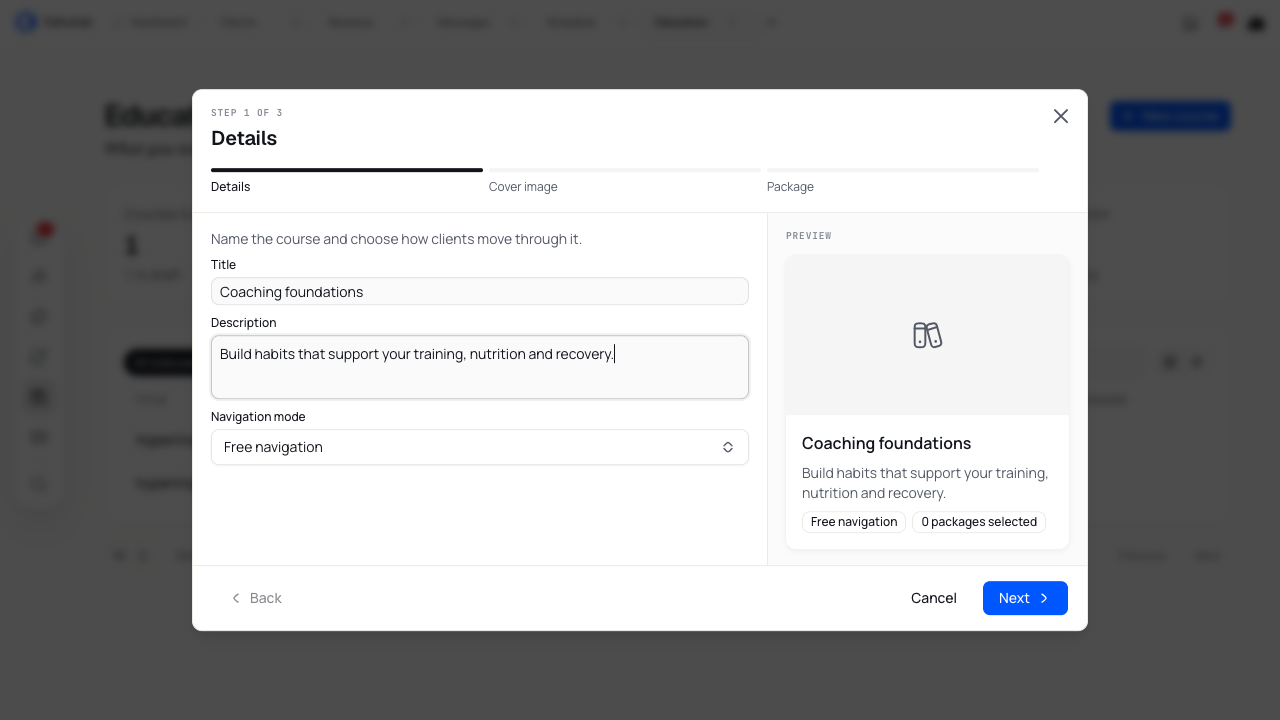
The course opens as Draft. You can return to the course list and reopen it while you build the content. Clients cannot open a draft course, even if you have linked a package.
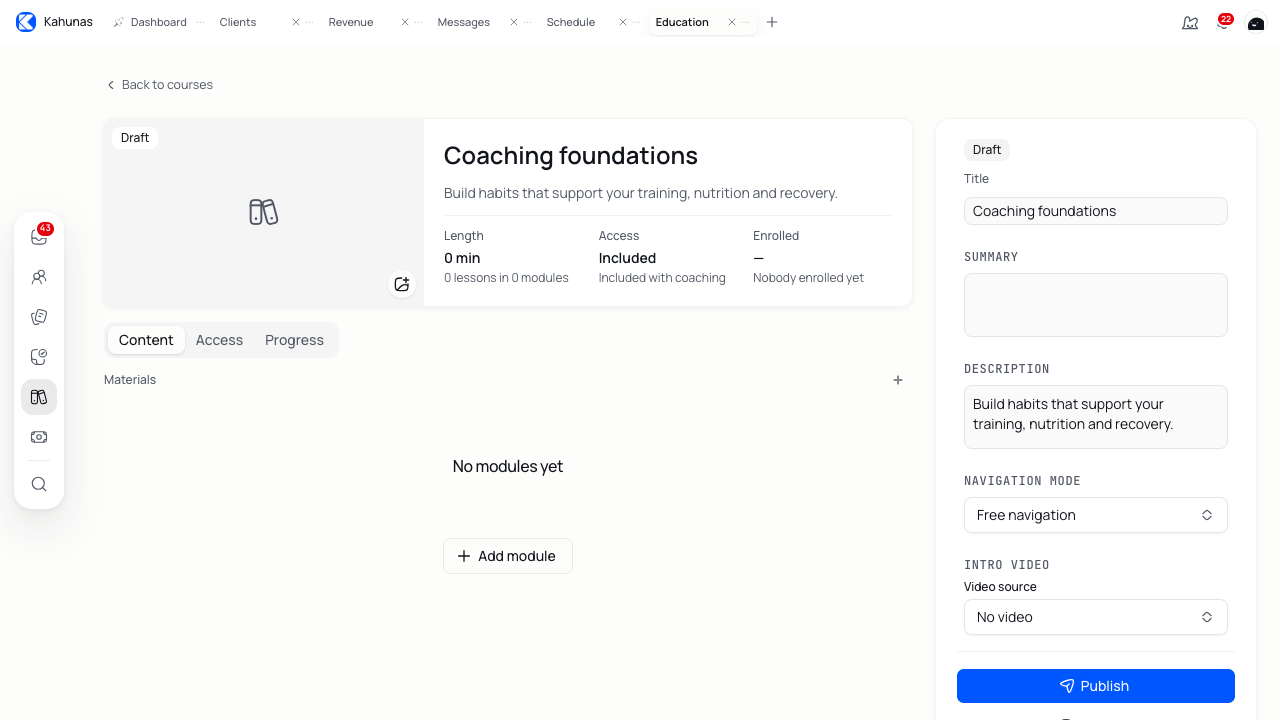
Group your lessons into modules
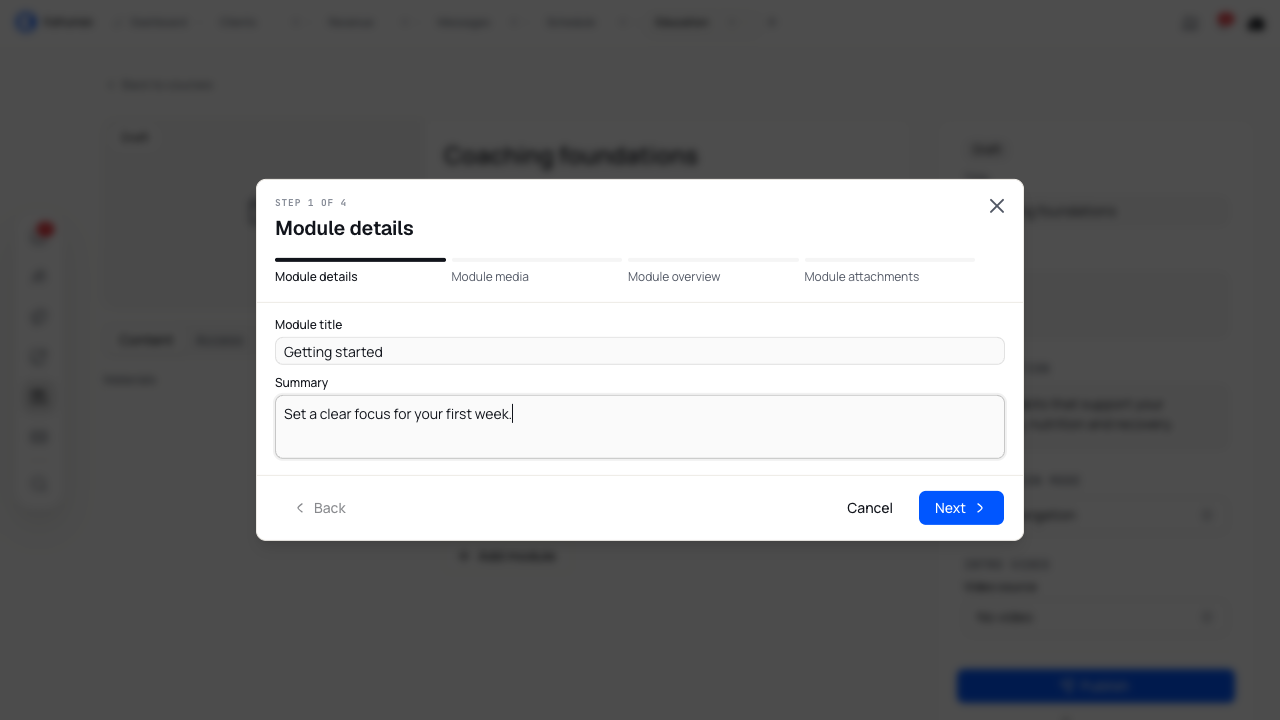
On the Content tab, select Add module. Enter a Module title and optional Summary, then work through the four steps:
| Step | What to add |
|---|---|
| Module details | The module's name and a short explanation. |
| Module media | An optional video or audio introduction and cover image. |
| Module overview | Written guidance for the module. |
| Module attachments | Files or links clients will use across its lessons. |
Select Save on the final step. The module starts as Draft.
Add a lesson
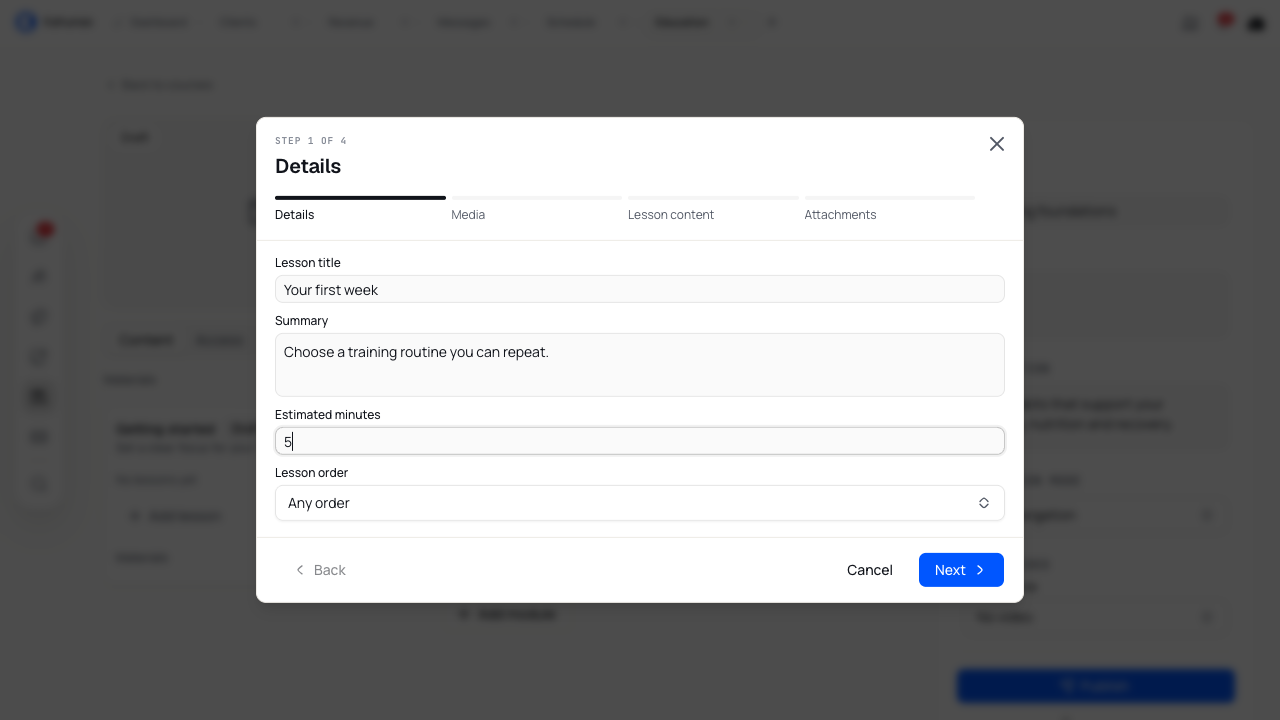
Select Add lesson inside the module.
- Enter a Lesson title and optional Summary.
- Add Estimated minutes if useful. Use a whole number greater than zero, such as 5.
- Check Lesson order: Any order matches free navigation, and Sequential matches fixed order. Saving a different choice changes navigation for the whole course.
- Continue through Media, Lesson content and Attachments.
- Select Save on the final step.
For media, choose None, YouTube, Vimeo, Upload or Audio. Paste a supported video link or upload the file you need. Choose one primary video or audio source; you can also add a cover image.
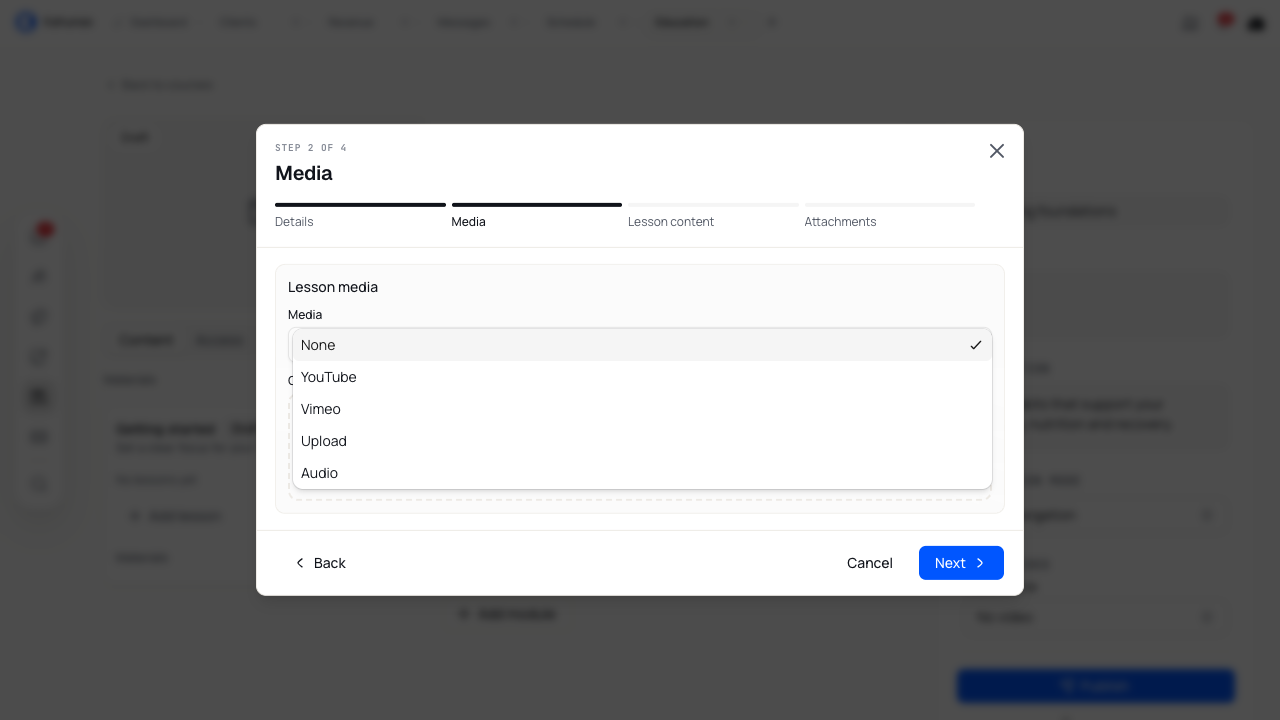
In Lesson content, write the explanation and the action you want the client to take. Use headings, lists or links to make longer lessons easier to follow.
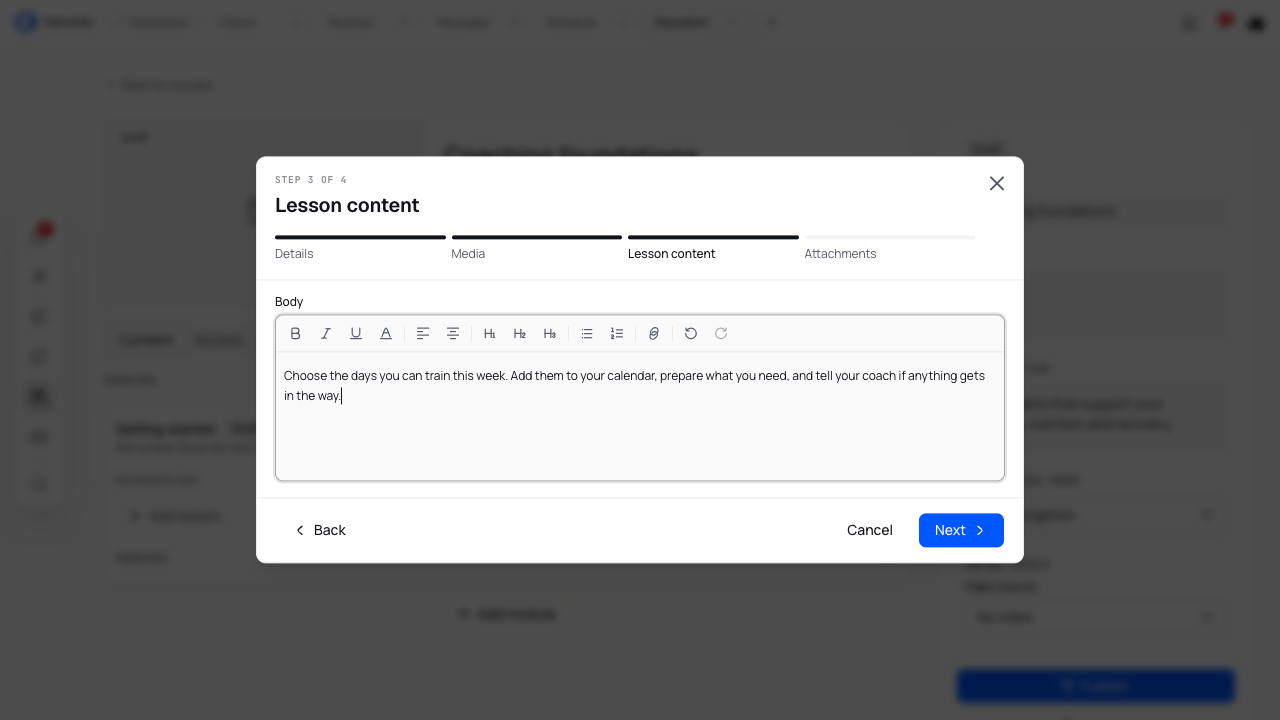
A lesson needs body text, video, audio or a material before you can publish it. A title, summary or cover image alone is not enough.
Attach useful resources
Use Add material at course, module or lesson level. Put a resource where clients will need it: a course workbook at course level, for example, or a worksheet beside its lesson.
Choose Upload file or External link. For a link, enter a Material title and a valid https:// or http:// Material URL, then select Save. Review uploaded file details before saving them.
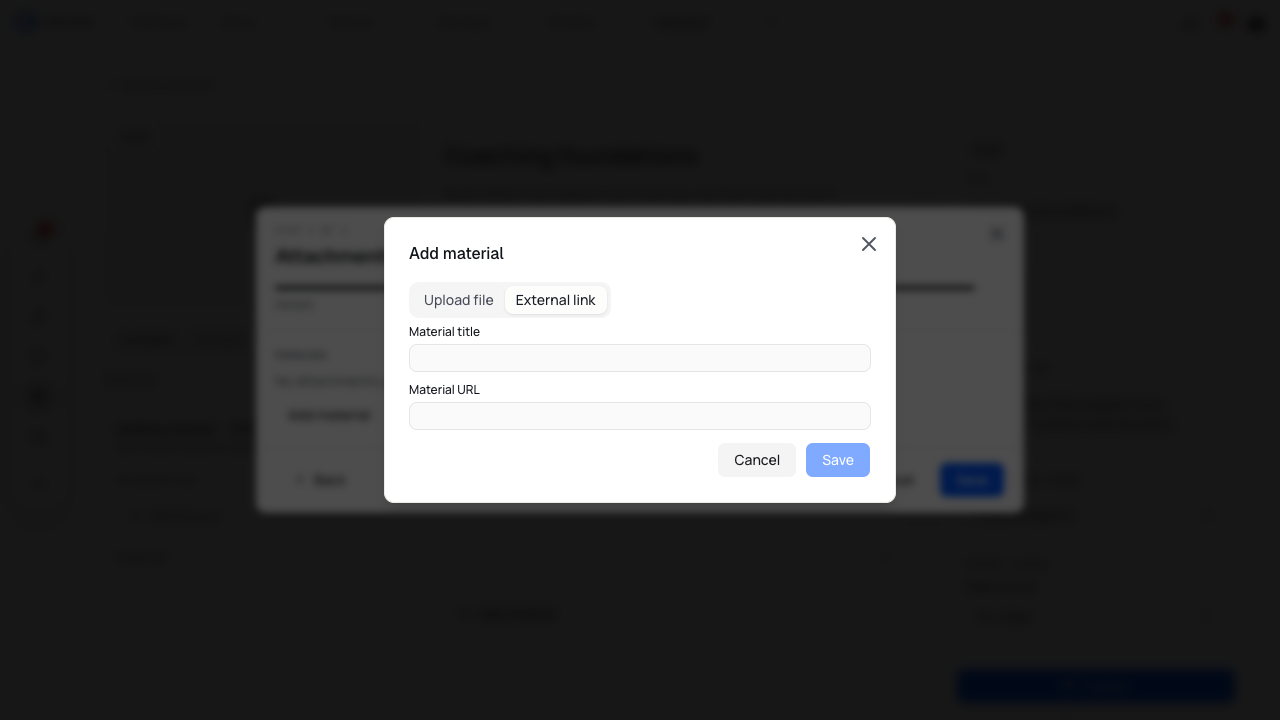
In a new module or lesson, attachments stay staged until you save the main wizard. If some attachments fail, keep the wizard open and select Save again to retry the remaining items.
Publish the content, then the course
Review the lesson text, media and materials before you publish:
- Open each lesson's More actions menu and select Publish.
- Publish its module from the module's More actions menu.
- Select Publish in the course settings panel.
The course needs at least one published module containing a published lesson. You can prepare the rest as drafts and publish them when they are ready.
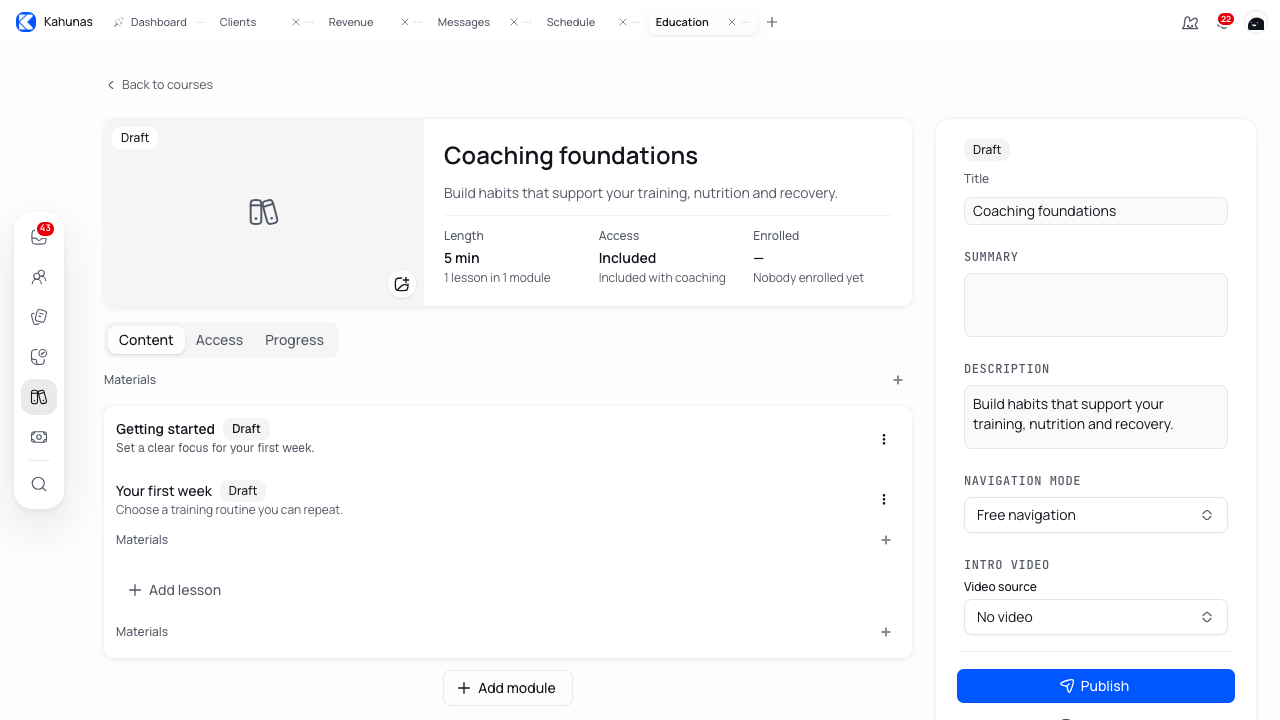
Use Move up or Move down in a module or lesson's menu to arrange the course. Review the warning before moving published content: changing the order can change which lessons clients can open in a fixed-order course.
Choose who gets access
Open the course's Access tab. Publishing and access are separate: a client needs a published course and either a manual grant or access through a linked package.
Include the course in a package
Under Packages, select the packages that should include the course, set any Drip delay, and choose Save package links.
Drip delay is the number of days after the client's package assignment. Leave it blank for Immediately, or enter a whole number of days, such as 7. The client needs an active package assignment that has not ended, and any delay must have elapsed.
You can link a draft course while preparing a package. Clients still need the course published before they can use it. See Creating a coaching package for the package setup.
Grant access to a client
Under Manual access, search for an active client, select them and choose Grant access. Use Revoke to remove a manual grant.
Check both access sources before removing access. Revoking a manual grant does not remove access through a linked package, and unlinking a package does not remove an active manual grant.
Check progress and missing access
Open Progress to see clients' access sources, completed lessons and course completion. Clients record lesson completion with Mark complete. Watching a video alone does not mark the lesson complete.
Progress reflects the course's current published lessons. Adding, removing or reordering content can change what clients still need to complete. Losing access preserves their recorded progress.
If a client cannot open the course, check:
- The course, relevant module and lesson are published.
- The client has a manual grant or an active linked package assignment.
- Any package drip delay has elapsed.
- In a fixed-order course, the client has completed the earlier lessons.
If course creation reports a cover or package failure, reopen the course it created and finish those settings there. Check the course list before creating another copy.
Update or retire a course
In the course settings panel, update the title, summary or description, then leave the field to save the change. Navigation mode saves when you change it. You can also replace the cover and add an introduction video.
Use More actions → Edit on a module or lesson to reopen its wizard. Save on the final step. Check the client experience after changing published content, especially its order or media.
Use Unpublish when you need to take published content offline. Unpublishing a course removes client access until you publish it again. Use Archive to retire a course, module or lesson, and read the confirmation before continuing.
Kahunas limits deletion to content with no publication or client-use history. If it asks you to archive instead, keep the history by archiving. A course's past grants, package links, published children or client progress can prevent deletion even while the course shows Draft.