
Responding to a client data request
When a client asks you for a copy of their data, you log the request in Settings → Client data requests. Kahunas starts a one-month deadline, keeps a history of what you did, and gives you the tools to answer it.
This guide is about your clients' data. If you want a copy of your own coach account data, see Your own data.
Read video transcript
When a client asks for a copy of their data, open the menu from your avatar and choose Settings. Select Client data requests, then New request. Choose the client, and pick Copy of their data. Once you have confirmed it is really them, tick the confirmation box and select Create request. Then generate the export, and send your client their download link.
Before you start
Only the business owner can see Client data requests and handle these requests. If you are a team member, ask the owner.
You also need a way to be sure the person asking is really your client. Kahunas does not check this for you. You confirm it yourself and record how you did it.
Log a request
- Select your avatar at the top right, then choose Settings.
- Select Client data requests.
- Select New request.
- In Search clients, type a name or email, then choose the person in Client.
- In What are they asking for?, choose Copy of their data.
- In How they asked, choose Email, In person, In app or Other.
- In Who's asking?, choose The client themselves. If someone is asking for them, such as a parent or a lawyer, choose Someone acting for them (e.g. a parent or lawyer) and describe who they are in Details about the person acting for them.
- Add anything useful in Request details.
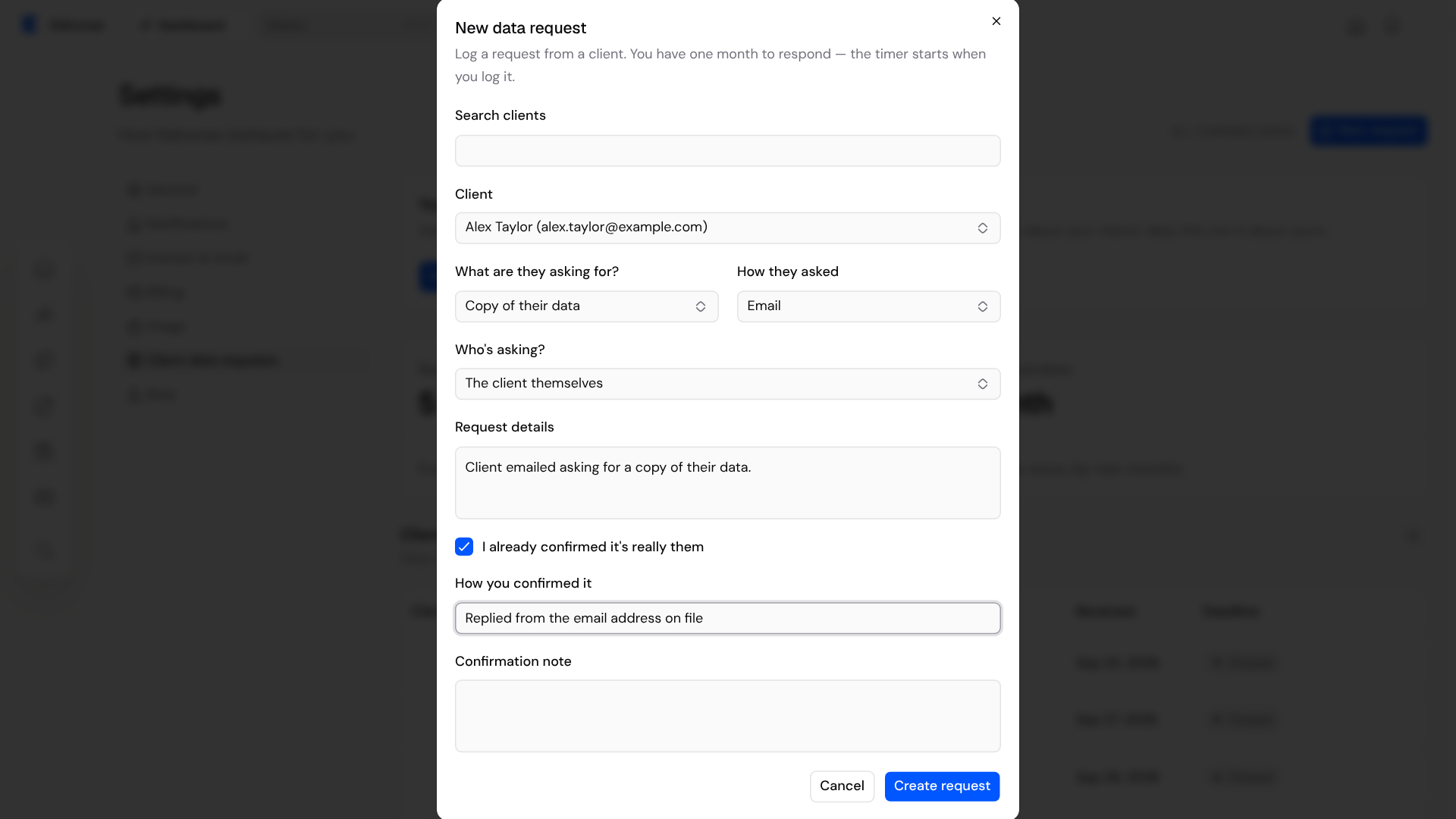
- If you have already confirmed it is really them, tick I already confirmed it's really them, then fill in How you confirmed it and, if you like, Confirmation note.
- Select Create request.
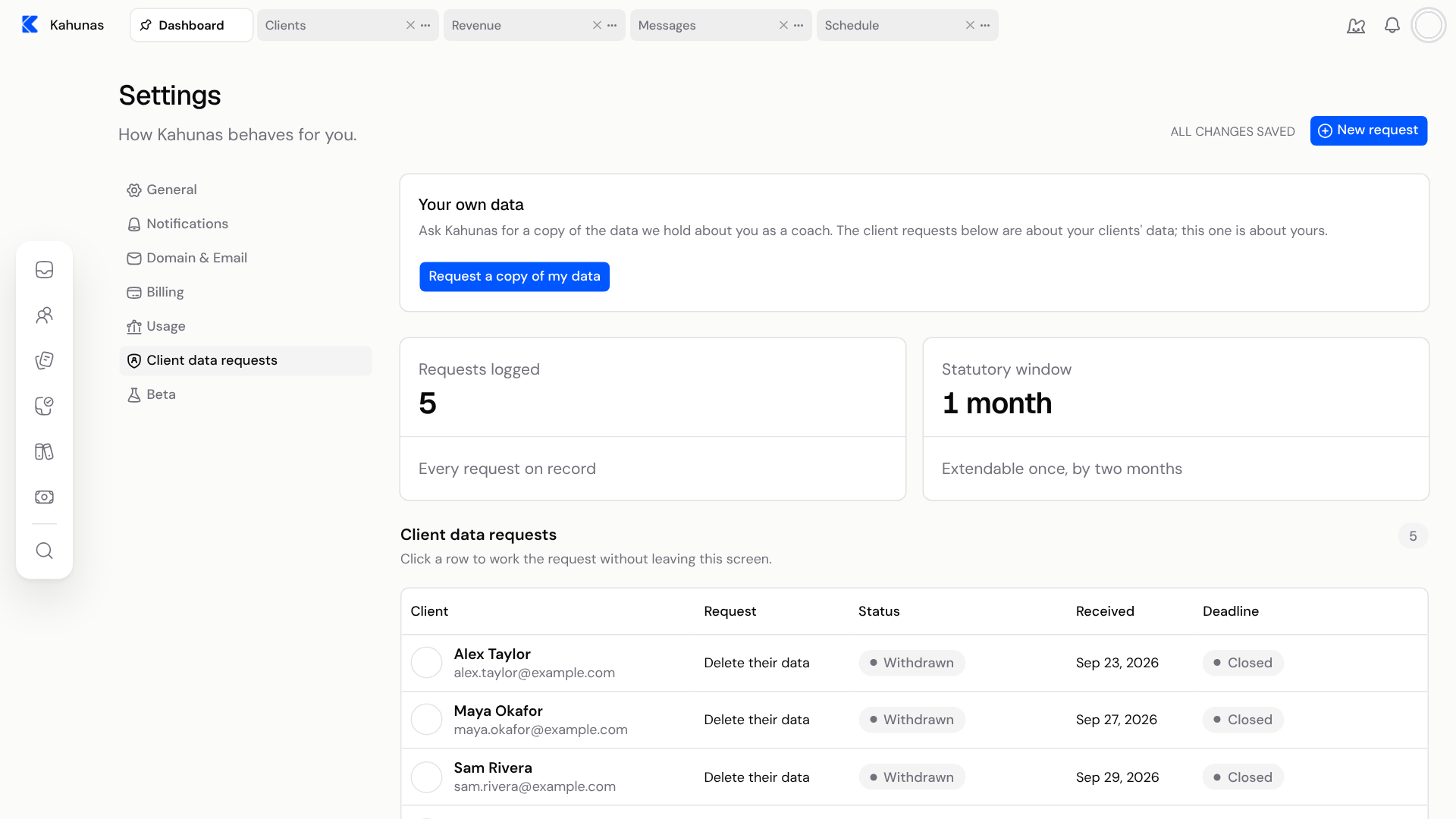
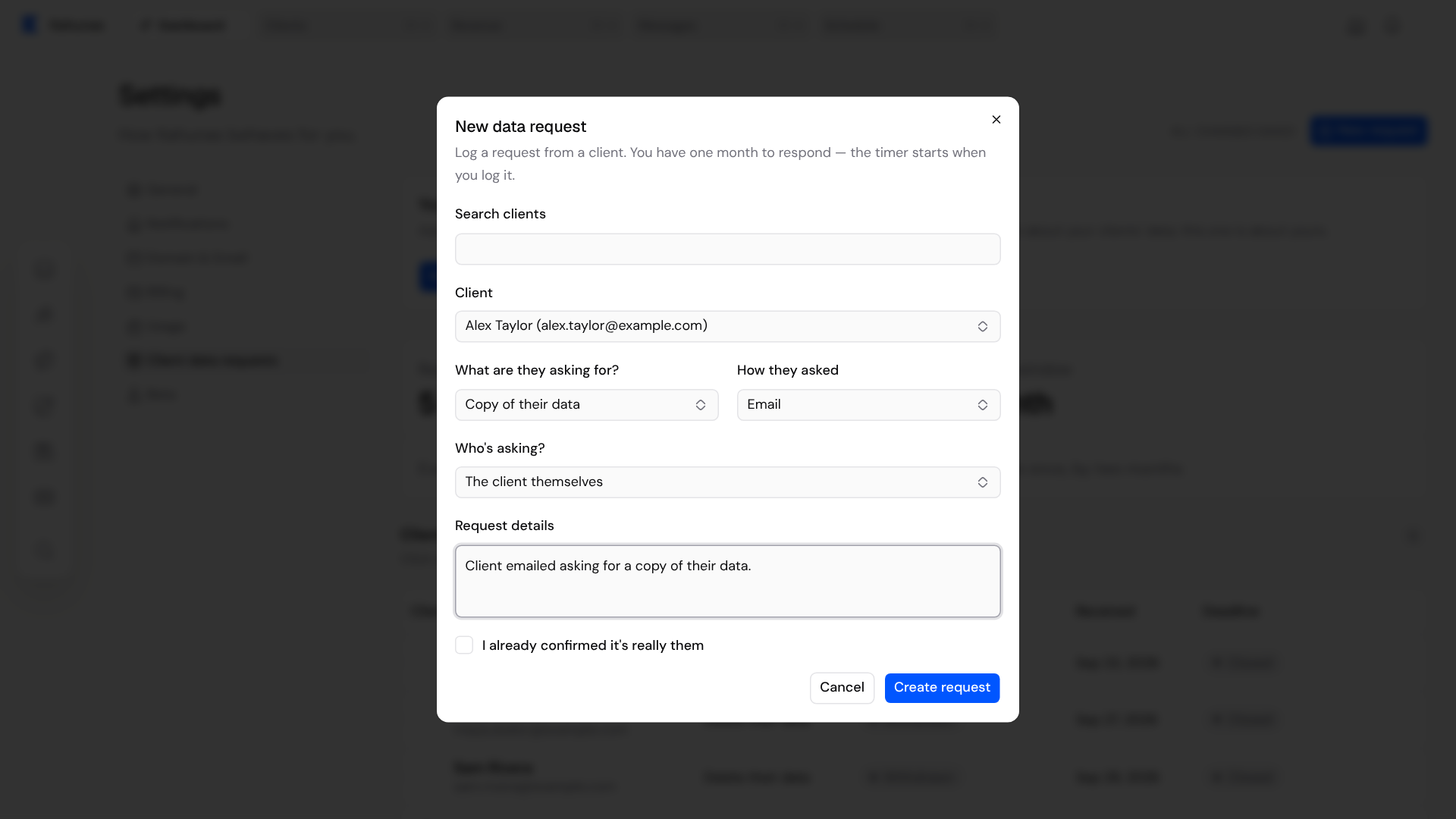
Select Create request only when a client has really asked. It starts the one-month deadline straight away. The form says: "You have one month to respond — the timer starts when you log it."
If you did not tick I already confirmed it's really them, you can confirm it later from the request, as the next section explains.
What you see in the list
Each request is a row with the Client, the Request, its Status, the date Received and the Deadline. Select a row to open it without leaving the page. The deadline badge shows how many days are left, and changes to Due soon, Due today or Overdue as the date gets closer. A request starts as Received, becomes Identity confirmed once you confirm who is asking, and ends as Completed, Refused or Withdrawn.
Above the list, Requests logged counts every request on record. Statutory window reminds you that the window is 1 month, extendable once, by two months.
Confirm it is really them
Before you create a copy of anyone's data, confirm who is asking. Open the request and find Confirm it's really them. Enter how you confirmed it under Method, add a Note if you want one, and select Confirm identity.
Until you do this, the buttons that create the copy are switched off, and the request says "Confirm it's really them before generating an export."
Create the copy and send the link
With the identity confirmed, open the request and look for the Copy of their data section.
- Select Generate export. The request shows "Preparing the download…" while Kahunas builds the copy. Larger accounts take longer, so come back to the request later.
- When it is done, the request shows Export ready, with a short summary of what is inside and a note saying Download available until a date.
- Select Download export to download the file yourself, or Send download link to client to email the client a secure link.
- If you need to send the link again, select Send a new link. This cancels the earlier link.
Select Generate new export if you want a fresh copy later. If an export fails, select Retry export. The failed attempt stays in the history.
About the download link
The link goes to the client's own email address, the one on their client record. If the client has no email on file, Kahunas says "No email on file" and cannot send it.
- The link works for 72 hours from the moment you send it. After that, select Send a new link. The request shows "The link works until" with the exact time.
- Within those 72 hours the client can download again if a download is interrupted.
- The copy itself is kept for 30 days. A link can never last longer than that.
- Sending a new link stops the old one working.
- The history shows Download link email queued. That means Kahunas handed the email on to be sent. It does not tell you the email reached the client's inbox.
What is in the copy
The copy is a zip file. It holds the client's own records from your business, such as their profile, check-ins, form answers, workout and nutrition logs, health measurements, goals, payment records, and the photos and files they uploaded. A manifest file lists everything that went in, and what was left out and why. The request shows a summary, such as how many records and media files are included.
Some things are left out on purpose. Sign-in credentials and connection secrets for other services are removed. Records that mainly belong to another person, such as your coach-side settings, stay out.
Chat messages are not in the copy yet. The summary does not list any messages, and the manifest marks chat as not included. If a client asks for their conversations, tell them that chat is not part of this download.
The deadline
You have one month from the day you log a request. The date is on the request under Due. If you need more time, open the request, write why in Why you need more time, and select Add 2 more months (you must say why). You can extend a request only once.
Finish or close a request
Open the request and use the buttons in the actions area:
- Mark completed when you have answered the client. You can complete a request only after you have confirmed the person's identity. A request cannot be completed while an export is still running.
- Refuse request if you cannot act on it. Say why in Why you're refusing.
- Mark withdrawn if the client changes their mind.
- Add note to record anything useful.
If you have shared the client's data with anyone else, use Record who you told to note that you told them about the request. Everything you do is added to the History at the bottom of the request.
Other kinds of request
What are they asking for? also offers Data to take elsewhere, Fix incorrect info, Delete their data and Pause using their data. They use the same form, the same one-month deadline and the same history. This guide covers Copy of their data.
If a client has asked you to pause using their data, edits, plan changes, coach messages and automations for that client are blocked until you resume it in Settings → Client data requests.
Clients who use the Biomtrx app can ask for their data to be deleted in the app. Those requests appear in your list, marked In app.
Your own data
At the top of Client data requests, the Your own data card is about you as a coach, not your clients. Select Request a copy of my data. A confirmation says that Kahunas support will prepare a copy of your account data and email download links to your sign-in email address within one month. Select Request copy to send it, or Cancel to close it.
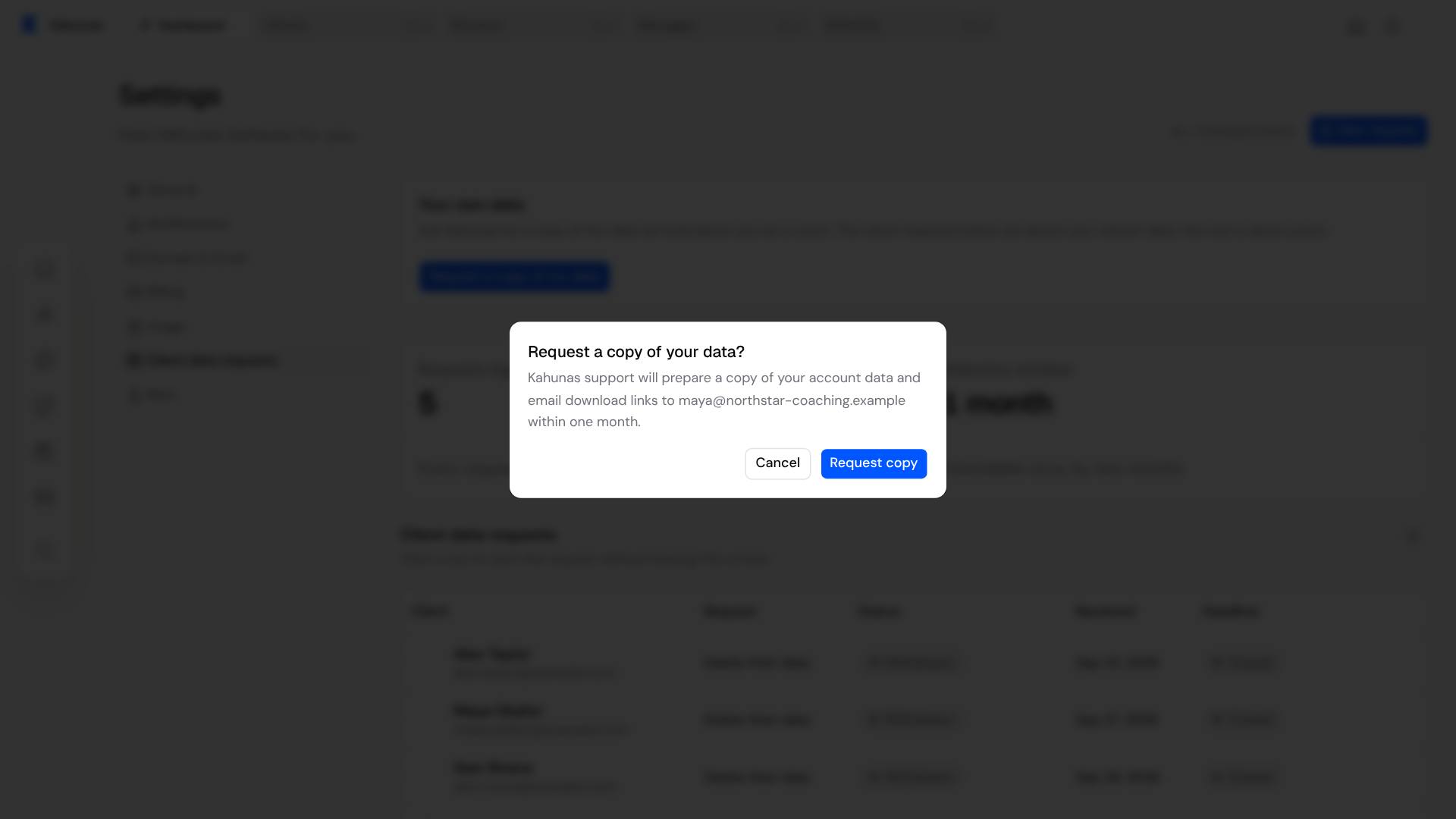
The card then shows where your request is: Requested, In progress, Ready or Closed. You can have one open request at a time. When Kahunas support closes it, you can ask again.
If something looks different
| What you see | What it means |
|---|---|
| No Client data requests in Settings | Only the business owner sees it. Ask the owner, or create a ticket from Support in your account menu if you are the owner and it is missing. |
| Owner access required | You are signed in as a team member. Ask the owner to handle the request. |
| Not available while impersonating | Client data requests cannot be viewed or managed from a support session that is acting as the coach. |
| The export buttons are switched off | Confirm the client's identity first. |
| No email on file | The client has no email address, so Kahunas cannot send the link. Use Download export and share the file another way. |
| Link no longer valid | The link expired or was replaced. Select Send a new link. |
| Export already running | Wait for the current export to finish before starting another. |
| Request already open | You already have an open request for a copy of your own data. |
Screenshots show the English interface with example data.
If you still need help, create a ticket from Support in your account menu and say where you got stuck.
Managing documents and signatures
Write coaching agreements, choose your default terms, keep every version and see which clients still need to sign in Kahunas.
Which wearables clients can connect
Help your client find Wearables, connect a fitness service or use Apple Health and Health Connect through Biomtrx.