







Workout Programs
Build a program around your client's training days. Add exercises and coaching notes, set the work for each session, then choose whether clients share one program or receive their own copy.
Read video transcript
Open Plans, then Training programs. Open your program and choose the workout. Select Add exercise. Search for the movement. Select the exercise you need, then choose Add. Set the sets and reps your client should follow. Review the workout, then choose Save and close. Reopen to check your changes.
Open your program library
Open Plans, then Training programs. Select Programs to find a complete program or start one with Program.
The other library tabs hold parts you can reuse:
- Workouts: individual sessions to add to a program.
- Blocks: saved circuits to add to a workout.
- Exercises: movements and their coaching details.
Use search and tags to find an existing program. Check Archived if you have put it away.
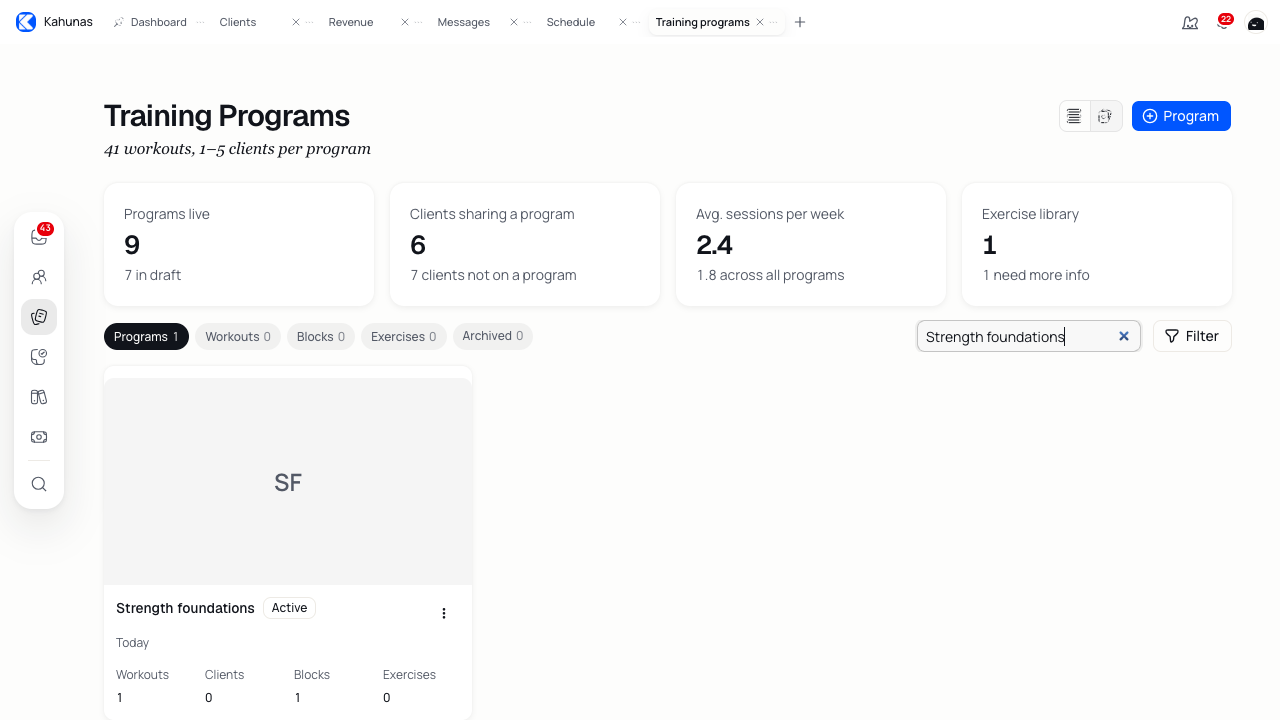
Name your program
- Select Program. If you see a choice of formats, choose Detailed.
- Select the program title and enter a name, such as Strength foundations.
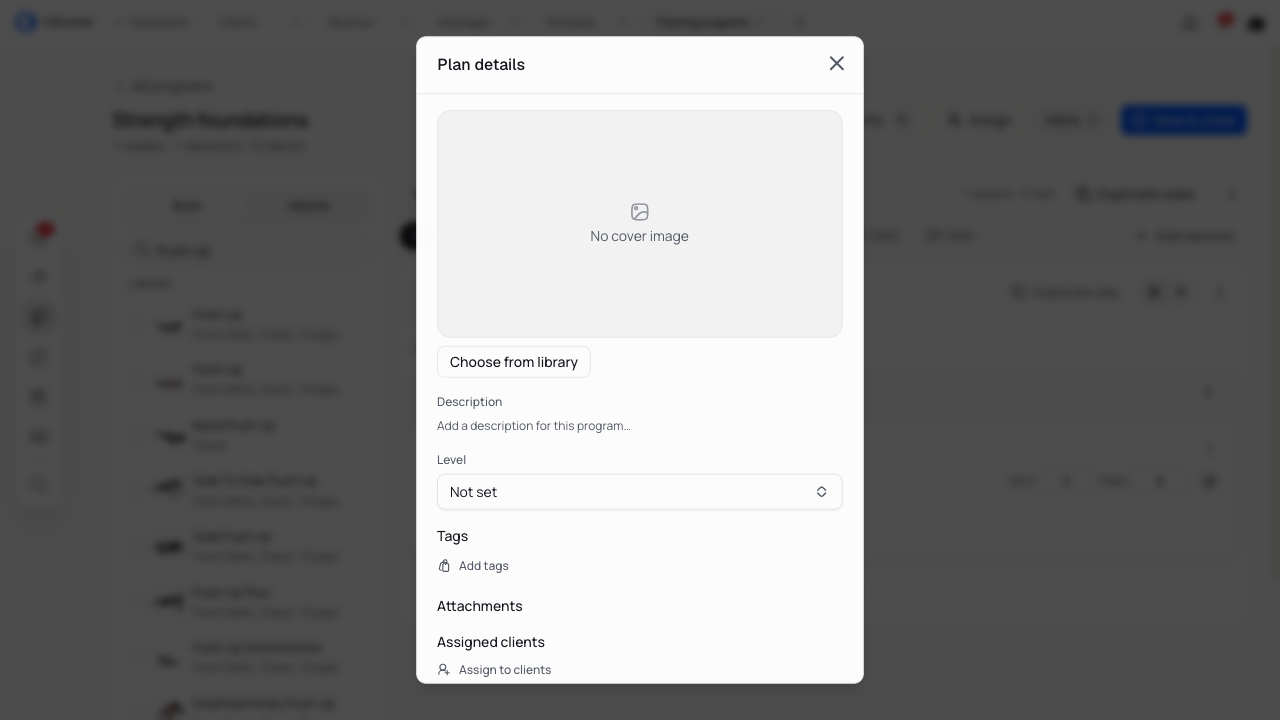
- Select More to open Plan details and add a description, level and tags.
- Name the first workout so your client knows what it covers, such as Upper body.
Use the description for instructions that apply to the whole program. Put session-specific instructions in the workout description.
Choose a program format
Some accounts offer three formats when you create a program:
| Format | Use it for |
|---|---|
| Detailed | A program with weeks, workouts, exercises and prescribed sets or other targets. |
| Simple | Written instructions in a program outline. |
| Upload | An existing PDF, Word document or spreadsheet. |
If Program opens the builder without this choice, continue with the detailed program.
Arrange the weeks
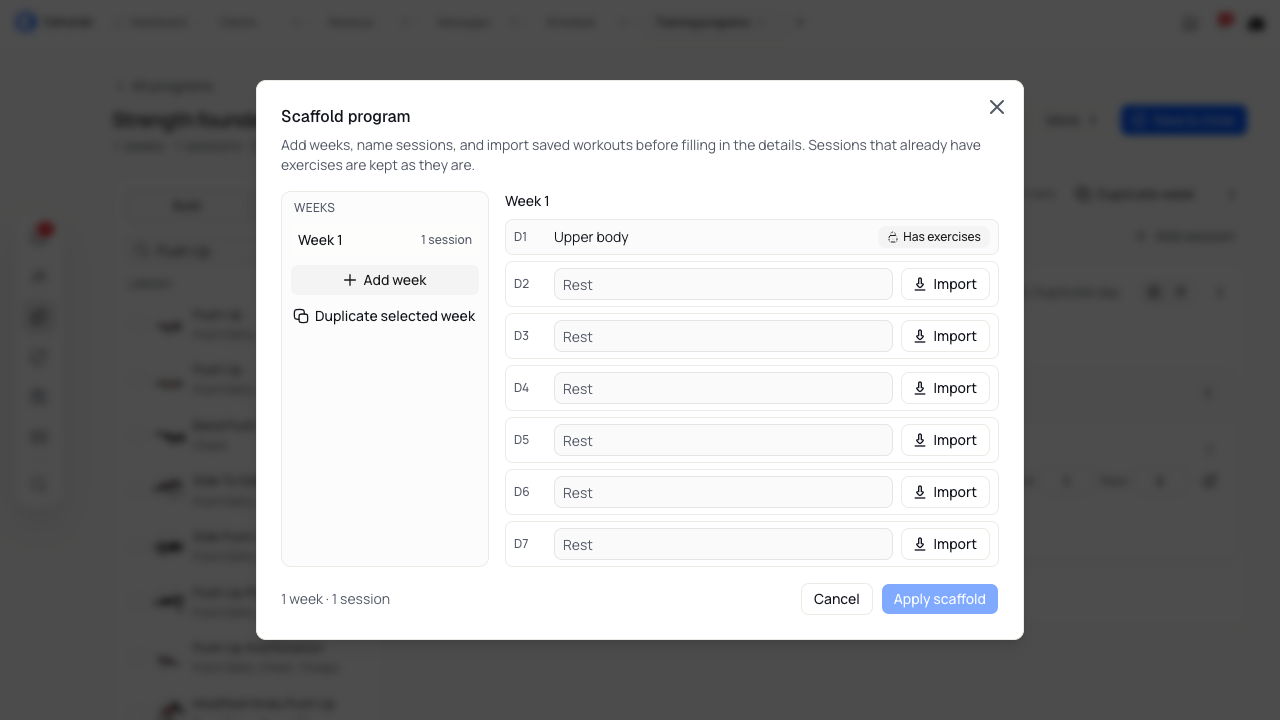
Use the week tabs to move through your program. Add another week with the plus beside the tabs. Select Duplicate week to reuse its workouts. Open the week's actions to delete it or use Scaffold to work on the program structure.
To build progression, duplicate a week and change the sets, reps or other targets in the new copy. Review the exercises and recovery days before moving on.
Use Scaffold to lay out several weeks and session names before adding exercise details. You can import saved workouts there. Keep the sessions you have already filled in; the scaffold preserves their exercises.
Arrange workouts and rest days
Select Add session and choose a day. You can add a second session to a training day or put a workout on a rest day.
Open a workout's actions to:
- Duplicate workout or Copy to other days…. The copy-to action skips days that already have a workout.
- Switch to rest day, or Restore workout to bring the workout back.
- Save workout as template for another program.
Use the drag handles to reorder sessions or move a workout to an empty rest day. Review the selected week after moving or copying a workout.
Choose a block
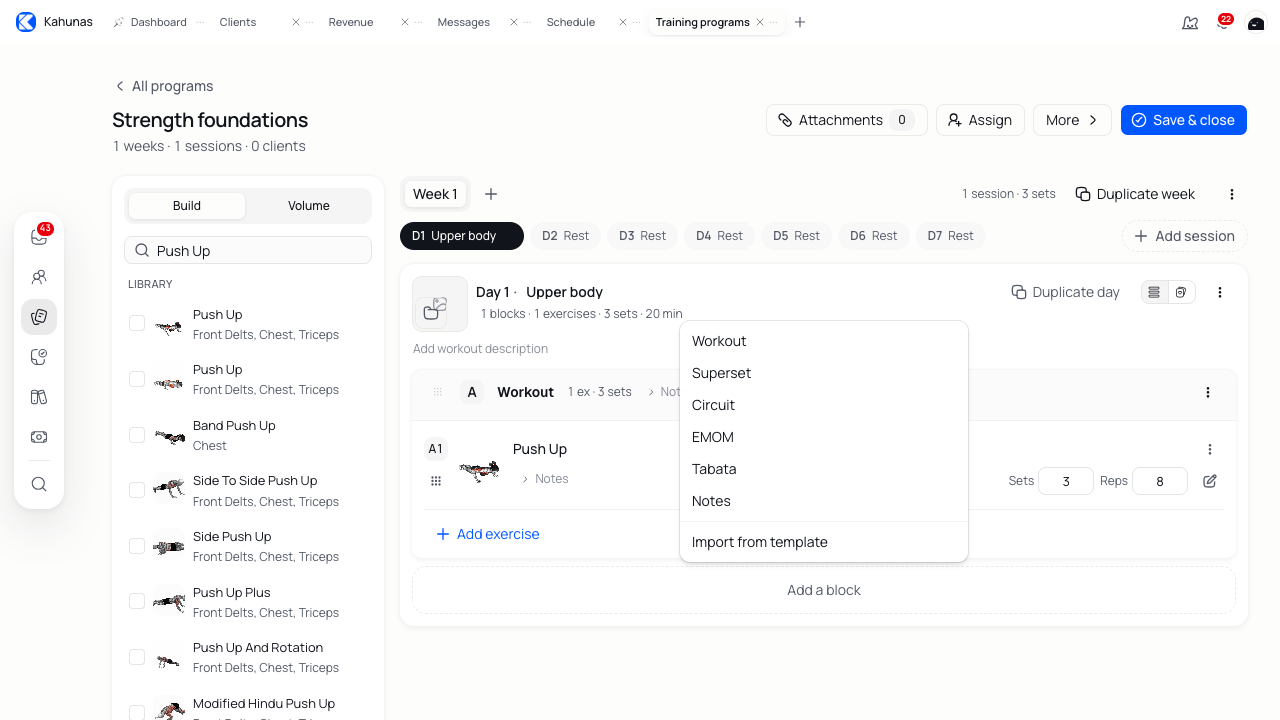
Select Add a block, then choose how the exercises should work together.
| Block | Purpose |
|---|---|
| Workout | Exercises performed in sequence, with sets and targets on each exercise. |
| Superset | Two or more exercises performed back-to-back. Set the work on each exercise. |
| Circuit | Exercises performed for a set number of rounds. Set rounds and rest for the block. |
| EMOM | Timed work that starts every minute. |
| Tabata | Repeated work and rest intervals. |
| Notes | Coaching instructions without exercise rows. |
Some accounts offer only Workout, Superset and Circuit. Use the options available in your builder.
Add at least two exercises to a superset or circuit before saving. Open the block's configuration to change its rounds or timing where those controls appear. Use notes to explain the order or pace you want your client to follow.
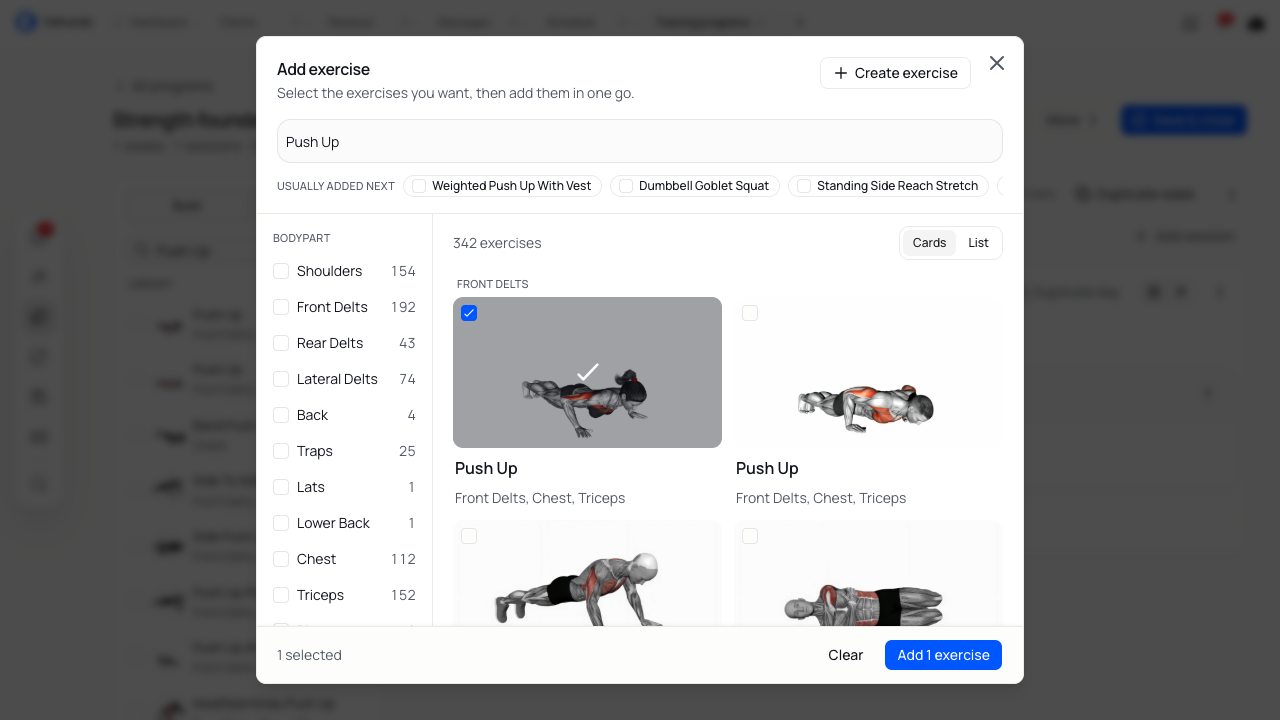
Add exercises
- Select Add exercise in the block.
- Search for the movement you want.
- Select one or more results from your library or the shared library.
- Select Add, which shows how many exercises you have selected.
- Check the exercise order in the workout.
Search again with a shorter name if you cannot find a movement. Read the exercise name and demonstration before choosing a similar result.
Set the work for each exercise
Edit the values in the exercise row. Select Edit fields to choose the targets shown in the row. Select the exercise name to open its full editor, where you can change its type, notes and media.
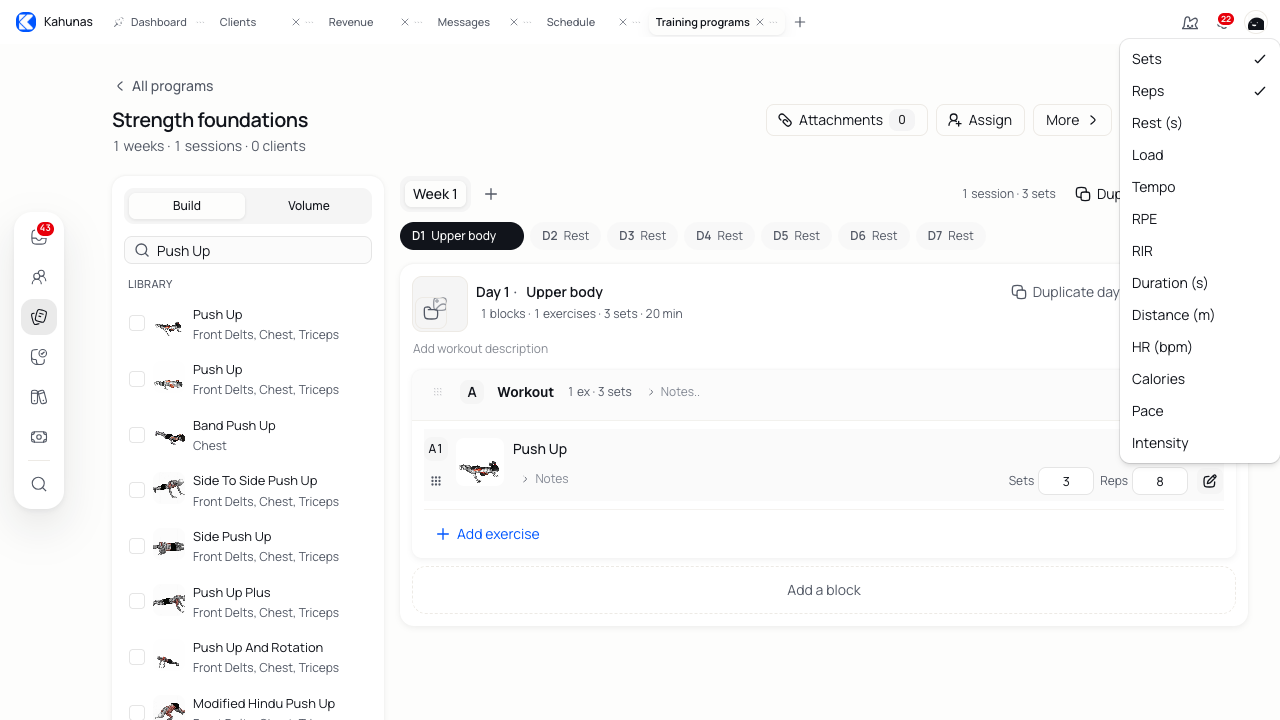
For a strength exercise, you might enter 3 under Sets and 8 under Reps. Add rest time, load, tempo or notes where needed.
You can use a rep range such as 8-12, or different rep targets by set, such as 12, 10, 8. Use AMRAP for as many reps as possible, Max or Failure only when that matches your coaching instruction.
Other fields include duration, distance, pace, intensity, heart rate and calories. RIR means reps in reserve; RPE means rating of perceived exertion. Explain unfamiliar targets in the notes so your client knows what to record.
Check any highlighted field before saving. Enter whole numbers for sets and rest seconds. Use a tempo such as 3010 or 3-0-1-0 when you prescribe one.
Change or reuse an exercise
Open the exercise's actions to choose Switch exercise, Copy to… or Remove.
Use Alternatives to review its swaps. Select Change swaps to edit the alternatives you offer.
For a block with several exercises, Apply to all in this block lets you choose which prescription fields to copy. Review the result on each exercise, since some fields may not apply to every movement.
Reuse workouts and circuits
Open a workout's actions and select Save workout as template. You can then find it in Workouts and import it into another program.
For a circuit, open the block's actions and select Save as template. You can reuse it from Blocks. To reuse another block type, save the whole workout as a template.
Saved templates are separate copies. Editing the original workout or circuit does not change a template you saved from it.
Add documents and cover images
Use Attachments to add supporting documents to the program. For instructions that belong to one session, use that workout's attachments instead. You can open or remove a document from its list.
You can attach PDF, DOC, DOCX, XLS or XLSX files. Check the document before sharing the program, especially if it contains another client's details.
Use Upload cover image where that option appears. You can replace or remove a cover later. Some accounts show an upgrade prompt for cover images.
Review and save
Check the workout order, rest days, exercise targets and notes in each week. Open Volume to review the sets across the body parts you have programmed. Treat the workout duration as an estimate.
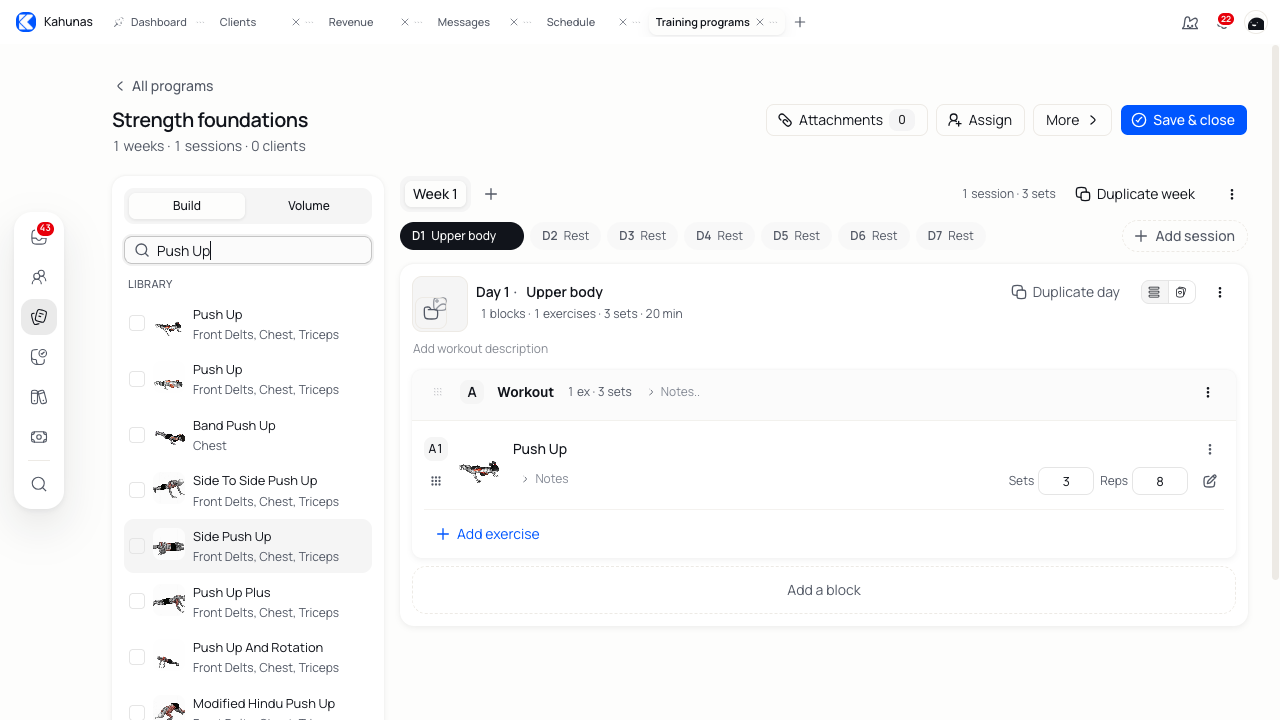
Select Save & close to finish and return to the library. Open the program again to check the saved content.
In a detailed program, edits save as you make them. Closing the page does not undo those changes. If you see Discard changes, read the confirmation to check which unsaved edits it covers.
Assign the program to clients
Saving a program in your library does not assign it to a client.
- Open the program and select Assign. The Assign to clients window opens.
- Search for the clients who should receive it and select them.
- Check Assignment type.
- Select Assign plan.
- Open Assigned clients or the client's Workouts section to check the assignment.
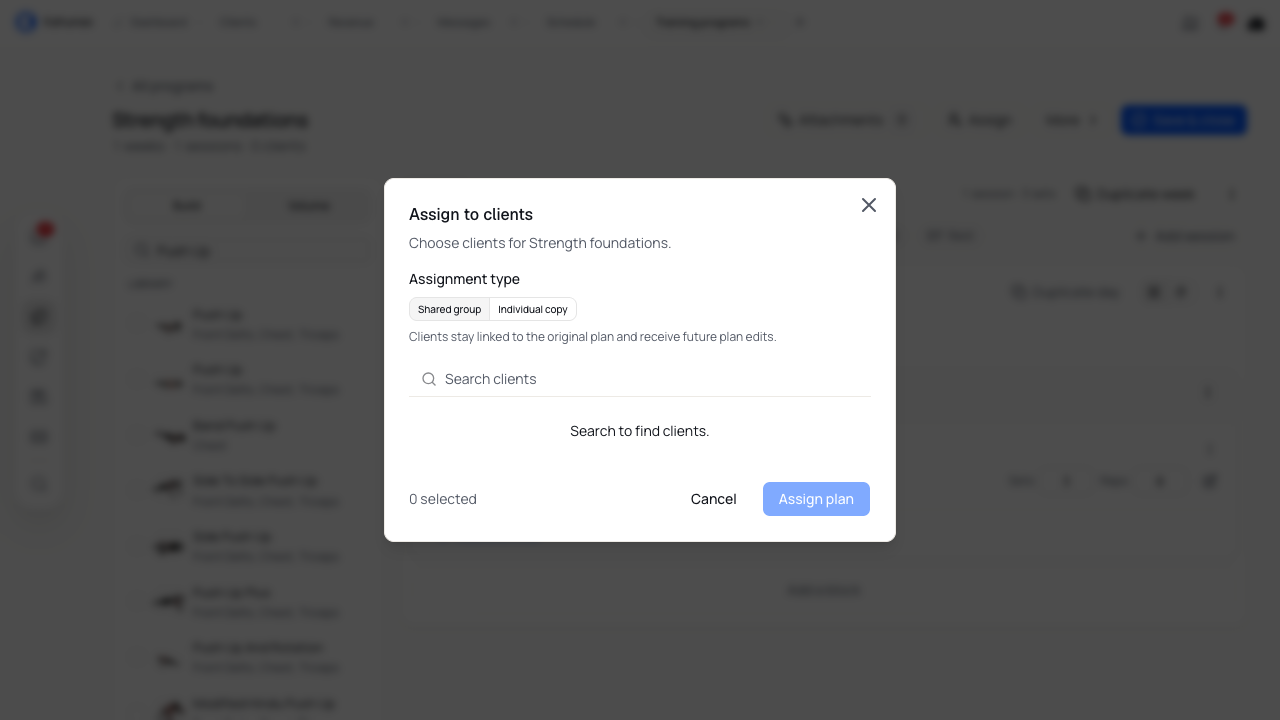
Choose Shared group if those clients should use the same program and receive future edits to it. Choose Individual copy if you want a separate program for each client that you can adapt without changing the original.
If you see a notification prompt, choose whether to notify the client. Check the assignment itself before assuming the client has received a message.
Include programs in a package
Open Revenue, then Packages. In the package setup, continue to Attach coaching resources and select Workout plans. Search for a program and select it. You can include up to five programs; check their names on the review step before saving the package.
Use this to choose the training content for clients who join through the package. Check existing clients' assignments separately when you change a package; editing the package is not a check that their programs changed.
Change an assigned program
Check who uses a program before editing it. Changes to a shared program affect the clients linked to it.
When you open a shared program from a client profile, you may see Apply changes to all clients? Choose Apply to all clients to edit the shared program, or Only this client to create a private copy for that client.
Review the program and save your changes. If you see a prompt to notify clients, choose whether to send the update.
Duplicate, archive or delete a program
Use Duplicate in the program's actions to make a separate starting point for another plan.
Use Archive to put a program away. Archived programs are read-only. Find the program under Archived and select Unarchive before editing it again.
Use Delete only for a program you no longer need. Read the confirmation: deletion removes its weeks, workouts, blocks and exercises. Kahunas blocks deletion while active client assignments still reference the program, including individual copies made from it.
If you cannot save or find a program
- A superset or circuit will not save: add a second exercise, or use a Workout block for one exercise.
- A value is highlighted: correct the field using the format shown in its message, then save again.
- A program is missing from the library: clear search and tag filters, then check Archived.
- An archived program will not open for editing: unarchive it from the library first.
- You cannot delete a program: check its active assignments before removing anything from a client's plan.