







Messaging your clients
Use Messages to give feedback, answer questions and keep your coaching conversations together. You can speak to one client, start a group, or send separate messages to several clients with a broadcast.
Read video transcript
Open Inbox, then Messages. Choose New Message. Find your client and select their name. Create the conversation. Write your message, and check who you’re sending it to. Select Send message. The status changes as your message reaches your client. Here, it shows Read.
Find or start a conversation
Open Inbox → Messages. Select a conversation under Chats, or use Search conversations. The search includes Channels, Users and Messages; choose Users when you want to find someone by name.
To start a direct conversation:
- Select New Message and keep Direct selected.
- Search under Clients and select the client.
- Select Create conversation.
- Check the name at the top before writing. Open profile takes you to that client's profile if you need more context.
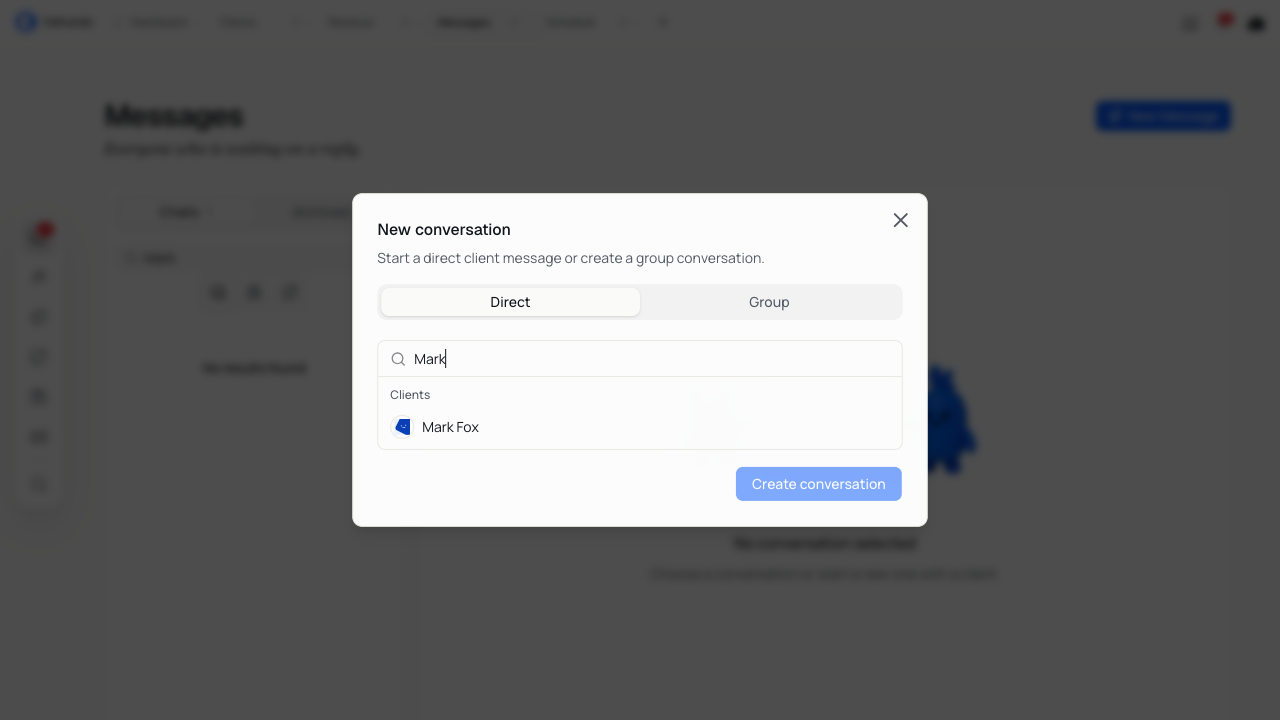
You can also open a client's profile and select Message to use the side panel while reviewing their progress.
Write and send a message
- Write in Type your message. Give your client a clear question or next action.
- Review the recipient, text and any attachments.
- Select Send message.
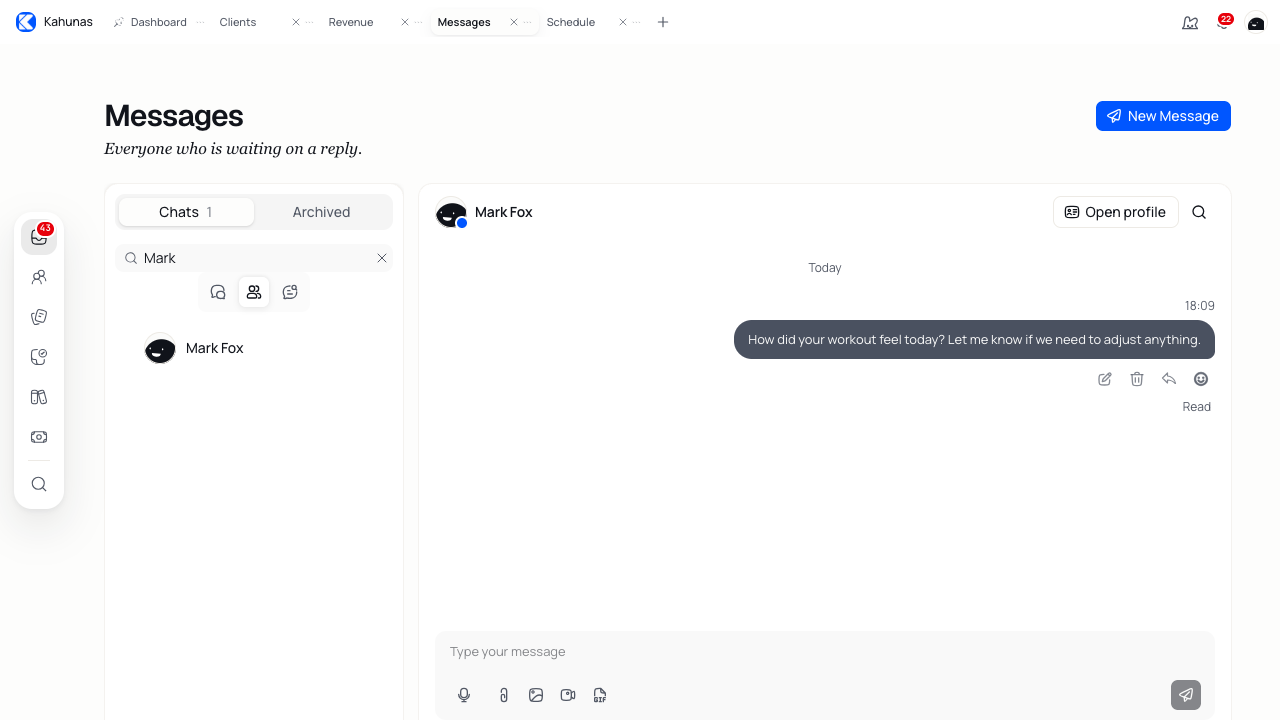
For example: “How did your workout feel today? Let me know if we need to adjust anything.”
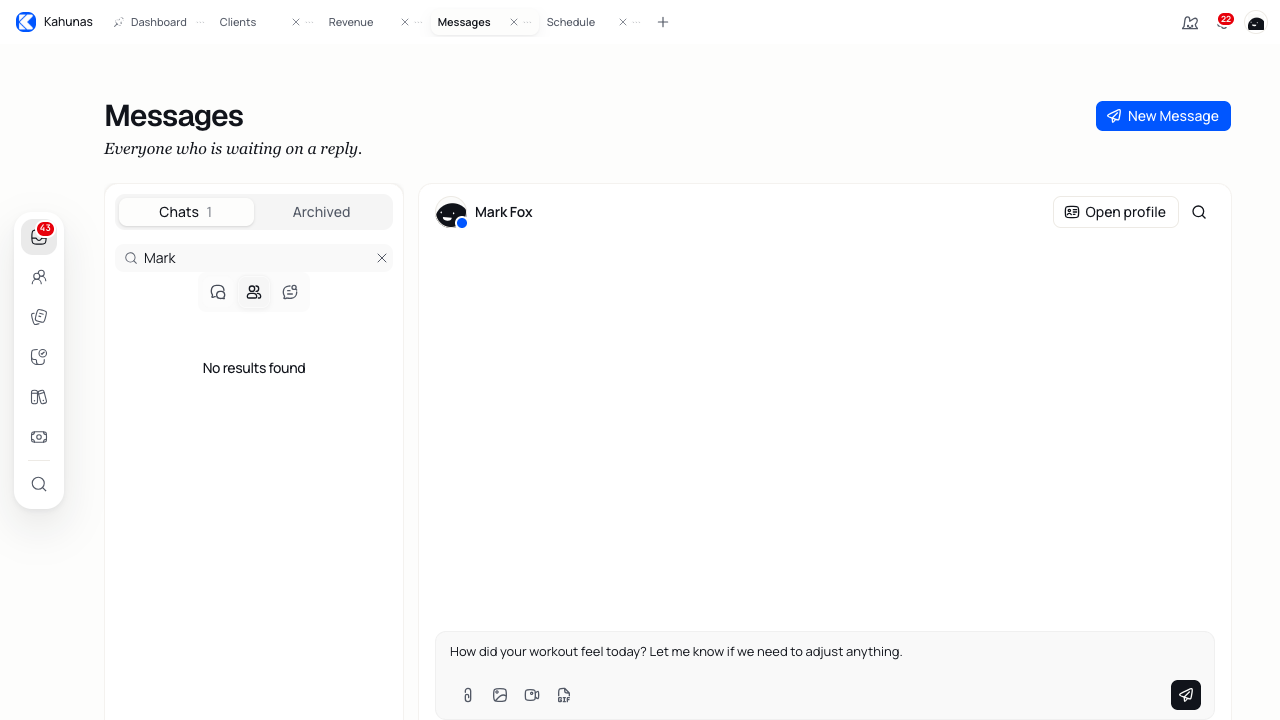
Check the status below your message. Sending means it is still going through. Sent, Delivered and Read show later stages; Sent alone does not mean your client has read it.
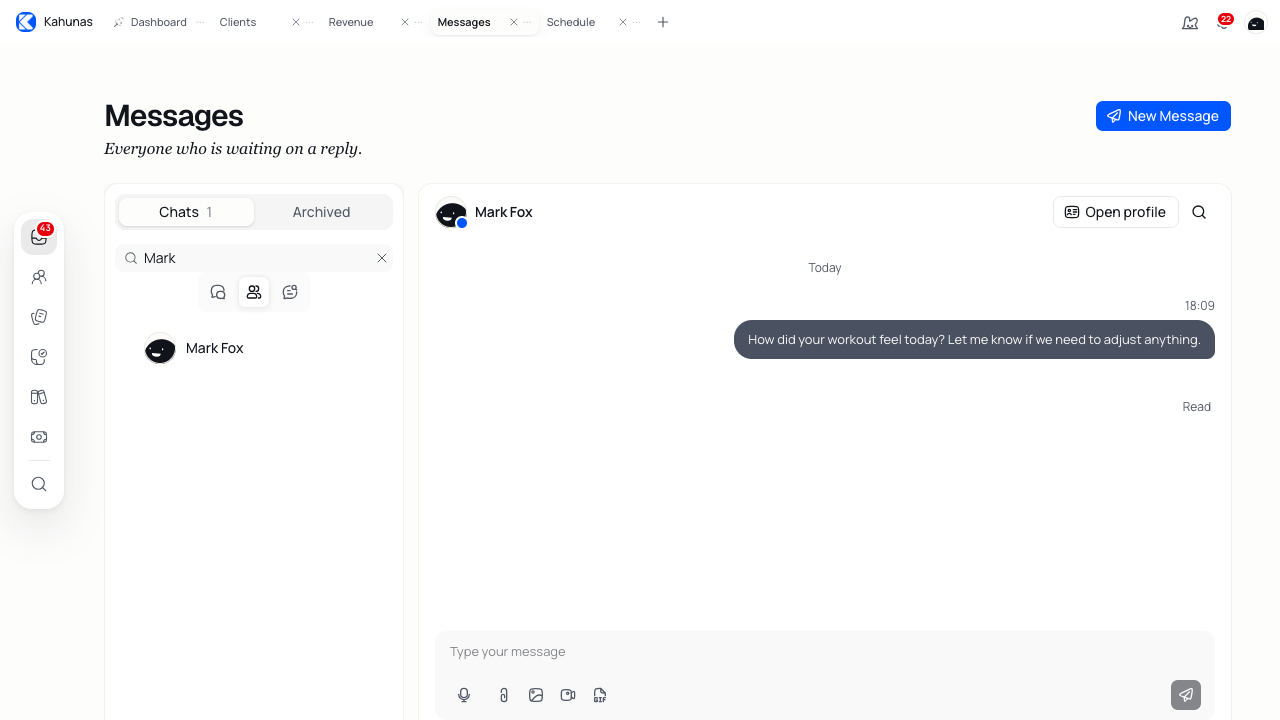
Messages can contain up to 5,000 characters. For a longer explanation, attach a document or break your feedback into shorter messages.
Share files, images and recordings
The controls below the message box let you add more context:
| Control | Use it for |
|---|---|
| Attach file | A document, video or other supported file. |
| Attach image | A photo or screenshot. |
| Add GIF | Search for and choose a GIF. |
| Start recording audio | Record a voice note when the message box is empty. |
| Video Recording | Record feedback with your camera and microphone. |
Wait for attachments to finish uploading, then select Send message. Adding an attachment or accepting a recording does not send it on its own.
For a voice note, allow microphone access in your browser. You can pause, resume or cancel the recording. Select Finish recording, review the attached note, then send it. If an upload fails, use the note's retry or remove control.
For a video, allow camera and microphone access. Stop the recording to review it, then choose Use video, Re-record video or Discard video recording. After you use the video, wait for the upload and select Send message. A sent video may need time to process before anyone can play it.
Use playback controls to review received recordings. When a voice transcript appears, you can read it below the note; listen to the recording if you need to check its wording.
Reply to a specific message
Point to a message or focus it with your keyboard to reveal its actions. Select Open Thread, or select an existing reply count, to open the Thread panel. Write your reply there and select Send message. Use Close thread to return to the main conversation.
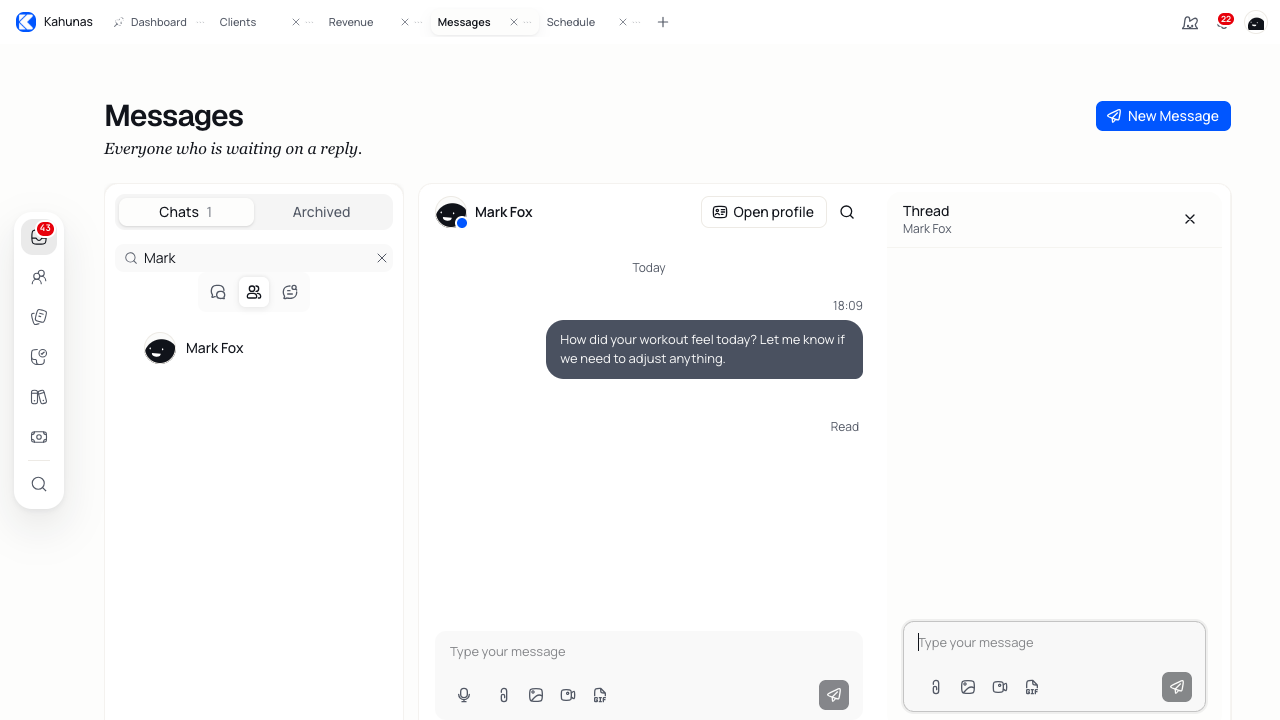
Keep replies about that message in the thread. Do not rely on a thread reply appearing as a new message in the main conversation.
For a quick acknowledgement, use Open Reaction Selector on the message and choose a reaction.
Correct or delete a message
For 15 minutes after sending, you can use Edit Message or Delete Message on your own message. Review your edit before saving it. Deleting a message removes it for everyone in the conversation, so read the confirmation before you continue.
After that window, send a follow-up message to correct or clarify what you said.
Create and manage a group
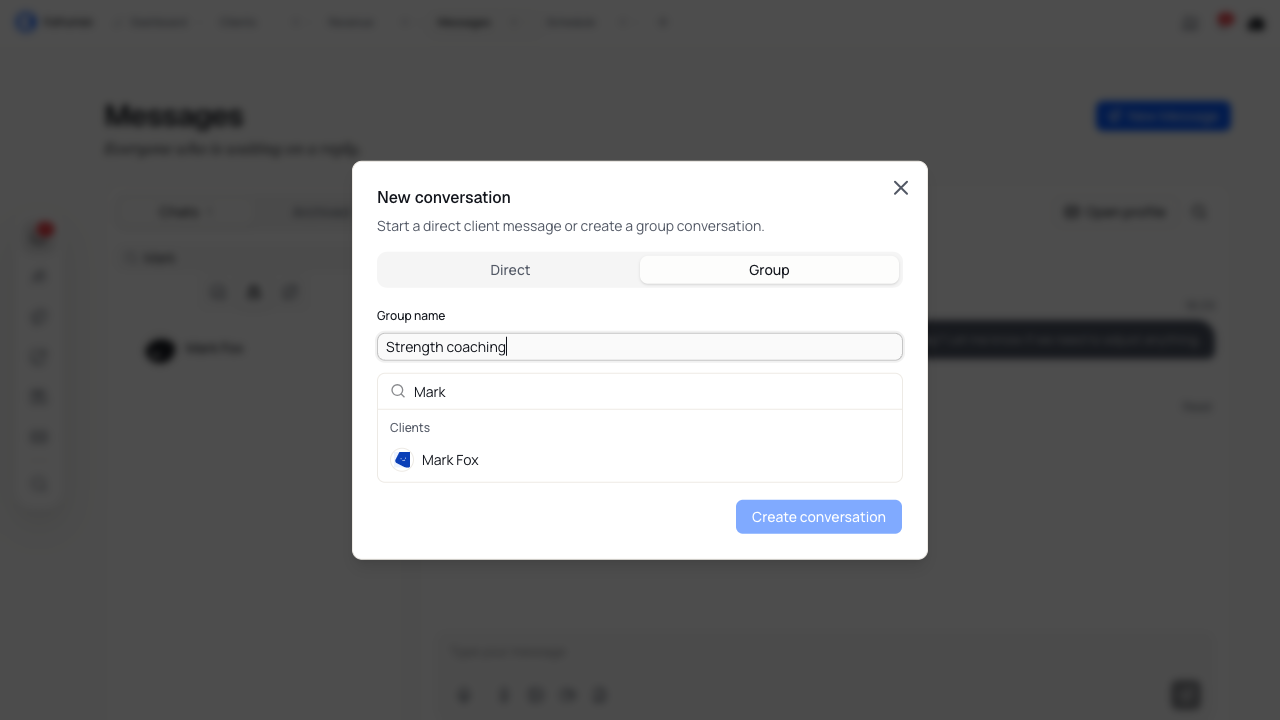
- Select New Message → Group.
- Enter a Group name, such as “Strength coaching”.
- Select at least two clients under Clients.
- Check the members, then select Create conversation.
Everyone in the group shares the conversation. Use direct messages for personal feedback that other clients should not see. A group can include up to 100 people, including you.
In a group you manage, use Edit group to change its name or image. Use Manage members to select clients under Add clients or Current members, then choose Add members or Remove members. Keep at least two clients in the group.
Send the same update to several clients
For separate client messages, open People → Clients → Broadcast and choose Chat message.
- Review the selected recipients. Your current client filters can affect the starting selection.
- Write the update. Use Insert FIRST_NAME or Insert LAST_NAME if you want each message to include the recipient's name.
- Add any files, images or videos. A chat broadcast supports up to 10 attachments.
- Check the recipient count and select Send broadcast.
Each recipient gets a direct message and can reply in their own conversation. Check the result after sending: a broadcast can succeed for some clients and fail for others. Review any failures before sending the whole update again.
If Push notification is available, use that tab for an app notification. Select the app users, enter a Subject and a Message of up to 160 characters, then review the audience before selecting Send push notification. Check the recipients again when switching delivery types; the eligible clients can differ.
Find replies and keep track of follow-ups
Under Chats, use All, Unread or Read to filter conversations. Clear Search conversations to return to those filters.
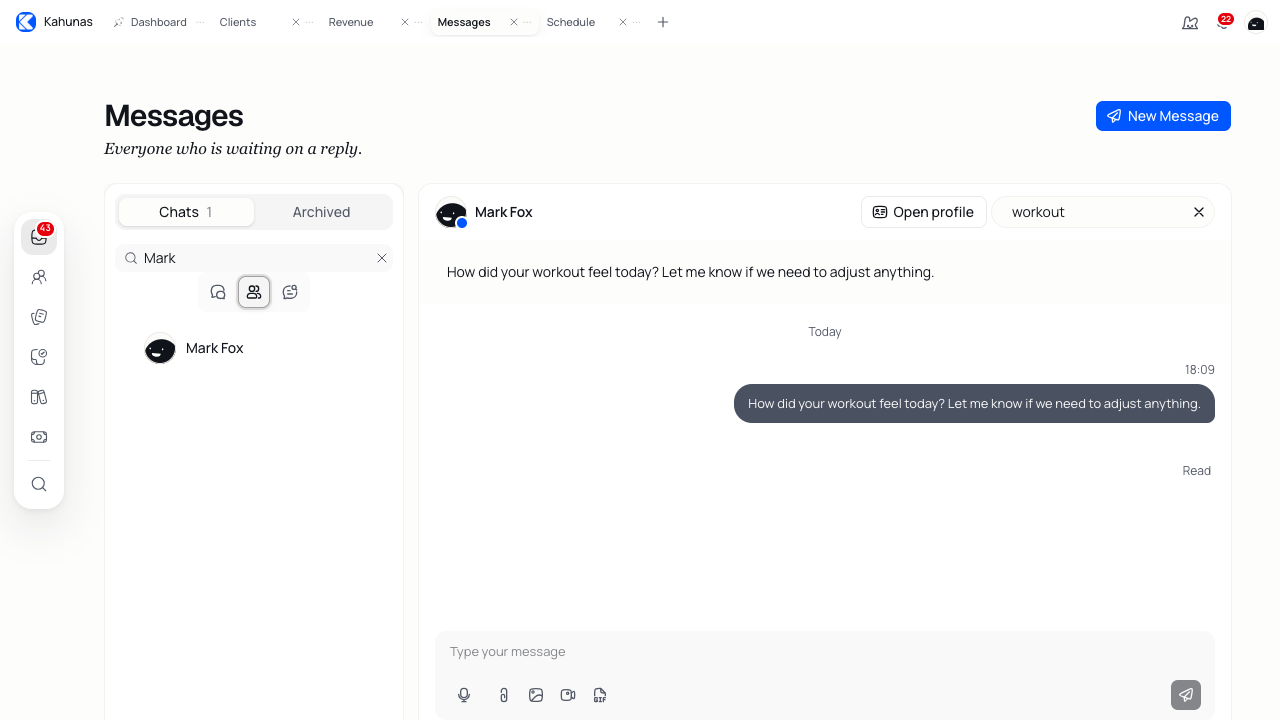
To find an earlier message within the open conversation, select Search messages, enter a word or phrase, then select a result to jump to it.
Use Conversation actions → Mark as unread to flag a conversation with a received message for follow-up. The option is unavailable if the conversation only contains your own messages. You can also mark a received message unread from its actions. A manual unread marker can remain when you reopen the conversation; use Mark as read beside Unread messages when shown.
Mark all as read clears unread markers across your conversations. Use it after you have checked the replies you need to act on.
Archive or remove a conversation
Choose Conversation actions → Archive to move a conversation out of your Chats list. Find it under Archived and choose Unarchive to bring it back. Archiving organizes your inbox without deleting the conversation.
Delete is a separate action. Read its confirmation: deleting a conversation can remove its messages for everyone. For some older groups with members who are no longer your clients, the confirmation explains that it only removes the group from your inbox and the other members keep it.
If you cannot send or find a message
- A client is missing or messaging is disabled: check that the client belongs to your account and that Client messaging is on in their profile.
- Send message is unavailable: enter some text or add an attachment, wait for uploads, and check the character limit.
- A message or attachment fails: read the error, check your connection and review the conversation before retrying so you do not send a duplicate.
- The microphone or camera does not start: check the site's browser permissions and that another app is not using the device.
- A video is processing: wait for it to become playable. If it reports a failure, upload or record it again.
- A conversation seems to be missing: clear your search, select All, and check Archived.
Coach text drafts can stay in the same browser when you allow functional cookies. Do not rely on a draft appearing on another device or after clearing site data.
Managing your schedule
Add events and reminders, set working hours, manage repeating appointments, and review client requests in your Kahunas calendar.
Creating an education course
Build a coaching course with modules, lessons and resources. Choose the lesson order, publish your content, manage access and check client progress.