







Adding a new client
Invite a client to Kahunas with the right package, payment arrangement and onboarding forms ready for them.
Before you start
Have the client's first name, last name, email address and date of birth ready. Clients must be at least 16 years old. Agree their package and plan start date before you send the invitation.
You need a coaching package. If you have not created one, select Set up a package when prompted, or follow Create a coaching package.
If you want to assign onboarding forms, prepare them first. See Creating an initial questionnaire and Creating your check-in form.
1. Open the invitation form
Open People → Clients. On the Client roster, select Invite.
The invitation has three steps: Who they are, What they are on, and How you work together. Use Next to continue and Back to review an earlier step.
2. Enter their details
On Who they are, enter First name, Last name, Email and Birth date. Use the email address where the client should receive their signup invitation.
Phone and Starting weight are optional. Leave No starting weight selected if the client will log it themselves.
Under Access, select Allow exercise library if the client should be able to add their own exercises. Competition goal is optional. You can enable it without details; if you enter a competition title or date, complete both. The date must be today or later.
Select Next. If the form cannot continue, read the messages beneath the fields and in the footer, correct the details, and try again.
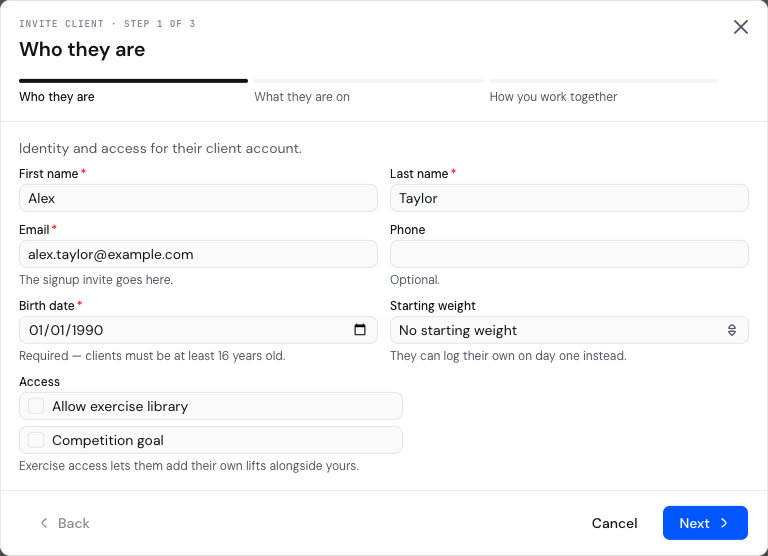
Enter the client's identity and check their email before continuing.
3. Choose their package and start date
On What they are on, choose Package and Plan start date. Check both even when they are filled in for you.
Under Payment, choose the arrangement you have agreed:
- No payment when payment is not required.
- Offline payment when payment is handled outside the online checkout.
- Online payment when the selected package has an available payment provider.
For Online payment, choose Provider and check when the first charge should happen. Keep First charge on plan start date selected, or clear it and enter a First charge date.
Select Next to review onboarding. Changing a package can change its default forms and payment option, so review these again after switching packages.
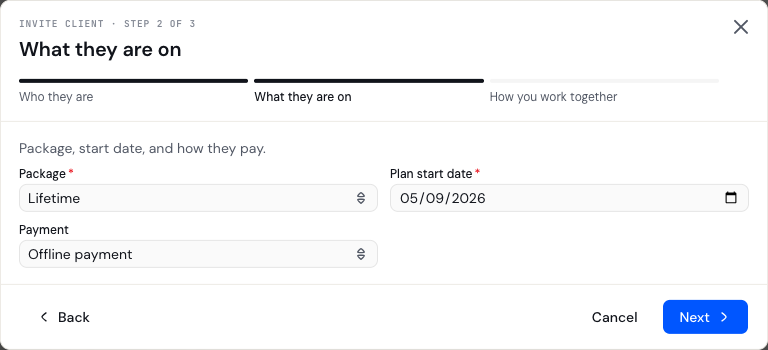
The package and payment arrangement in this example are illustrative; choose the values agreed with your client.
4. Prepare their onboarding
On How you work together, review Initial Q&A, Check-in form and Habit form. The package may fill these in for you. Leave None selected for optional forms you do not want to assign. If Check-in form is marked as required, choose a form to continue.
When you select a check-in form, choose Check-in cadence and at least one Check-in day.
Select Add welcome pack to include welcome documents or images. Check your selected files before sending.
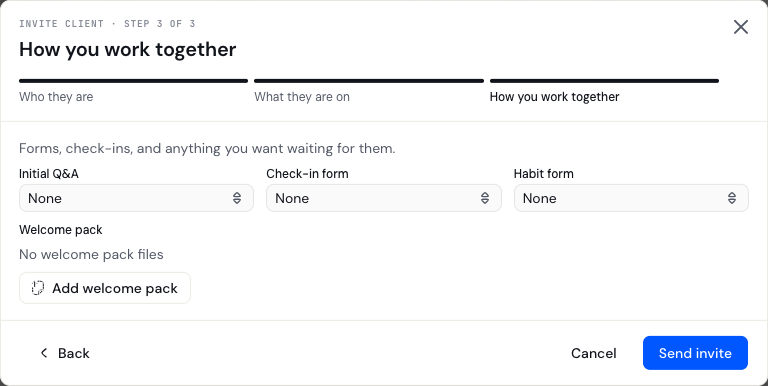
Use the final step to review the forms and files that should be ready for this client.
5. Review and send
Check the email address, package, payment arrangement, start date and onboarding selections. Use Back if you need to change anything, then return to the final step.
Select Send invite once you are ready. This submits the client setup and requests the signup invitation. Read the result before continuing:
- Client invited confirms the invitation request succeeded. It does not establish that the client has read the email or completed signup.
- Client created, but invite delivery could not be confirmed. means the client record exists but delivery needs attention. Look for the client in your roster before attempting another invitation, and contact support if you need help with delivery.
Helping a client log in
For security, Kahunas never shows, copies or emails your clients' passwords. If a client can't log in, send them a password reset email instead.
- Open People → Clients and find the client in your Client roster.
- Select the three-dot menu at the end of their row.
- Select Send password reset.
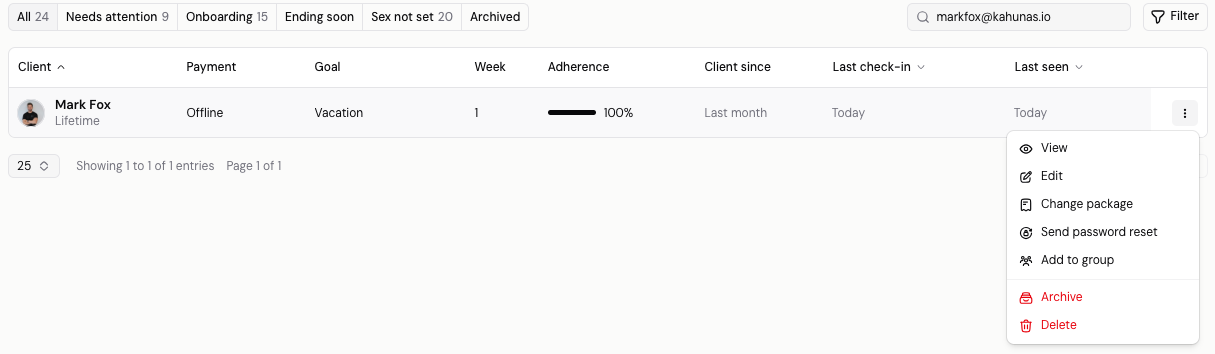
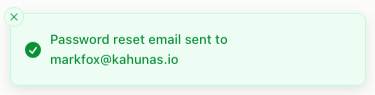
You'll see Password reset email sent to followed by the client's email address. Your client gets an email with a link to set a new password. They can then log in to the app or website.
If your client has never logged in
If the client has never logged in to the new Kahunas app, their menu shows Resend registration instead of Send password reset. Select it to send them a fresh email so they can set up their login.
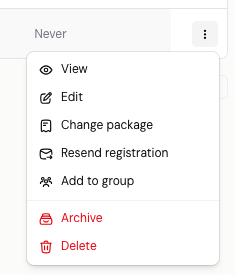
Send password reset only appears for active clients who have an email address on their profile. Team members with view-only access to clients don't see it.
If you cannot continue
| What you see | What to do |
|---|---|
| No package available | Select Set up a package, save a suitable package, then return to the invitation. |
| Missing or rejected birth date | Enter the full date and check that the client is at least 16. |
| Email check still running | Wait for the address check to finish before continuing. |
| Email already in use | Check the address and find the existing client in your roster. |
| Previously deleted client message | Read the restore notice carefully. Inviting with that address restores the existing client's record. |
| Online payment unavailable | Check the package and its provider setup, or select the available option that matches your agreement. |
| Missing check-in schedule | Select a cadence and at least one day for the assigned check-in form. |
| Not ready to invite | Select Cancel. Closing the invitation clears its draft, so you will need to enter the details again. |
| Send password reset is missing from a client's menu | Check that the client is active and has an email address on their profile. If they have never logged in, select Resend registration instead. If you're a team member with view-only access to clients, ask whoever manages your team for edit access. |
| An error appears instead of Password reset email sent to | Wait a few minutes, then try again. If it keeps happening, contact support. |
| Your client can't find the reset email | Ask them to check their spam or junk folder, and check the email address on their profile. |
What happens next
Find the client in your roster and review their setup. Follow up with them about signing in and completing the forms you assigned. If they can't log in, see Helping a client log in.
When you are ready to plan their coaching, follow Workout Programs or Nutrition Plans. Saving a plan in your library and assigning it to a client are separate actions.
Screenshots show the English interface with example data. Your package names and available features may differ.
If you still need help, use Contact support on this help site and describe where you got stuck.