
Setting and managing client goals
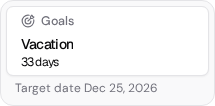
Open People → Clients, choose your client and select Goals on their Overview. If the card says No goal yet, it opens the form for their first goal. Otherwise it opens their goals in a panel on the right.
Set a goal and a target date
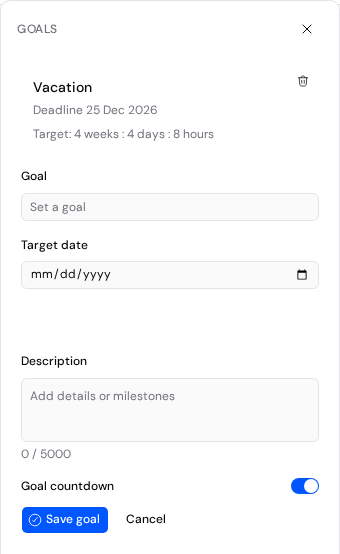
- In the Goals panel, select Add goal if the form isn't already open.
- In Goal, enter what the client wants to achieve, such as “Run 5 km without stopping.” Choose today or a future day for Target date.
- Use Description for optional milestones or instructions. Leave Goal countdown on to show the time remaining, or turn it off to show just the deadline.
- Select Save goal. You'll see the goal in the panel with its deadline.
If your business uses the original Kahunas mobile apps, you can keep one goal per client. To change it, edit the existing goal. Businesses using the newer client web app can add more than one.
Edit or delete a goal
Open Goals on Overview again. The card shows Target date for a dated goal, even after the deadline, or Manage goals for an undated one. Select the goal's title in the panel to edit it. If its date has passed, choose today or a future date. Select Save goal, or Cancel to keep the original.
To remove a goal, check its title before selecting the Delete goal trash icon beside it. There's no confirmation step. If the client has logged progress against the goal, edit it instead.
Owners can manage goals for all clients. Team members need Clients access for their assigned clients: View to read goals, View & edit to change them.
Let a client submit goals in the original mobile apps
On the client's profile, select their name or the Edit client pencil beside it. Scroll to Allow client to submit goals / competitions?. Turn it on if you want this client to submit their own goals or competitions, then select Save.
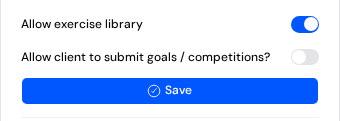
This setting is for the original Kahunas iPhone and Android apps. Turning it off leaves existing goals in place for you and the client to see. Turning it on doesn't give clients a goal editor in the newer web app.
Set a competition goal during an invitation
In People → Clients, select Invite client. On Who they are, tick Competition goal under Access. Enter both Competition title and Competition date (today or later) to create the goal when you send the invitation. To enable client submissions without creating a goal, leave both fields blank. Either choice turns on the client's submission switch.
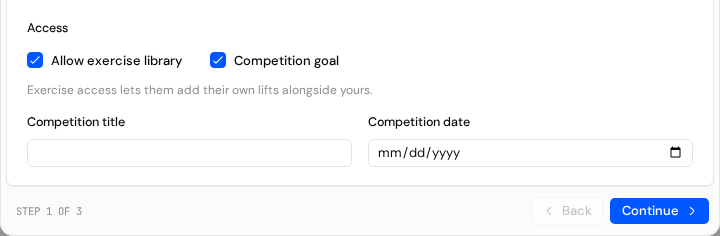
See Adding a new client for the rest of the invitation.
Where clients see goals and log progress
In the newer client web app, coaching clients can open Goals from Home once they have a goal, or from More → Progress → Goals. The bar shows how much time has passed. A goal moves from Active to Done a week after its target day ends, whether or not the client achieved it.
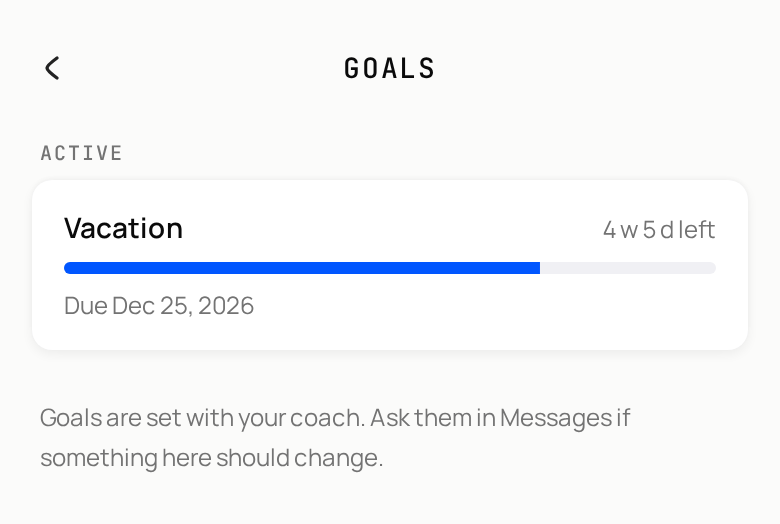
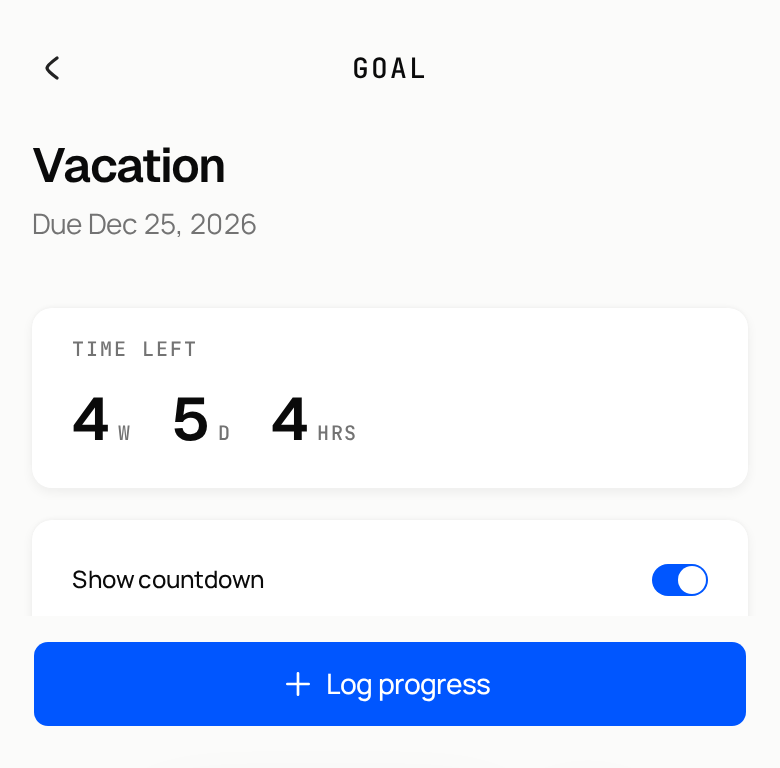
Tap a goal to read its description under From your coach, if you added one. The client can change Show countdown or select Log progress, enter a Progress value of zero or more, add an optional Note and select Save progress. To add or remove a goal, change its title or move its deadline, they need to ask you in Messages.
Responding to a client data request
Log a client's request for a copy of their data, confirm who is asking, and know what to do before the one-month deadline.
Which wearables clients can connect
Help your client find Wearables, connect a fitness service or use Apple Health and Health Connect through Biomtrx.