







Managing documents and signatures
Keep your coaching agreements, consent documents and policies in Docs. Write the document, review it and save it before choosing who needs it. You can keep versions of your wording and track signatures on your default document through an Initial Q&A.
Read video transcript
Open Content, then Docs. Choose New doc. Give your document a clear title. Write your coaching arrangements and client expectations in the editor. Review the wording, then select Save. Reopen your document to check that your title and text are saved.
Find your documents
Open Content → Docs from the left sidebar. For PDFs, videos and other learning resources you want clients to browse, use the Content Library.
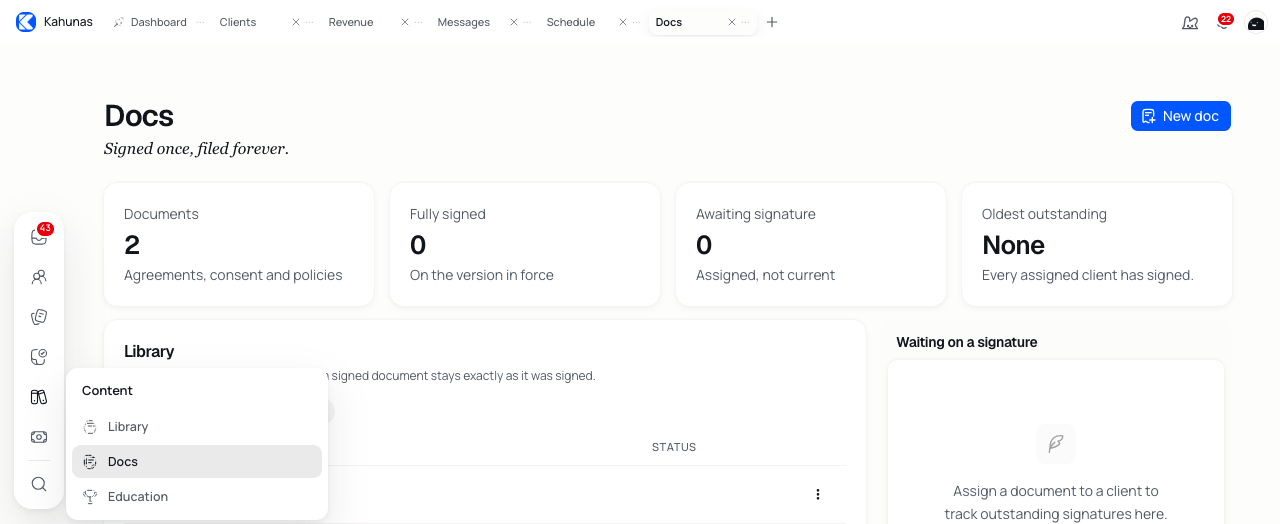
Choose All to see your library, In force to see default documents or Archived to see archived documents. Each row shows its latest version and update date. Use Results per page and Previous or Next to browse a longer list.
Accounts using the older mobile app have fewer signature features. On those accounts, Assign clients is unavailable and you see document totals and a Version in force summary instead of signature counts.
Create a coaching document
- Select New doc.
- Enter a Document title, such as “Coaching agreement”.
- Write your text in the editor. Include the arrangements you want clients to understand, such as check-in timing and how to contact you.
- Review the wording, then select Save.
- Wait for Document saved. You return to the library. Open the document to check your saved title and text.
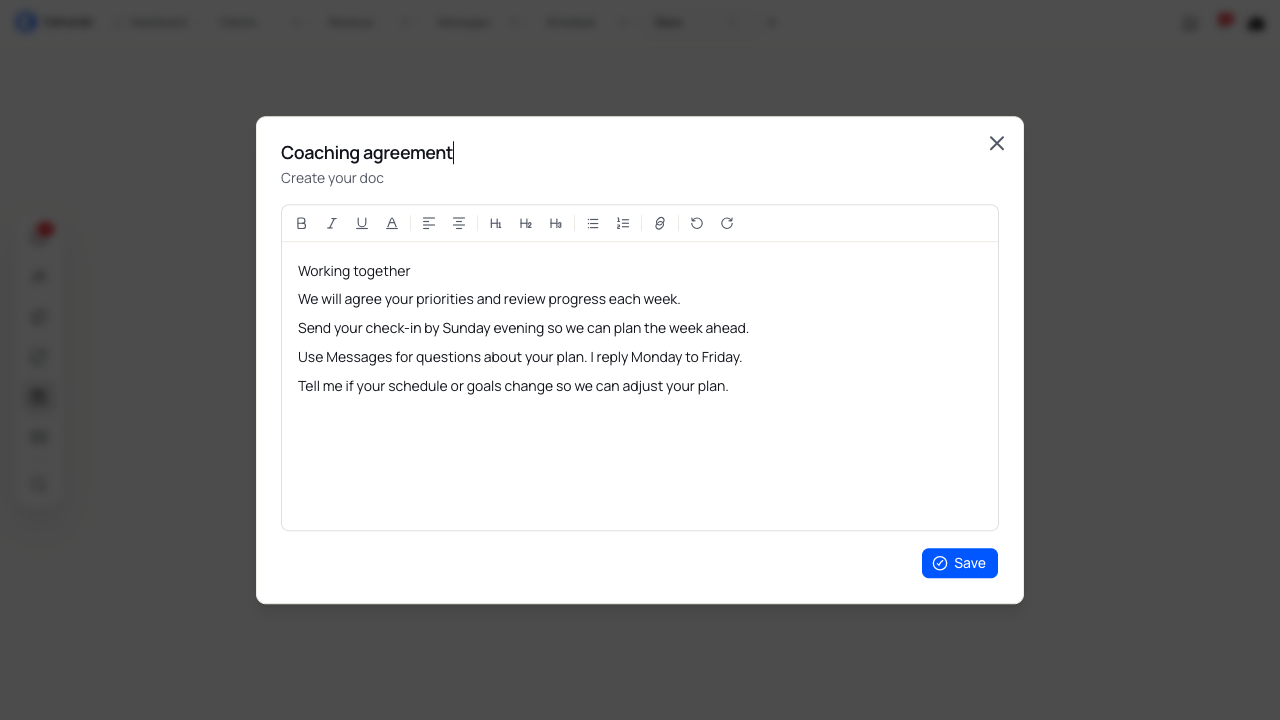
Use the toolbar for headings, bold or italic text, lists and links. You can also change text colour or alignment and undo an edit. Choose a title that explains the document's purpose; there is no separate document-type choice.
A new document starts at v1 and leaves your current default unchanged. Saving it does not assign it to clients or collect a signature.
Use Close to leave the editor. If you have unsaved changes, choose Keep editing to return or Discard changes to leave without saving them.
Choose your default terms
- Find the document you want clients to sign.
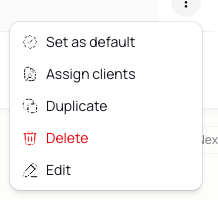
- Open its Actions menu and select Set as default.
- Check for the Default badge beside that document.
Each coach has one default document. Choosing another changes that selection. Review the text before switching your default because future questionnaire signatures use the current selection.
Clients can read their linked coach's active default document under More → Consent and terms. They do not sign it by opening that page. Use a Signature question in an Initial Q&A to collect their signature.
Update the wording
- Open the document, or choose Actions → Edit.
- Change the title or text.
- Select Save and check for Document saved.
- Use Close when you have finished. Saving an existing document keeps its editor open.
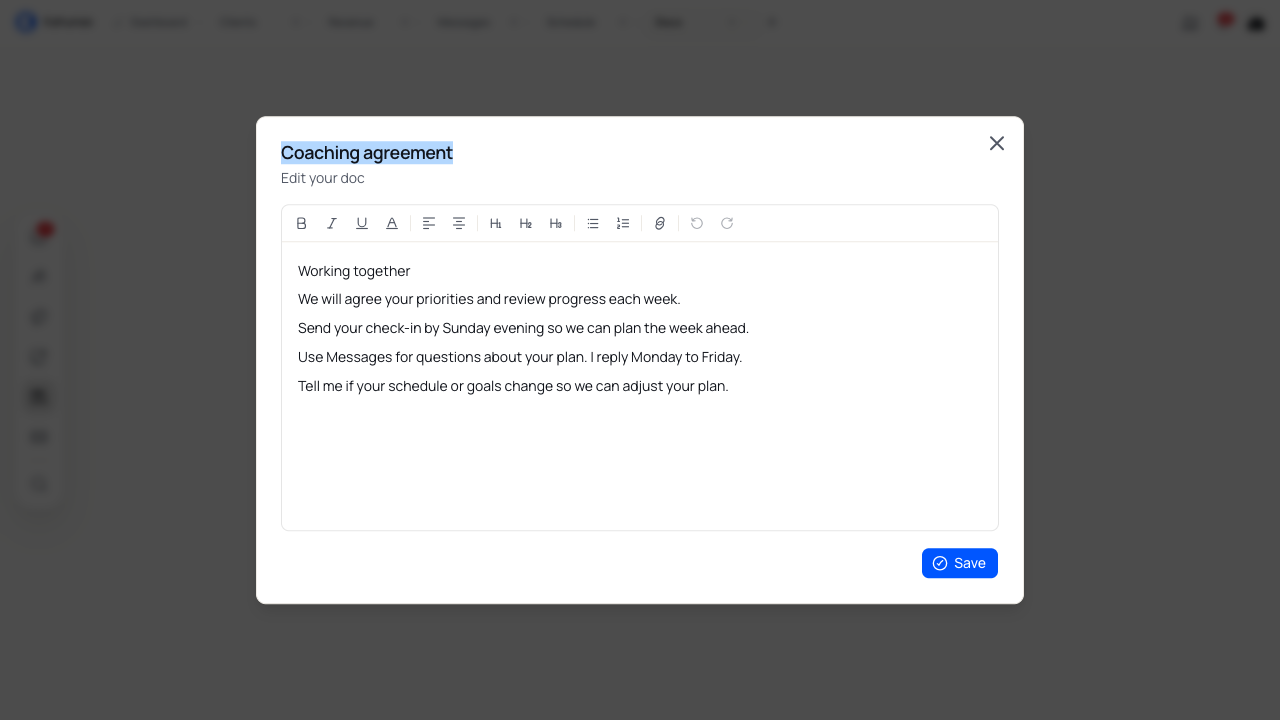
Each save creates a new version, even if you have not changed the wording. Kahunas keeps earlier versions. You can see the latest version number in the library; the editor opens the latest text.
After you save a new version, a signature on an older version counts as Awaiting signature. Decide which clients need to read and sign the changed document, then follow up with them.
Assign clients for tracking
- Open Actions → Assign clients for the document.
- Search for and select the clients who need it.
- Select Assign.
Assigning adds a tracking record for each selected client. Choosing an existing assignment again keeps that record without creating a duplicate. Team members can select clients linked to them.
Assign does not send a signature request. The questionnaire workflow below collects a signature for the questionnaire coach's active default document. Assigning several documents does not make one questionnaire signature sign them all.
Collect a signature through Initial Q&A
- Review your active default document in Docs.
- Open Intake → Client forms → Q&A, then open the questionnaire you want to use.
- Select Add a question → Signature and write a clear Question label. For example: “Please sign to confirm you have read our coaching agreement.”
- Choose Required if the client must sign before submitting.
- Select Save & close.
- Reopen the saved questionnaire and use Assign to choose the clients who need to complete it. Check the assignment summary before selecting Assign form.
See Creating an initial questionnaire for questions, package settings and assignment choices.
The client can draw their signature or select Type and enter their full name. They must submit the questionnaire to record it. Kahunas then marks the latest version of that questionnaire coach's active default document as signed and adds a tracking assignment if needed.
The client must provide their own signature. A coach cannot submit it while using the app as that client. Signature questions are available in Initial Q&A on the enhanced setup; you will not find them in check-ins, daily habits or lead forms.
For a client who has already completed the questionnaire, open People → Clients, choose the client and select Initial Q&A. Select Reset on the response, then confirm Reset Q&A. The client can complete their assigned questionnaire again. Download a copy of their previous response first if you need to keep it for reference.
Check who still needs to sign
On accounts with signature tracking, review these figures at the top of Docs:
| Figure | Meaning |
|---|---|
| Fully signed | Assignments with a signature on the document's latest version. |
| Awaiting signature | Assignments with no signature, or a signature on an older version. |
| Oldest outstanding | The longest wait among the outstanding assignments. |
These figures count assignments. A client assigned several documents can contribute more than once. Use Waiting on a signature to see the outstanding client and document pairs.
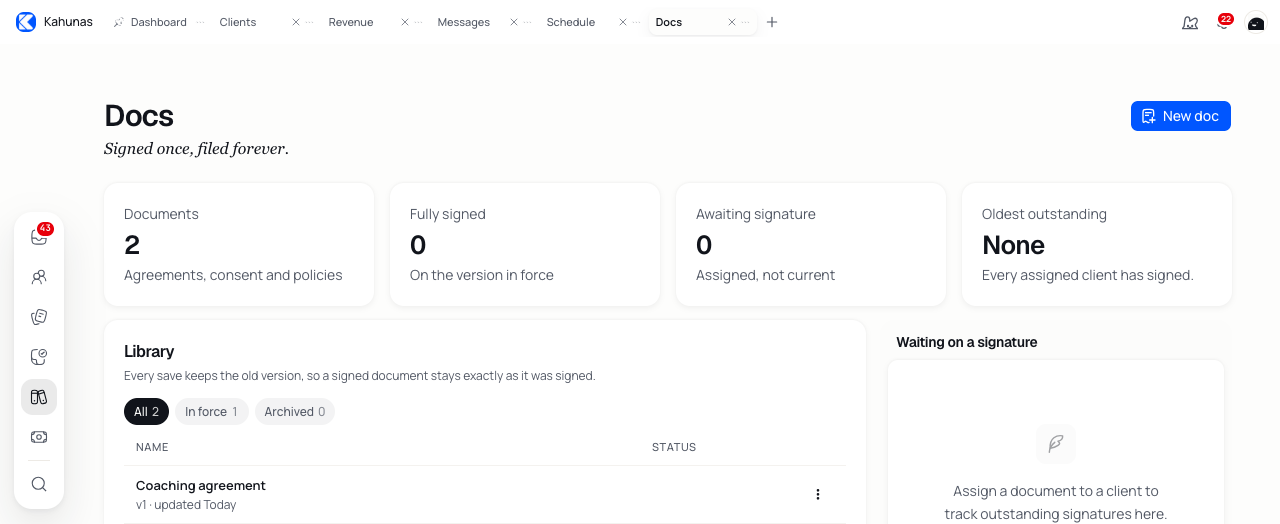
If a signature does not appear, check that the client submitted the questionnaire and that its coach had an active default document. Also check whether you saved a new document version after the client signed.
Reuse or remove a document
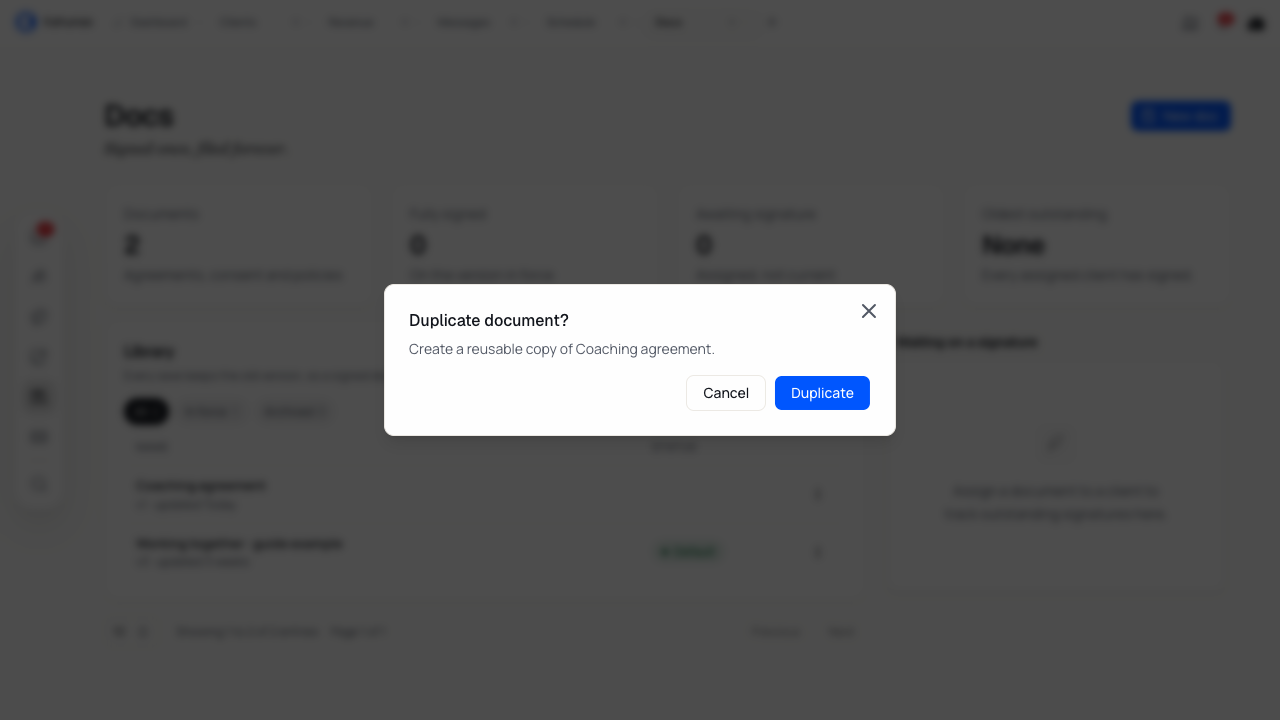
Choose Actions → Duplicate, review the document name and confirm Duplicate. You get an active copy of the latest saved content with its own v1. The copy opens in the editor and does not become your default. Rename it and edit the wording before using it.
Choose Actions → Delete to remove a document, then confirm Delete. This removes the document and its version history. You cannot delete the default document; select another appropriate default first if you intend to replace it.
If something does not look right
| What you see | What to check |
|---|---|
| Save is unavailable | Enter a document title and wait for any save in progress to finish. |
| The document is missing from In force | Check its Default badge. New documents start without it. |
| Assign clients is unavailable | Check whether your account uses the older mobile app. |
| A signature changed to Awaiting signature | Check the latest version number. A new save needs a signature on that version. |
| A client has several outstanding documents | Check each assignment. An Initial Q&A signature applies to its coach's current default document. |
| Delete is unavailable | Check whether this is your default document. |