
Remind clients to check in and follow up on missed check-ins
Kahunas can message a client the day before a check-in is due, and again the morning after if they didn't send it. You write the wording once. Kahunas sends it at the right time for each client.
This guide covers the two automations that do this: Check-in reminder and Missed check-in. For how the Automations screen works in general, see Setting up automations.
Read video transcript
To remind clients to check in, open Intake, then Automations. Choose Check-in reminder. A rule with no steps sends nothing. Select Add step, choose Push, and write a short, friendly message. Missed check-in works the same way. Add a kind follow-up for clients who miss one. Clients also need check-in days set, and notifications turned on in their app.
Before you start
Three things have to be true before a client gets either message:
- The Automations add-on is on for your account. Team members also need the Automations permission.
- The client has an active check-in form. See Creating a check-in form to assign one.
- The client has at least one check-in day. The schedule decides when a check-in is due, so it decides when these messages go out. With no day selected, the client can check in any day and won't get check-in reminders or be marked as missed.
Clients who are inactive, or whose payment is overdue, are skipped by both automations.
Check the client's schedule
The reminder and the follow-up are both worked out from each client's own check-in cadence and days.
- Open People → Clients and choose the client.
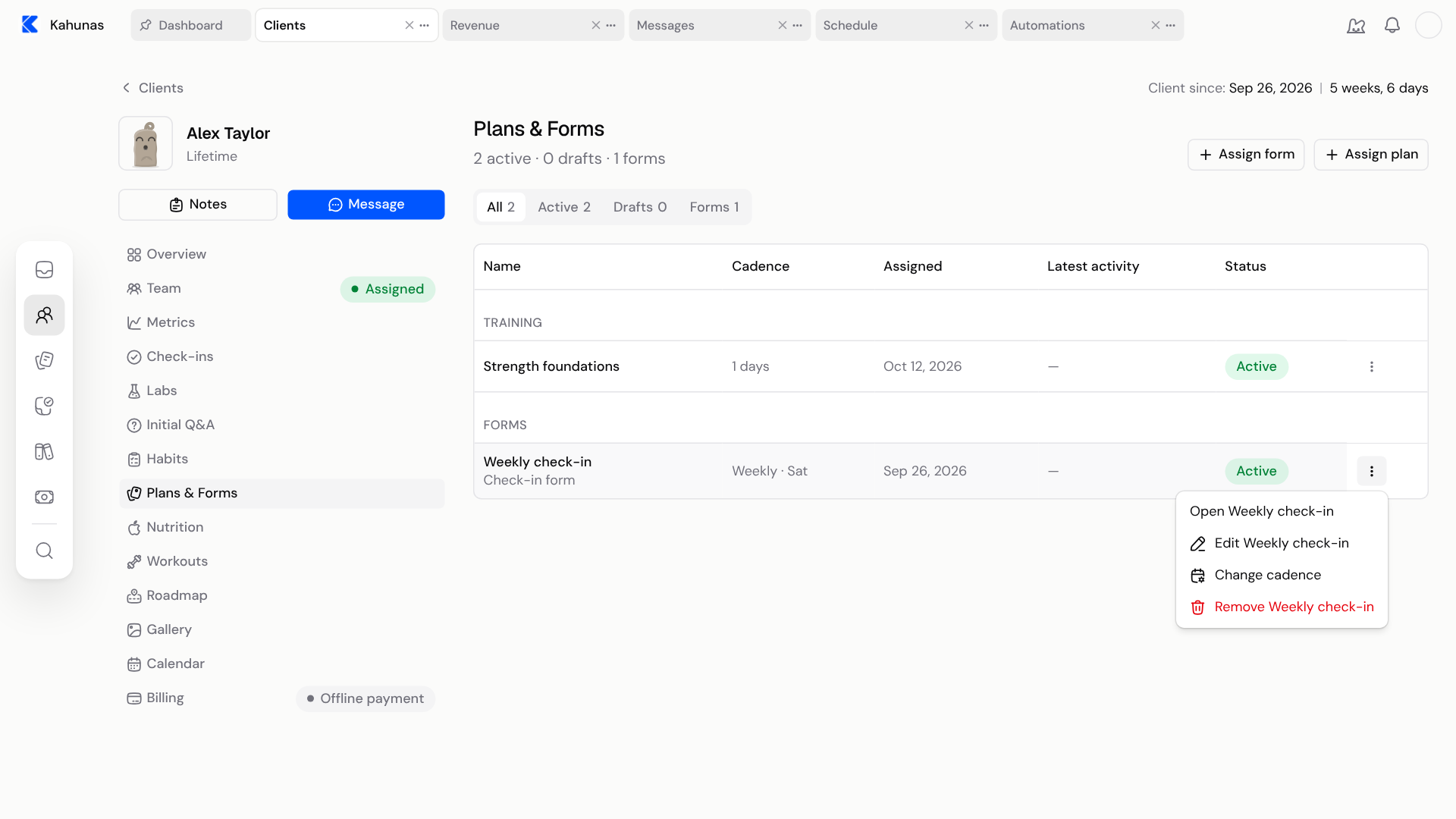
- Select Plans & Forms.
- Find the check-in form. Its Cadence column shows the schedule, such as Weekly · Sat.
- To change it, open the form's actions menu (the three dots), choose Change cadence, pick Weekly, Every 2 weeks or Every 4 weeks, select one or more Check-in days, then select Save.
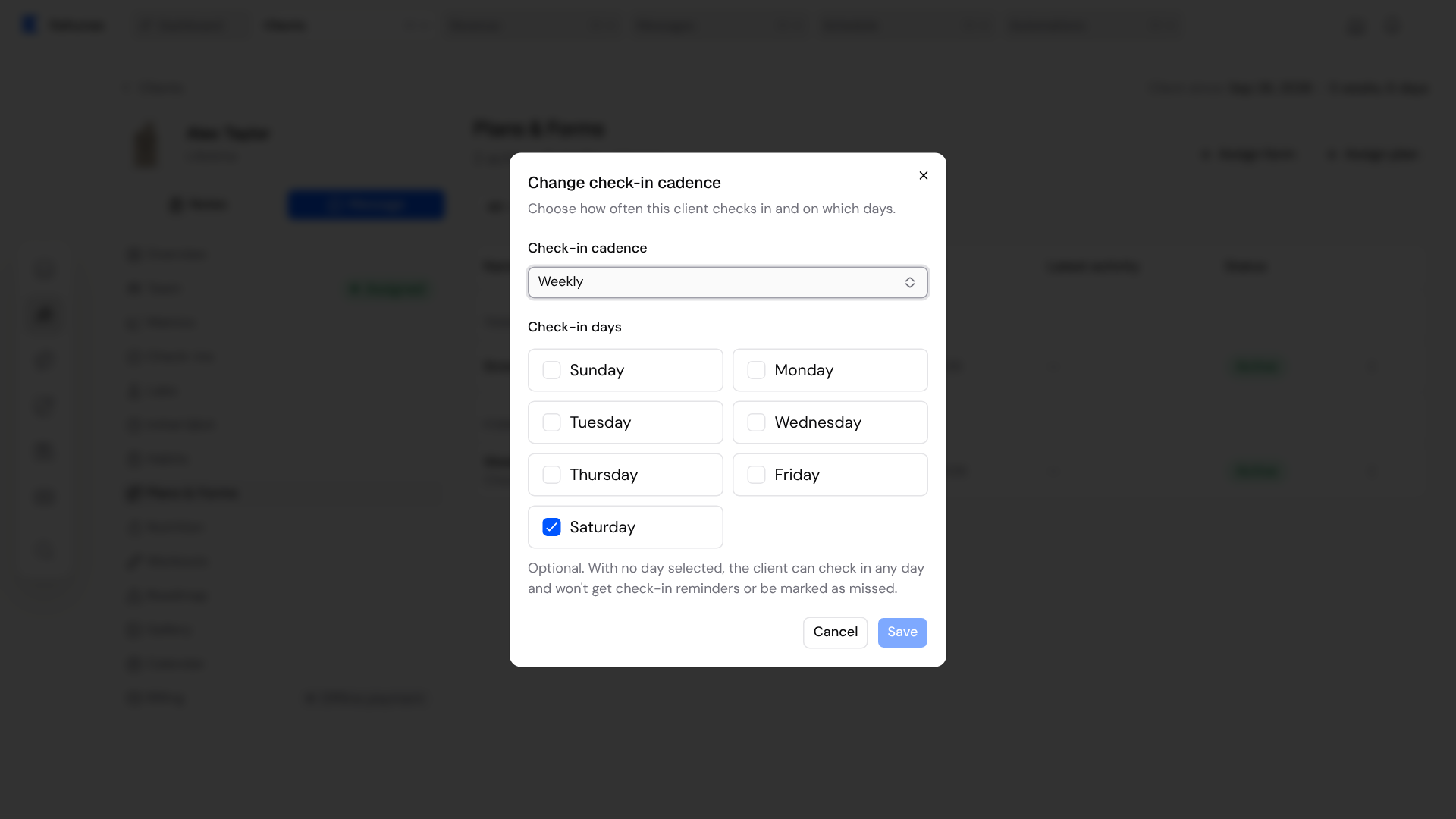
If you change the schedule, the reminder and the follow-up move with it.
Open the two automations
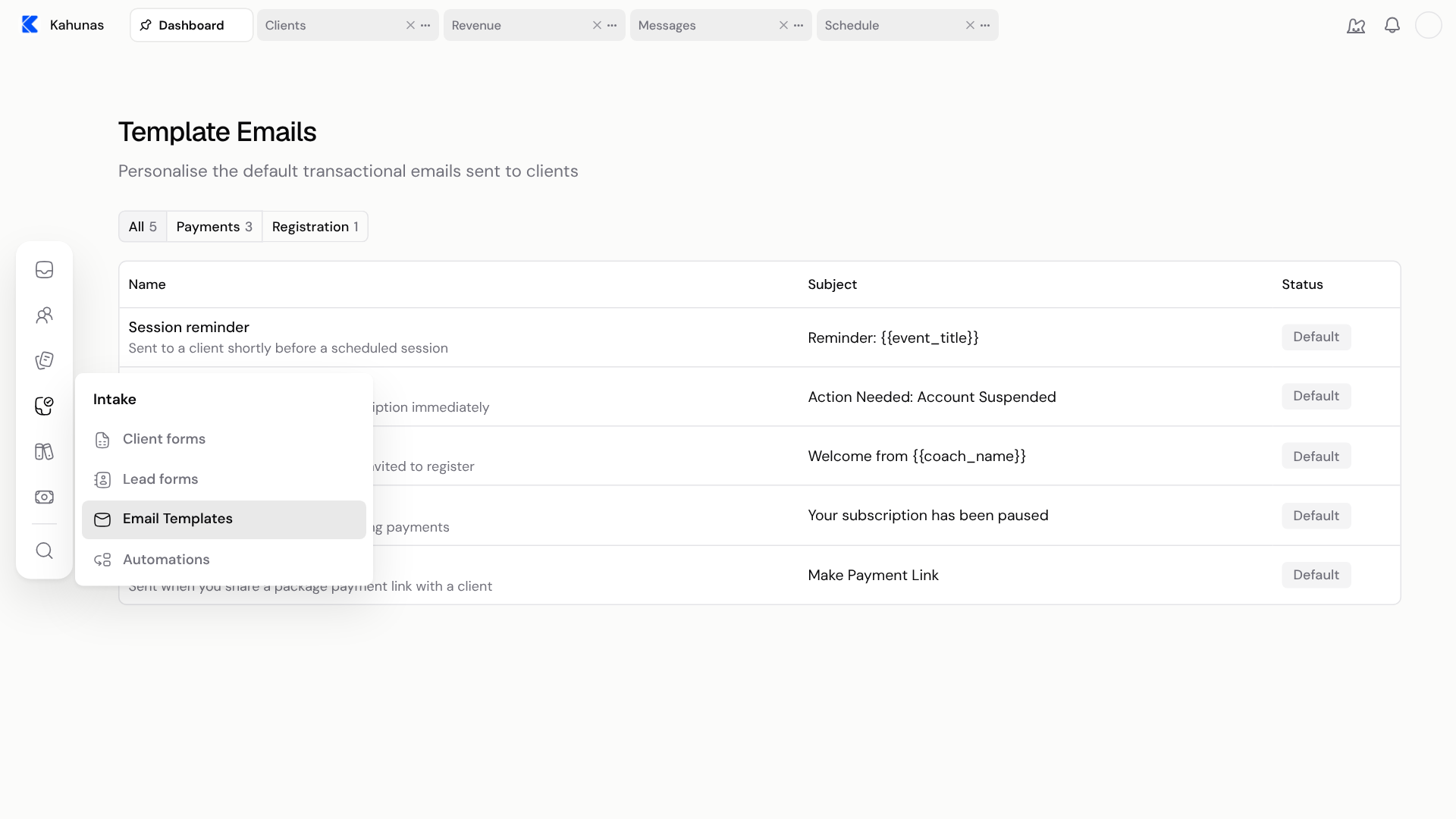
- Open Intake → Automations.
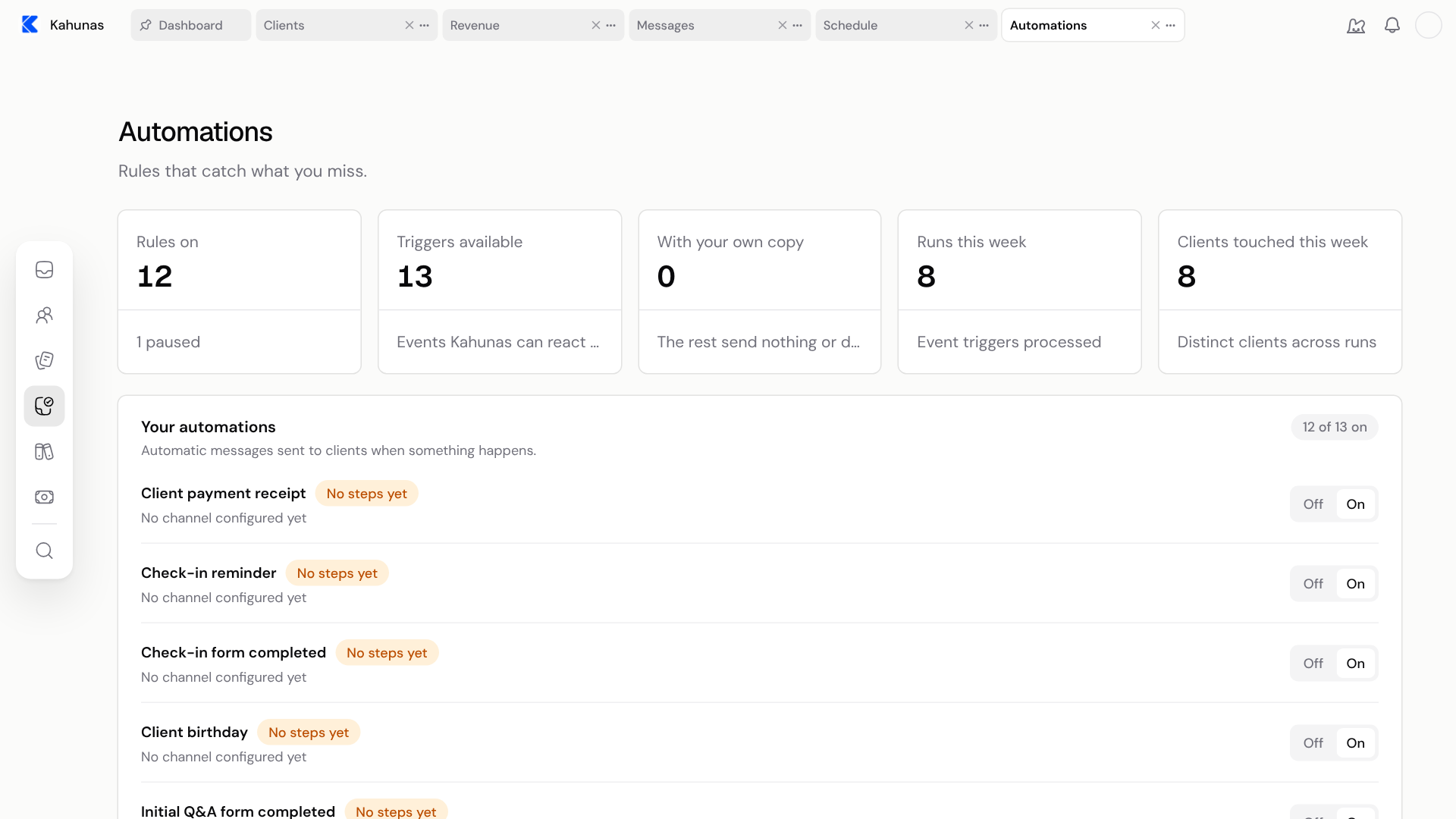
- In Your automations, find Check-in reminder and Missed check-in.
Each row has an Off / On switch. A row that says No steps yet and No channel configured yet has no message yet. A rule that is On with no steps sends nothing.
When each message is sent
Kahunas uses each client's own time zone, the one on their profile. A client with no time zone is treated as UTC.
| Automation | When it goes out | Which clients |
|---|---|---|
| Check-in reminder | Around 5pm, the day before a check-in is due | Clients whose next check-in day is tomorrow |
| Missed check-in | Around 8am, the day after a due date passed with nothing sent | Clients who haven't submitted a check-in for that due date |
A client who sends their check-in before the morning run gets no Missed check-in message.
Timing is approximate. Kahunas checks every hour, so a message can arrive later in the same day. A message that wasn't picked up before the client's midnight is not sent afterwards, and turning an automation on doesn't go back for past days.
Write the check-in reminder
- In Your automations, select Check-in reminder.
- Select Add step. A new step starts as Send email.
- Open the action menu at the top right of the step and choose Email, Push or Chat. See Choose how clients are reached.
- Write the message. Select FIRST_NAME under Personalization to add the client's first name.
- Set the wait. For a reminder, No delay is usually right, because Kahunas already sends it the day before.
- Select Save.
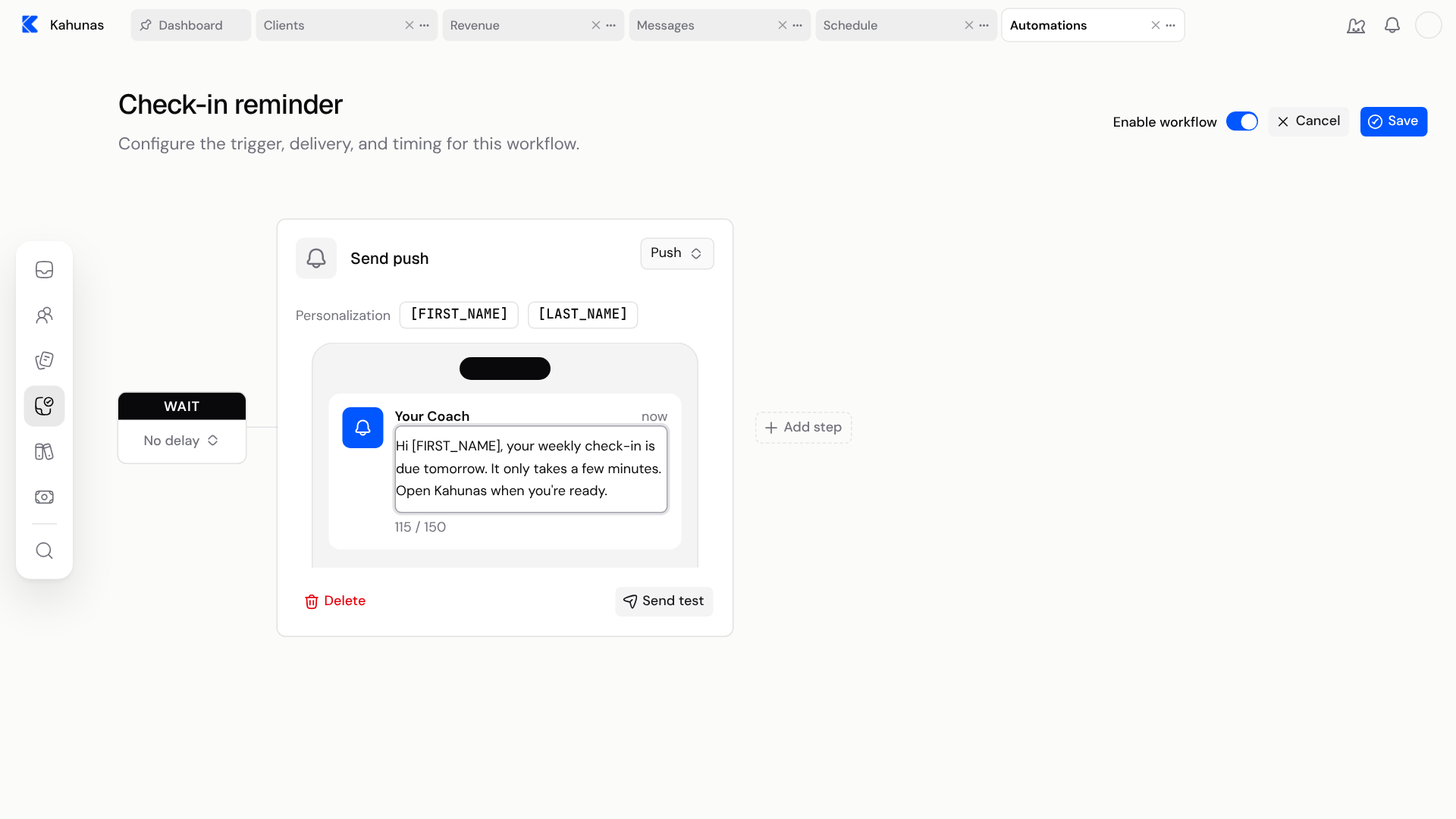
A short message works best. For example:
Hi FIRST_NAME, your weekly check-in is due tomorrow. It only takes a few minutes. Open Kahunas when you're ready.
Keep it friendly and say what to do next. Push messages are limited to 150 characters, and the editor shows the count.
Write the missed check-in follow-up
Missed check-in works the same way. Select Missed check-in, then Add step, and write the follow-up. Keep the tone kind: a client who missed a check-in usually needs an easy way back, not a telling-off.
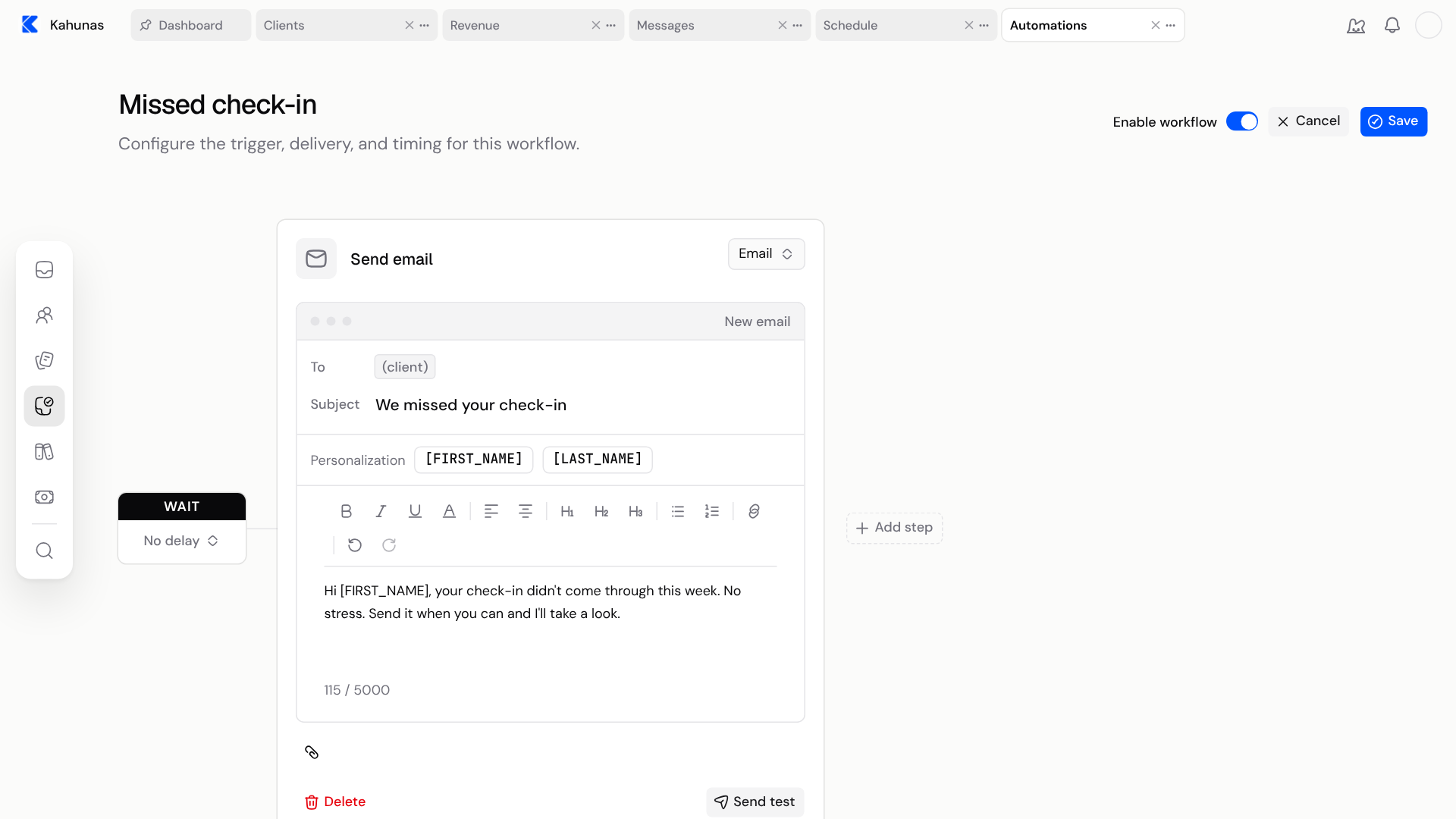
For example:
- Subject: We missed your check-in
- Message: Hi FIRST_NAME, your check-in didn't come through this week. No stress. Send it when you can and I'll take a look.
You can add more steps with Add step, for example an email and a push. Each step has a WAIT card before it. Leave it on No delay unless you have a reason to wait.
Choose how clients are reached
The action menu on each step offers these choices for these two automations:
| Action | What the client gets |
|---|---|
| An email with your subject and message. | |
| Push | A short notification on their phone, up to 150 characters, plus a matching item in their in-app notifications. |
| Chat | A message in the in-app messenger. |
| Webhook | Sends the event to another service, such as Zapier. Not a message to the client. |
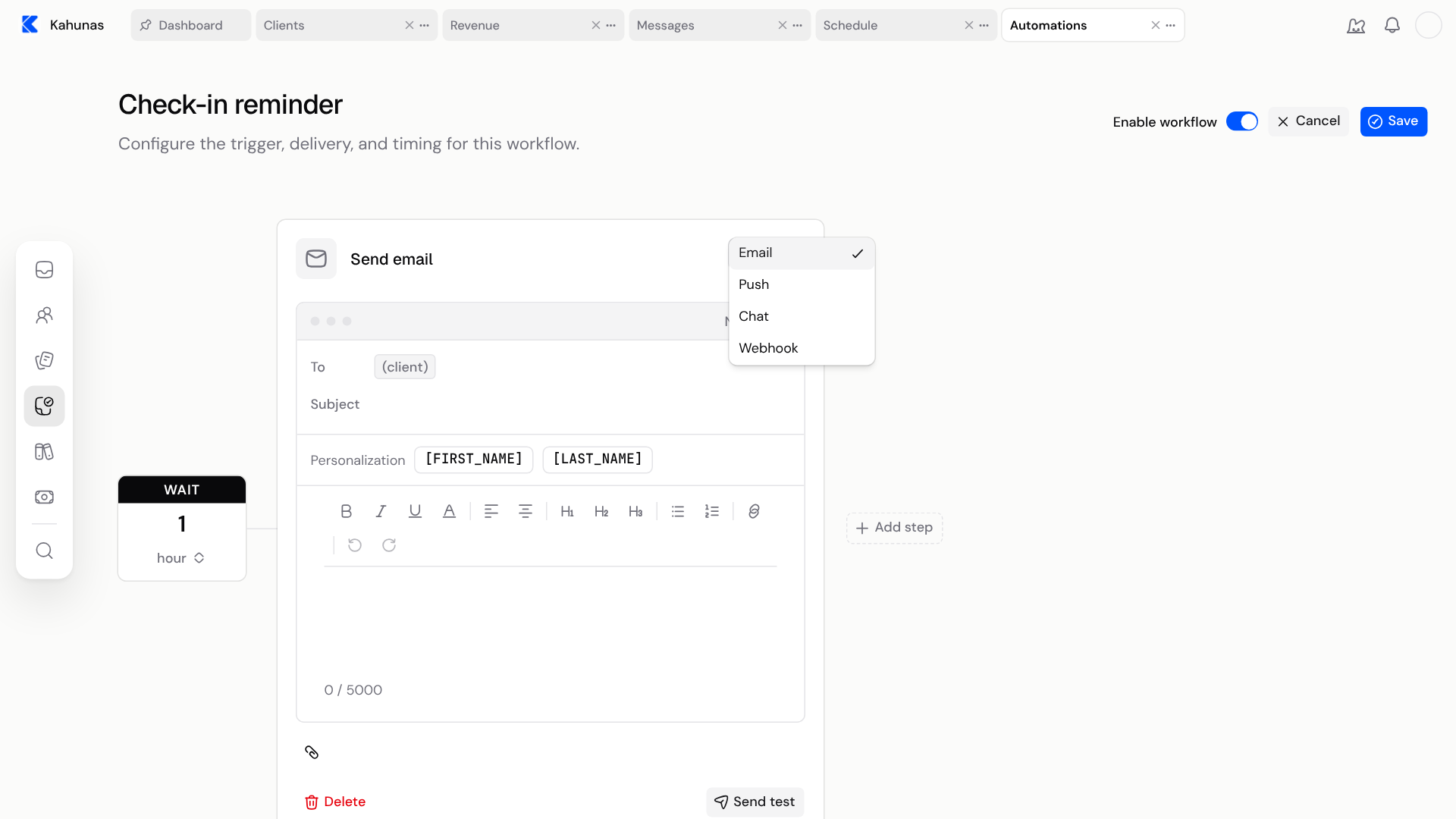
Push needs the client's notifications turned on
A push message only reaches a client's phone if notifications are turned on in their own app. Clients do this in the Kahunas app under More → Notifications, by selecting Enable notifications and allowing notifications when the phone asks. On an iPhone, the app has to be added to the home screen first.
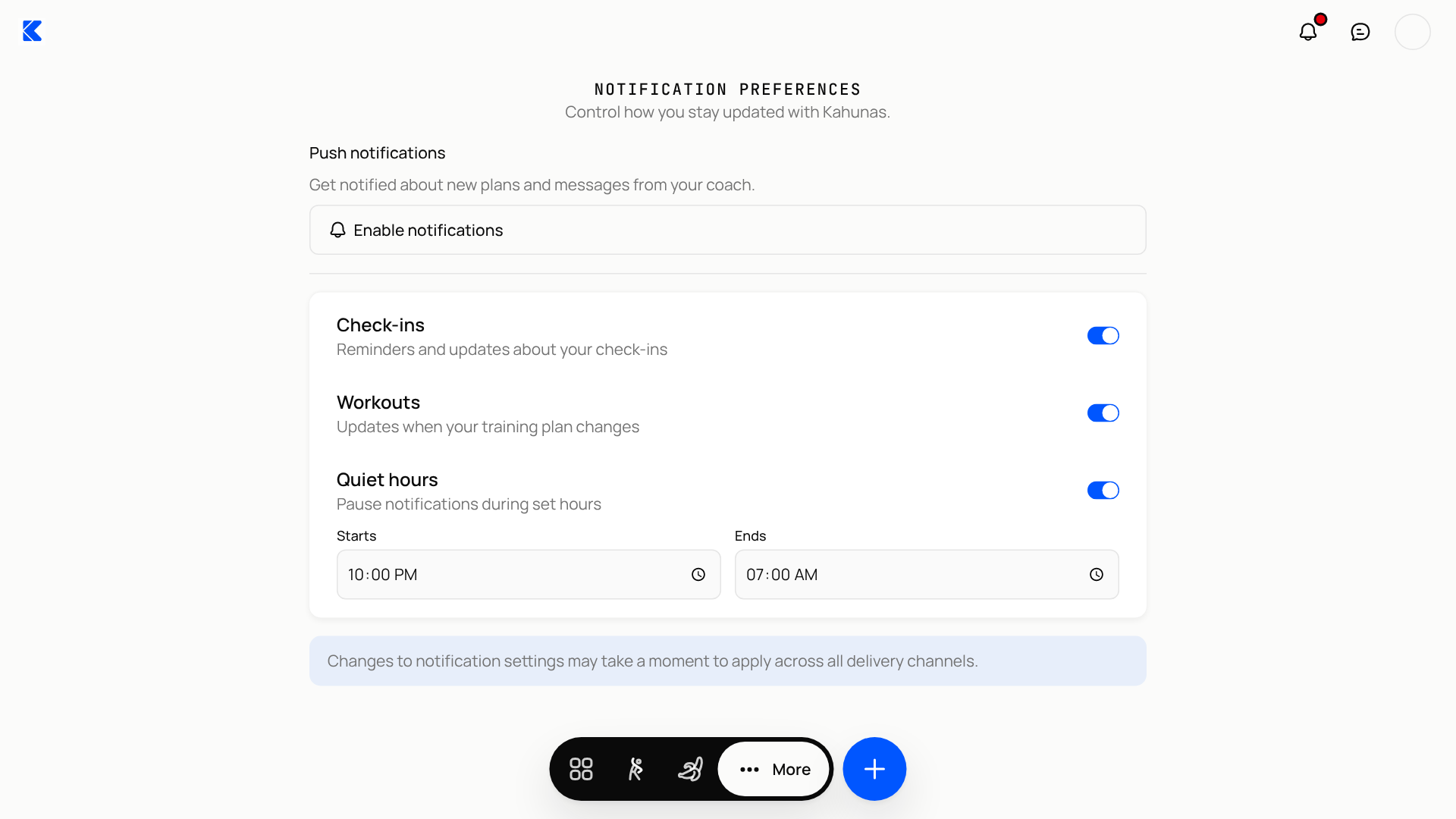
The same screen has Quiet hours. A push message waits until the client's quiet hours end. Emails and chat messages don't wait.
If a client says they never get reminders, ask them to open More → Notifications and check that notifications are enabled. See Installing the Kahunas app for how clients add the app and turn notifications on. If you want the message to reach everyone, add an email step too.
Turn the rules on
Both automations show On or Off in the list.
- Switch a row to On or Off straight from the list.
- Or open the automation and use Enable workflow, then select Save.
Only turn a rule On once its message is ready. From then on, clients who are due a check-in will be messaged.
Check your wording safely
Send test on a step sends the message to your own account, not to a client. A test uses your name for FIRST_NAME, so you can see how it will read. It can still send a real email or push to you, so use it when you are happy to receive it.
A push step shows a phone preview and a character count as you type, so you can check the wording without sending anything. When you turn a rule on, watch the first real run. The Runs this week and Clients touched this week cards on the Automations screen show how many events were processed. They don't confirm that a message was delivered or read.
If something looks different
| What you see | What to check |
|---|---|
| No steps yet next to the rule | Open the rule and select Add step. A rule with no steps sends nothing. |
| A client gets nothing | Check that the client is active, has an active check-in form and at least one check-in day, and isn't overdue on payment. |
| A client says they didn't see the push | Ask them to turn on notifications in More → Notifications. Add an email step so the message can still reach them. |
| A client got a missed check-in message after sending | They sent it after the follow-up had already gone out. Sending before the morning run stops it. |
| A message came later than expected | Kahunas checks hourly, so the time can slip within the same day. Push messages also wait for quiet hours. |
| You can't find Automations | Automations needs the add-on, and team members need the Automations permission. |
If you still need help, create a ticket from Support in your account menu and say where you got stuck.
Sharing content with clients
Add files, links and articles to your Library. Choose which packages can access them, set release timing, and keep resources up to date.
Setting up automations
Turn client-event automations on or off, add email, push, chat or webhook steps, set wait times and test your messages.