
Sending a client a package payment link
Use Copy payment link to share one package with a client. For a new client, you can also choose their package and Online payment in Clients → Invite.
A hidden package is unavailable through both paths. Choose Show first, and keep it visible while the client completes checkout.
Read video transcript
On Packages, open More package actions beside the package you want. If it's hidden, choose Show. Leave it visible until your client finishes checkout. Choose Copy payment link, then share the copied link with your client. Your client signs up or signs in, then follows the payment steps.
Before you start
Your package must be published, visible and set up for online payment through a connected provider. Active alone does not mean a package can take online payments: an Offline package can also be active.
To create or change an offer, follow Creating a coaching package. Check the price and billing terms before sharing it.
The copied link is a public signup link for that package, not a private link tied to one person's email. Anyone you share it with can open it while the package is available.
Copy the package's payment link
- Open Revenue → Packages from the side navigation.
- Find the package you want the client to buy.
- Open More package actions, the three-dot menu at the end of its row.
- Choose Copy payment link. You'll see Payment link copied.
- Paste the link into the email or message you send to your client. Copying it does not send anything for you.
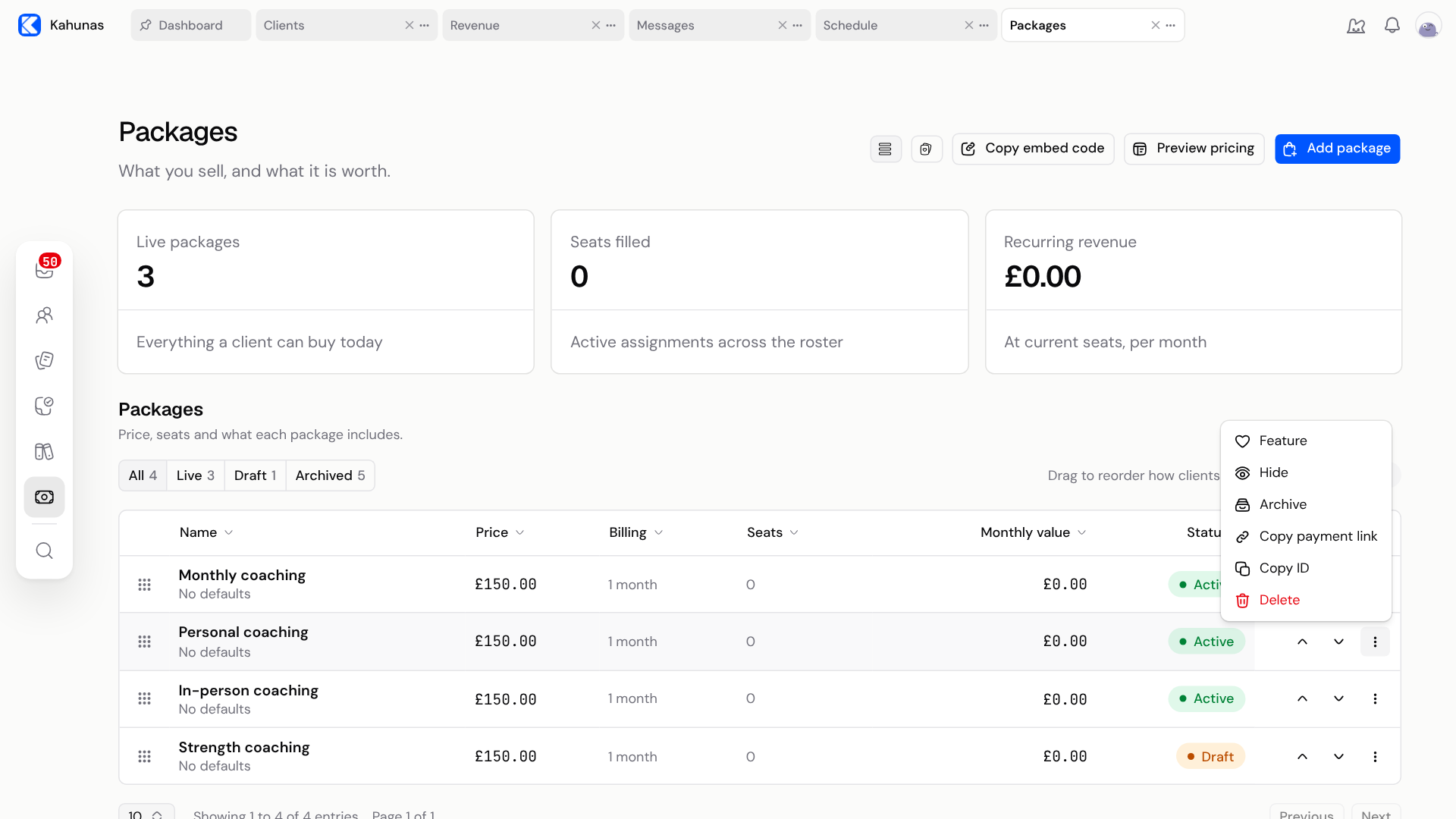
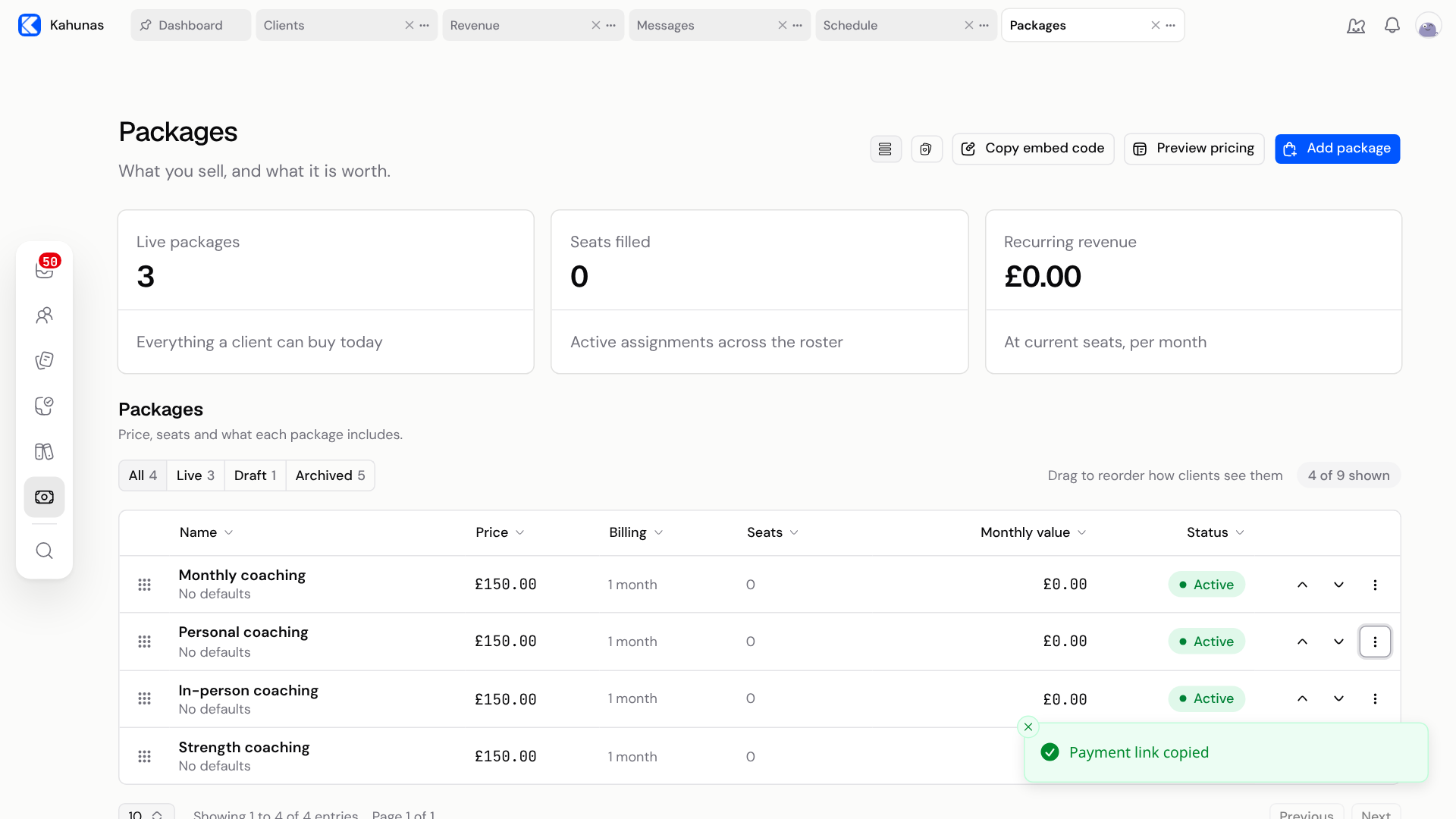
Use Copy payment link for one offer. Preview pricing is for a page with several offers.
If the package is hidden
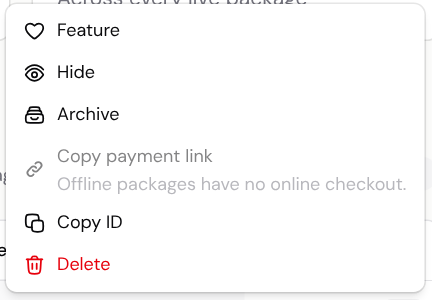
Hidden packages do not appear in the invitation's Package list. Their Copy payment link action is greyed out with Hidden packages can't be bought online. An earlier copy of the link will not bypass this.
- On Packages, open that package's More package actions menu.
- Choose Show.
- Reopen the menu and choose Copy payment link, or return to Clients → Invite and select the package.
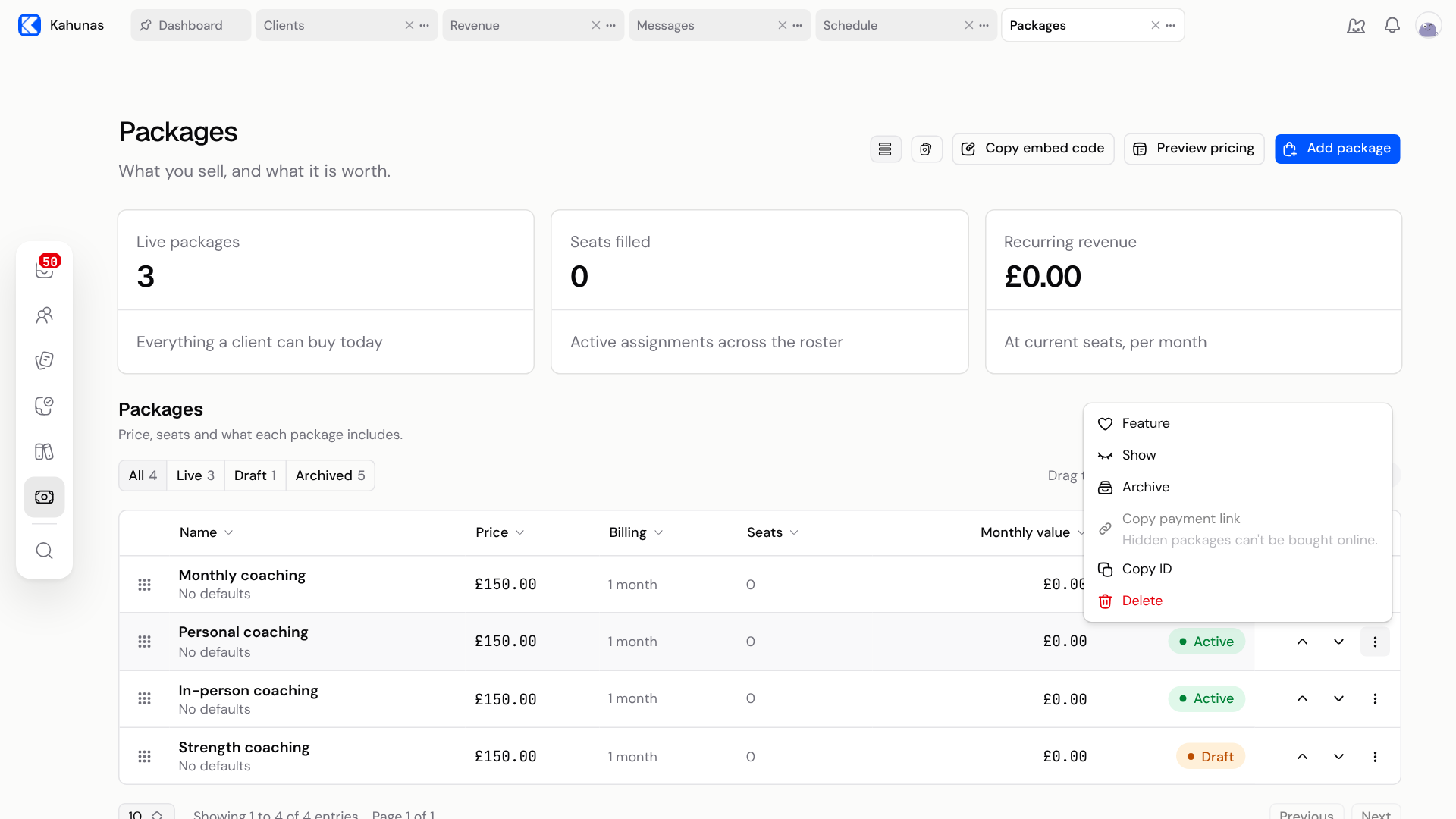
Leave the package visible until the client has finished checkout. Hiding it again disables the public link. Showing it also makes it available among your visible offers, so this is not a way to sell a secret package to just one person.
After the client has paid, you can choose Hide from the same menu if you no longer want to offer it to new buyers. Hiding a package does not cancel existing subscriptions. Archive is a separate action; do not use it in place of Hide.
Invite a new client with online payment
Use this path when you want to prepare the client's account and onboarding before they sign up.
- Open People → Clients, then select Invite on the Client roster.
- On Who they are, enter the client's details and select Next.
- On What they are on, choose Package and check Plan start date. The list includes published, visible packages only.
- Under Payment, choose Online payment and choose Provider.
- Review First charge on plan start date. To use another date, clear it and choose First charge date.
- Select Next and review the forms on How you work together.
- Check the client's email, package and payment arrangement before selecting Send invite. Your client then uses their signup email to set up access and follow the payment steps.
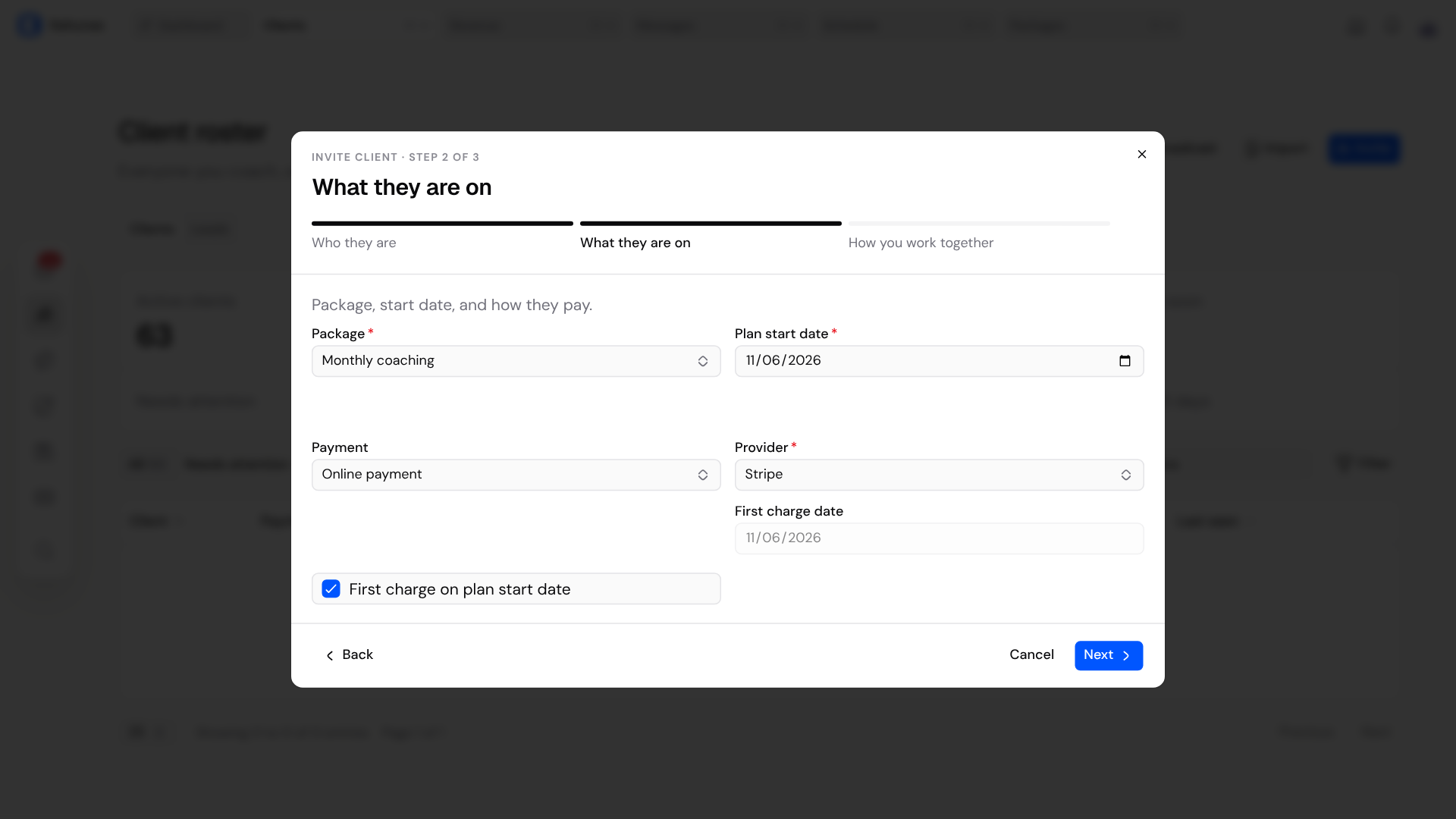
No payment and Offline payment do not ask the client to pay through online checkout. If Online payment is unavailable, check the package's payment mode and provider connection instead of choosing a different arrangement by mistake.
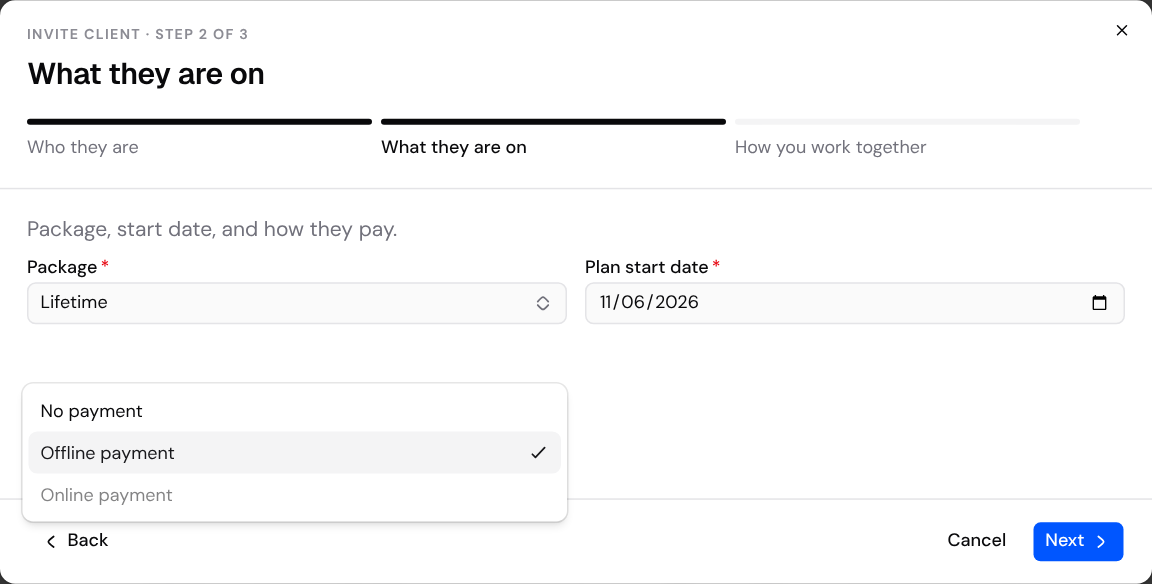
See Adding a new client for the full invitation flow and help with a signup email that does not arrive.
What your client sees
A client opening the copied link signs up or signs in, then continues to payment for the selected package. The signup screen can look different depending on your account setup. Ask them to check the package name, price and billing terms before confirming payment.
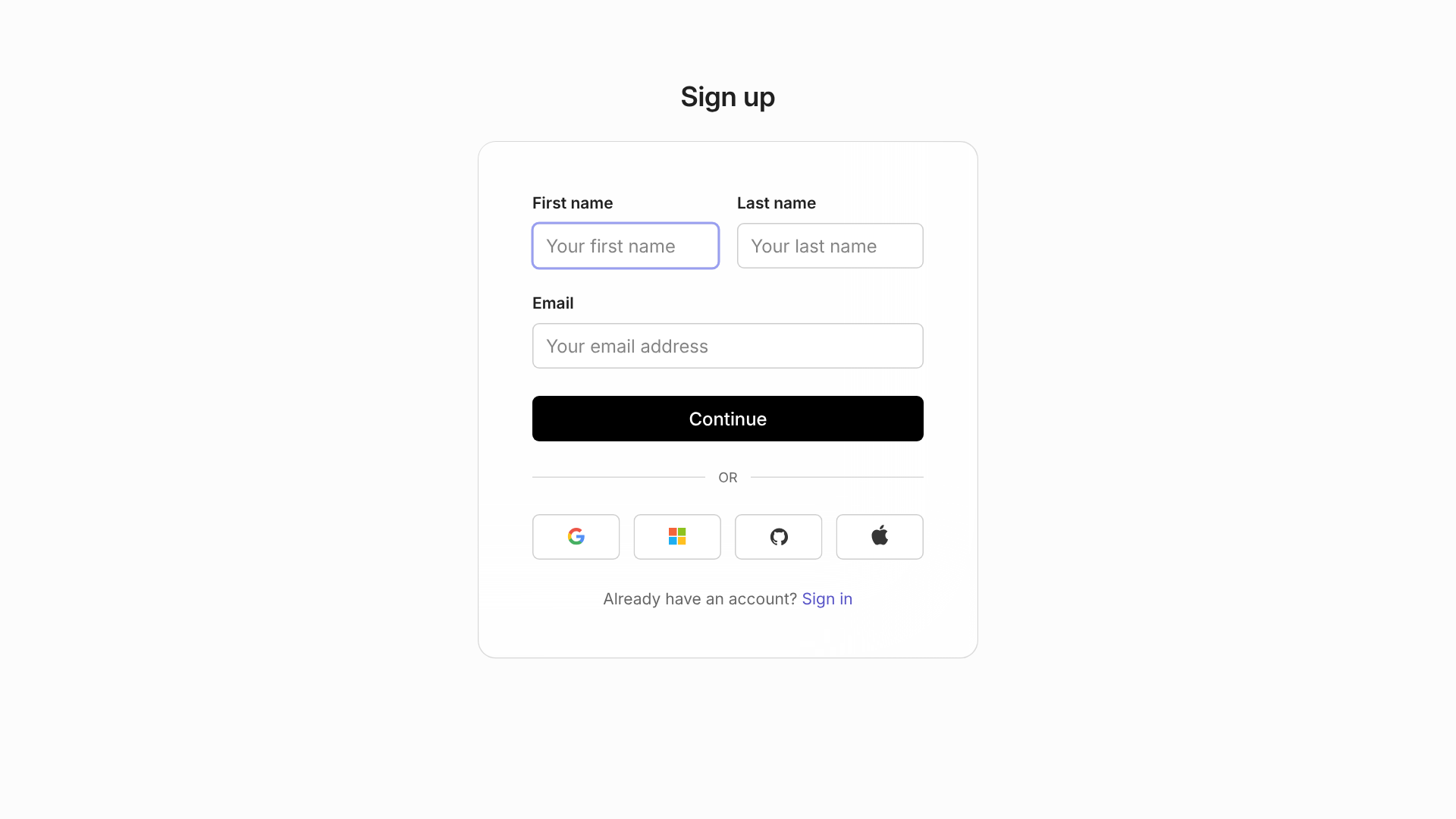
For an invitation, the client starts from the signup email for the account you prepared. An invitation or a copied link is not proof of payment. Check the client's Billing tab for their payment and subscription details; see Managing client billing.
To check the signup page yourself, open the copied link in a private browser window. A coach account cannot buy its own package: if you open the link while signed in as a coach, you'll see This link is for your clients.
If the link does not work
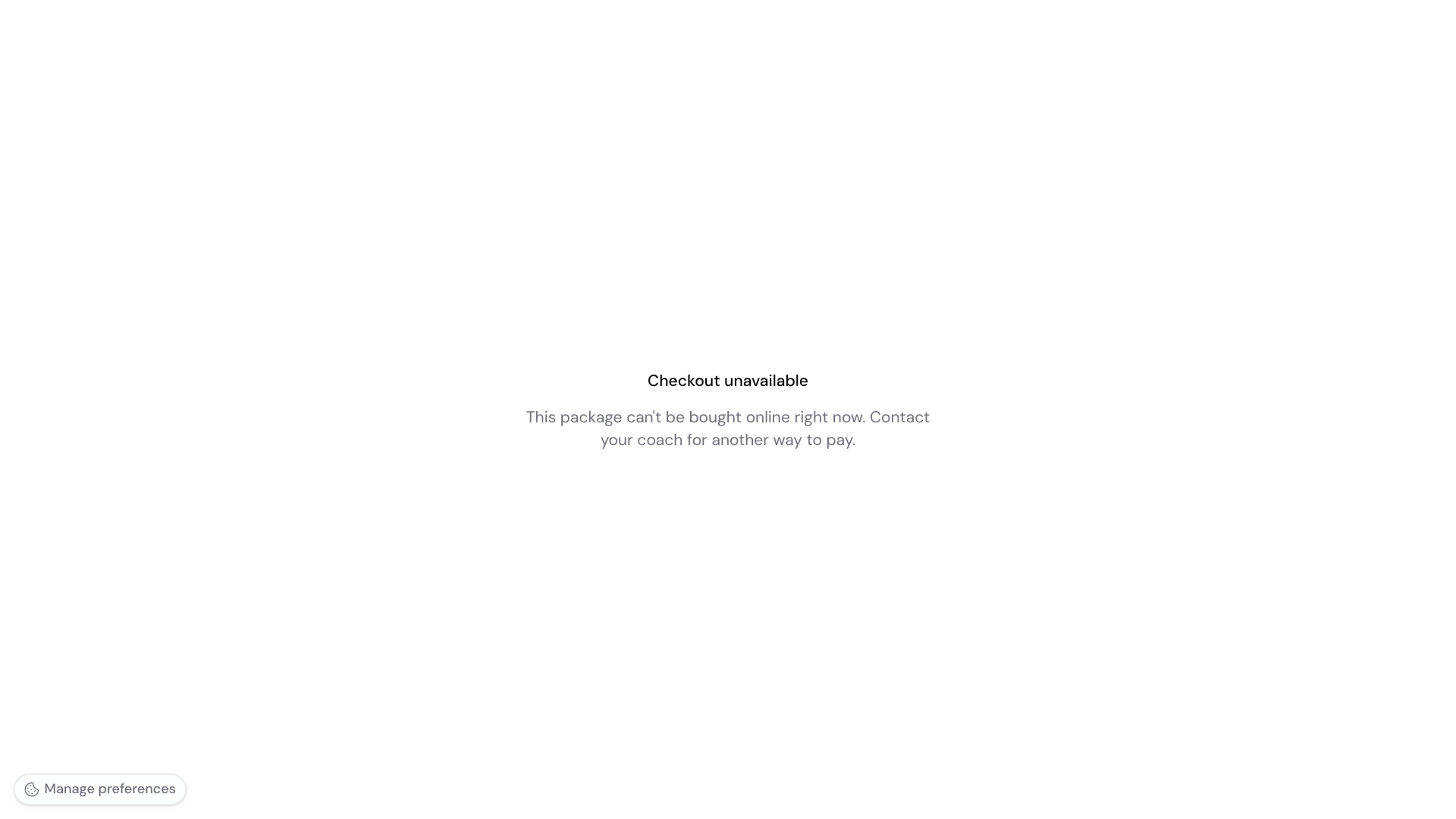
The client may see Checkout unavailable with a message to contact their coach for another way to pay. Check the package and its menu's explanation before asking them to try again.
| What you see | What to check |
|---|---|
| Offline packages have no online checkout. | Use the payment arrangement you agreed outside Kahunas, or edit and publish the package with online payment if you intend to sell it online. |
| Only published packages can be bought online. | A draft, inactive or archived package cannot be sold through the link. Open and publish an unfinished package. Only restore an archived offer if you intend to sell it again. |
| Hidden packages can't be bought online. | Choose Show and keep the package visible until checkout is finished. |
| A message to connect Stripe or PayPal, or re-save the package | Check Integrations, then the package's selected online payment providers. A provider must be connected and enabled for that package. |
| Verifying your Stripe connection | New online payments are not available yet. The notice says you do not need to reconnect. Create a ticket from Support in your account menu if it does not clear. |
| The package is missing from Clients → Invite | Check that it is published and visible. Hidden, draft and archived packages are not listed. |
The copied package link stays the same. Once you fix its availability, the client can reopen it.
Screenshots show the English interface with example packages. Your package names, prices and available payment providers may differ.