







Lab Results
Add a Lab results question to a check-in so your client can send you their report. You can then review it from Labs in their profile.
Read edited video transcript
Enable Labs. We're going to walk through the new Labs feature on Kahunas. This is for coaches who want their clients to upload blood work and let you see it in the client profile, so you have everything in one place. On the initial setup, you won't see anything on the left-hand side that indicates you can do this. It's an advanced feature that isn't going to be for everybody. To enable it, go to your profile at the top and click Settings. Scroll down to the features you can enable or disable for your clients. Enable Labs, come up to the top and click Save. Go back to a client, refresh the screen, and you'll see Labs.
Add the question. The other thing we need to do is add a field to the check-in form so a client can upload their labs. Go to the client's Plans & Forms, then open their check-in form. I'll open Weekly check-in and add it at the top. Click the plus control, then choose Lab results near the bottom of the menu. Click Save & close. That form is saved, and it's the form we have assigned to me.
Upload from the client app. In the application, use the action button to open the check-in. The box highlighting my clicks is part of the presentation; you won't have that box. I'll enter my weight, then use Lab results to upload a file. Select the blood work and wait for the upload to finish. On your phone, tap through the other questions to complete your check-in. We're focusing on the blood work here. I'll click Next, then Submit check-in.
Review the report. Head back to the client profile and open Labs. The report that was uploaded is here and ready. Open it to see the results and ranges from the report. If a client uploads a picture and a value can't be read, it can be flagged for you to check against the image and confirm.
Use the grid and original. Grid shows colour gradients based on where a marker sits in its range. Kahunas doesn't set those ranges; they come from the blood work itself. Most reports include a range and a result. You'll see neutral results and results within or outside their ranges. You can also click Original to open the report in a new tab. This gives you a visual way to review your client's results, including when you're recording feedback to share with them. If you have questions, tap Support and send our team a message.
Enable Labs
- Open your account menu in the top-right corner and select Settings.
- In General, scroll to Feature flags.
- Turn on Labs, then select Save at the top of the page.
- Open People → Clients from the left sidebar and select a client. Refresh the page if Labs hasn't appeared in their profile navigation.

To limit access, use Add excluded clients beneath Labs and search for the clients you want to exclude. Check this list if one client can't use the feature.
Add Lab results to the assigned check-in form
Open the client's assigned check-in form to add the upload question.
- In the client profile, select Plans & Forms.
- Open their check-in form, such as Weekly check-in.
- Select a plus control between questions, then scroll through the question types and choose Lab results.
- Review the question's label and its Optional or Required setting. Leave it optional if the client won't have a new report at every check-in.
- Select Save & close.
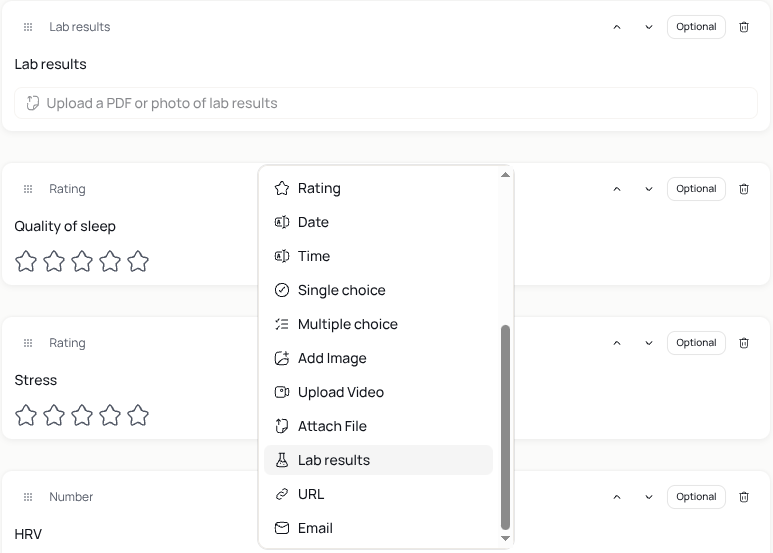
Choose Lab results, not Attach File. Look for Upload a PDF or photo of lab results in the builder.
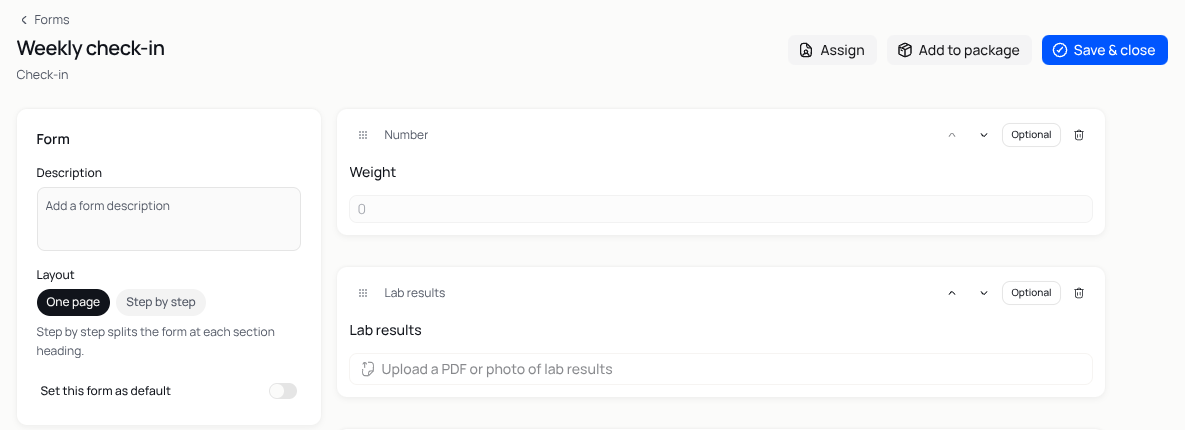
You can also find the form through Intake → Client forms in the left sidebar. Search for the form, open its Form actions menu and select Edit form. Check which clients use a shared form before changing its questions.
If the client doesn't have a check-in form yet, follow Creating your check-in form to create and assign one.
Ask the client to upload their report
The client uploads their report while completing the check-in in their app:
- Open the check-in from the app's action menu.
- At Lab results, select the upload control and choose a PDF or photo of the report.
- Wait for the upload to finish, then complete the other required questions.
- Select Next, review the submission prompt and select Submit check-in.
The client must submit the check-in after uploading their report.
Open and review a report
- Open People → Clients, select the client and choose Labs in their profile.
- Check the report's Test date, Source, Uploaded date and Status. The test date and upload date may differ.
- Open the report when its status shows Ready.
Use List to read the Test, Result, Unit, Range and Flag columns together. Check the units before comparing values.
Switch to Grid to scan the results by colour. Compare each result with the range on the lab's report. Read the range and flag as well as the colour; No range to compare doesn't mean a result is in range.
Select Original to open the uploaded report in a new tab. Use it to check the extracted information against the source.
Check values that need attention
Open Original to check flagged results or values that look wrong. Check whether the lab flagged the result or Kahunas needs you to confirm a value it couldn't read.
In List, select a test name, result, unit, range or flag to open its editor. Correct transcription errors against the original report; don't replace the lab's range with a coaching target.
A colour or flag alone isn't a diagnosis. Ask the client to discuss medical interpretation with a qualified healthcare professional.
If Labs or the report is missing
- If Labs is missing from the client profile, check Settings → General → Feature flags, save the setting, review excluded clients and refresh the profile.
- If the client has no upload question, check that Lab results is on their assigned check-in form and that you selected Save & close.
- If the report hasn't appeared, confirm that the client finished the upload and submitted the check-in. Check the report's status before expecting results.
If you still need help, use Contact support on this help site and describe where the process stopped. Continue with Reviewing Check-ins for the rest of your client's submission.