







Managing your community
Give your clients a place to ask questions, share wins and support each other. You can start with an empty community, then add members when you're ready.
Read video transcript
Open People, then Communities. Choose Community. Name your community and choose whether posts need approval. You can skip the cover. Leave packages unselected and create your community. Skip invitations for now. Open your saved community. You can add members when you're ready.
Open Communities
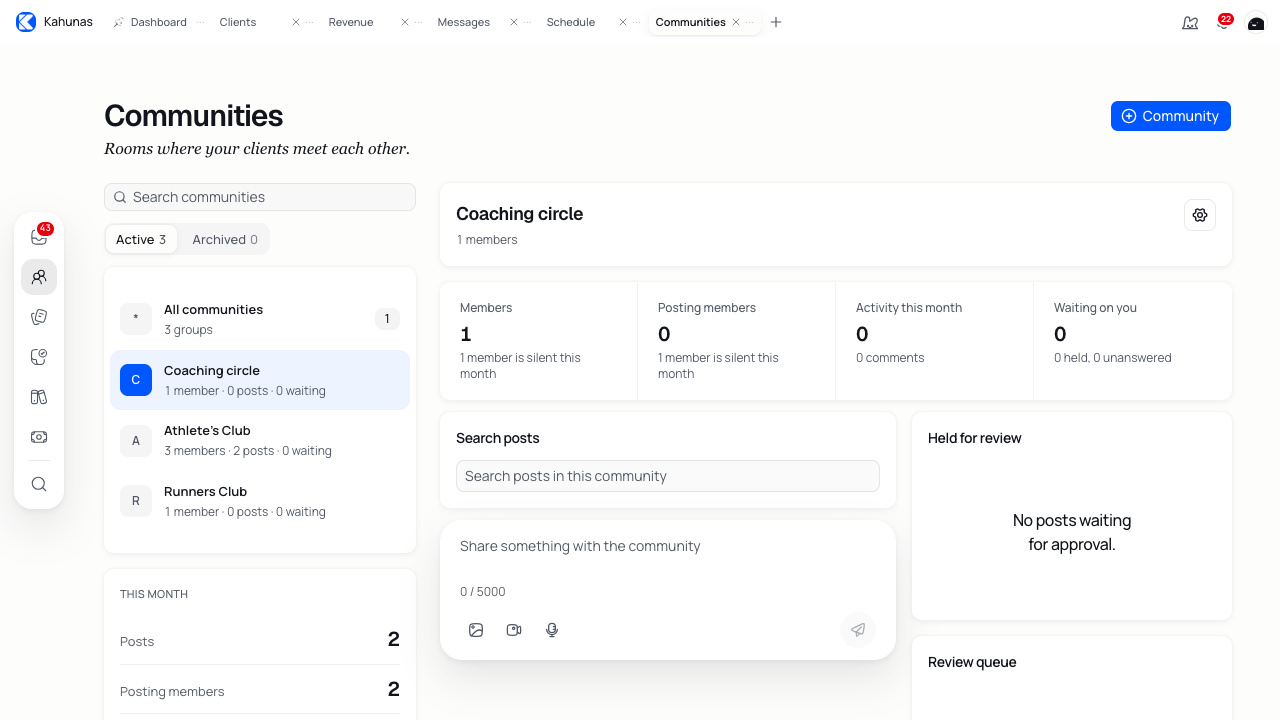
Open People → Communities from the left sidebar. Select a community to open its feed, or use Search communities to find one. Switch between Active and Archived above the list.
All communities shows conversations that need your attention across your groups. Select a conversation to open its community. This guide is for coaches with Communities access.
Create a community
- Select Community beside the plus icon.
- Enter a Name, such as “Coaching circle”. You have up to 80 characters.
- Add an optional Description of up to 500 characters. Explain who the group is for and what members can share.
- Turn on Require post approval if you want to review member posts before they appear in the feed.
- Select Next.
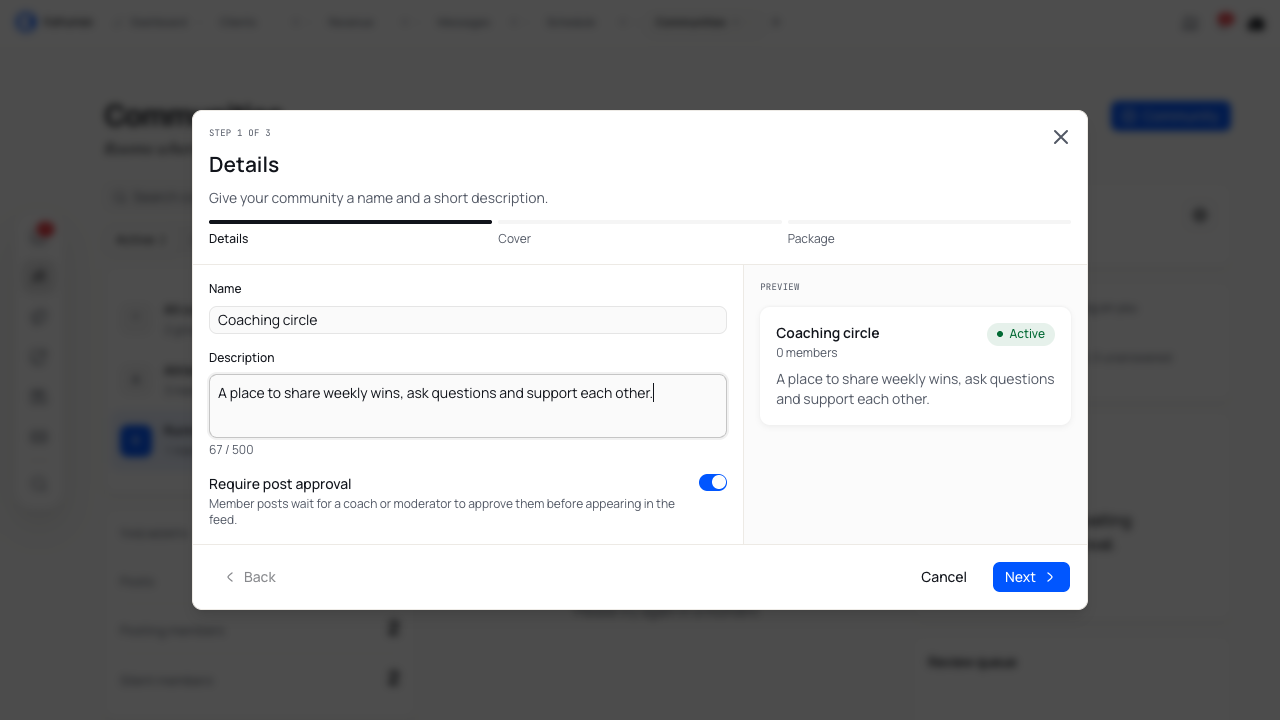
Add a cover and choose package access
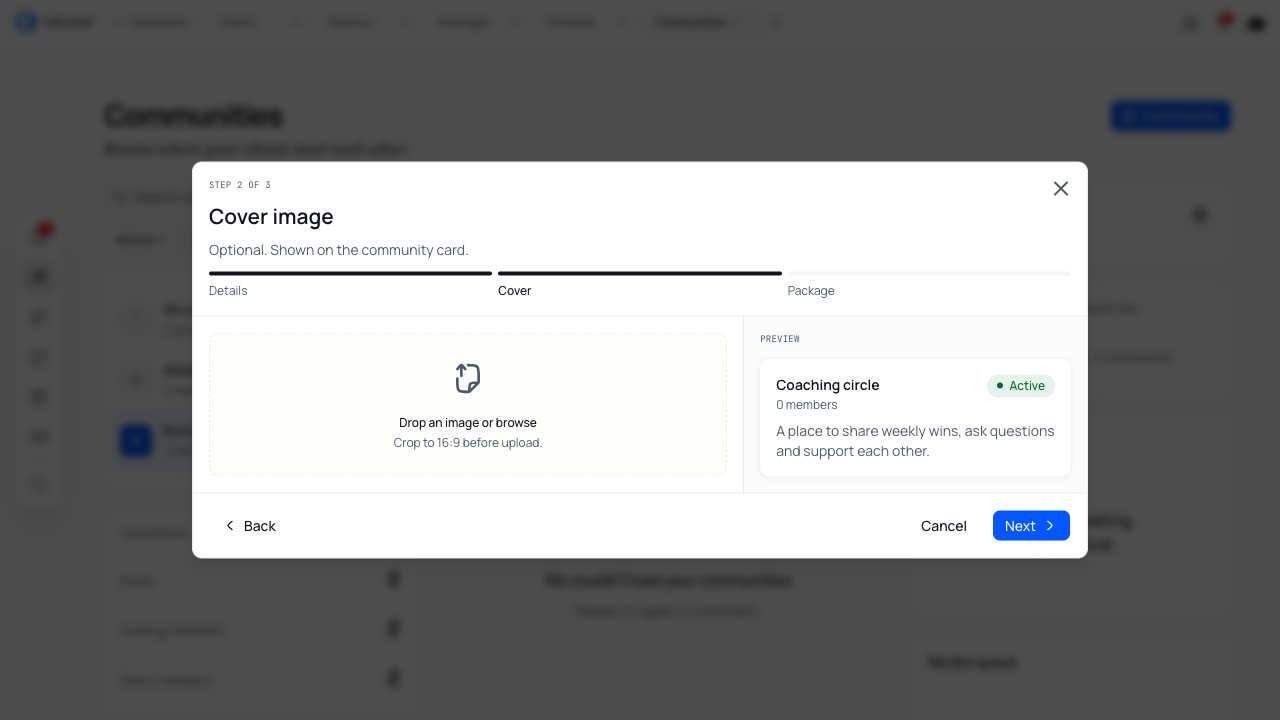
On Cover, select Drop an image or browse to choose a cover. Adjust the image in Crop cover, select Apply and wait for the upload to finish. Select Next to continue. You can also continue without a cover.
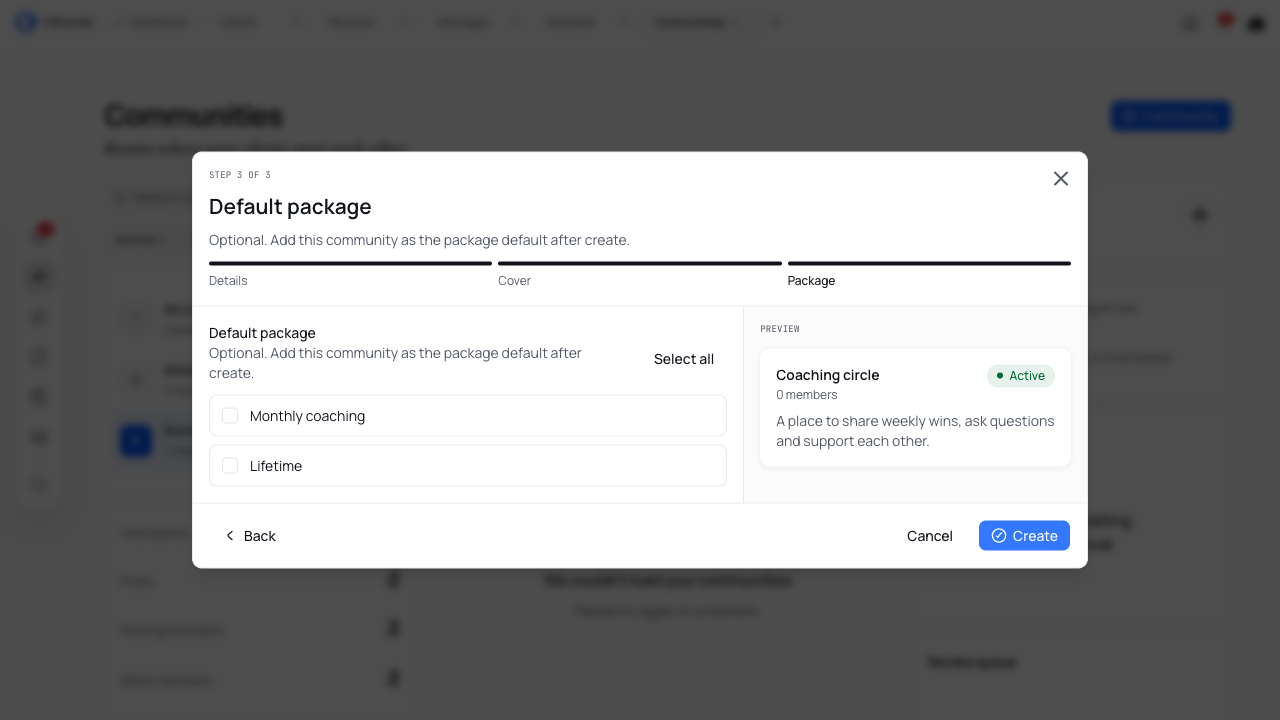
On Package, select the packages that should use this community as their default. Leave them unchecked to create a community without package access. Select Create to save it.
Choosing a default connects community access to the package. Changing a package's default can move package-based access away from its previous community. Check your choices before creating the community.
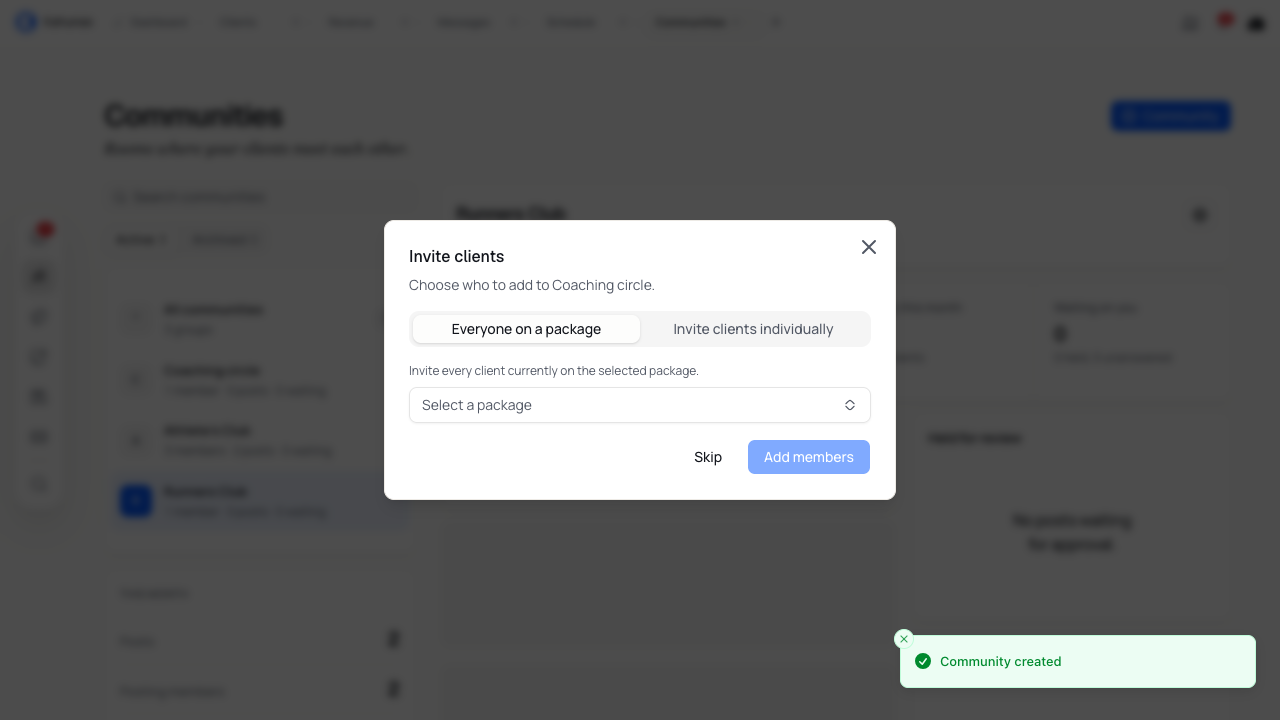
Add clients or leave the community empty
After you create the community, Invite clients opens. Choose the option that fits:
| Option | What to do |
|---|---|
| Everyone on a package | Choose one package, then select Add members to add its current clients. |
| Invite clients individually | Select the clients you want, then select Send invites to add them. |
| Skip | Keep the community without adding clients in this step. Any package defaults you chose during creation remain saved. |
With Everyone on a package, turn on Save as this package's default community if access should follow the package. Leave it off to add the selected package's current clients through manual access. A package carried over from the creation step already has this option selected. This dialog handles one package at a time.
Open your new community from the list to check it. A new community counts you, its owner, as one member even if you have not added any clients.
Manage members and access
Open the community, select the Community settings gear, then Manage members. Enter at least three characters in Search clients. Select the people you want to add and choose Add.
Use Member actions beside an existing member to manage their role or access:
- Make moderator gives a staff member moderation duties. Clients cannot become moderators. Choose Remove moderator to change them back to a member.
- Remove from community removes manual access. Someone who still has package access can remain a member.
- Ban from community ends access and prevents the person from being added again while the ban remains.
- Lift ban lets you add that person again. It does not restore their membership on its own.
You cannot change the owner's role, remove the owner or ban them.
Share posts and reply
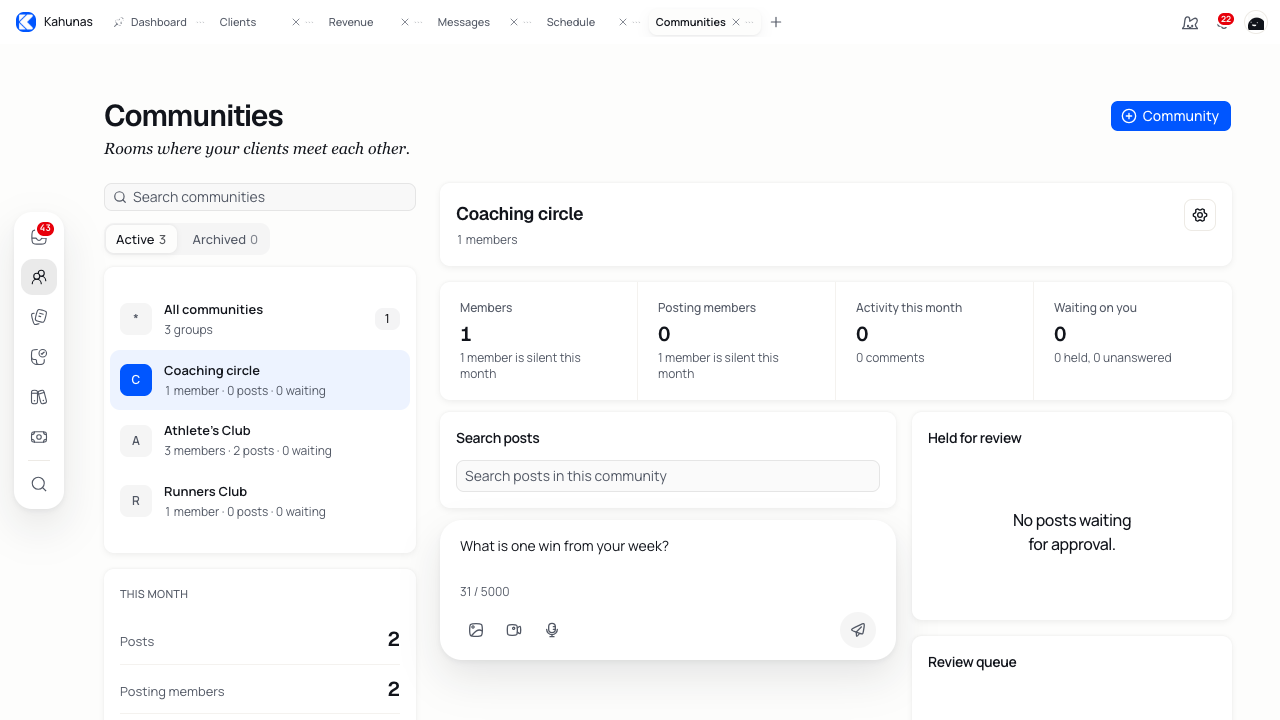
Write in Share something with the community. Add a photo or video if it helps explain your message. Record or attach audio lets you record through your microphone, or choose an audio file when recording is unavailable.
Wait for attachments to finish uploading, then select Post. Check the feed for your published post. Posts can contain up to 5,000 characters. You can also publish an attachment without text.
Select a post's comment control to read replies or write your own. Comments can contain up to 2,000 characters. Use the like control to react to a post; select it again to remove your like.
Coaches and moderators publish posts without waiting for approval, even when Require post approval is on.
Review posts and reports
Held for review contains member posts waiting for approval. Open a post to review its content. Choose Approve to publish it, or enter an optional Reason and select Reject to reject it.
Review queue contains reported posts and comments. Open an item and choose Dismiss report to leave the content published, or Remove to take it out of the feed.
You can also use the moderation menu on a post or comment to pin, unpin, hide, delete or report it. Pin a useful post or answer when you want members to find it again.
Find conversations that need a reply
Use Search posts inside a community to search its published posts. Check Waiting on you for held posts and unanswered conversations. Select the need a reply or held for review count when it appears to narrow the view, then clear the filter to return to the feed.
The summary shows your member count and activity over the past 30 days, including posting members, posts and comments. Reading, not posting shows how many members have not posted during that period. Carrying the room highlights active contributors. Use these alongside the conversations to decide where to join in.
Update details and manage topics
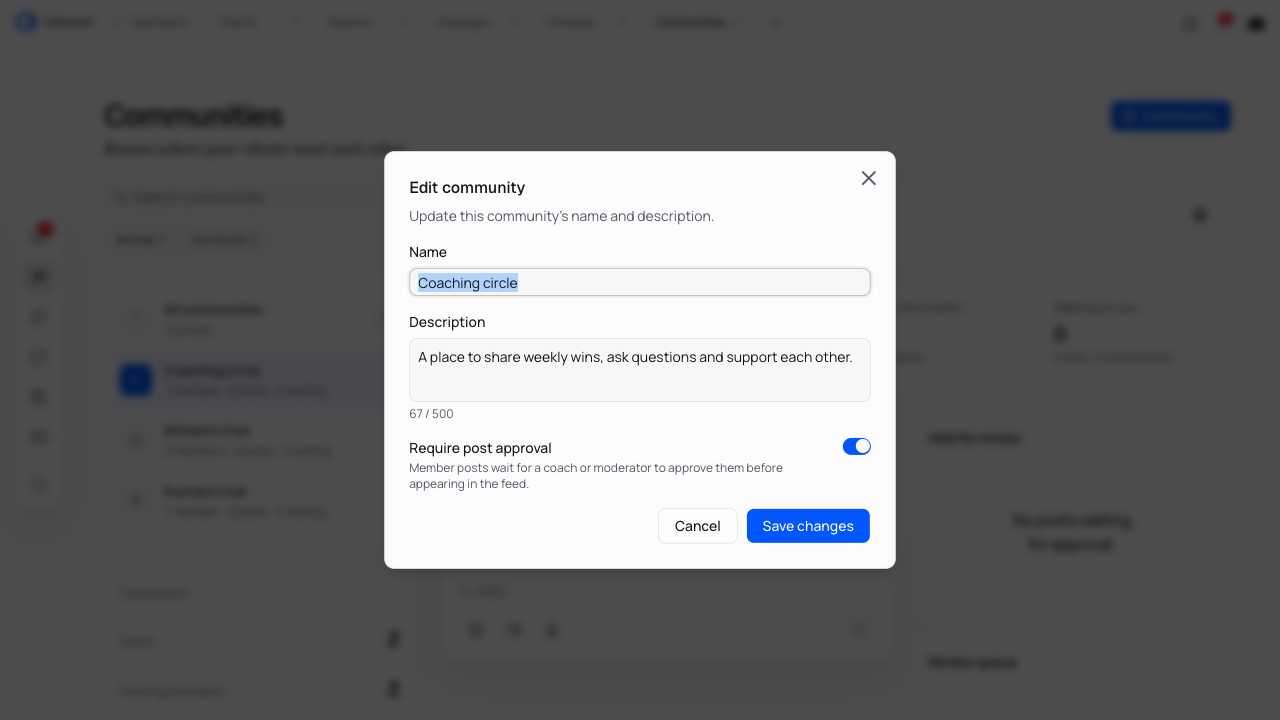
Select Community settings → Edit to change the Name, Description or Require post approval setting. Select Save changes when you're finished.
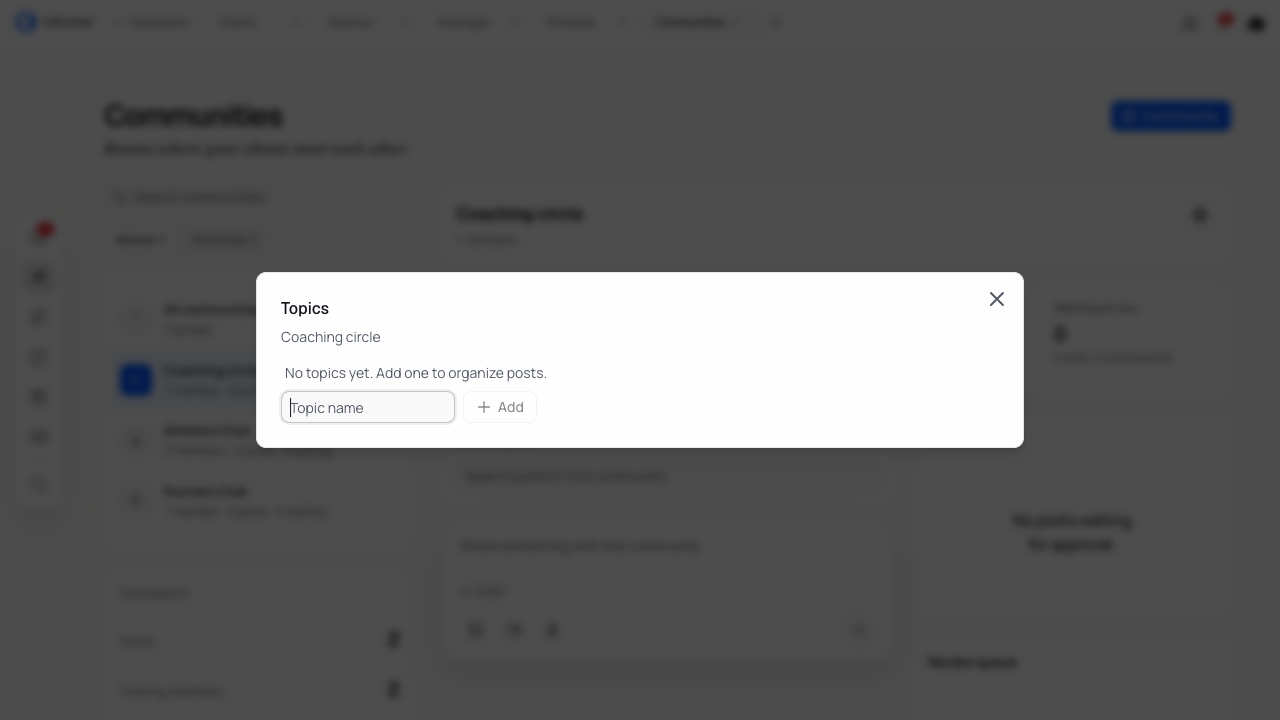
Select Community settings → Manage topics to open Topics. Enter a New topic and select Add. Topic names can contain up to 60 characters and must be different from other topics in that community.
Use Topic actions to rename, pin, unpin, reorder or delete a topic. Pinned topics appear first. You can move topics within their pinned or unpinned section. Deleting a topic leaves the posts in place.
Archive a community
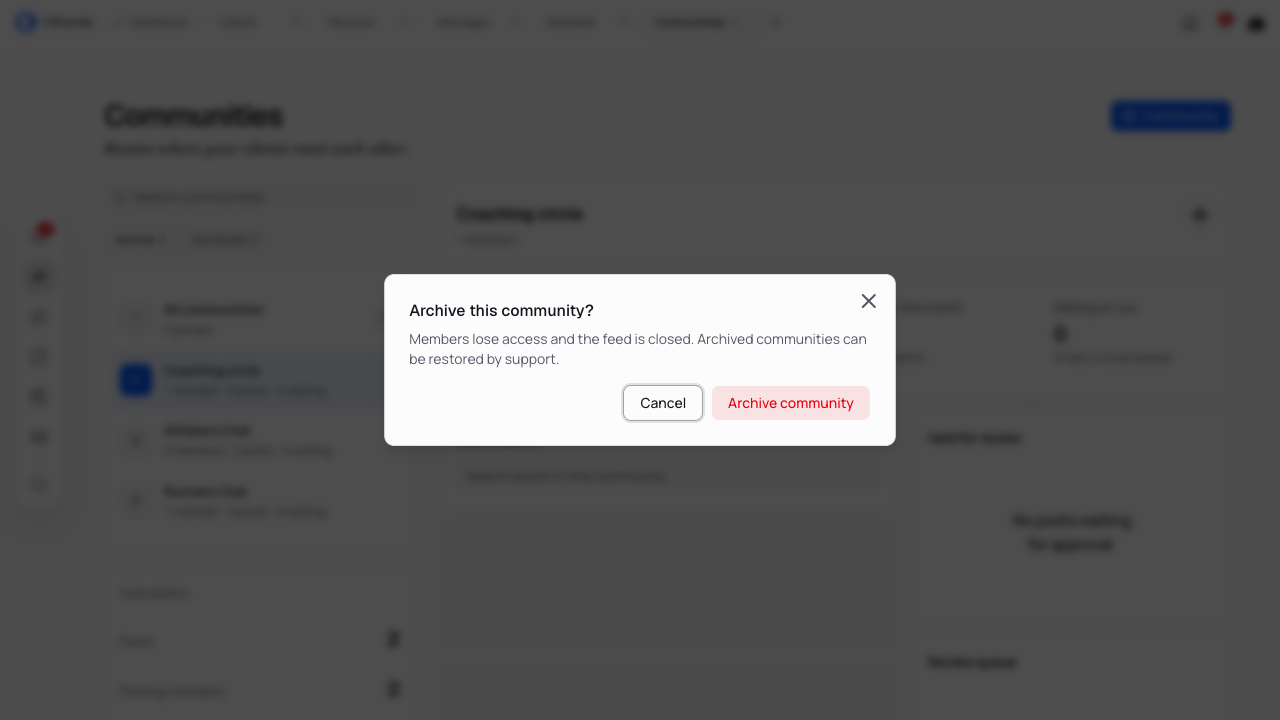
When you finish using a community, select Community settings → Archive. Read the confirmation, then select Archive community.
Archiving ends member access and removes the community from clients' community lists. You can find its record under Archived in your coach view. Archive only when you're ready to close the group; the current controls do not include a restore option.
Creating an education course
Build a coaching course with modules, lessons and resources. Choose the lesson order, publish your content, manage access and check client progress.
Sharing content with clients
Add files, links and articles to your Library. Choose which packages can access them, set release timing, and keep resources up to date.