
Clients and onboarding
Inviting a team member
Invite someone to your Kahunas team, choose their permissions, and handle an email address that's already used by a client.
Only the business owner can invite team members. Your business needs the Team add-on enabled.
Send an invitation
- In the coach sidebar, open People → Team.
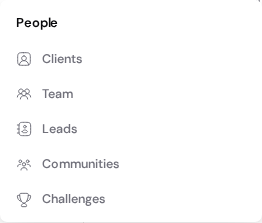
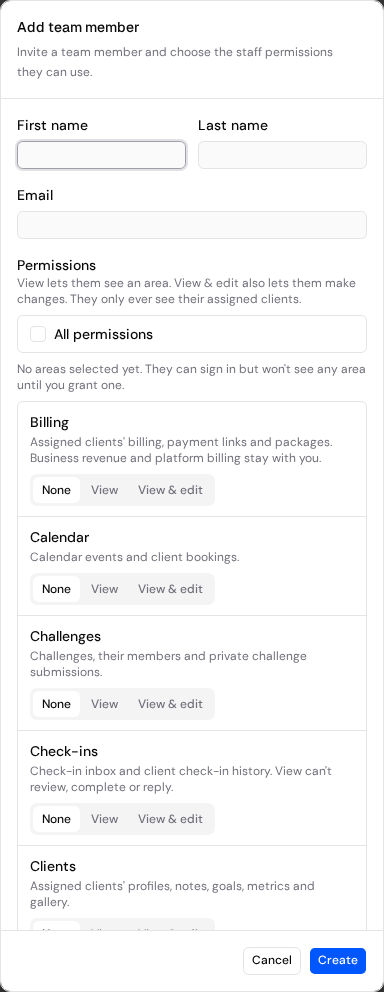
- Select Add team member. Enter their First name, Last name and Email.
- Under Permissions, choose what they can view or edit. If you see Full platform access instead of settings for each area, that switch controls access to all staff features.
- Select Create to add the team member and send the invitation. Ask them to open the invitation email and follow the link to join.
If the email already belongs to a client
If you select Create with an email a client already uses in your business, Kahunas shows Email already exists: “A user already exists with that email address.” It doesn't send an invitation.
- Use a different email address they can check. It must not already be in use in your Kahunas business.
- If their email provider supports plus addressing, add
+coachbefore the@. For example, usename+coach@example.cominstead ofname@example.com. Kahunas treats these as separate addresses.
After accepting the invite, they should sign in to the coach workspace with the full address you invited, including +coach if you used it. Their client account stays unchanged, and they keep using their original email to sign in as a client.