
Logging a single food
Your client can record a food they ate even when it isn't in their plan. They can add it to an existing meal and leave out the planned foods, or create a separate meal for it.
These steps are in the client app, under Nutrition. The Nutrition tab on a client's profile in Coach Web shows their logged intake; it isn't the food-logging screen. To change what you prescribe instead, see Nutrition Plans.
Read video transcript
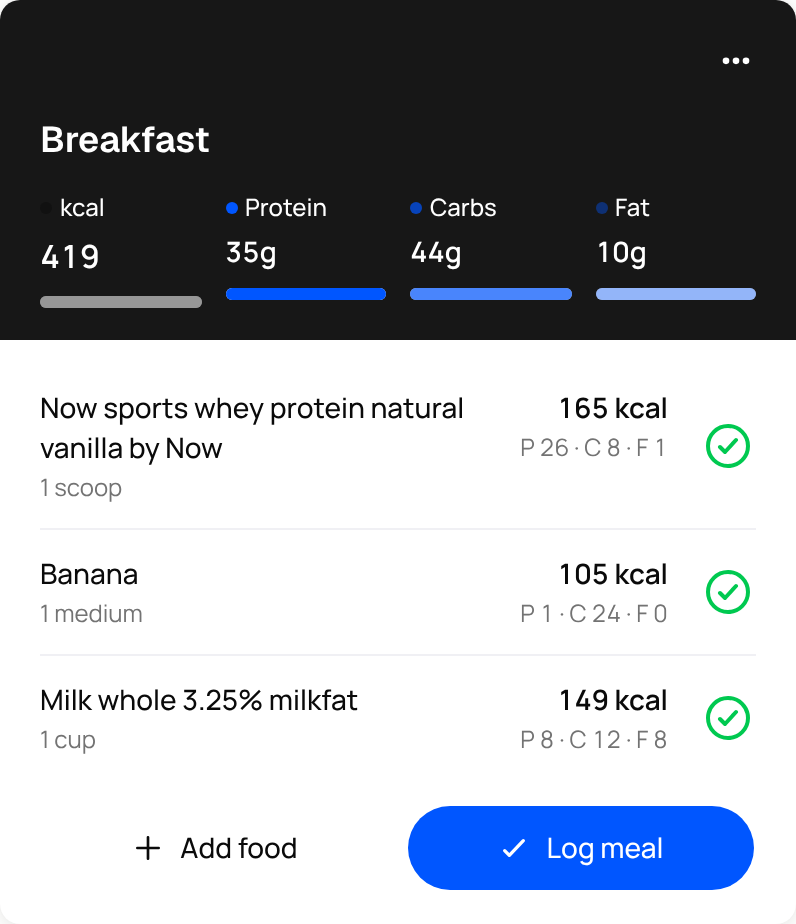
Ask your client to open Nutrition and choose the day. They open a meal, then choose Add food. They search for the food, select it, check the amount, then choose Add food. They untick the planned foods they didn't eat, leaving only the new food ticked. They check the portion, then select Log 1 food to save that food.
Before you start
Food logging needs the client's health-data consent. Your client can review it in their app under More → Consent and terms → Health data. They choose Accept themselves if they want Kahunas to collect their health data. You cannot accept for them.
If they have not accepted, Kahunas cannot save their food log. A coach using the app as that client may see Couldn't log Breakfast, or the same message with another meal name, and Try again. Retrying does not replace the client's consent decision.

This guide shows the new Kahunas client app. The older iPhone and Android apps may have different controls.
Log one food in an existing meal
Ask your client to:
- Open Nutrition and choose the date they ate the food.
- Open a meal that they haven't logged yet, then select Add food.
- Search for the food in Search foods. Select the matching result and check its serving size and amount. Selecting the heart adds a favourite; it does not select the food to add.
- Select Add food (1) to bring that food into the meal.
- Untick the planned foods they didn't eat. Those rows show Left out. Leave the food they did eat ticked.
- Check that the button reads Log 1 food, then select it to save that food.
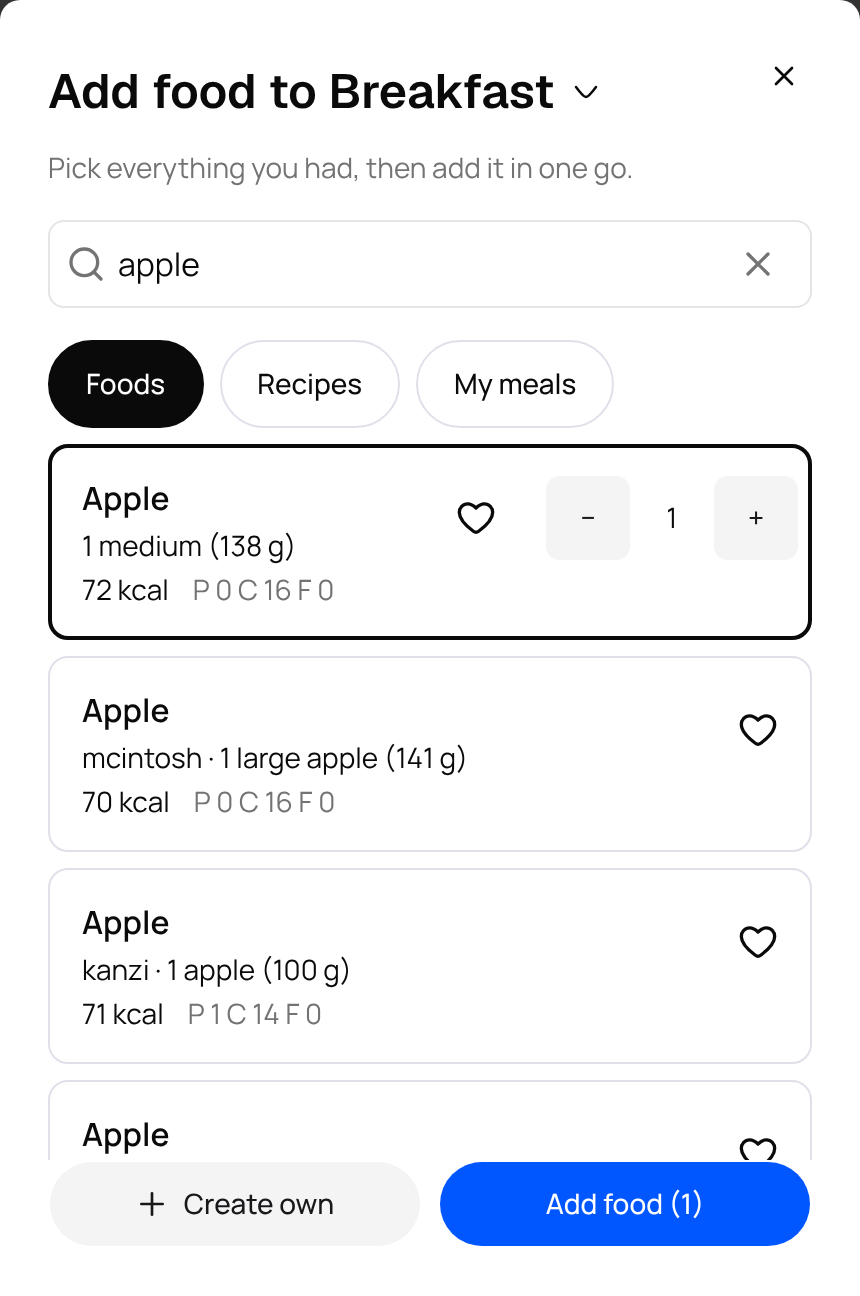
Check the portion before saving. In this example, 1 medium (138 g) of Apple is 72 kcal. Another food or serving may have different values.
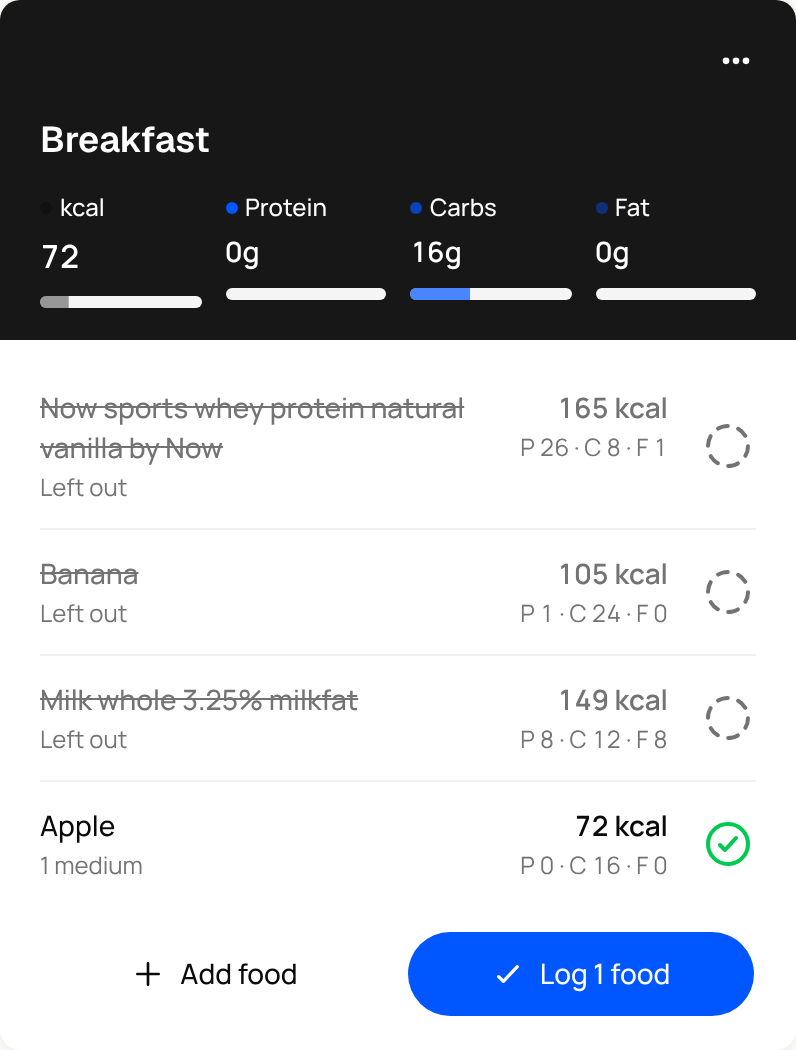
Ticks in an unlogged planned meal are a selection, not a record of what the client ate. Adding a food to that meal does not update the day's logged total until they save with Log 1 food. If the button shows a larger food count, check for other foods still ticked.
Add a separate snack or meal
A separate meal is useful when the food doesn't belong with a planned meal. Your client can do this without an assigned nutrition plan.
- In Nutrition, choose the date and select Add meal beneath the meals. If the app shows the Add food to… chooser, they can select Add another meal there instead.
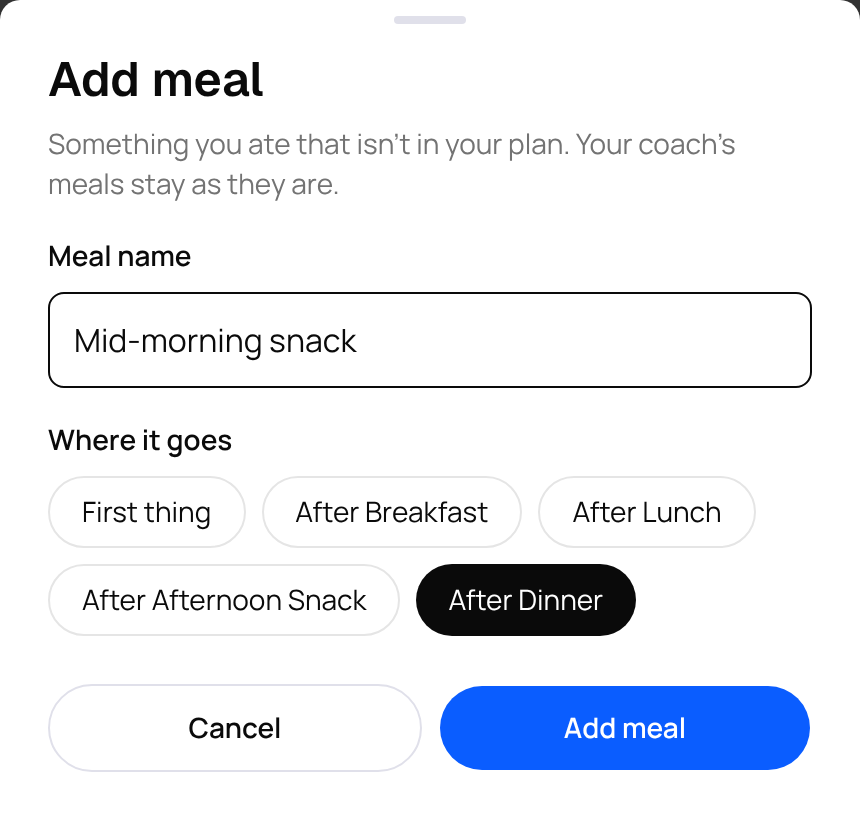
- In Add meal, enter a Meal name, such as “Mid-morning snack”. If Where it goes appears, choose its place among the planned meals, then select Add meal.
- Open the new meal and select Add food.
- Search for the food, select it, check the amount, then select Add food (1).
- Select Log meal when they have finished adding what they ate.
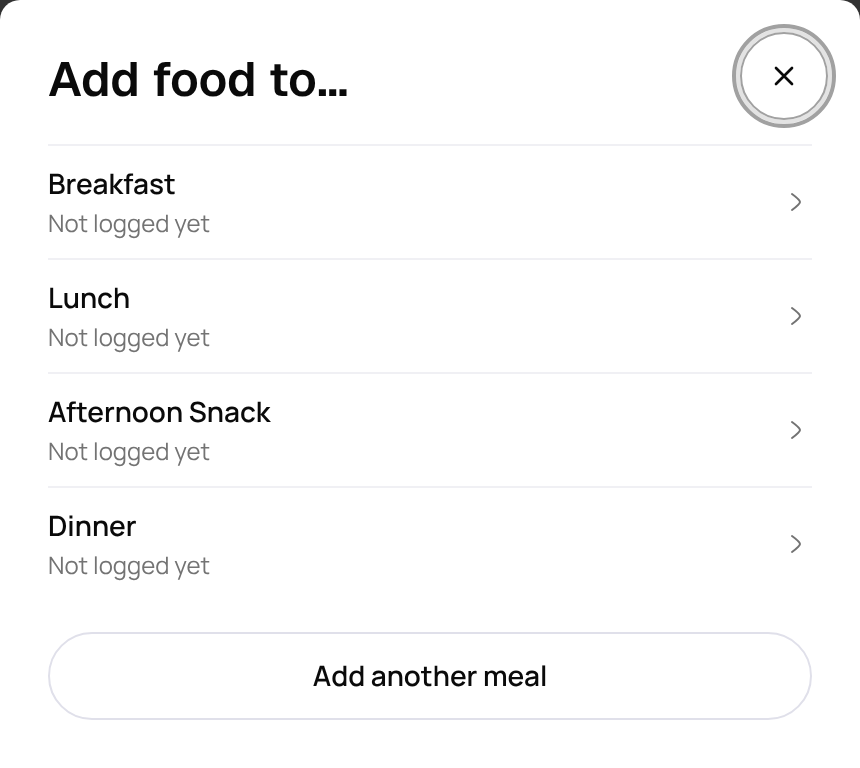
A meal the client creates works differently from an unlogged planned meal: Add food (1) saves the food in that meal straight away, but it does not count towards the day's eaten total yet. Log meal marks the meal complete and includes its food in that total. It does not add a second copy of the food.
Check what counts towards the day
After the client logs the meal, the day's logged calories, protein, carbs and fat include the food at the amount they entered. Planned foods they left out do not count as eaten. The open meal's figures show the foods selected for that meal, so check the day summary as well.
Logging only part of a planned meal can leave it marked Incomplete. This means some planned foods were left out; it doesn't mean the food they logged failed to save. Their assigned plan and its targets stay in place.
Remove an extra meal
For a meal the client created, they can open its ⋯ menu and select Delete meal. This removes the meal without another confirmation, so check the meal name first. Meals from your plan do not offer Delete meal here.
If the food won't save
| What the client or coach sees | What to check |
|---|---|
| Couldn't log followed by the meal name, with Try again | Check the connection and whether the client has accepted health-data consent in their app. Only the client can make that choice. If consent is already accepted, retry; contact support if it keeps failing. |
| Log meal when they expected Log 1 food | Check that they opened an unlogged planned meal and left only the food they ate ticked. A separate meal the client created uses Log meal. |
| Save instead of a Log button | They opened a meal that is already logged. Check its existing foods before changing it. |
| A locked past day | The day is no longer editable. Ask them to check the date rather than adding the food to a different day. |
Screenshots show the English client app with example foods. Your client's meal names and portions will differ.
If you still need help, create a ticket from Support in your account menu and say which step failed.