







Sharing content with clients
Keep your welcome notes, exercise videos and coaching resources in Library so clients can find them alongside their plans. You choose which packages can access each item and when it opens.
Read video transcript
In your library, choose Add content. Choose Link. Paste the address, add a title, and choose Draft. Then select Next. Choose who gets access and when. Review the details, then add it to your library. Reopen it to check your changes. Your draft is saved and hidden from clients.
Open your Library
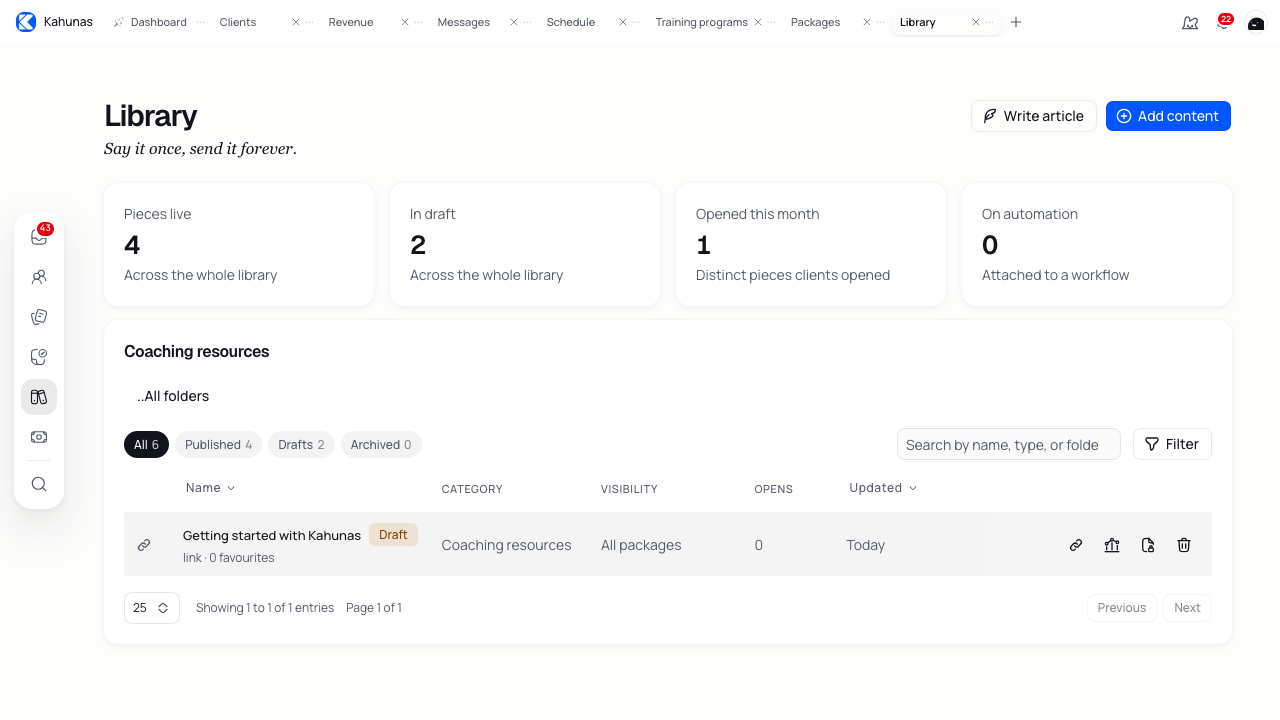
Open Content → Library from the sidebar. Choose a folder, or use the search box to find a resource. The All, Published, Drafts and Archived tabs help you find items by status. Use Filter to narrow the list by content type or package.
Clients need an active package assignment to open shared library content. This includes items with All packages access.
Add a file or link
- Select Add content.
- Choose Document, Video, Audio or Link.
- Upload the file or choose an existing upload with Choose from library. For a link, paste an address starting with
https://orhttp://into Link URL. - Add a clear Title, such as “Your first week of coaching”. Choose a Folder if you want to group it with related resources.
- Check Status. New files and links start as Published. Choose Draft if you want to finish the resource before clients can open it.
- Select Next.
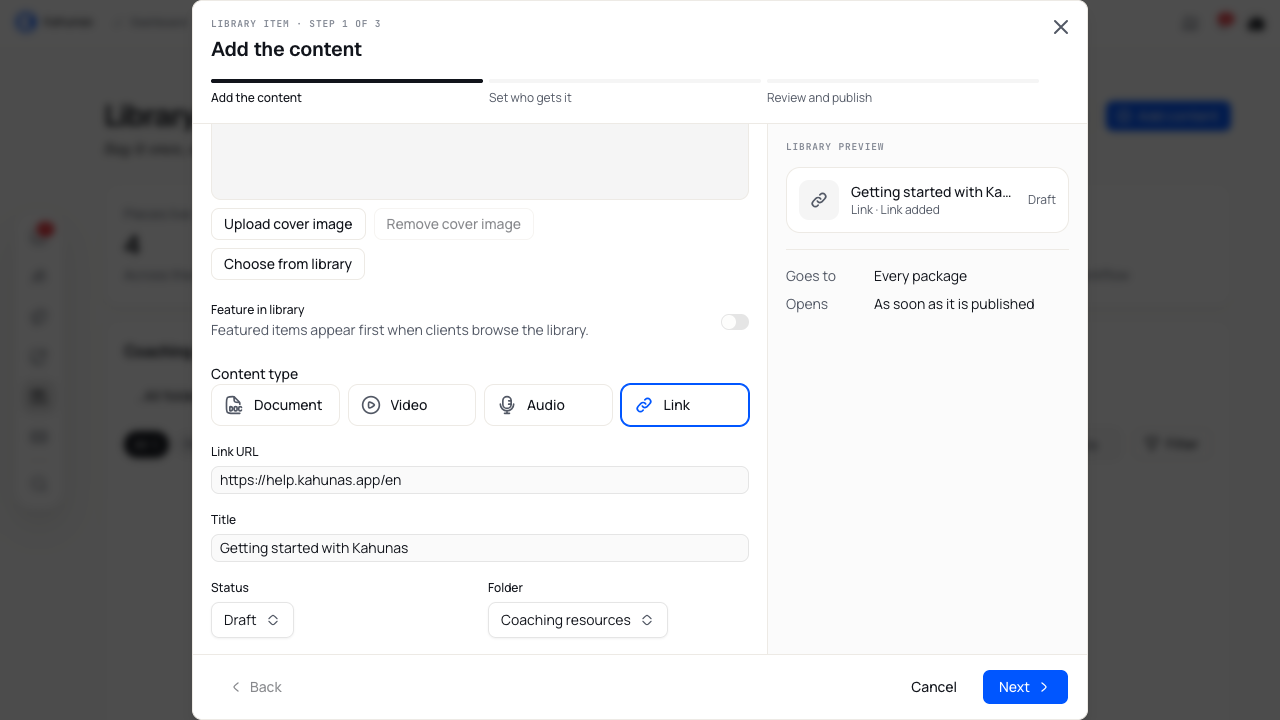
Use a title that tells clients what they will find. In this example, “Getting started with Kahunas” links to the Kahunas help site.
Choose the right content type
| Type | Use it for |
|---|---|
| Document | PDFs, Word documents, spreadsheets, presentations, text files and images. Supported formats include PDF, DOC, DOCX, XLS, XLSX, PPT, PPTX, TXT, RTF, JPG, PNG, WebP and GIF. |
| Video | Uploaded MP4, MOV or WebM videos. |
| Audio | Uploaded MP3, M4A, WAV or WebM audio. |
| Link | A page on another website. Use this for a resource you already host elsewhere. |
| Write article | Advice you write inside Kahunas. Start from this separate button in Library. |
Choose a type that matches your file and wait for the upload to finish before continuing. If you see cover controls, you can upload a cover image or choose one from your uploads. Turn on Feature in library to give the item priority when clients browse.
Set who gets it
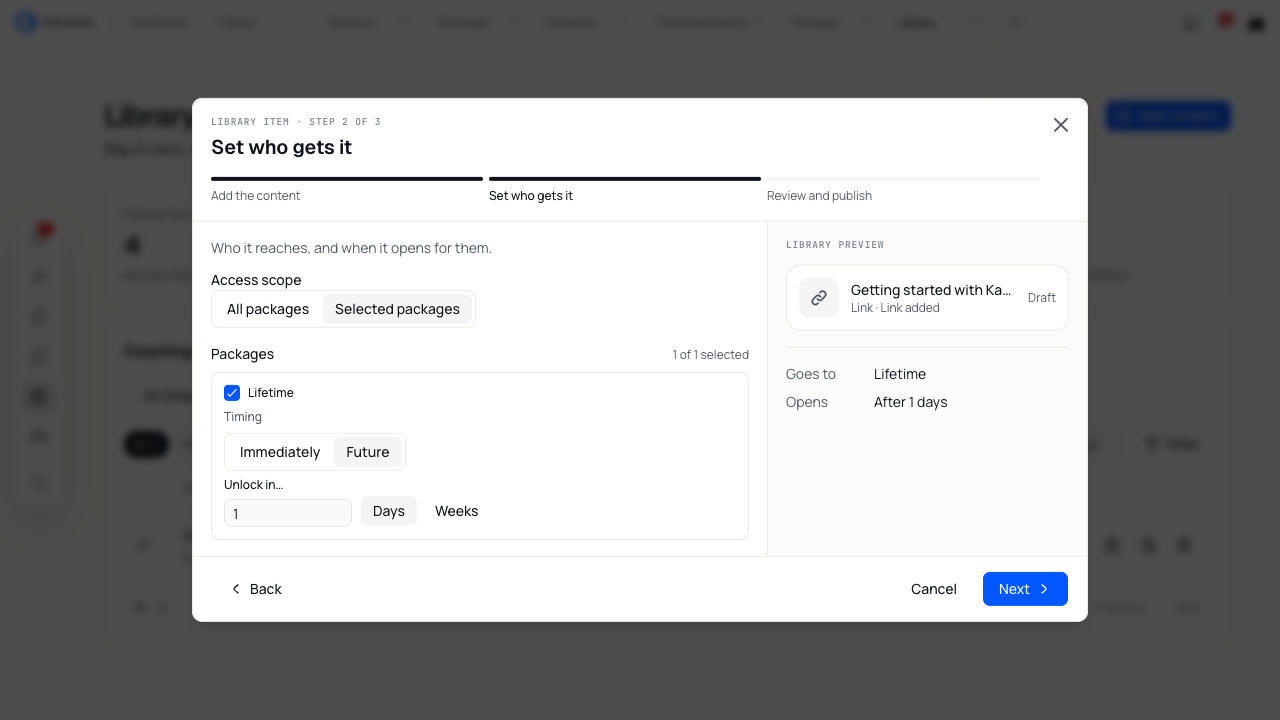
Choose All packages to make the resource available across your packages, or Selected packages to choose a smaller audience. Tick at least one package when you use Selected packages.
Then choose the timing:
- Immediately: eligible clients can open the item once you publish it.
- Future: enter an amount under Unlock in… and choose Days or Weeks. For example, choose seven days for a resource you want clients to open after their first week.
The delay starts from the client's package assignment date, not the day you upload the resource. With Selected packages, you can set a different delay for each package.
Review and save
- Select Next to open Review and publish.
- Check the title, content type, file or link, folder, status, access and release timing.
- Select Add to library. When editing an existing item, select Save changes.
- Find the item in your library and open its row to check the saved details.
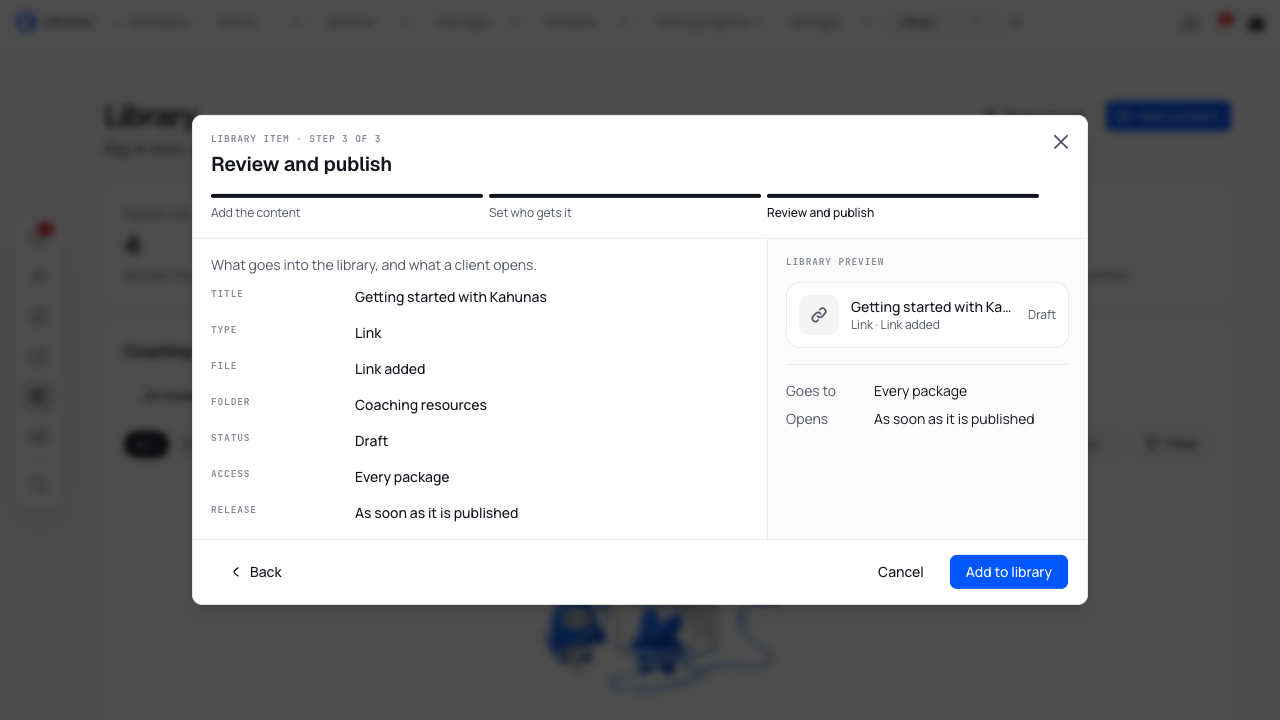
The Review and publish heading does not change the status you chose. An item you save as Draft stays hidden from clients. To share it later, open its row, change Status to Published, review the settings and save.
Organise folders and access
From the main library, select Add folder. Enter a Folder name, choose its package access and timing, then select Save folder. Choose this folder when adding or editing an item. Use Edit on a folder to rename it, or Access to change its audience and timing.
Check each item's access when moving it between folders. An item's own access rules take priority over the folder's rules. Folder rules apply only when an item has no individual rules. Moving an item into a restricted folder does not replace its existing access.
To change one resource's audience, use its Access action, choose the packages and timing, then select Save access.
Write an article
- Select Write article in Library.
- Enter an Article title and write the body. Use the editor toolbar for headings, bold text, lists and links.
- Open Permissions to choose the status, folder, package access and timing. New articles start as Draft.
- Select Save settings, then Save the article.
For a new article, Save settings keeps your choices in the editor. You still need to select Save to create the article.
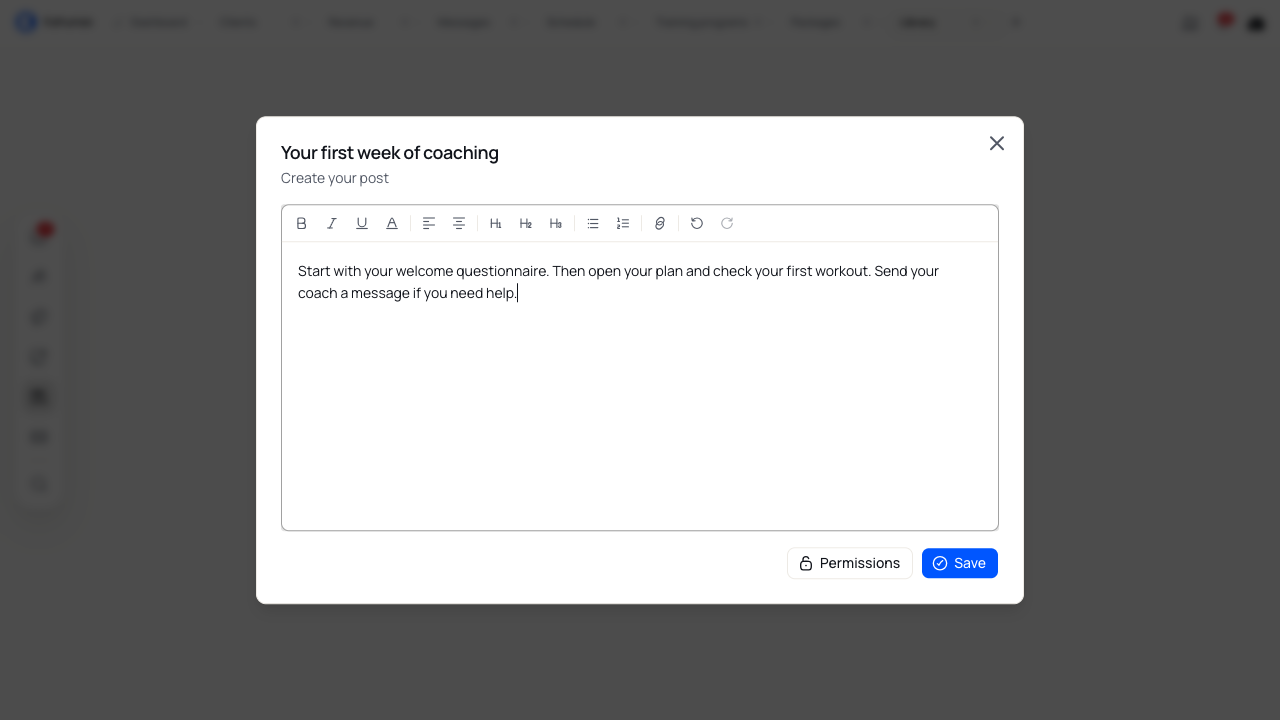
Open an existing article from the library to edit its title or body. Use Permissions when you need to change who can read it.
Update or remove a resource
Open a resource's row to change its title, link, file, folder or status. Finish the review step and select Save changes. For an article, use the article editor's Save button.
Choose Draft to keep working on an item, or Archived when you no longer want clients to use it. Both keep the resource in your library and remove client access. Use the matching status tab to find it later.
Use Delete on an item to remove it and confirm the action. Deleting a folder moves its items out of the folder instead of deleting them. Check those items' access afterward, especially if they relied on the folder's rules.
See which resources clients open
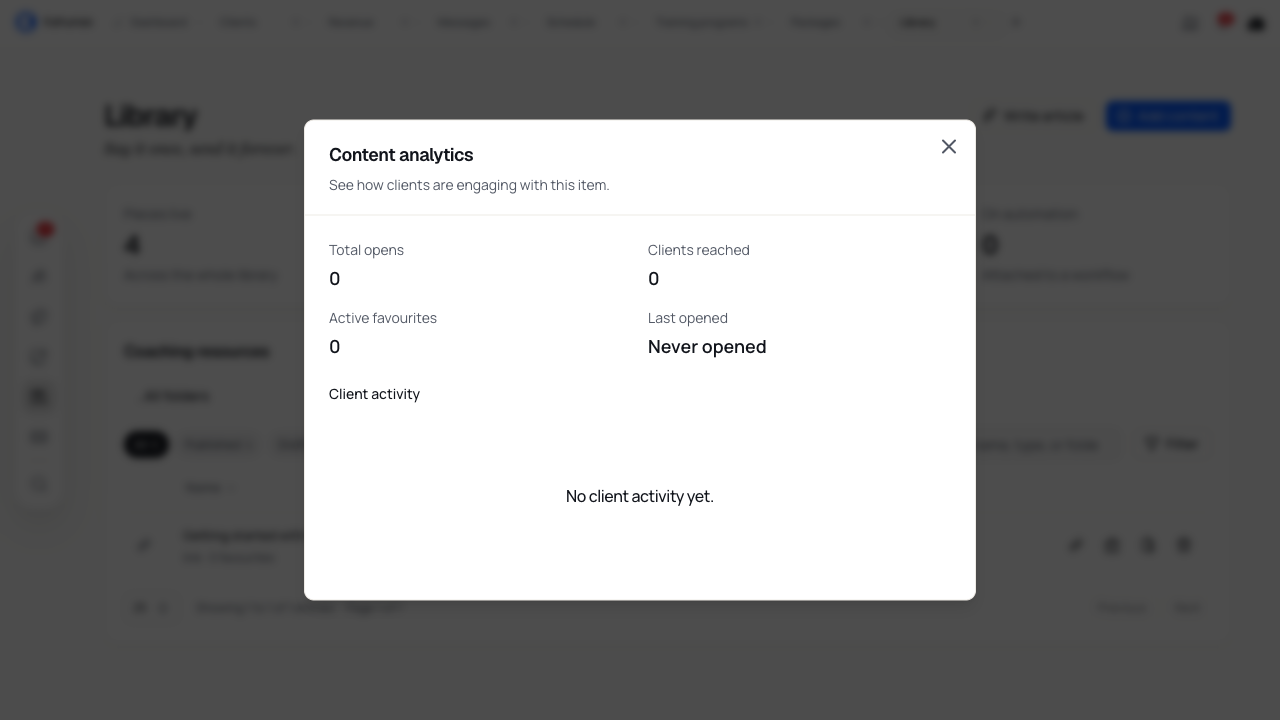
If your library includes View analytics, open it from an item's actions. You can see Total opens, Clients reached, Active favourites and Last opened, followed by client activity.
Use these figures to spot resources clients return to or ones they have not opened. An open count tells you that a client opened the resource; it does not tell you that they finished reading or watching it.
Understand the client view
In the enhanced web library, clients can open a resource's detail page and favourite accessible items. They see future resources as Locked, with an unlock date. Featured items appear first within their chosen sort order.
If your account uses the older mobile app setup, clients use the standard library with direct opening from the list. Covers, featured items, favourites and analytics are not available in that setup.
If content is missing
For a client who cannot open a resource, check:
- Status: the item must be Published.
- Package: the client needs an active assignment to one of the allowed packages. All packages still requires an active package with you.
- Timing: any delay must have elapsed since the package assignment.
- Access: check the item's own rules before checking its folder.
Opening a resource from your coach account does not confirm that a client has access.
If you cannot save, check the required title, the link address or uploaded file, and your selected packages. Wait for an upload to finish and make sure its file type matches the content type. Clear your search or filters if you cannot find an item you saved.