
Viewing and logging cardio
You can write cardio and step instructions on a client's profile, and your client can read them and log cardio sessions in the newer Kahunas client web app. Clients on the original Kahunas iPhone and Android apps do not have the Log cardio screen.
Add cardio and step instructions
- Open People → Clients, select your client and choose Workouts.
- In the Session log toolbar, select Cardio & steps.

- Enter your instructions in the Cardio & steps box in the CARDIO panel, then select Save. Kahunas confirms with Cardio and steps saved.
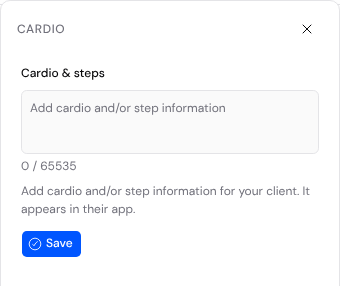
Saving sends your client a push notification titled Cardio and Steps Updated. Kahunas sends no email and adds no in-app notification for this update. Your client's Workouts push switch and Quiet hours apply to the alert.
To clear saved instructions, empty the Cardio & steps box and select Save. Clearing hides the note from your client's screen and still sends the update notification.
Business owners and team members with Workouts edit permission on that client can update Cardio & steps. A team member can open only clients assigned to them.
Open Log cardio in the client app
Your client can open Log cardio in three ways in the newer Kahunas client web app:
- From the Workouts tab: Open Workouts in the bottom bar and tap the round + button. If your client has no assigned workout program, or two or more programs, + opens Log cardio right away. If they have one assigned program, Workouts opens inside that program and + shows a menu with Start workout and Log cardio. They also see that two-item menu when they tap + from Workout history.
- From the Progress tab: Tap + and choose Log cardio.
- From a push notification: Tap a Cardio and Steps Updated notification to open Log cardio.
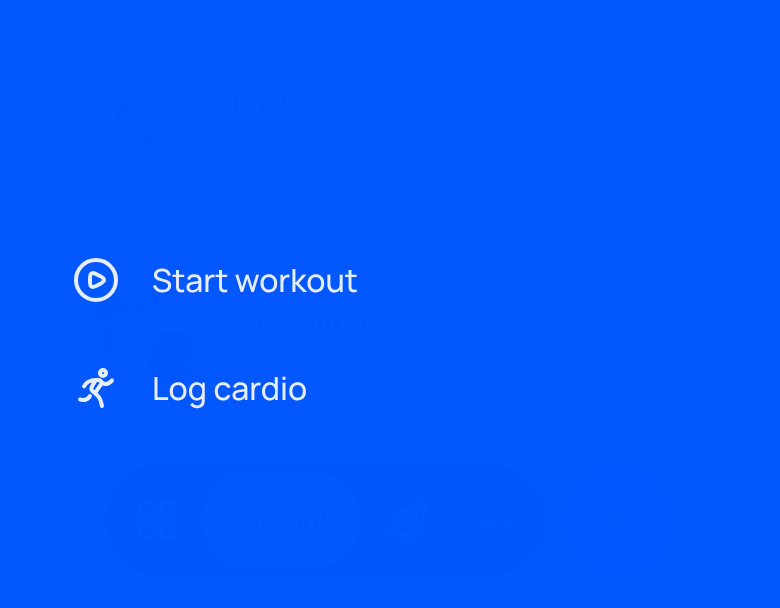
Coaches viewing the app as a client do not see Log cardio, and challenge-only members without workout access do not see Log cardio and cannot save cardio.
Read instructions and log a cardio session
Your saved Cardio & steps text appears in the From your coach card at the top of Log cardio. If you have not saved instructions, that card does not appear.
Ask your client to fill in the form:
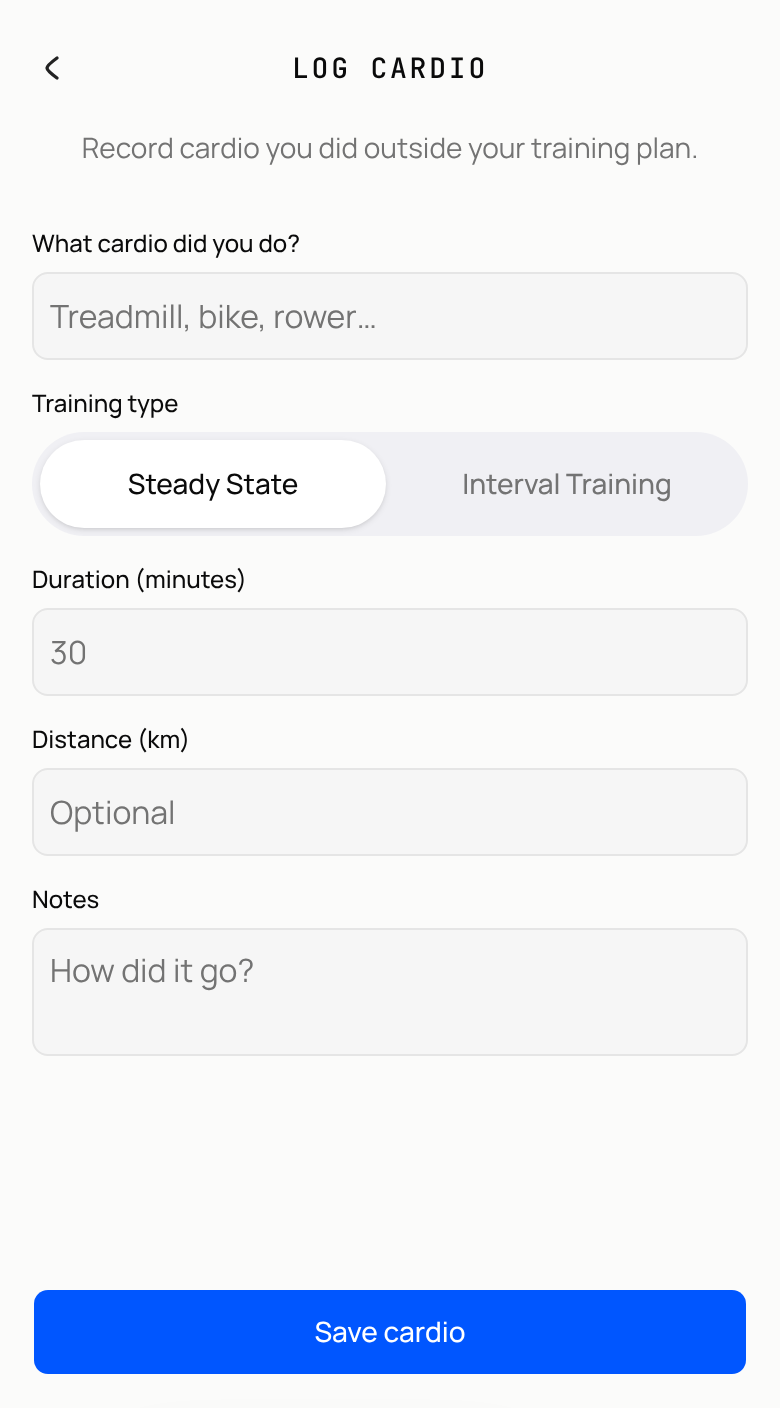
- Enter the activity in What cardio did you do?, such as treadmill, bike or rower (required, up to 200 characters).
- Choose a Training type: Steady State or Interval Training.
- Enter Duration (minutes) (required, up to 1,440 minutes).
- Add Distance (km) (optional, up to 1,000 km) and Notes (optional, up to 2,000 characters).
- Select Save cardio. The app shows Cardio logged and clears the form.
Saving cardio needs the client's health-data consent under More → Consent and terms. The client must accept consent themselves.
Clients can log cardio offline. The app saves the entry on their phone and syncs it once they reconnect. They can check waiting items under More → Settings → Sync & Offline.
View or delete a cardio log in the client app
Logged cardio appears in two places in the client app:
- Workout history: Open Workouts and tap the calendar icon (History) next to the Workouts heading. Each cardio entry shows the activity name, date, a Cardio label (when the name is not Cardio) and duration. Opening an entry displays Type, Metrics (duration, and distance in metres if recorded) and Notes.
- Calendar: Open More → Calendar; cardio shows under All or the Workout filter. Selecting a cardio entry offers View log to open its details.
Clients cannot edit a saved cardio log. To change an entry, open it in Workout history, tap Delete log, confirm Delete, and log the session again. Deleting removes the session from history, calendar and progress.
Review logged cardio and alerts
- Client profile: Open People → Clients, choose your client and open Workouts. In Session log, switch the filter from All to Cardio. Select a cardio row to view Cardio type, Metrics (duration and distance in metres) and Client note, or reply to your client.
- Schedule and client calendar: On Inbox → Schedule, turn on Cardio in the Show row to view client cardio beside appointments (see Managing your schedule). On a client's profile Calendar tab, Cardio is on by default.
- Coach notifications: Business owners can configure alerts on the Client completed cardio row under Settings → Notifications using In-app, Realtime, Push, Email and Frequency (see Get check-in notifications by email).
Set default sets, reps and rest
Store sets, reps and rest on an exercise so a new program row does not start blank.
Where clients see personal bests
Show your client where their personal bests appear: an alert while they train, a summary after each workout, and the Personal records screen under Workouts and History.