







Create a coaching package
Create a package for the coaching service you want to offer. Set the price, choose the resources clients receive and describe what's included. Save a draft while you work through the details.
Read video transcript
Open Revenue, then Packages. Choose Add package. Set the name, price and billing terms. Choose your coaching resources. Describe what clients receive. Review the details, then save a draft. Reopen your package to check your changes. Your draft is saved, ready to finish later.
1. Open Packages
Open Revenue in the left sidebar, choose Packages, then select Add package.
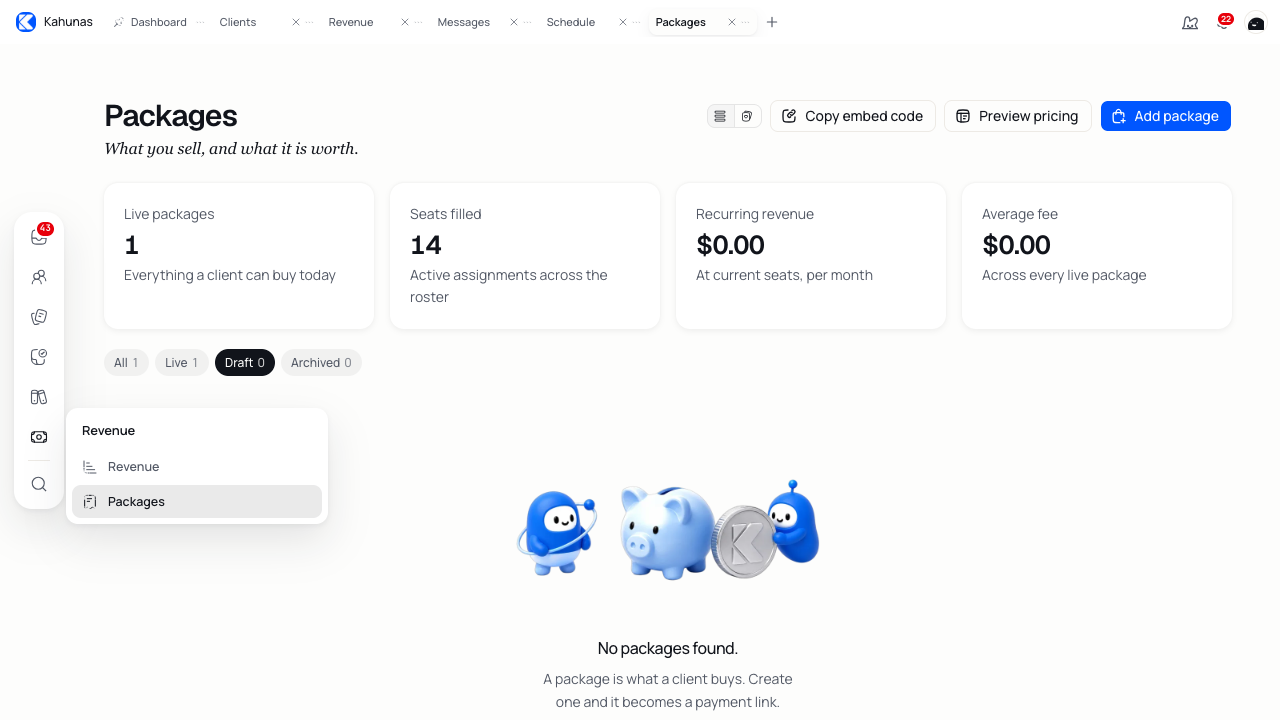
For online payments, connect Stripe or PayPal through Integrations before publishing an online package. Without a connected provider, new packages start in Offline mode and Online is unavailable.
2. Set the price and billing terms
Enter a Package name, Price and Currency. Use a name clients will recognise, such as “Monthly coaching”. Enter amounts with a decimal point, for example 150.00.
Choose a Package type:
| Type | Use it for |
|---|---|
| One-time | A single payment, such as an eight-week coaching programme. |
| Subscription | A recurring payment at the interval you choose. |
| Initial then subscription | A starting period with its own price, followed by the recurring price. |
For a recurring package, choose an Interval and Interval count. Month and 1 means monthly billing; Week and 2 means every two weeks. For Initial then subscription, complete Initial period days and Initial period price as well. The main Price field sets the recurring amount after that period.
Choose Access duration and complete the fields that apply:
- Limited: for a one-time package, choose a unit under How long for? and enter the Duration. For a recurring package with a fixed payment count, enter Stop after payments. Selecting Limited alone does not set that count.
- Until cancelled: use this for ongoing access. With a subscription, clients keep access while they keep paying.
- Lifetime: use this for access without a fixed end date. Check the package type too; changing access duration does not change a subscription into a one-time payment.
Under Payment mode, choose Online to take payment through a connected provider, or Offline to handle payment outside online checkout. An online package needs a positive price and at least one selected provider before you publish it.
Include tax reveals Tax percentage. Despite the label, this percentage adds tax to the online charge. For example, a price of 100 with 10% tax gives a charge of 110. Enter the percentage that applies to your service.
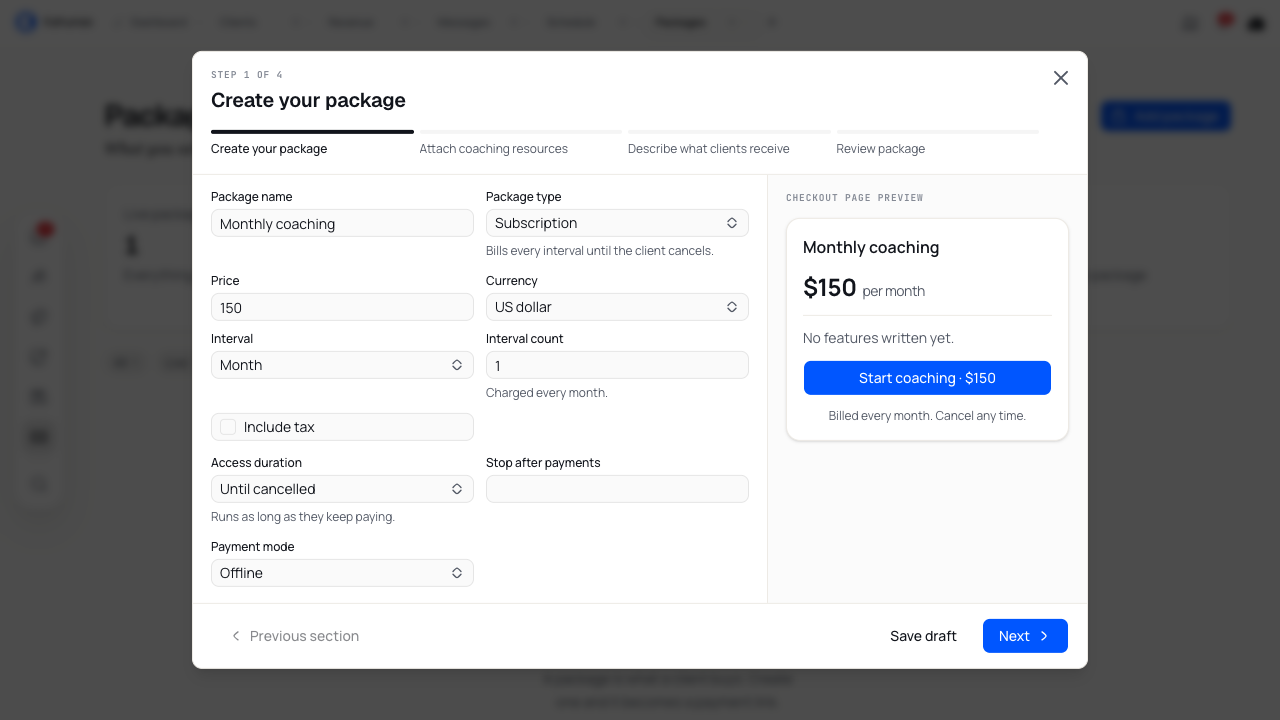
Select Next to continue.
3. Choose the coaching resources
In Attach coaching resources, choose the forms and plans you want to include. Check preselected forms before continuing, as Kahunas may fill these from your defaults.
| Resource | What you can select |
|---|---|
| Check-in form | A form for clients to report progress. |
| Daily habit | A form for daily tracking. |
| Questionnaire | An initial questionnaire for onboarding. |
| Workout plans | Up to five workout plans. |
| Supplement plan and Nutrition plan | One plan of each type. |
| Community | A community, if your account has this feature. |
| Education courses | Courses to include, if your account has Education. |
Use No value to leave a single resource out. Search the resource list to find a form or plan. For workout plans, select or deselect the plans you need.
For a selected education course, you can enter a delay under Unlock after (days). Leave it blank or enter 0 for access without a delay; enter a positive whole number to release it that many days after the client's package assignment. The course must be published for clients to access it.
These choices provide package defaults for client setup and access. Saving the package does not replace forms or plans on existing clients. Review each client's assignments when changing their coaching setup.
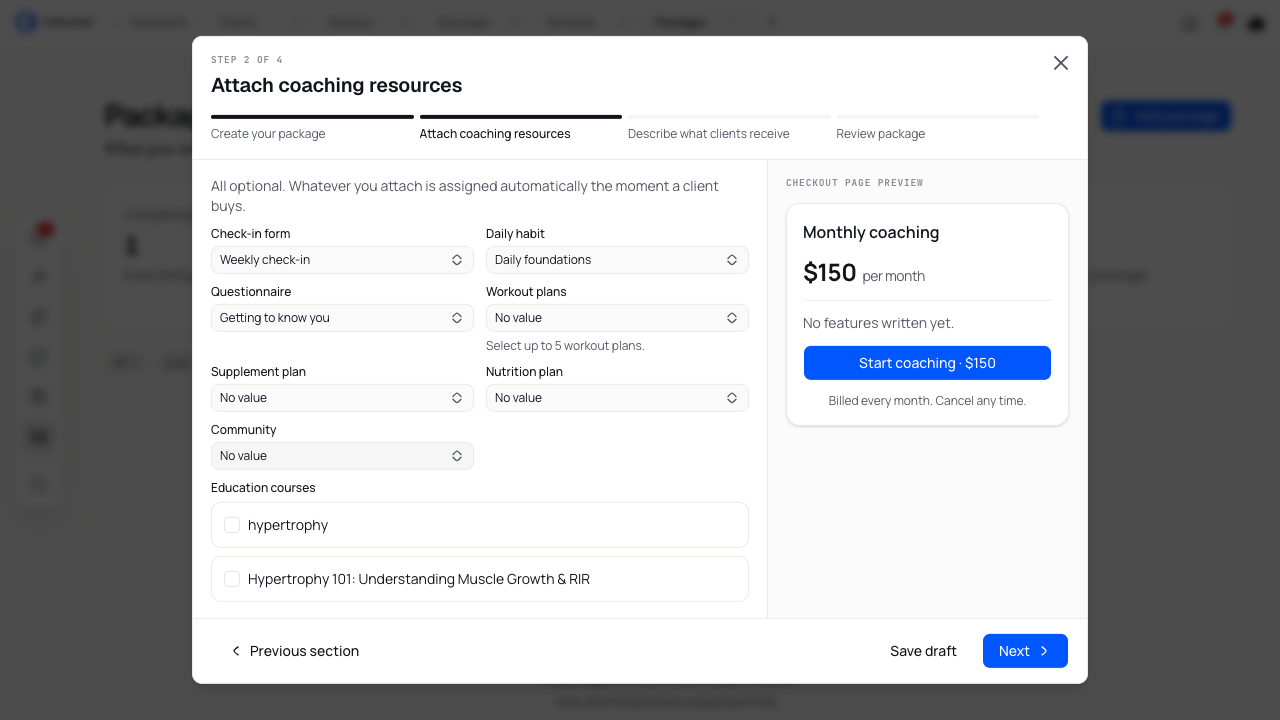
Select Next.
4. Describe what clients receive
Write a Description that explains your service and how you coach. Add at least one Feature, such as “Weekly check-ins”. Use Add feature for more lines, up to five, and the remove button beside a line to take it out.
Clients see the description and feature list on the checkout page. You need a description and at least one feature before publishing.
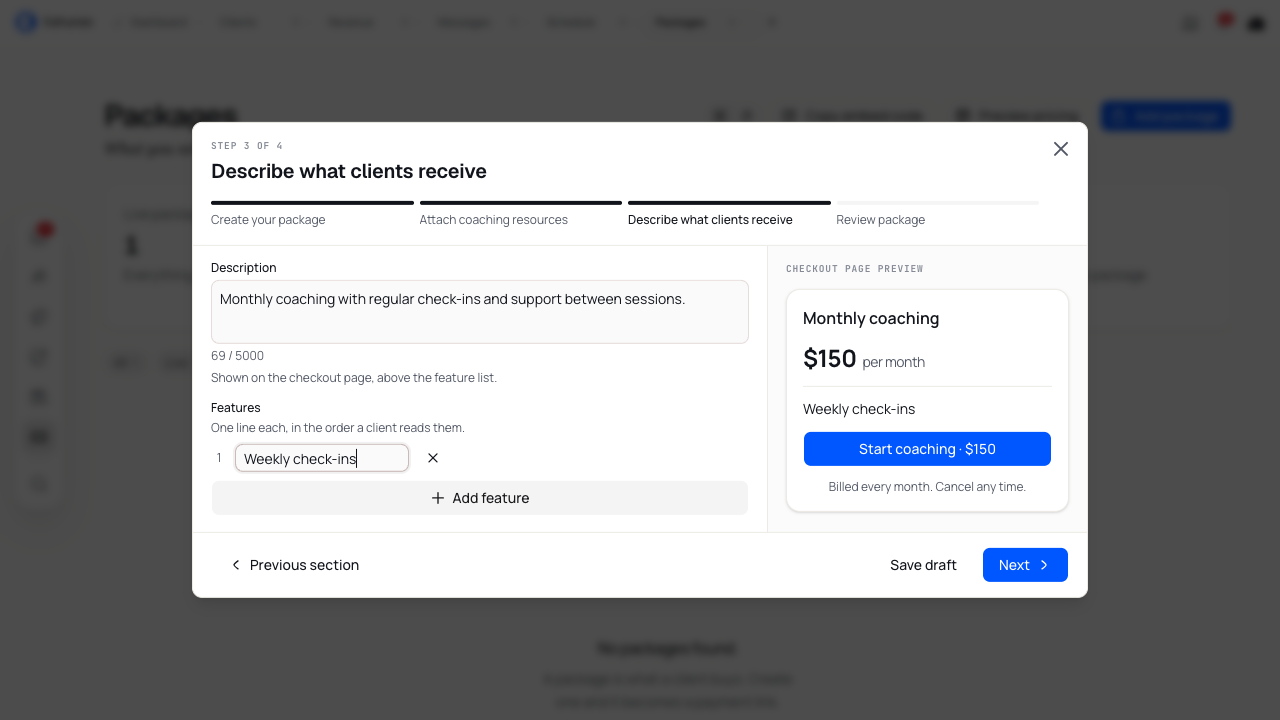
Select Next to review the package.
5. Review, then save or publish
Check the name, price, payment mode, access terms and selected resources in Review package. Use Previous section to make changes.
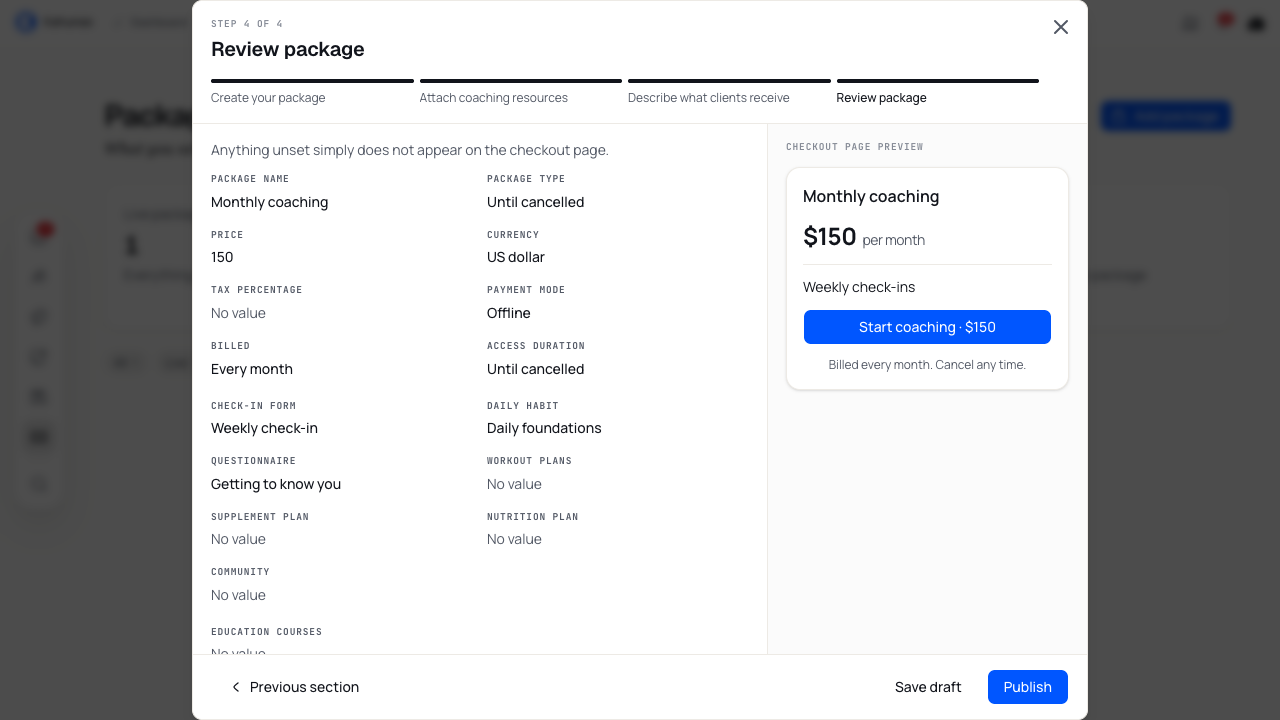
Choose Save draft to finish later. You can save a draft from any wizard step. Find it under Draft on the Packages page and select its row to continue. Closing the wizard without saving loses your unsaved entries.
Choose Publish once the offer is ready. Kahunas checks the required details and prepares any online payment settings, then shows the package as Active under the Live filter. You still need to invite a client or have them complete signup before a client payment or subscription can start.
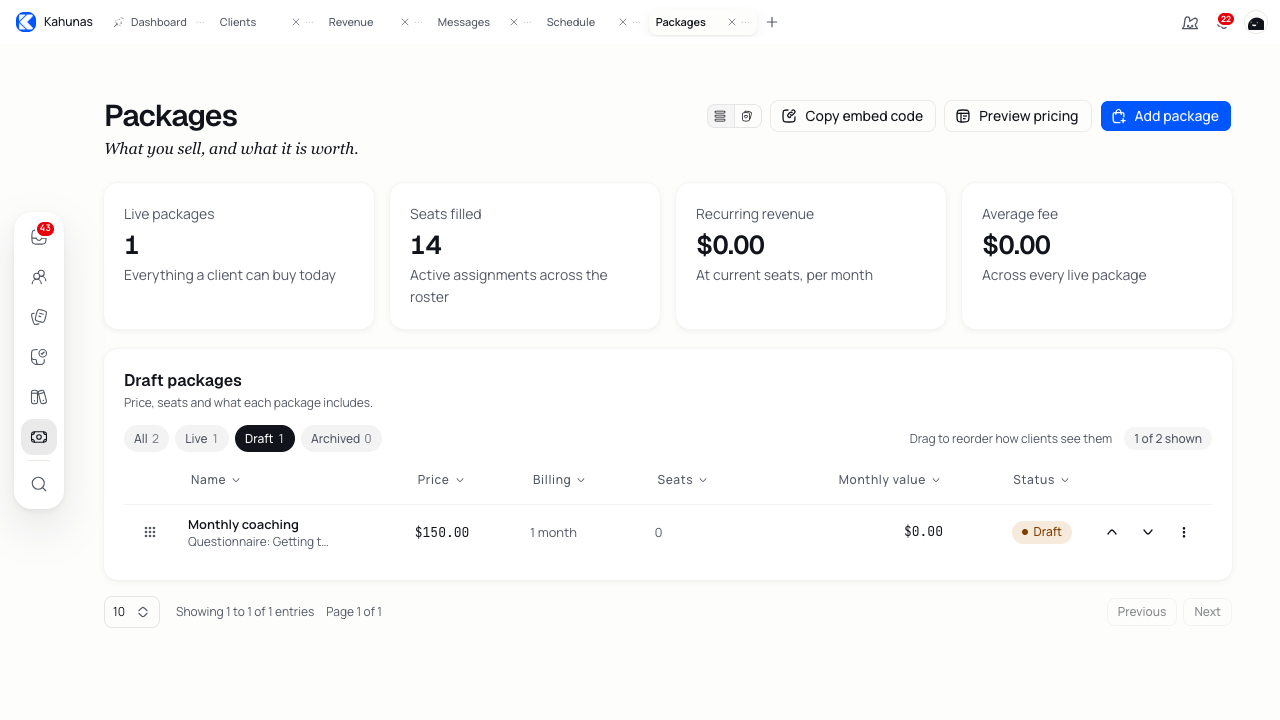
If saving or publishing reports an error, check the package list before starting again. The draft may have saved before a later step failed. Reopen that package, correct the details and retry.
6. Use the package during onboarding
Open Clients, start an invitation and choose your active, visible package. Review the plan start date, payment choice and form assignments before sending. Follow Adding a new client for the full invitation flow.
If you opened the package wizard through Set up a package during an invitation, Publish returns you to that flow. Save draft leaves the package unfinished.
Share your offer
Open More package actions beside a package and choose Copy payment link to copy its signup link. Offline packages have no online checkout, so this action is unavailable for them. Publish an online package and check its payment setup before sharing the link with clients.
For a page with several offers, select Preview pricing from Packages. You can edit the pricing title, description and button label, choose Paper or Ink, and decide whether to show billing terms. Add up to seven active packages, set their order and check the Desktop and Mobile previews.
Select Save pricing to apply your pricing-page changes. Use Copy embed code to add the pricing table to a website that accepts iframe embeds. Use Copy public link when available to share the pricing page itself.
Edit and organise packages
Use the All, Live, Draft and Archived filters to find an offer. Switch between list and card views if you prefer.
Select a package to edit it. Save draft puts the edited package into Draft, including an offer that was active before you edited it. Review and Publish when you want the edited offer available again. Saving package terms does not rewrite existing client subscriptions; review an existing client's billing from their profile before changing their agreement.
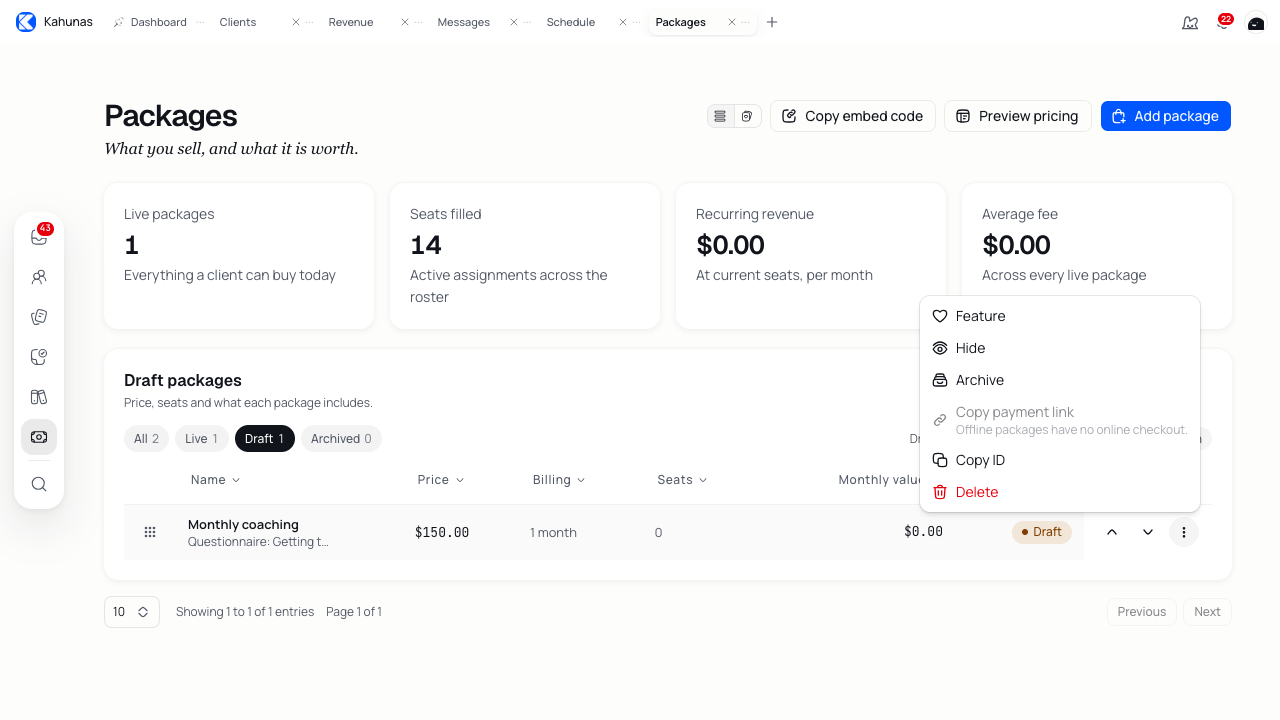
Use the row's Move up and Move down controls, or drag its reorder handle, to change the order. The More package actions menu includes:
- Feature / Unfeature: highlight an offer. You can feature one non-archived package at a time.
- Hide / Show: control visibility. A hidden package won't appear among the visible offers; check this if you can't choose it during onboarding.
- Archive: retire an offer. Archiving does not cancel existing client subscriptions.
- Restore: make an archived package active again. Check its terms and payment setup before restoring it.
- Copy ID: copy the package identifier if support needs it.
- Delete: remove an unused package after confirming. Kahunas blocks deletion when it has active assignments, active subscriptions, a pending checkout or payment history. Archive an offer with sales history instead.
If you can't finish
Online is unavailable: check the connection status of Stripe or PayPal in Integrations. Choose Offline if you intend to collect payment outside online checkout.
Publish is unavailable or fails: check the description, at least one feature, pricing and selected payment provider. Review tax values and course delays for validation messages.
A limited one-time package won't save: enter a positive whole-number Duration and choose How long for?. This is required even for a draft.
Stop after payments reports an error: choose Limited access duration if you want to set a payment count.
A resource is missing: search by its name, confirm you have created it in the correct part of Kahunas and check any loading or error message in the selector. Choose No value if you want to add it later.
An offer is missing from an invitation or pricing page: check that it is active and visible. Drafts and archived packages are not ready for new signup.