







Exercise Analysis: Form check
Open Exercise Review in a client's profile to watch their exercise videos, examine their movement and send feedback. Clients submit videos through Record form check in their workout.
Read edited video transcript
Condensed and edited for readability.
Enable Beta. This feature is available in Beta for clients on the new app. During a workout, the client can open the three-dot menu and choose Record form check. To get access to Beta, open your avatar menu, go to Settings and enable Beta.
Upload a form check. The client records themselves doing the exercise on their phone, then uploads the video. In this example, I'm choosing a deadlift recording from my library. After selecting it, I can see Saved on this device and continue my workout while it uploads in the background. At the end, I complete the workout and can see the form checks I've submitted.
Open Exercise Review. Back on the coach side, I open the client's Exercise Review. The submission appears as Waiting while the video goes through processing. Later, the progress shows Tracking joints and reps. The analysis follows the client's joints and how the angles change from rep to rep.
Read the movement data. Once the video is ready, I open it to see the detected joints over the exercise recording. Further down, I can review rep cadence, repetition timing and movement ranges. I can choose a body part, such as the trunk, to inspect its movement across the exercise.
Explore the estimated body. Beside the recording, I can play a reconstructed body model through the movement. I can rotate around it or choose one of the camera views to inspect another angle. This is an estimate created from a video, so it isn't perfect. The feature is in Beta as we develop support for different exercises and recording settings.
Give the client feedback. I can use the original recording and these views to explain what I'm seeing. Recording the review lets me show the client the movement I'm discussing and talk them through my feedback.
Enable Exercise Review
The business owner can enable Exercise Review. It's a Beta feature for the new Kahunas client app and isn't available for clients using the legacy mobile apps.
- Open your account menu and select Settings.
- If your business hasn't joined Beta, open Beta and enable it.
- In General, find Exercise Review.
- Choose Selected clients and select who can use it, or choose All clients. With All clients, you can exclude individual clients.
- Select Save.
New uploads need sufficient AI credits in your workspace. If an upload is blocked, check your credit balance as well as the client's access.
Ask your client to submit a form check
Ask the client to record the exercise on their phone first, keeping their body in view and the camera steady.
- During their workout, open the exercise's options and select Record form check.
- Select Upload video and choose the recording.
- Before finishing the workout, use Replace video or Remove video if needed.
- Finish the workout and let the upload complete.
Each exercise occurrence accepts one video, up to 2 minutes and 500 MiB. The client can finish their workout while the upload continues.
Saved on this device means the video is still stored locally. Video received confirms that Kahunas has received it. To check progress, reopen the completed workout or go to More → Sync & Offline.
Upload a video for a client
You can also add a video from the coach side:
- Open People → Clients and select the client.
- Select Exercise Review, then Upload video.
- Choose the exercise and select the video to upload.
- Keep the browser open until the upload finishes.
The same two-minute and 500 MiB limits apply. The entry shows Coach upload instead of a workout name and doesn't create a workout session.
If the upload stops, open the entry and select Finish upload, then choose the same video again.
Open a video for review
In the client's Exercise Review list, choose Waiting, Reviewed or All reviews, then open a submission.
Waiting and Reviewed track your review. Video upload and analysis have separate processing states. You can watch an available original video even if its analysis is still processing or has failed.
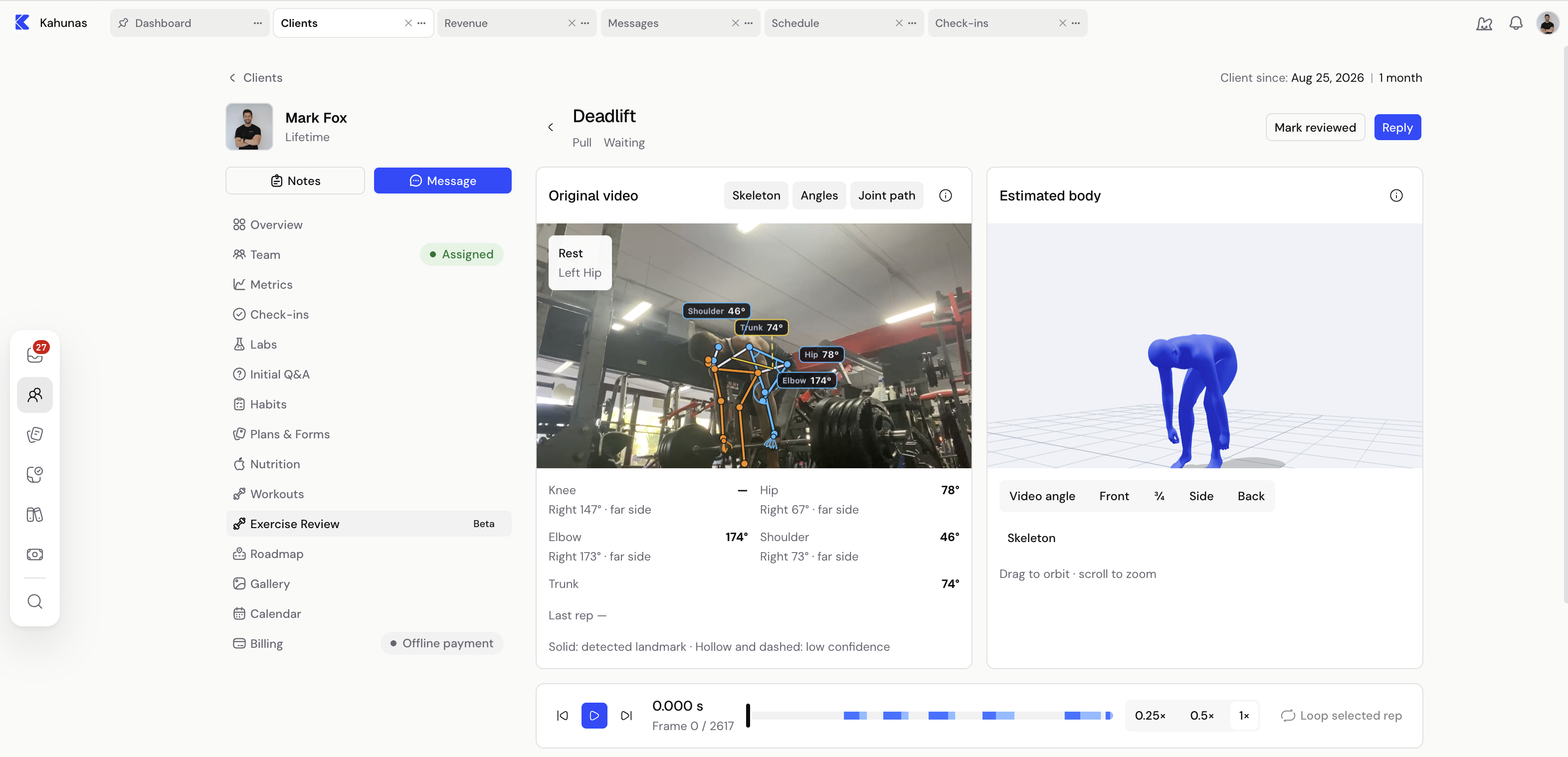
Compare the original video and estimated body
When analysis is available, use the Original video as your reference and choose the overlays you want to see:
- Skeleton shows detected body landmarks and their connections.
- Angles shows available joint measurements. These are two-dimensional measurements from the camera's view, so perspective and hidden joints affect what you see.
- Joint path, when available, traces the selected joint's movement across the video.
Solid landmarks indicate a detection. Hollow landmarks and dashed connections indicate lower confidence. A missing measurement isn't a zero.
The Estimated body gives you another view of the movement. Choose Video angle, Front, ¾, Side or Back. Drag to orbit around the body and scroll to zoom. Use Skeleton to show or hide its skeleton; other controls depend on the available analysis.
Check the estimate against the original recording. Camera movement, obscured body parts and floor placement can affect the reconstruction. The analysis doesn't provide a technique score or automatic coaching advice.
Review individual reps
Use the playback controls to pause, move one frame at a time or seek to a point in the video. Choose 0.25×, 0.5× or 1× speed to inspect a movement.
In Rep detector, select a joint to view its movement chart. When repeated movement is detected, you'll see the rep count, cadence and working-set times.
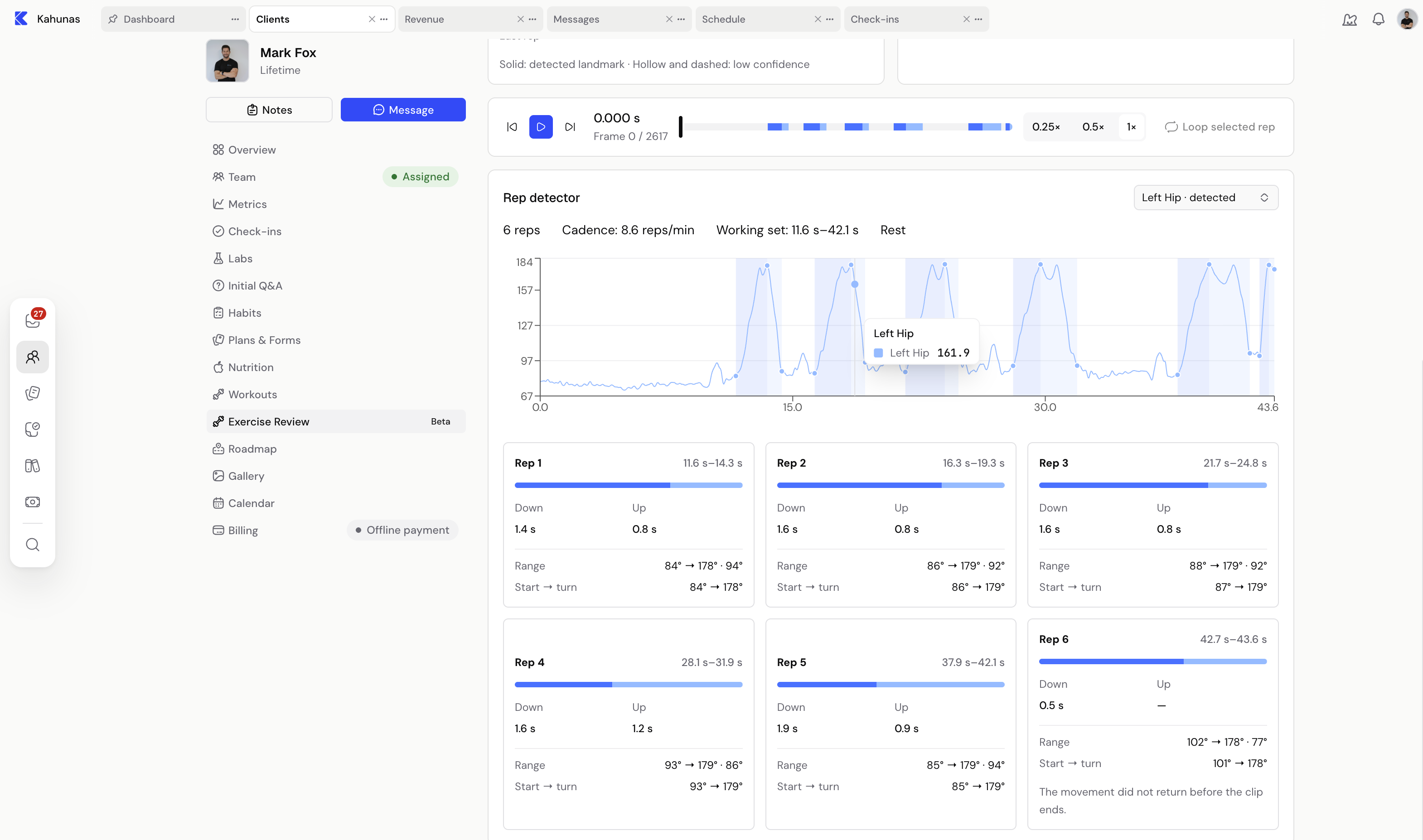
Select a rep card to focus on that rep, then use Loop selected rep to watch it again. You can also select a point on the chart to move the video there.
Each card shows the available Down and Up times, Range, and Start → turn measurements. Use these alongside the original video to compare reps. A final rep may be incomplete if the recording ends before the movement returns.
Detection depends on the selected joint and the recording. If you see No repeated movement detected, you can still review the video using the playback controls.
Send feedback or mark the review complete
Select Reply to send written feedback, attachments, a voice recording or a screen recording. Once the reply sends, the client receives it in their coaching conversation with a link to the original submission, and the entry becomes Reviewed.
The client's link opens their original video. The estimated comparison is part of the coach review screen.
To finish without sending a message, select Mark reviewed. Select Mark waiting if you want to return the entry to your review queue.
If a form check is missing or won't process
- Exercise Review is missing: check that your business has Beta enabled, save the Exercise Review setting and confirm that the client is included. Team members also need the appropriate access to that client and workouts.
- The client can't upload: check the video's length and size, the client's eligibility and your workspace's AI credits.
- The video only says Saved on this device: ask the client to reconnect and check the completed workout or More → Sync & Offline. Local saving doesn't confirm receipt.
- A coach upload was interrupted: open the entry and use Finish upload with the same recording.
- The original plays but analysis is unavailable: review the original. If the entry offers Retry estimate for a processing failure, use it to try again.
Choosing Off for Exercise Review stops new submissions while preserving submitted history. Turning off business Beta also removes access to the beta review screens.
If you still need help, use Contact support on this help site and describe the status you see. For help with your client's training plan, see Workout Programs.