







Reviewing Check-ins
Read what your clients send you, reply with clear next steps, and mark each review complete so nothing slips through.
Read video transcript
Open the Review queue and select the check-in you want to read. Read the answers and compare them with the previous check-in. When you are done, select Mark reviewed.
1. Start with the review queue
Open Inbox → Check-ins. Review is the starting view for submissions waiting for your attention. Use All, Review, Missed and Done to change the list.
Use Check-in form or Check-in day to narrow the results. The form filter searches your forms and adds a removable chip for each one; Clear removes them all. Counts cover the inbox and may differ from the filtered list. If you cannot find a submission, check the selected view and filters before assuming it is missing.
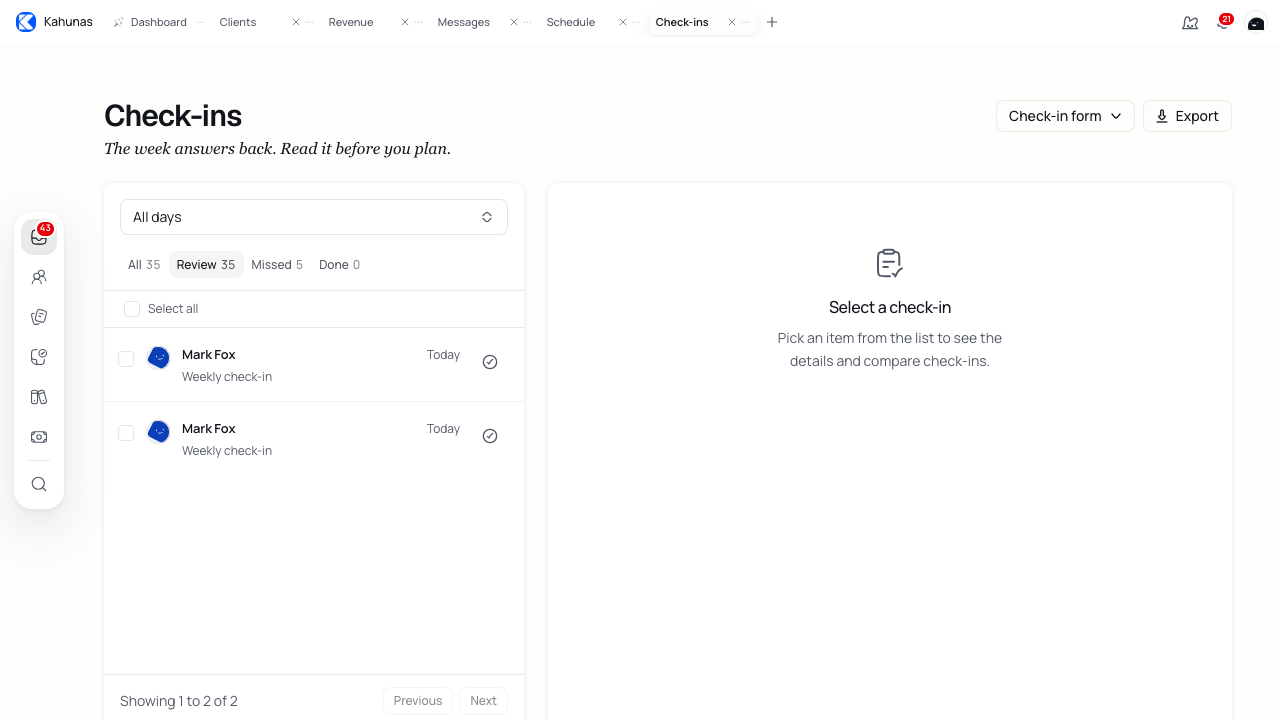
Filter the queue to one form when you want to review similar submissions together.
The list shows each client's name, how long ago they submitted, and their form. Selecting a client's name opens their profile; select the row itself to read the submission. Use Select all to select the visible page for bulk actions. When the list grows past one page, use Previous and Next and Results per page to move through it. Select Export to download the current filter results as check-ins.csv.
2. Read the submission in context
Select a submitted check-in. Confirm the client, form and submitted date, then read the answers and open any relevant photos or attachments. Early and Late labels describe timing, not the quality of the client's progress. A submission sent on a different day than expected names both the check-in date and the submitted date.
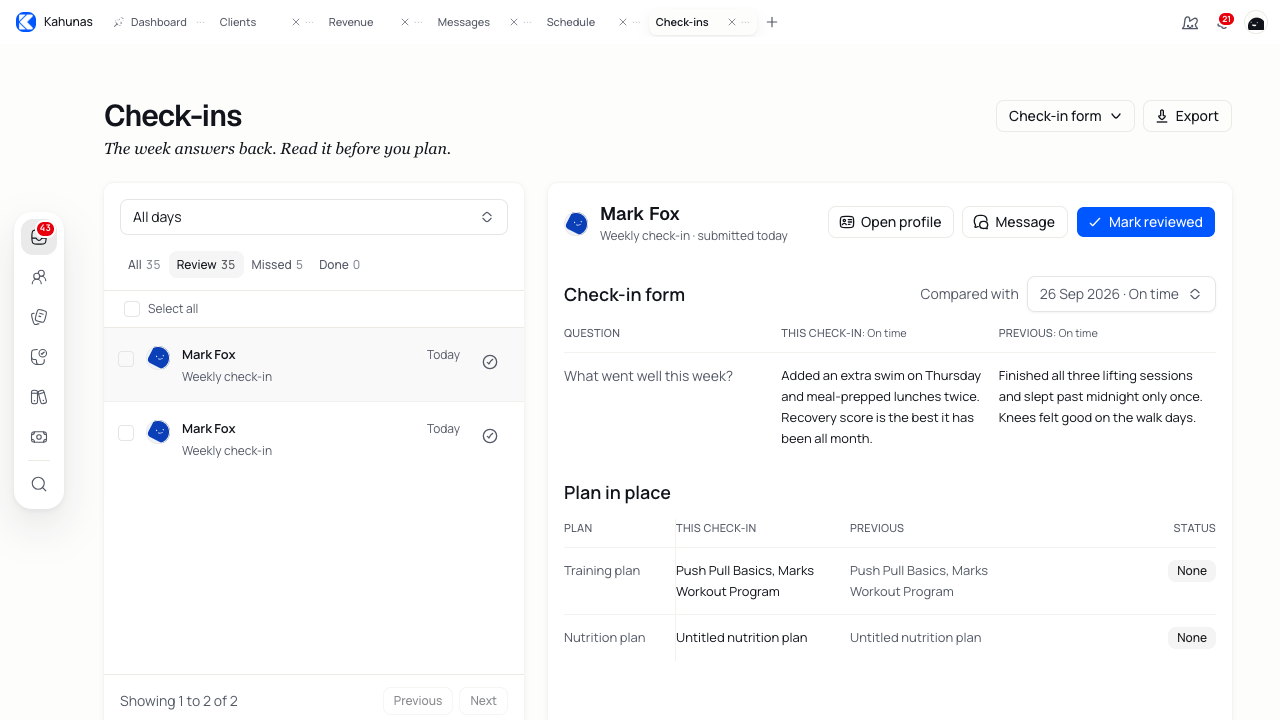
Read the answers, check the comparison, then decide on feedback.
Where Compared with is available, choose another submission to compare answers, metrics and plans side by side. Your Always show comparison setting controls whether the previous check-in opens automatically; find it under your account menu in Settings → General. Check the selected date before comparing answers. When the client has no earlier submission, the comparison reads No check-in to compare.
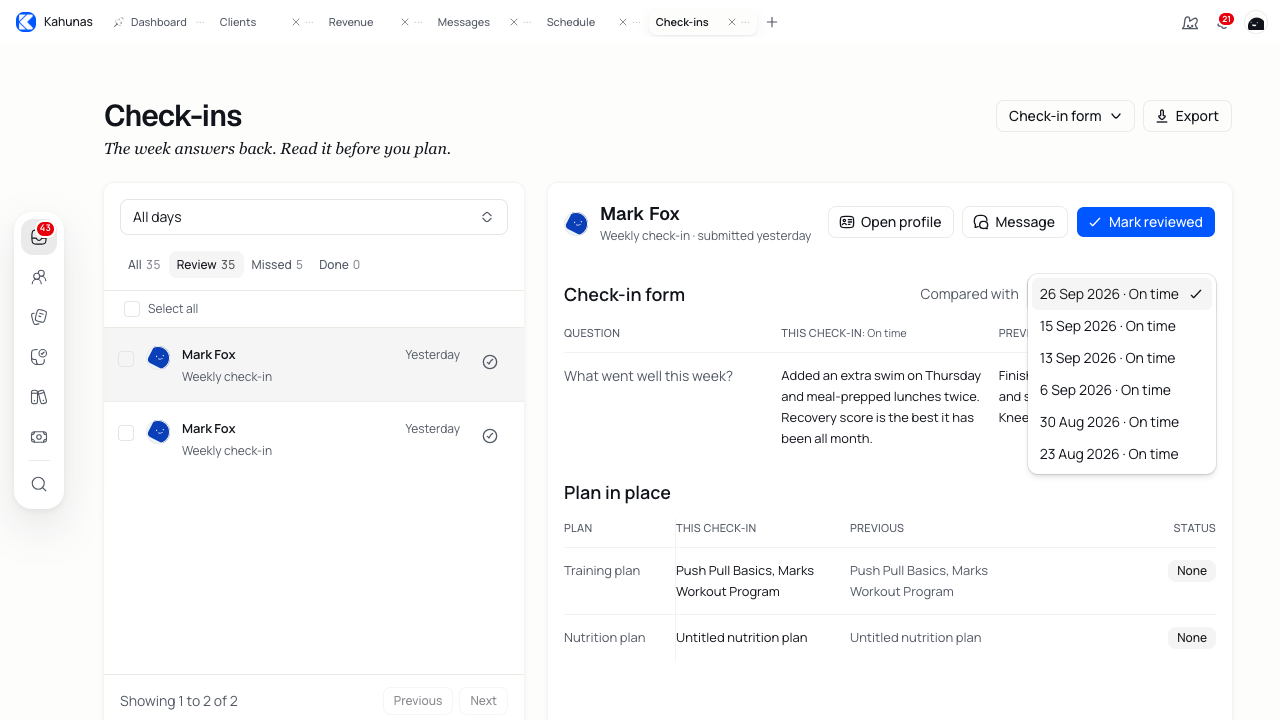
Earlier submissions are listed by date with their timing, so pick the one you want to compare against.
3. Send focused feedback
Select Message and write in Message. Acknowledge what the client shared, explain the next step, and ask a clear question if you need more information. The Message action only appears for clients you can message; where it is missing, messaging access or client eligibility may be the reason.
You can attach a file, image or video, add a GIF, or record audio where supported. Review the recipient and attachments, wait for uploads to finish, then select Send reply. On success, Reply sent confirms that the message is available in Messages. Cancel closes the reply without sending. Your sent reply stays visible on the check-in, so you can see what you already told the client.
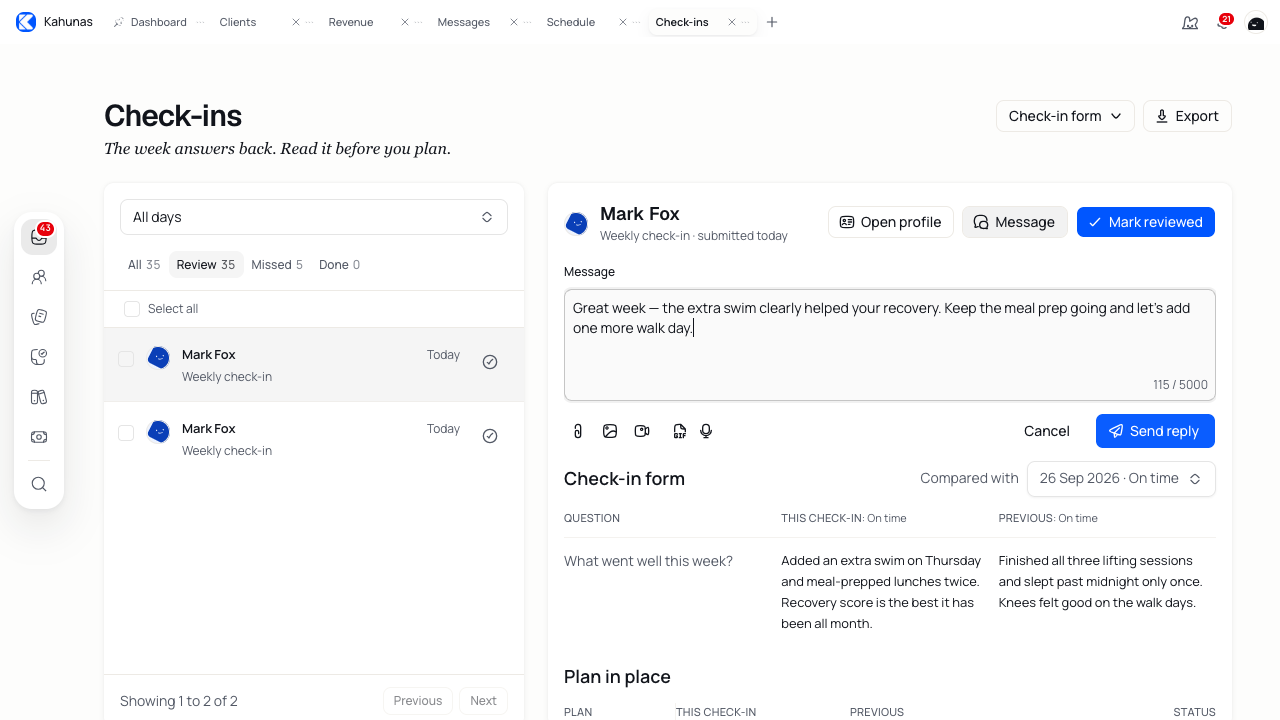
Review your feedback and attachments before selecting Send reply. This example is an unsent draft.
4. Mark the review complete
When you have finished reviewing, select Mark reviewed. The submission moves from Review to Done, and the action becomes Mark not reviewed if you need to return it to the review queue. You can also mark a submission reviewed straight from its row without opening it.
Sending a reply and marking reviewed are separate actions. A reply does not mark the check-in reviewed, and marking reviewed does not send feedback.
To finish several submissions at once, select their checkboxes and choose Mark as completed. With more than one page of results, you can select every matching check-in across pages. Use bulk completion only after reviewing each selected submission.
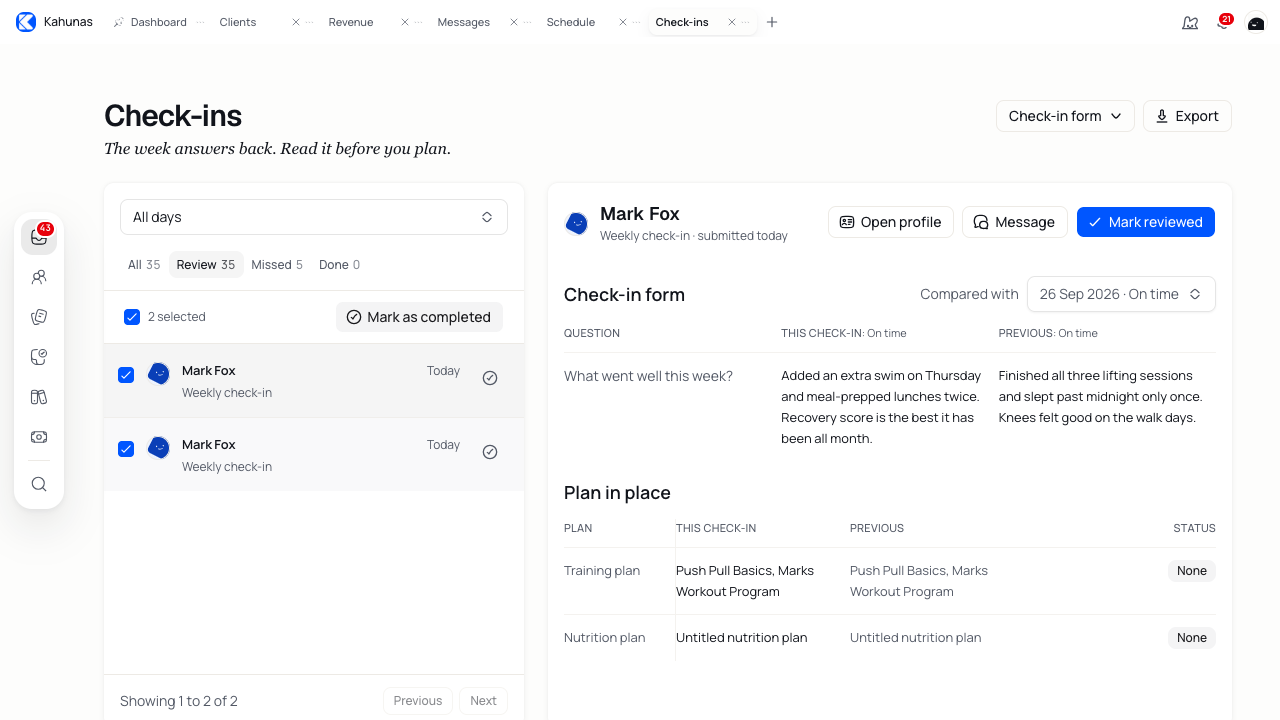
Bulk actions apply to every submission you selected, so review each one first.
5. Follow up on missed check-ins
Missed lists expected check-ins that were not submitted. Opening a missed item acknowledges it for attention counts; it does not create a submission, and the item can remain in Missed. A missed item shows who missed it, which form was expected, and when it was due.
A missed item has no submitted answers to reply to or mark reviewed. Open the client's profile or Messages to follow up, and check their assigned form and schedule if the expectation looks wrong.
Screenshots show the English interface. Your data and available features may differ.