
Get check-in notifications by email
Kahunas can email you each time a client checks in, so you don't have to keep the inbox open. You turn this on yourself, in Settings → Notifications.
This guide is about the alerts you get as the coach. To send reminders to your clients, see Setting up automations.
Read video transcript
To get an email when a client checks in, open Settings, then Notifications. In the Workflow matrix, find the Client checked in row. Turn on the Email switch for that row. Then select Save. A message confirms your settings are saved. From now on, Kahunas emails you whenever a client checks in.
Before you start
Settings is for the business owner. If you are a team member, you won't see it in your account menu, so ask the owner to change these settings. See Who gets the email for how a team member's alerts are affected.
Turn on the email
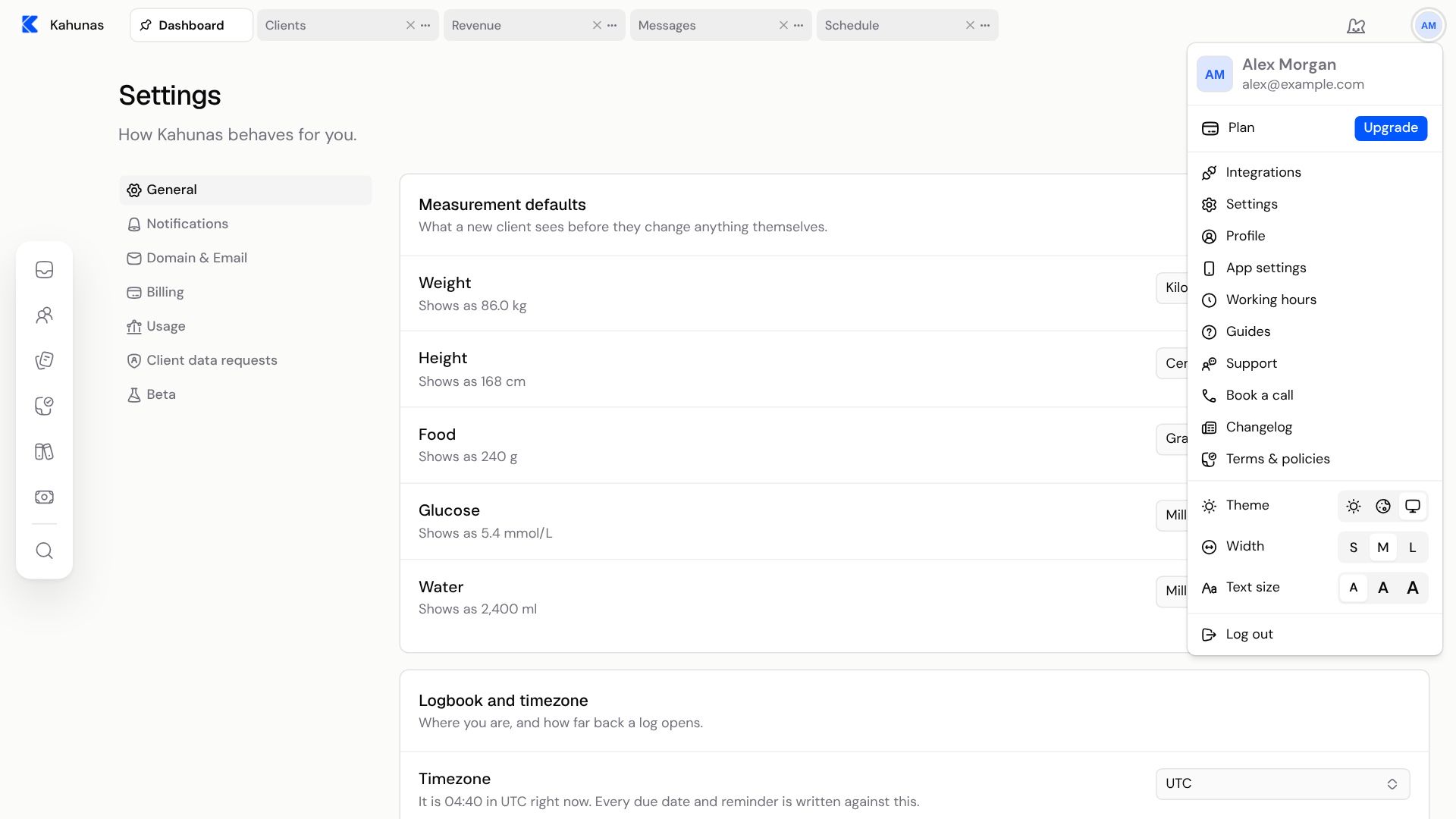
- Select your avatar at the top right, then choose Settings.
- Select Notifications.
- Scroll to the Workflow matrix. It has one row for each thing a client can do.
- In the Client checked in row, turn on the switch under Email.
- Select Save.
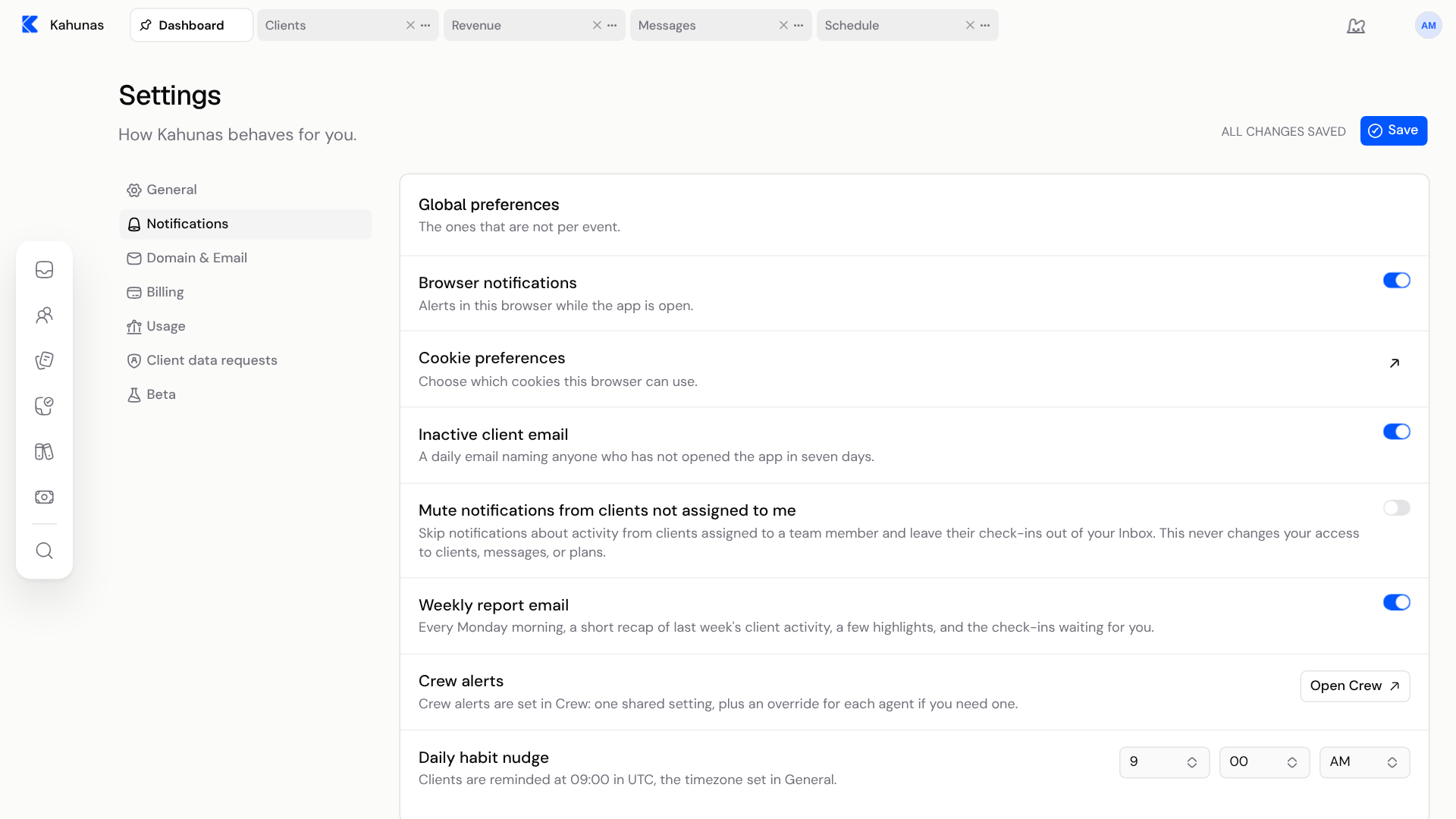
The Workflow matrix lists each event with four switches (In-app, Realtime, Push and Email) and a Frequency menu.
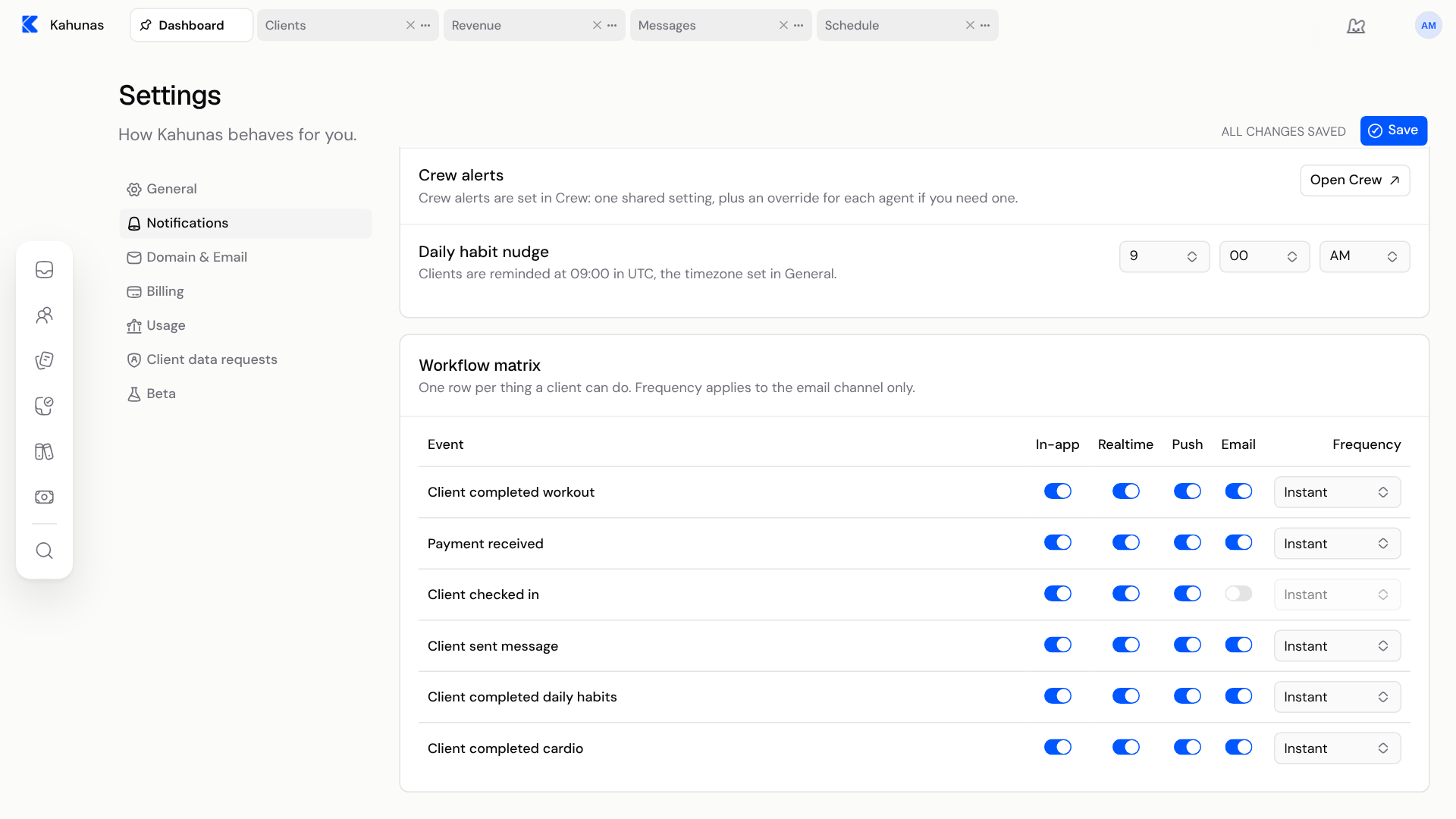
When you change a switch, the top of the page changes from ALL CHANGES SAVED to UNSAVED CHANGES. Nothing changes for you until you select Save.
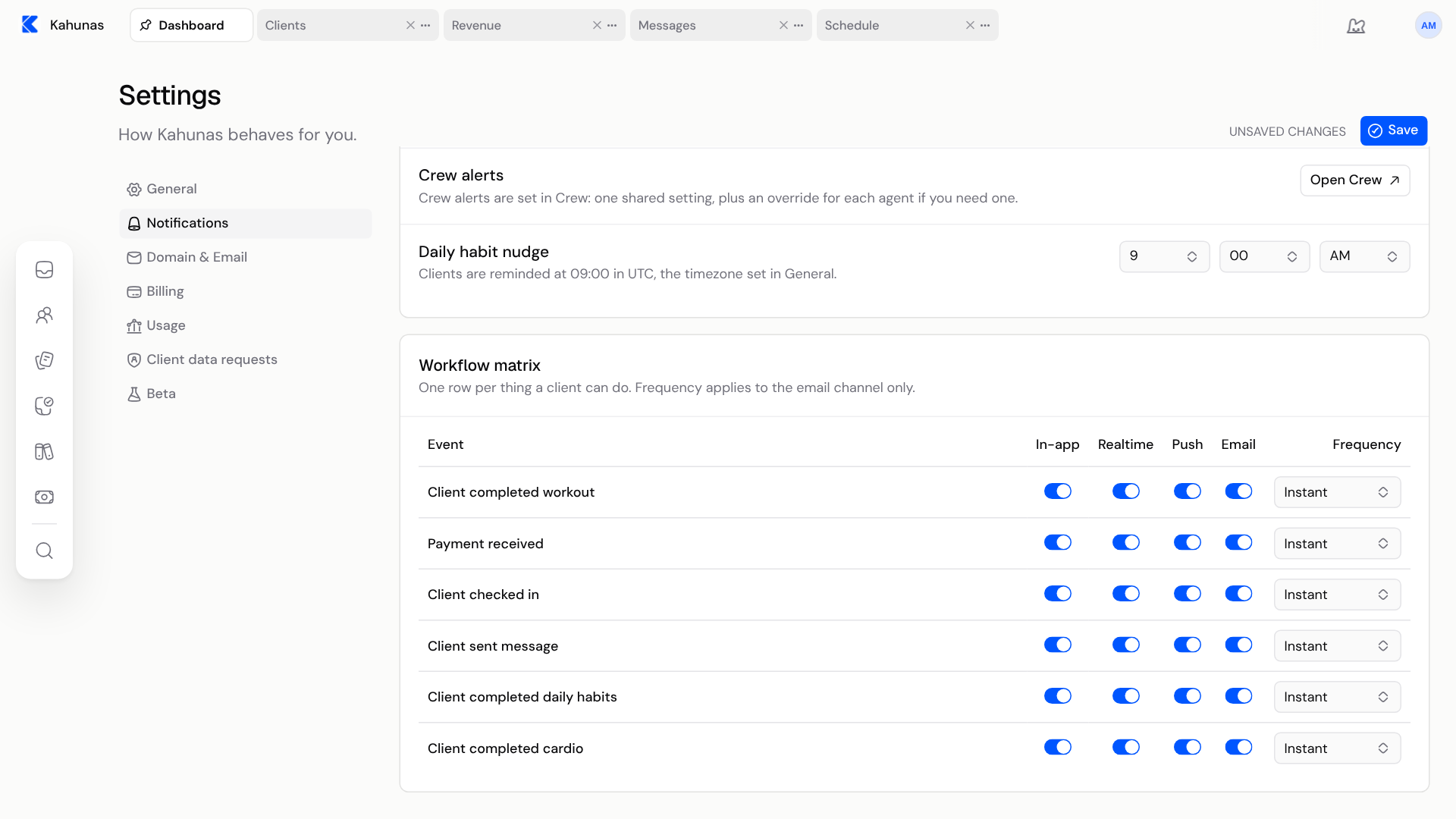
After you select Save, a Settings saved message appears and the top of the page returns to ALL CHANGES SAVED.
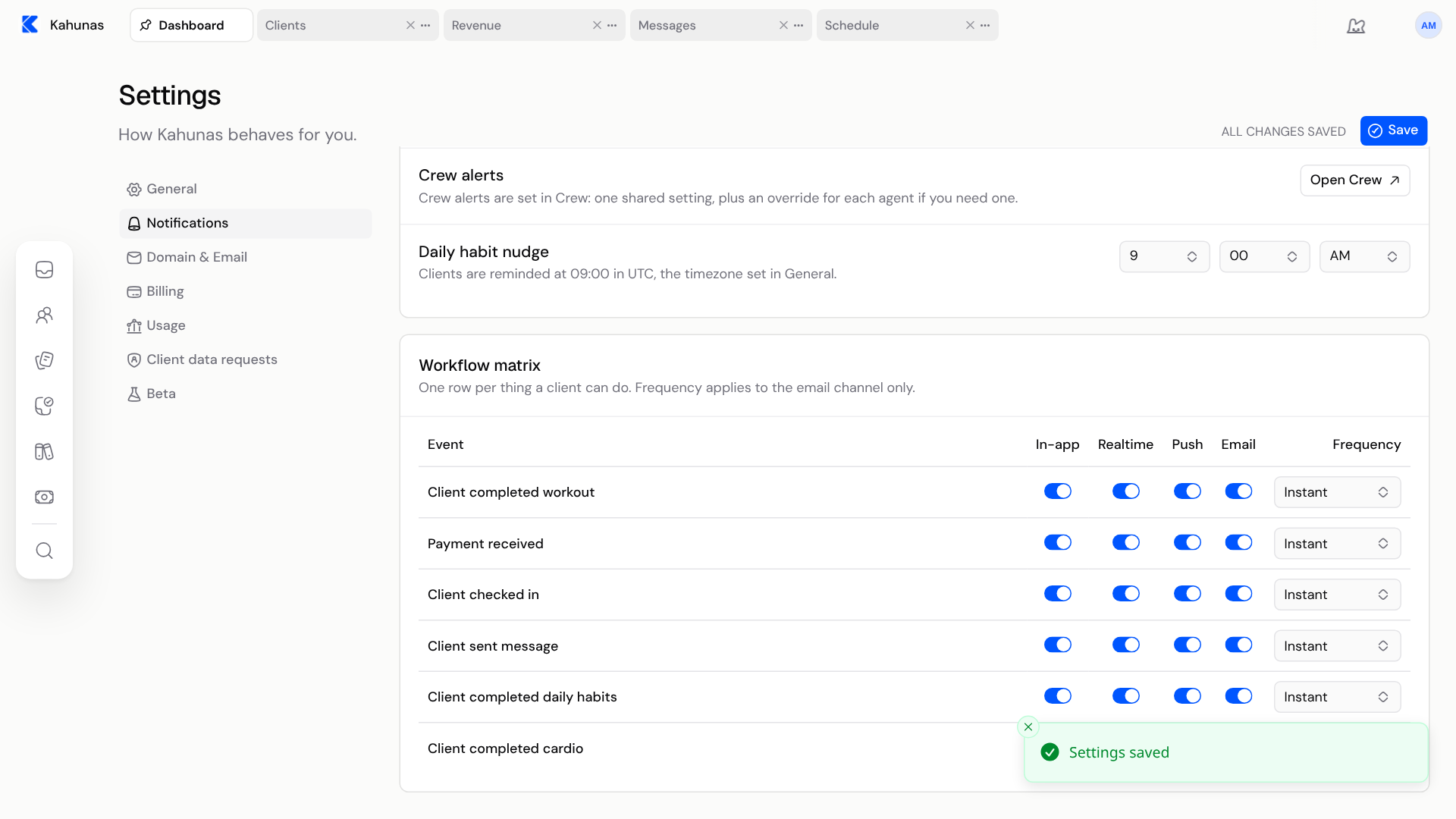
You may find Email already on. If you turned a switch off before, this is where you turn it back on.
The Frequency menu next to a row works only while that row's Email switch is on. Leave it on Instant to be emailed as each client checks in.
What the email says
When a client checks in, the email tells you that your client has completed a check in. Open Kahunas to read their answers and reply. For the review steps, see Reviewing check-ins.
Switching Email on for Client checked in doesn't change the other columns. In-app, Realtime and Push stay as you left them, so you can use them together.
Other events you can choose
The same Workflow matrix has a row for each of these events. Each row has its own In-app, Realtime, Push and Email switches and its own Frequency menu.
- Client completed workout
- Payment received
- Client checked in
- Client sent message
- Client completed daily habits
- Client completed cardio
Above the matrix, Global preferences has settings that are not tied to one event:
| Setting | What it does |
|---|---|
| Browser notifications | Alerts in this browser while the app is open. |
| Inactive client email | A daily email naming anyone who has not opened the app in seven days. |
| Mute notifications from clients not assigned to me | Skips notifications about activity from clients assigned to a team member, and leaves their check-ins out of your Inbox. This never changes your access to clients, messages or plans. |
| Weekly report email | Every Monday morning, a short recap of last week's client activity, a few highlights, and the check-ins waiting for you. |
| Daily habit nudge | The time your clients are reminded about their daily habits, in the timezone set in General. This reminds clients. It is not an alert to you. |
Use the same pattern for any of them: change the switch, then select Save. Cookie preferences on the same page opens your browser's cookie choices and isn't a notification.
Who gets the email
These are your settings as the owner. If a client is assigned to a team member, Kahunas tells that team member about the check-in as well, and which channels are on follows the owner's settings for Client checked in. If you turn Email off, the team member's email for that event goes off too.
You also get your own copy for those clients, unless you have turned on Mute notifications from clients not assigned to me. With that switch on, you get nothing for clients assigned to a team member. It never changes what the team member receives.
A client with no team member always notifies you.
A check-in you record yourself with Add check-in on a client's profile notifies the same people.
A separate email called Desired Rating tells you when a rating answer on a check-in falls outside the range you want. This page doesn't turn it off.
Turn it off
Go back to Settings → Notifications, turn off the Email switch in the Client checked in row and select Save. You will still see the check-in in your Inbox.
If something looks different
| What you see | What it means |
|---|---|
| No Settings in your account menu | Settings is for the owner. Ask the owner to change the notification settings. |
| UNSAVED CHANGES at the top | You have not selected Save yet. Select it before you leave the page, or your changes are lost. |
| The Frequency menu is greyed out | The Email switch for that row is off. Turn it on first. |
| The switch is on but no email arrives | Check your spam folder first. If your business came over from the old Kahunas and you have never saved this page, select Save once, even though nothing looks changed. If emails still don't arrive, create a ticket from Support in your account menu and say which event you were waiting for. |
Screenshots show the English interface with example data. Your own settings and names will differ.
If you still need help, create a ticket from Support in your account menu and say where you got stuck.