
Which wearables clients can connect
Your client connects their own fitness trackers and health apps in the new client app, under More → Settings → Wearables.
Clients on the older Kahunas apps do not have this screen. You cannot manage these connections for a client in coach client mode.
Read video transcript
In the new client app, your client opens More, then Settings and Wearables. They choose Connect under Connected services. Health data consent may come before sign-in. Apple Health and Health Connect use the free Biomtrx companion app. Tap Connect, then follow the three steps on the phone. Clients on the older Kahunas apps don't have this screen.
Open Wearables
Ask your client to open More, choose Settings, then tap Wearables.

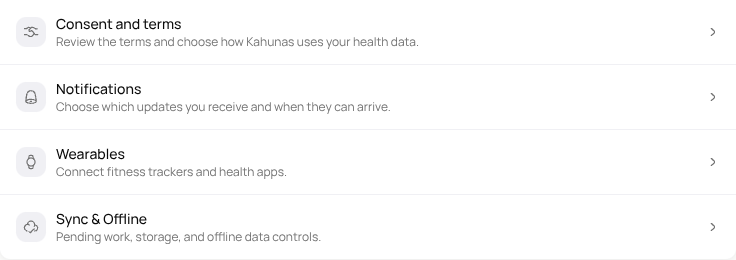
They will see two lists:
- Phone health apps: Apple Health and Health Connect, through the free Biomtrx companion app.
- Connected services: Strava, Whoop, Oura, Ultrahuman, Garmin, Polar and Suunto.
Strava, Whoop, Oura and Ultrahuman offer Connect. Garmin, Polar and Suunto show Coming soon for new connections. Your client can connect a provider when its row offers Connect.
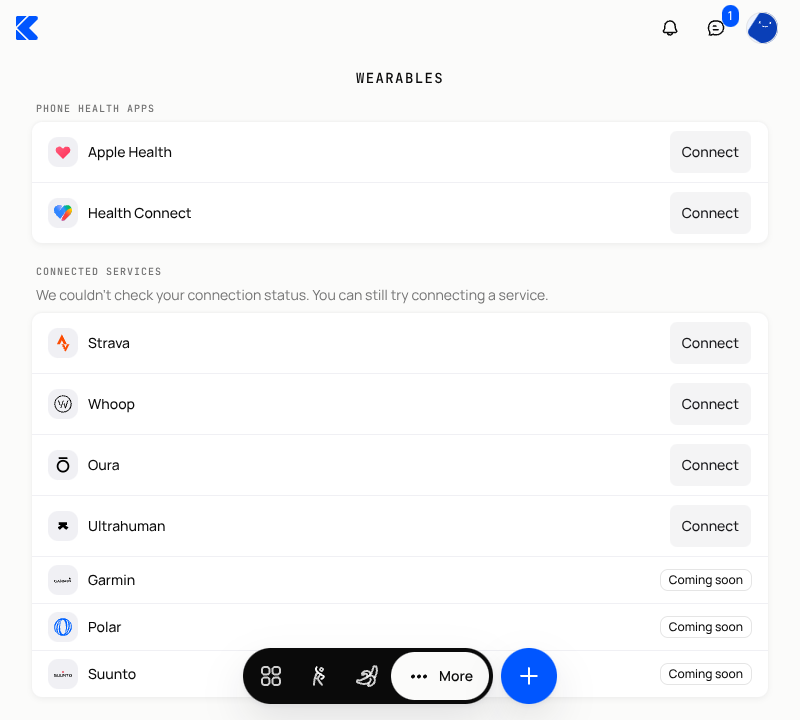
If they see We couldn't check your connection status, Kahunas cannot show whether their services are connected. They can try connecting a service or check again later.
Connect Whoop or another service
- Under Connected services, find the service and tap Connect.
- If Share health data appears, your client reads the notice and decides whether to choose Agree and continue. They can choose Not now to stop.
- Your client signs in with that service and follows its permission steps.
After connecting, the row offers Disconnect. Tap the row to see the data it supplies and Last synced, or Waiting for first sync if no data has arrived yet.
Connect Apple Health or Health Connect
- Under Phone health apps, tap Connect beside Apple Health for an iPhone or Health Connect for an Android phone.
- For Install Biomtrx, use Get Biomtrx on the App Store or Get Biomtrx on Google Play to install the free companion app.
- Open Biomtrx and Sign in with your Kahunas account, using the same email your client uses for Kahunas.
- Allow Health access or Allow Health Connect access and choose what to share.
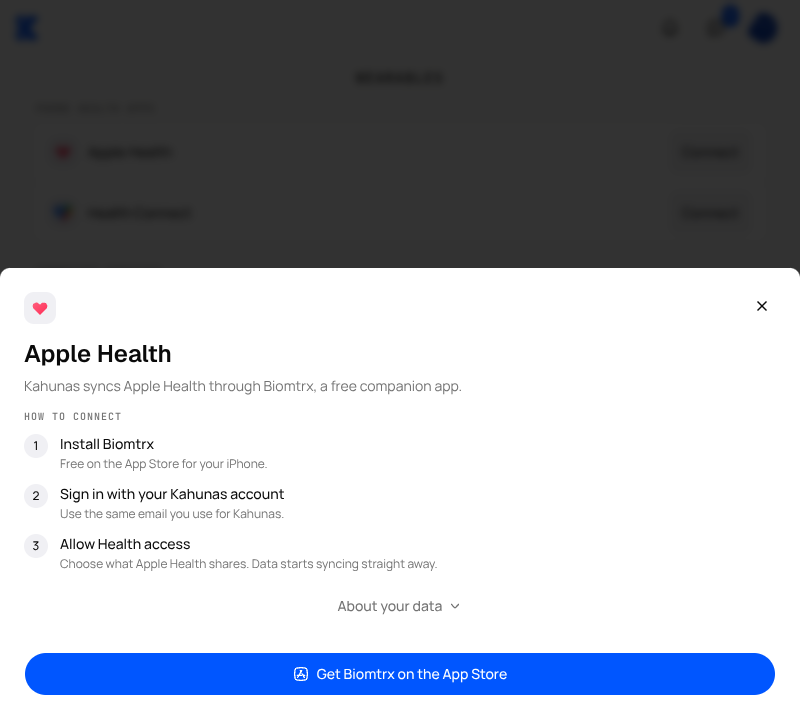
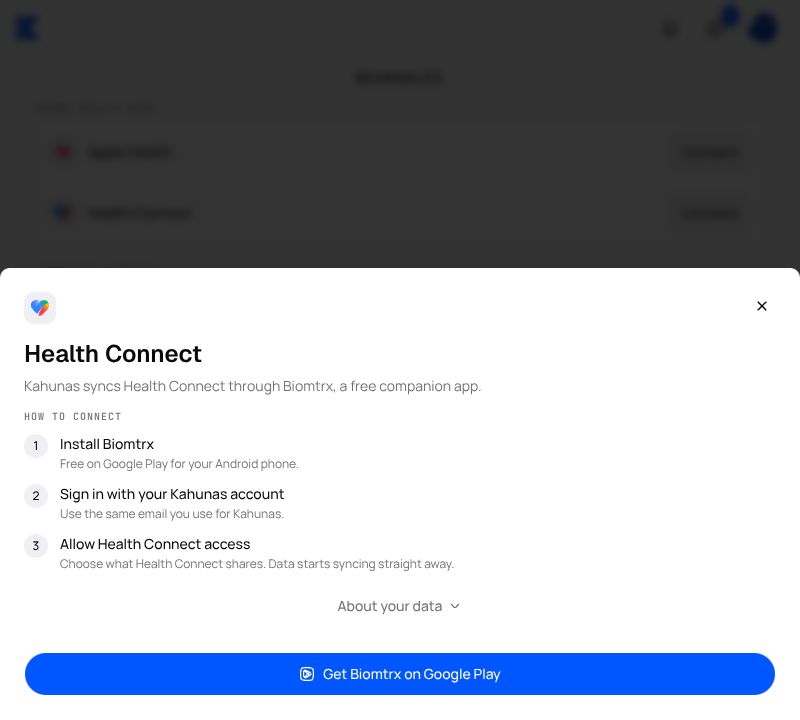
Apple Health and Health Connect share one Biomtrx connection, so both rows can show the same connection status.
See synced steps as a coach
Open the client's profile and choose Metrics. The Steps card appears once they have logged or synced steps. A manual entry for a day takes priority over wearable steps for that day.
Manage data sharing
Your client can choose Disconnect to stop a service. Disconnecting either phone health app stops Biomtrx syncing for both phone rows; other connected services keep sharing.
Removing Biomtrx or turning off phone permissions does not delete data already shared. Your client can manage consent through Withdraw data sharing → Disconnect all & withdraw consent, which opens Consent and terms. For deletion, see Other kinds of request.
Screenshots show the English interface with example data.