







Creating your check-in form
Ask clients about their progress, collect photos and find out where they need support. Start with a template or write questions for the way you coach.
Read video transcript
Open Intake, then Client forms. Select New form and choose Check-in. Give your form a name. Add a question, then choose Long text input. Write your question and make it required. Check the wording, then select Save and close.
Create a check-in form
- Open Intake → Client forms.
- Leave All selected and choose New form.
- Select Check-in in Create form. You'll see an Untitled form in the builder.
- Select the title, enter a name such as Weekly check-in, and press Enter.
If you start from the Check-in filter, the creation button may read Check-in form.
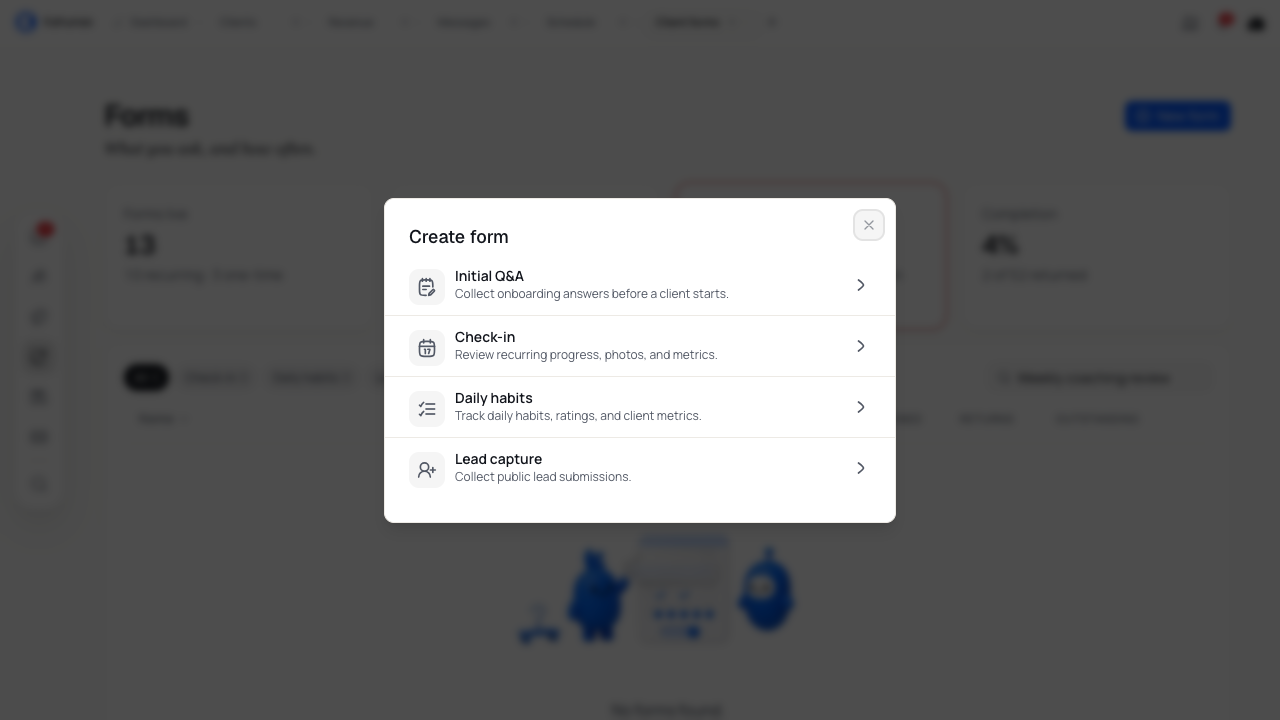
You now have an empty form in your library. Use Save & close after editing to save its title and questions. Kahunas makes your first active check-in form the default, so check Set this form as default in the Form panel before continuing.
Start from a template
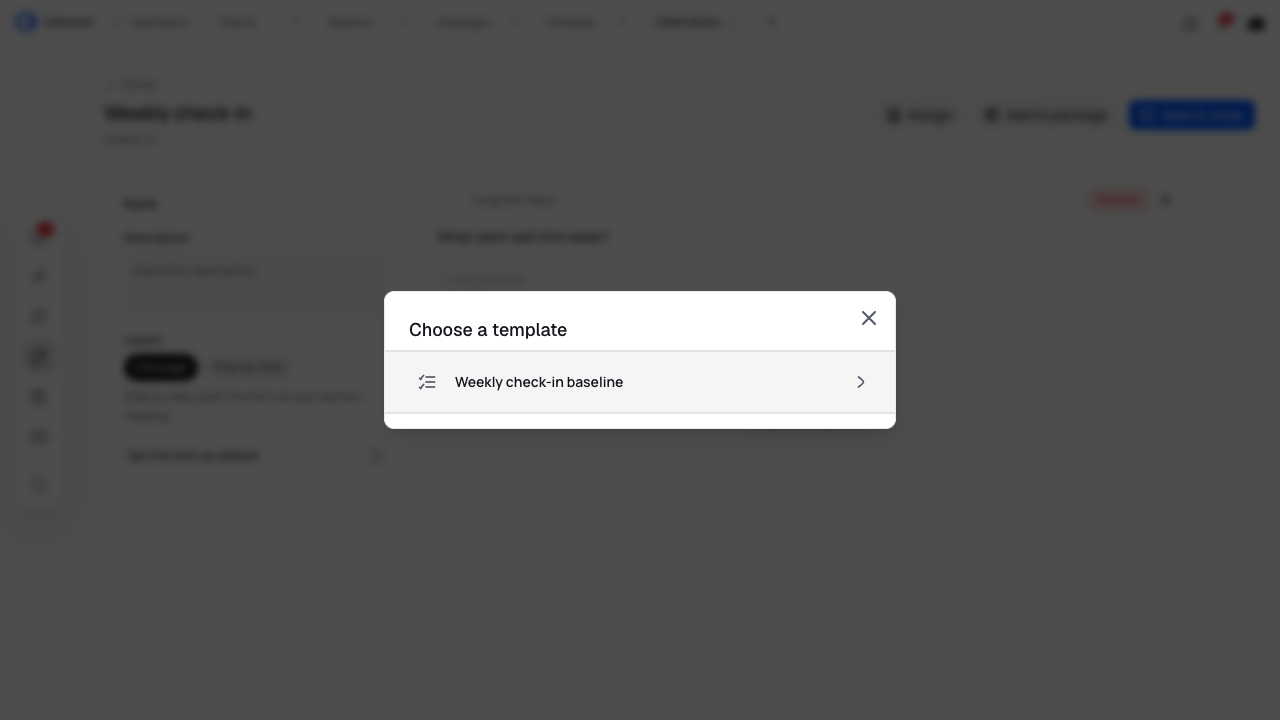
Select Import template, then Weekly check-in baseline in Choose a template to start with common progress questions. The template includes weight, sleep, stress and energy, along with What went well this week? and Where do you need support?
In a form that already has questions, importing adds the template questions after your existing ones. Read the combined form and remove questions you do not need before saving.
Check the Optional and Required settings after import. Keep questions that help you coach the client, and use the template's progress fields when you want to collect those measurements.
Draft a form with AI
If your account supports AI form creation, open Crew and describe the form you need. To revise an existing form, name it and check that the right one has been selected.
Review the proposed structure before approving it. Check the finished questions, then select Build to save the new form or update the selected form. Open the saved form to review the result before assigning it to clients.
Add and edit questions
To write a question from scratch:
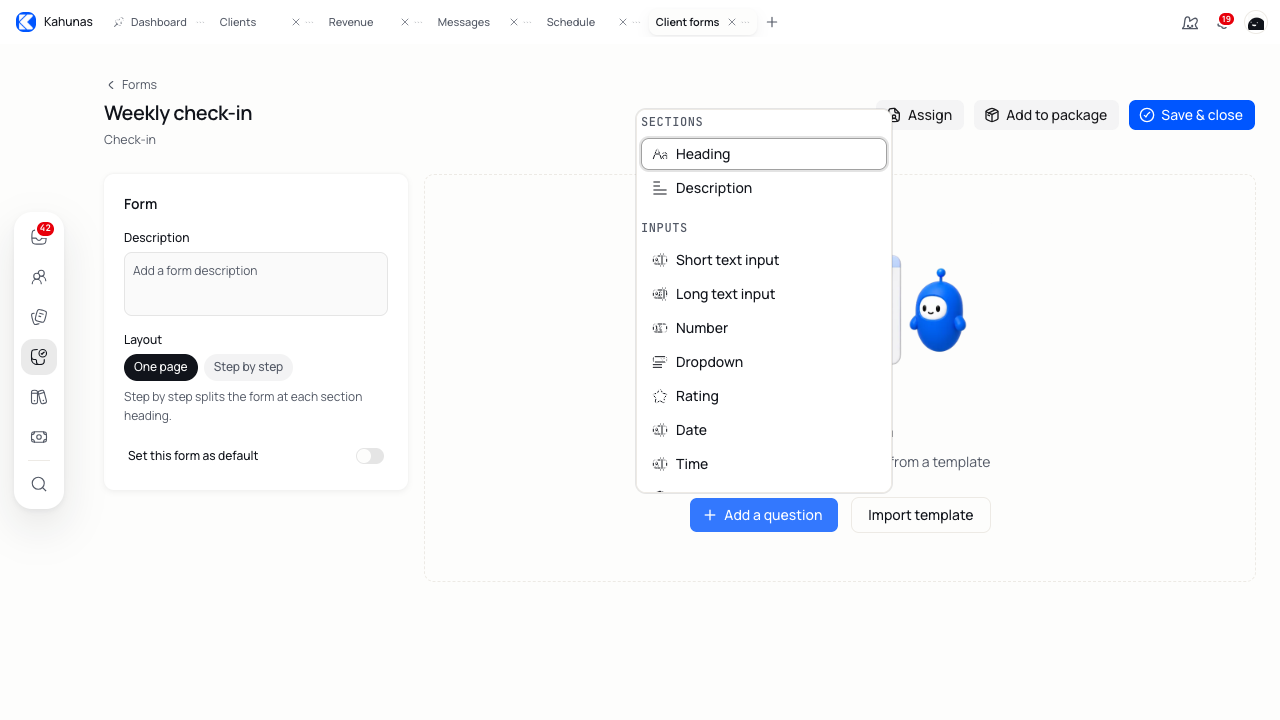
- Select Add a question and choose an input type. For example, choose Long text input.
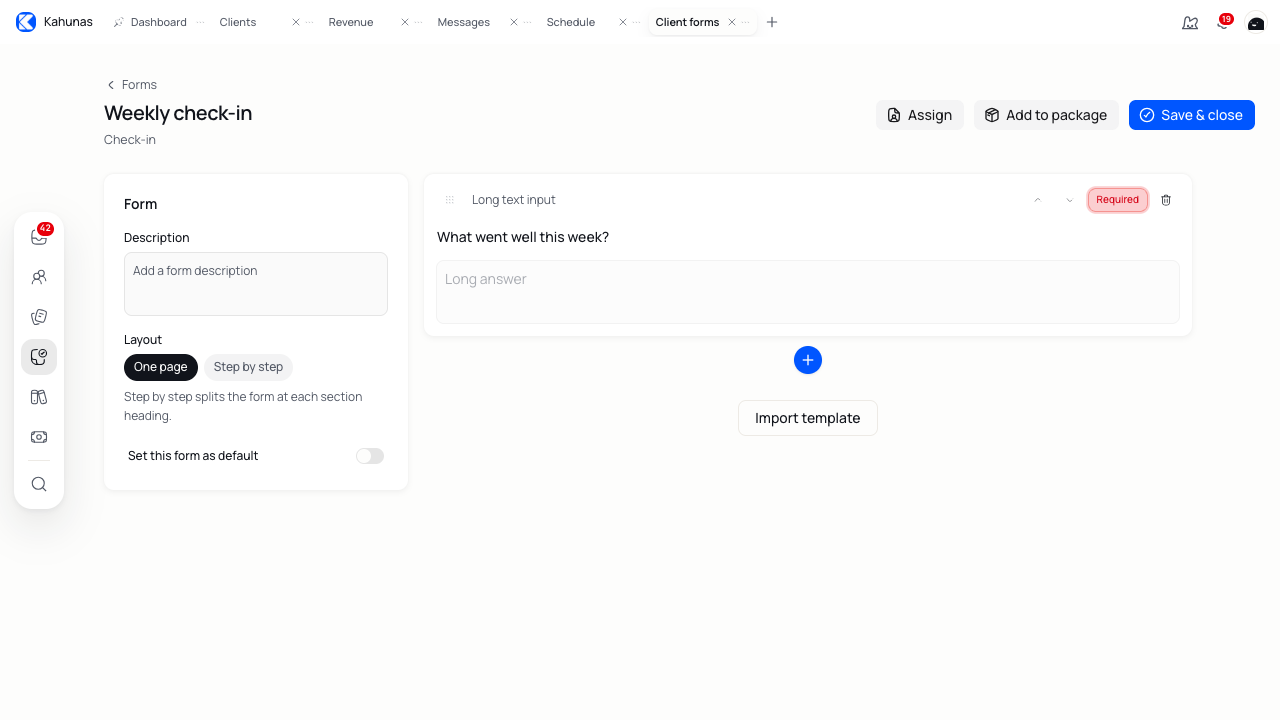
- Select the question text and replace it with your wording, such as What went well this week?
- Select Optional to change it to Required if the client must answer it. Check the resulting label.
Use the plus controls between questions or at the end of the form to add more. You can use Add field where shown.
Choose a question type
Choose the type that matches the answer you need. Some account setups offer fewer types.
| Type | Use it for | Example |
|---|---|---|
| Short text input | A brief written answer | What is your focus for next week? |
| Long text input | A fuller written answer | Where do you need support? |
| Number | A number | How many workouts did you complete? |
| Dropdown | One answer from a list | How closely did you follow your plan? |
| Single choice | One answer from visible options | Did you complete your planned sessions? |
| Multiple choice | More than one answer | What made training harder this week? |
| Rating | A rating | How was your energy this week? |
| Date | A date | Which date does this check-in cover? |
| Time | A time | What time did you go to bed? |
| Add Image | An image from the client | Add a progress photo. |
| Upload Video | A video from the client | Upload a clip of your squat. |
| An email address | Ask for a contact address if you need one. | |
| Attach File | A file from the client, where available | Attach the document you want to discuss. |
| URL | A link from the client, where available | Add a link to your event. |
Add Image and Upload Video ask the client to supply media. Use Heading and Description to add section names and instructions; clients do not answer those blocks.
You can track suitable Number and Rating answers in progress graphs. Keep metric names consistent and check the results in Client Insights. Use text answers for context during your review.
Set up choice answers
For Dropdown, Single choice or Multiple choice:
- Select the question and find Options.
- Replace each option's text with an answer the client can choose.
- Select Add option for more answers.
- Check the question's Optional or Required setting.
For example, What made training harder this week? could use Multiple choice with Time, Sleep, Soreness and Nothing this week. Use Single choice if the client should pick one answer.
Arrange questions and sections
Drag a question by its handle, or use Move up and Move down, to change its position. Select Delete field to remove a question you no longer need. Save after these changes.
Where available, add a Heading such as Training and recovery to group questions. Add a Description block to explain that section. You can write general instructions in the Description box in the Form panel.
Choose a layout
If your account includes Layout, choose:
| Layout | How to arrange your form |
|---|---|
| One page | Keep the questions together on one page. |
| Step by step | Add headings to separate the form into steps. |
Account setups that support fewer form types may also hide headings, description blocks and layout choices. Use the controls available in your builder.
Review your form
Read the form from top to bottom. Check that clients can understand each question and know what to enter. Review the answer choices and required questions, then remove anything you will not use in your coaching review.
Use the template’s measurement fields for consistent progress tracking, and check the results after clients submit.
Save and check your changes
Select Save & close. You'll see Form saved and return to the forms library. Reopen the form to check its title, questions and required settings.
If you see an error, read it and correct the named field before saving again. A saved form is ready for assignment; choose its clients and check-in schedule in the following steps.
Choose your default check-in form
Open the form you want as your default and use Set this form as default. If another default exists, read the confirmation and select Yes to replace it.
This change takes effect before you save your question edits. Use Save & close for those edits. To change away from your current default, open another form and make that one the default.
Kahunas keeps one default for each form type. Changing the default leaves existing client assignments in place. Review the form selection during client or package setup.
Assign the form to clients
Save your changes before assigning the form.
- Reopen the saved form and select Assign.
- Use Search clients and choose the clients who need it.
- Review your selection, then select Assign form.
- If you see Replace check-in form?, check that you want to replace their current form before choosing Yes, replace.
A client can have one active check-in form. After replacing it, check the client's schedule; an existing schedule can carry over to the replacement.
Use a form with a package
Choose the package action that matches the clients you want to reach.
| Your goal | Where to set it up | Result |
|---|---|---|
| Give the form to clients who are on a package now | Form builder → Add to package | Assign the form to current active clients on that package. |
| Choose the form for future client setup with a package | Package editor → Attach coaching resources → Check-in form | Save a package default for invitations and enrollment. |
Use both actions if you want to update current package clients and choose the form for future clients.
Assign to current package clients
- Open your saved form and select Add to package.
- In Attach to package, open Package and choose the package.
- Read the client count and any message about existing forms.
- Select Assign form. If you see Replace existing forms?, review the change before selecting Yes, replace.
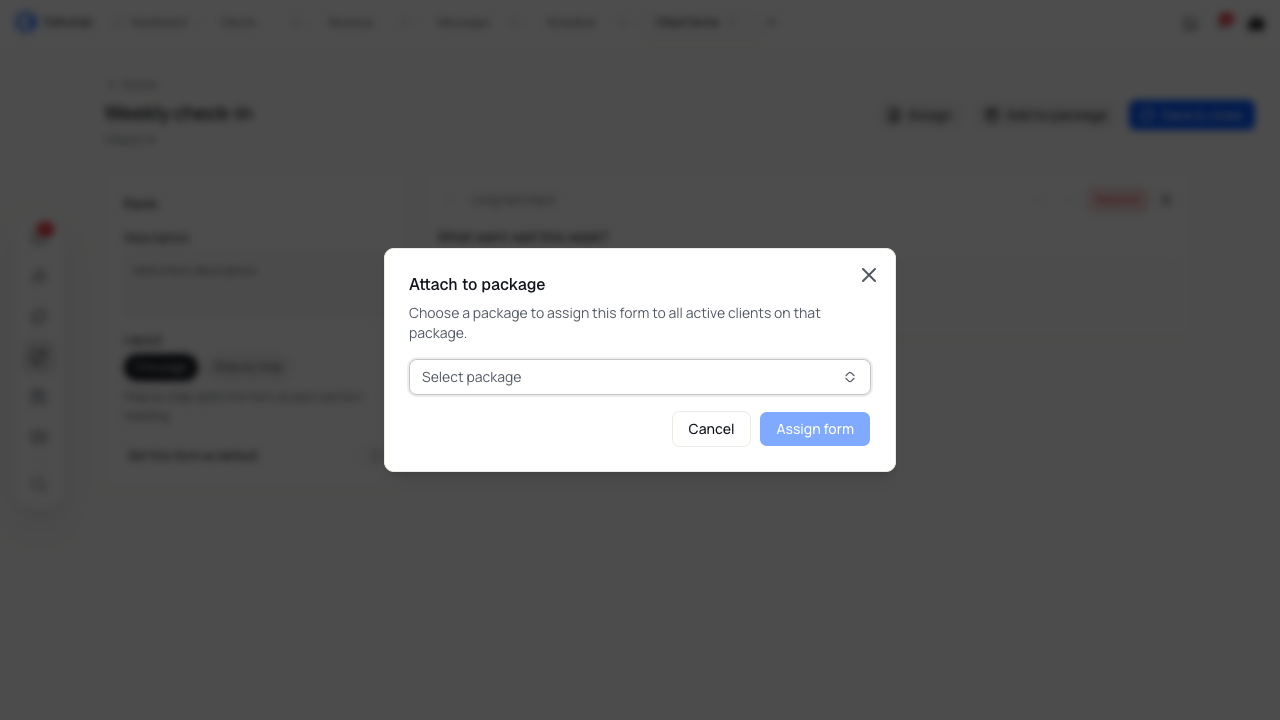
You will change the form for the active package clients included in the selection. Check the count before confirming. If the package has no active clients, you cannot assign the form this way.
This action leaves the package's saved default unchanged. Set that choice in the package editor if future clients should use the same form.
Choose a form for future package clients
- Open Revenue → Packages, then open the package for editing. For a new package, select Add package.
- Continue to Attach coaching resources.
- In Check-in form, choose your saved form. Review any preselected form before continuing.
- Finish the package details and review your choices. Use Save draft to continue later, or Publish when the package is ready to offer.

You choose the check-in form alongside the package's price and payment terms. Choose an onboarding questionnaire as a separate resource if you need one.
During a client invitation, review the package's selected form and the client's schedule before sending. Clients who sign up through the package's enrollment page receive its chosen form if it remains active and available. Saving or publishing a package leaves current clients' forms unchanged.
See Create a coaching package for package pricing and setup, or Adding a new client for the invitation steps.
Set the client's check-in schedule
After assigning a form:
- Open People → Clients and choose the client.
- Select Edit in the profile header.
- In Edit client, choose Check-in cadence: Weekly, Every 2 weeks or Every 4 weeks.
- Select one or more Check-in days, then Save.
These controls require an assigned form. Recheck the form and days after replacing an assignment. You set the schedule for each client; the builder's Layout setting controls how they read the questions.
Use Inbox → Check-ins to review submissions and respond.
Find forms and check responses
Use Search forms and the form-type filters to find a saved form. Check Form status for active or archived forms. Select a saved form to read its question list and required settings in Form preview, then open it for editing if needed.
Read Forms live, Returned this week, Outstanding and Completion for an overview of your forms. These cards cover the forms library; use the selected form's details to check its own usage.
Follow up on missing check-ins
In Outstanding, choose the available Chase action and review the recipients in Chase outstanding forms. Edit the message, then select Send reminder when you are ready to send a direct message.
Kahunas allows one chase message per client in 24 hours. If you see Already messaged recently, refresh and follow up with the remaining clients. You can continue conversations in Messages.
For scheduled email reminders, see Setting up automations and the Check-in reminder workflow. Setting check-in days alone does not configure these reminders.
Make a copy for another coaching need
In the forms library, open Form actions → Duplicate for the form you want to reuse. Rename the copy, edit its questions and save it.
The copy starts without client assignments or default status. Choose those settings once you have finished editing.
Archive or restore a form
Use Form actions → Archive to retire a form you may need again. First move any active client assignments to another form. If you are archiving the default and another active check-in form exists, make that other form the default before archiving.
Find the form with the Archived filter and choose Restore to bring it back. Read any message about a conflicting default before continuing. Archiving keeps past responses linked to the form.
Delete a form
Use Form actions → Delete and read the confirmation before proceeding. Deletion is permanent. Choose Archive if you may want to restore the form later.
Kahunas blocks deletion while clients have active assignments. If the form is the default and another check-in form exists, change the default first. After deletion, past responses no longer link to the deleted form.
If something looks different
| What you see | What to check |
|---|---|
| A question type or layout control is missing | Your account may use a more limited set of form controls. Choose from the types in your builder. |
| You cannot find your form | Check the search text and the Check-in or Archived filter. |
| You cannot assign a package | Check that the package is active and has active clients. Team permissions may limit which clients you can choose. |
| You cannot change the client's check-in days | Assign a check-in form to the client first. |
| Archive or Delete is blocked | Check active client assignments and whether the form is the default. |