
Sharing recipes with clients
Clients linked to you in the newer Kahunas client web app see recipes you create without a separate share switch. You can turn on the ready-made Kahunas recipe library for all clients or selected clients, and add any recipe straight into a client's nutrition plan.
Before you start
- Plan tier: Recipes unlock on plans with 25 or more client seats. On lower tiers, the Recipes button under Nutrition plans is greyed out with Upgrade to enable recipes.
- Client app: Recipes and the Kahunas library work in the newer Kahunas client web app. Businesses using the original Kahunas iPhone and Android apps do not have Recipes.
- Permissions: Only the business owner can open Settings → General to change Kahunas recipes settings. Team members with Nutrition access can view and search workspace and Kahunas recipes, and team members with Nutrition edit permission can create recipes and add them to nutrition plans. Only a recipe's author or the business owner can edit or delete a coach recipe; other team members open it read-only (View only). Kahunas library recipes open as Kahunas recipe · View only for everyone.
Share your own recipes
- Open Plans → Nutrition plans in the left menu.
- Select Recipes in the toolbar. The button shows on the Plans, Days, Meals and Foods tabs, and hides on Supplements.

- Select New recipe, enter your recipe details, ingredients and method, and save it.
- When Kahunas recipes is on, switch between My recipes and Kahunas at the top left to browse your workspace recipes or the Kahunas library.
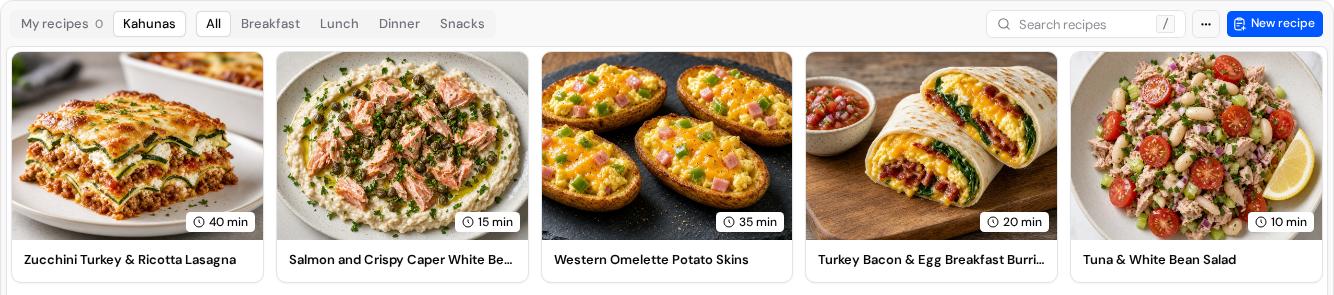
There is no per-recipe share toggle. A client sees a coach-created recipe in their app when any of these apply:
- Authored by a linked coach: You (or another team member) wrote the recipe and are linked to that client.
- Included in an active nutrition plan: You added the recipe to a meal or swap meal in an active nutrition plan assigned to the client, even if another team member wrote it.
- Logged in the client's food log: The client has logged the recipe in their own food log.
Editing a coach recipe updates your library plans and meal templates, while client-specific plan copies keep their assigned numbers. Deleting a coach recipe removes it from your library, while existing plans and client food logs keep the meal name and macros without the recipe link.
Share the Kahunas recipe library
Business owners control whether coaches and clients can browse ready-made Kahunas recipes:
- Open Settings → General in the left menu.
- Scroll to Feature flags.
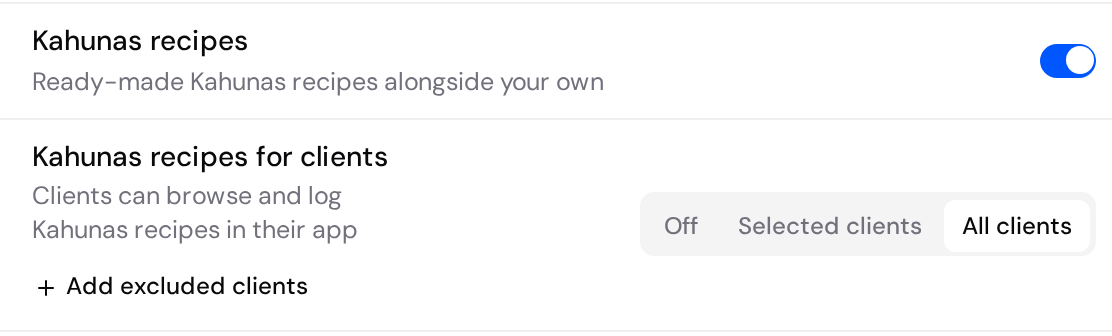
- Check that Kahunas recipes ("Ready-made Kahunas recipes alongside your own") is turned on. This switch is on by default and shows the Kahunas tab on Recipes and includes Kahunas recipes in plan-builder searches. Turning it off hides Kahunas recipes for coaches and hides the client setting below, while keeping recipes already used in plans and client food logs intact.
- Under Kahunas recipes for clients ("Clients can browse and log Kahunas recipes in their app"), choose who can browse the library:
- Off (default): clients cannot browse the Kahunas library, though they can still open any Kahunas recipe you put in their nutrition plan.
- Selected clients: select Select clients, find active clients under Search clients, and pick who gets access.
- All clients: every client can browse Kahunas recipes. Select Add excluded clients (or Exclude someone else once one is listed) to hide the library from specific clients.
- Select Save at the top right. Changes take effect once you save and the header changes from Unsaved changes to All changes saved with a Settings saved message.
Add a recipe to a client's nutrition plan
You can prescribe any workspace recipe or Kahunas recipe in a client's meal plan without turning on Kahunas recipes for clients:
- Open a plan under Plans → Nutrition plans, open a meal and select Add food (see Nutrition Plans).
- Switch from the Food tab to Recipes and search for the recipe. Kahunas library entries show a Kahunas badge.
- Add the recipe to the meal, check the servings and select Save & close. If this is a new plan, assign it to the client.
The first time you add a Kahunas recipe to a plan (or a client logs one), Kahunas saves a read-only copy in your workspace. That copy keeps the recipe's ingredients, method and macros on plans and logs even if Kahunas updates the library recipe later. If you end the plan assignment later, a recipe shared through that plan stops showing for the client unless they logged it.
Where clients open and log recipes
There is no standalone Recipes button on the client's Nutrition day screen. Clients open and log recipes in two ways in the newer Kahunas client web app:
- Through Add food in a meal: Open Nutrition, open a meal and select Add food, then switch to the Recipes tab. Clients can also tap + on Nutrition, choose Add food and pick an existing meal. If the shortcut already names their next meal, Add food to opens it directly. To log a recipe in a new meal, tap Add meal (or + → Create a meal), enter a Meal name, choose Where it goes if shown, and select Add meal. Then open Add food on the new meal and switch to Recipes.
- From a planned or logged meal row: Any planned or logged recipe shows a Recipe badge. Tapping it opens the recipe sheet with Per serving nutrition, Notes, Ingredients and Method, plus Change servings (and Remove from food log for a logged recipe that did not come from the plan).
In Add food → Recipes, use Search recipes or choose a category: All, Breakfast, Lunch, Dinner or Snack. Under From your coach, clients who have access to the Kahunas library can switch between Your coach and Kahunas.
Tap i (Recipe details) to read the ingredients and method without selecting the recipe. Tap Back, then tap the recipe to select one serving. Use − or + for half-serving steps from 0.5 to 10. Choose Add food (1) to add that recipe to the meal.
- If a client's active nutrition plan hides calories or macros (see Choose what clients can see), those numbers stay hidden on recipe cards and recipe details.
- Logging a recipe requires the client's health-data consent under More → Consent and terms (see Logging a single food).
- Opening ingredients and method needs an internet connection if the phone has not cached the recipe yet; offline, the sheet shows You're offline until the client reconnects.
If something looks different
| What you see | What to check |
|---|---|
| Recipes is greyed out with Upgrade to enable recipes | Recipes require a plan with 25 or more client seats and the newer client web app. Businesses using the original Kahunas mobile apps do not have Recipes. |
| A client cannot see a recipe a team member created | Check that the team member is linked to that client, or add the recipe to the client's active nutrition plan. |
| A client sees Your coach recipes but no Kahunas tab | Ask the business owner to open Settings → General → Feature flags, confirm Kahunas recipes is on, set Kahunas recipes for clients to All clients or Selected clients (including that client), and select Save. |
| You open a recipe and see View only | Kahunas recipes are view-only for everyone. Only a coach recipe's author or the business owner can edit or delete it. |
| A client sees You're offline when tapping a recipe | Recipe ingredients and method load online when not cached. Ask the client to open the recipe again once reconnected. |