







Managing your schedule
Use Schedule to plan appointments, set aside time for your own work and review client requests. You can also show workout and cardio activity alongside your calendar events.
Read video transcript
Open Inbox, then Schedule. Choose Add event. Leave Client empty and name your event. Set the start and end times. Add any details, leave reminders off, and save. Open the event from your calendar. Check the saved details before closing.
Find the date and activity
Open Inbox → Schedule. Choose Week for your daily workload or Month for a wider view. Use the arrows to move through dates, or select Today to return to the current period.
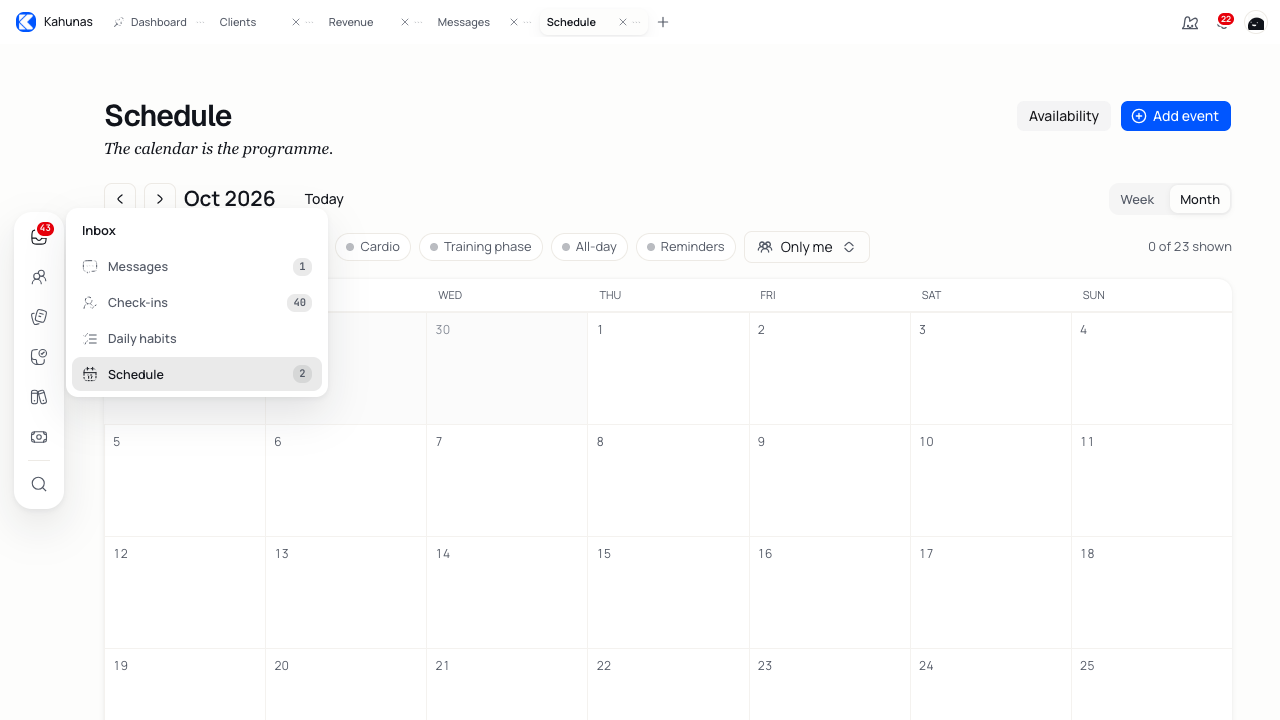
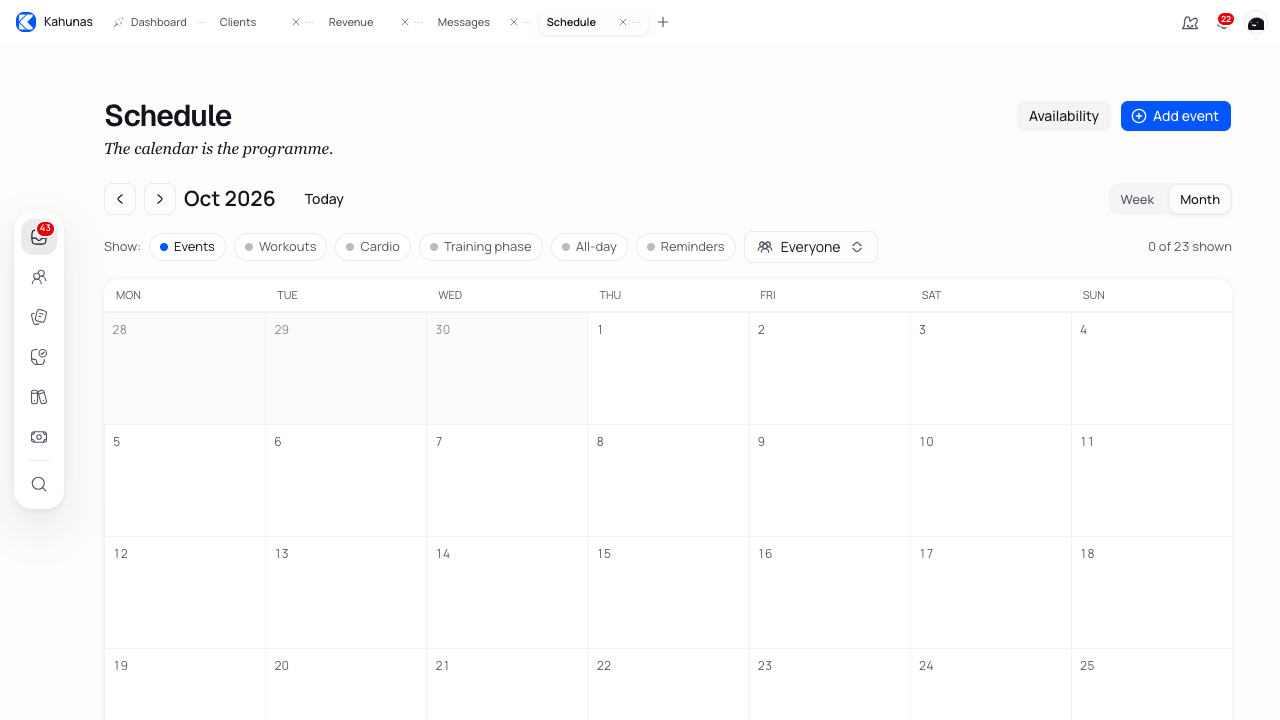
Use the filters to choose what you see:
| Filter | What it shows |
|---|---|
| Events | Calendar entries, including appointments and reminders. |
| Workouts | Client workout activity. |
| Cardio | Client cardio activity. |
| Training phase | Training phases and workouts within those phases. |
| All-day | Include or hide all-day calendar entries. |
| Reminders | Include or hide reminder entries. |
| Everyone | Choose whose calendar to view from your coaching team. Use Only me for your own entries. |
The team filter selects coaches and staff. Choose a client inside an event when you want to attach that event to them.
Opening a workout, cardio activity or training phase shows its details. Use its Open control to go to the related record. You edit calendar events in the event editor.
Add an event
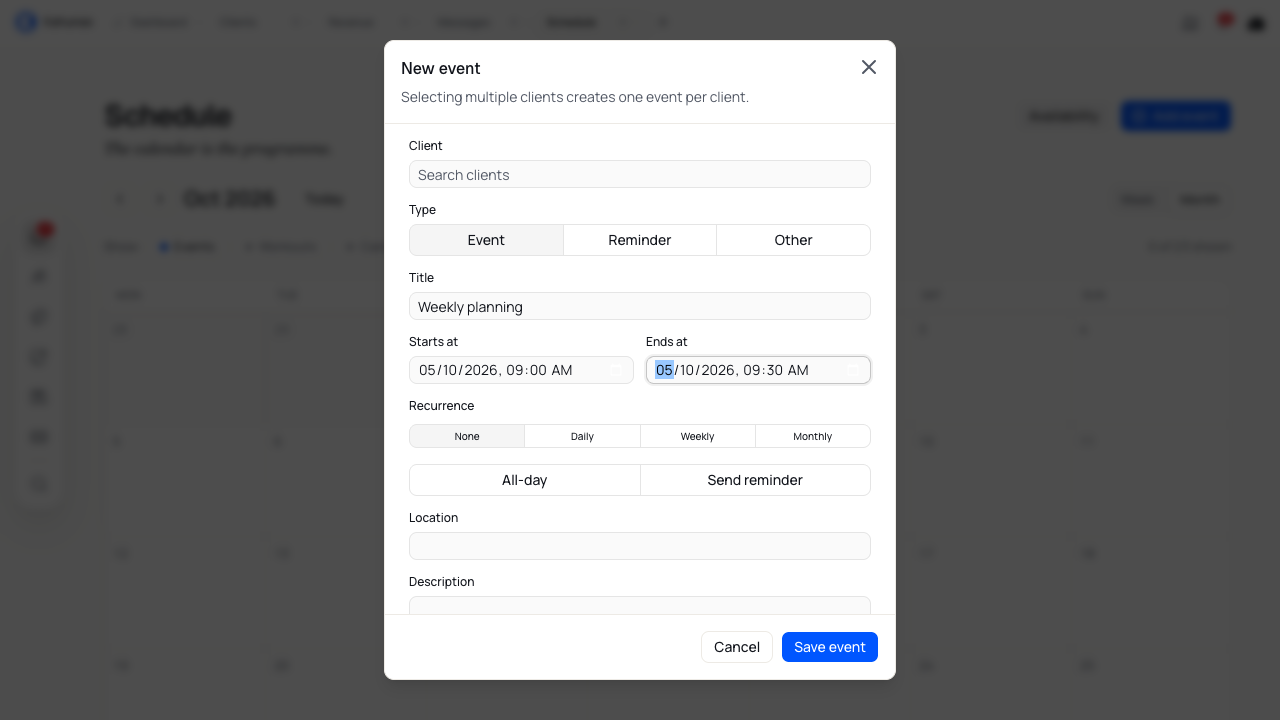
- Select Add event.
- Under Client, search for and select the person the event belongs to. Leave it empty for your own planning time. Selecting several clients creates a separate event for each person.
- Choose a Type and enter a Title that you will recognise later, such as “Weekly planning”.
- Set Starts at. For Event and Other, set Ends at after the start.
| Type | Use it for |
|---|---|
| Event | An appointment or block of time, with a start and end. |
| Reminder | A dated reminder with a start time and no end time. |
| Other | Another kind of calendar entry with a start and end. |
Review timing and optional details
Timed events use your profile timezone. Check Timezone under Settings → General → Logbook and timezone if an appointment appears at an unexpected time.
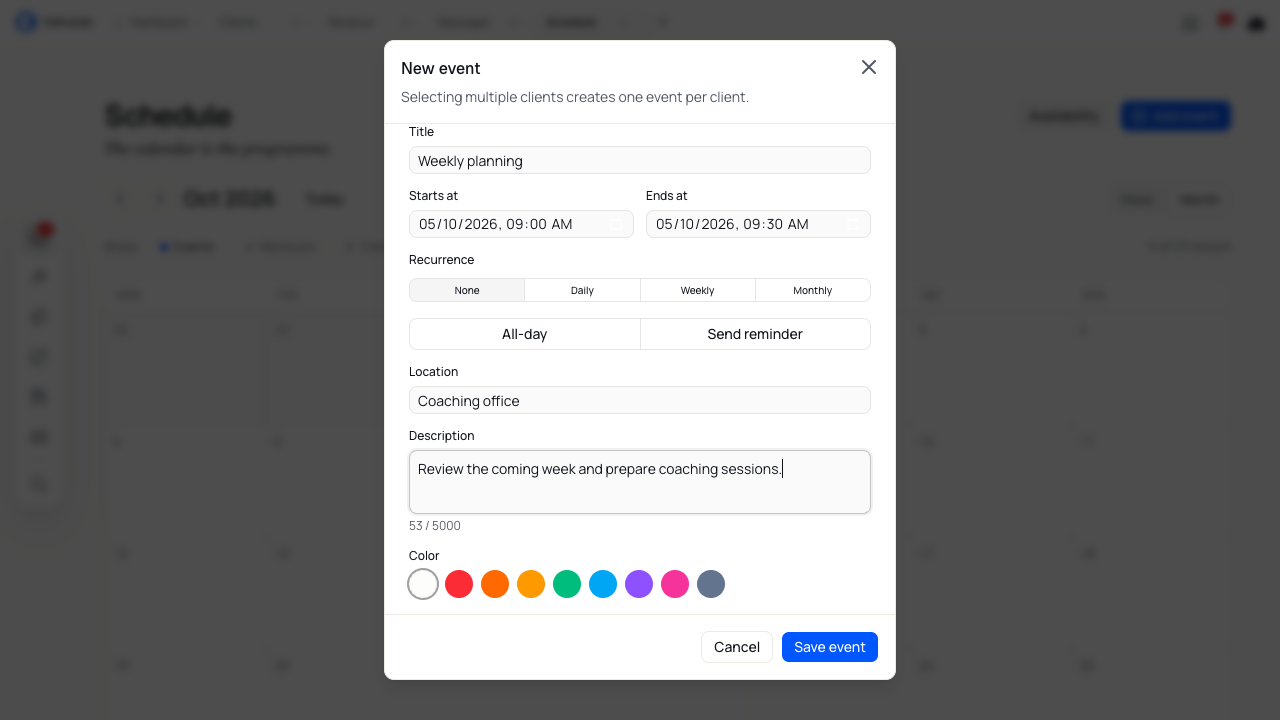
Use All-day for an entry that covers a date rather than a specific appointment time. Add a Location, write a Description, and choose a Color if that helps you recognise the entry.
Send reminder controls notifications. For an event with a client, reminders can go to both you and that client. For an unassigned event, they can go to you. Leave this option off if you only want the calendar entry. Choosing the Reminder type and turning on Send reminder are separate choices.
Set a repeating event
For Event and Other, choose Daily, Weekly or Monthly under Recurrence. Keep None for a single event.
- Set the start and end for one occurrence.
- Choose the frequency and enter an Interval. Weekly with an interval of 1 means every week; 2 means every two weeks.
- Set Until to the date you want the series to end.
- Review Ends at again before saving. Choosing a frequency can shorten an end date that would overlap the next occurrence.
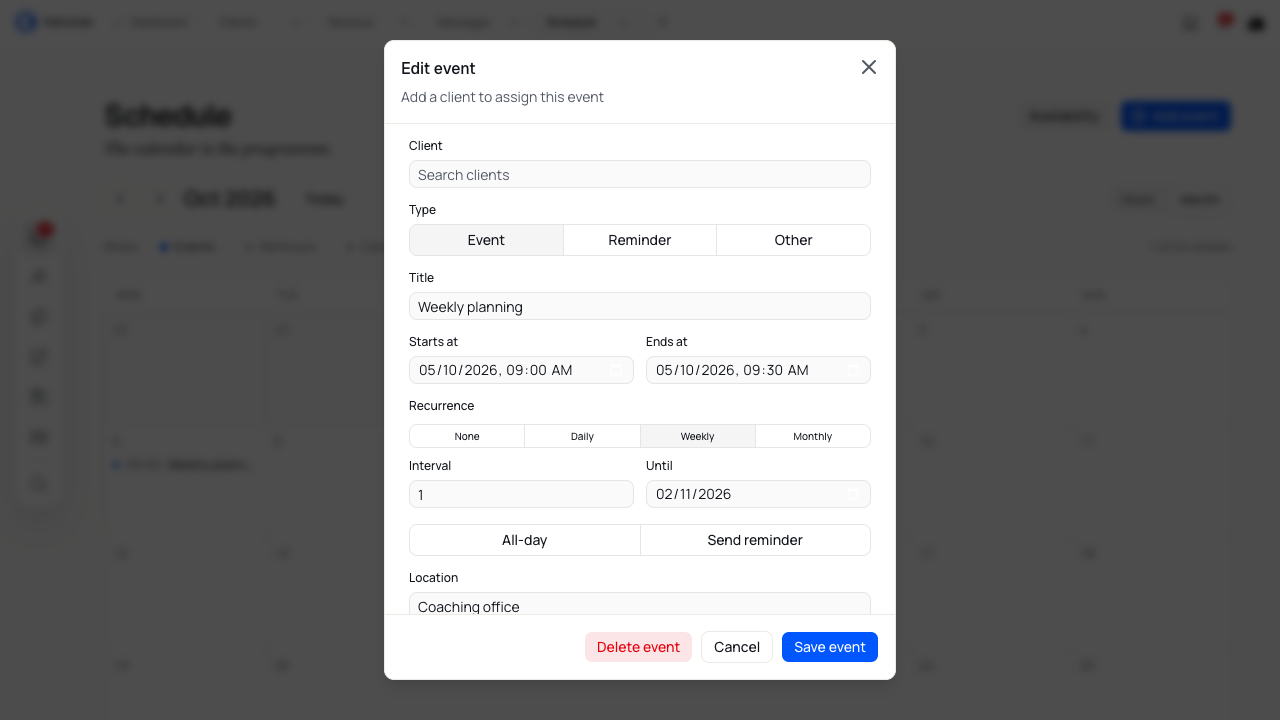
Treat repeating entries as one series. You cannot move a single occurrence by dragging it, and changing the series start time is restricted. Changes such as a new title apply to the series. Deleting an occurrence deletes the whole series.
Save, check and change an event
Select Save event and wait for the editor to close. Find the event on the calendar, then open it to check the title, dates and client. If the editor stays open with a validation message, correct the field before saving again.
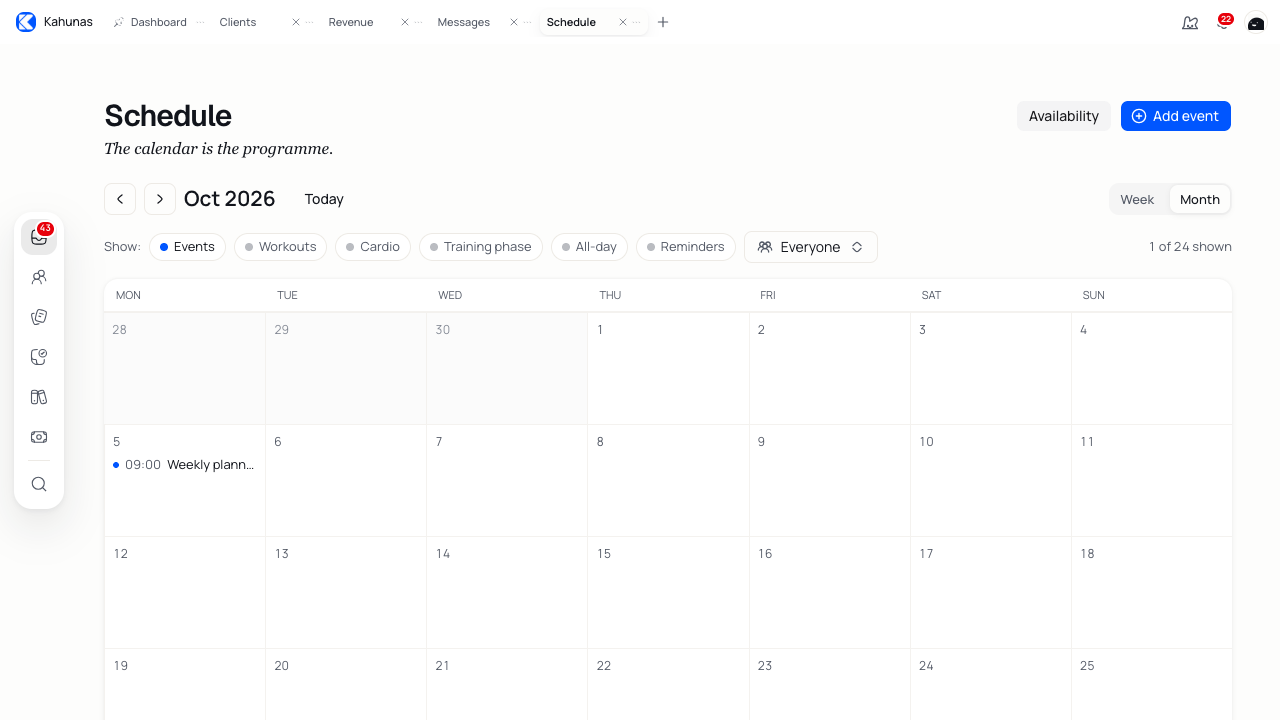
To make a change, open the event, edit its details and select Save event. Cancel closes the editor without saving your changes. For an editable event that does not repeat, you can also drag it to another time in the calendar; it keeps the same duration.
Delete event removes the entry as soon as you select it. There is no extra confirmation in this editor. Check the title and whether it repeats before deleting it.
Set your working hours
Select Availability to open Working hours. Turn on the days you work, set a Start time and End time for each, then select Save hours. Turn a day off when you do not work that day. Each end time must be later than its start time.
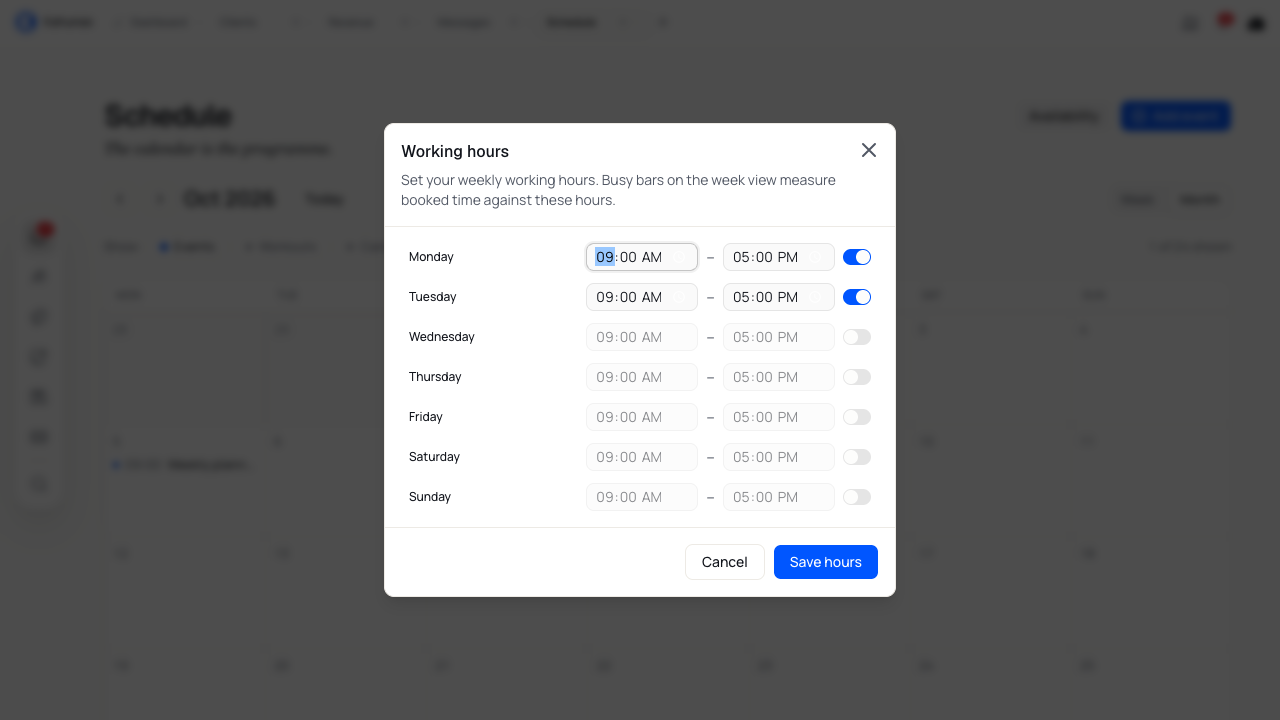
The busy bars in Week view compare booked time with these hours. Use them to review your workload; setting working hours does not prevent you from adding an event outside those hours.
Review client requests
The Requests section lists client appointments awaiting a decision. Open a request to review the client, date, time and details. Check any clash warning before accepting it.
- Select Approve to accept the request. The Approve button on the request card also submits that decision.
- To decline, select Decline on the card to open the review, then Reject. Add a Rejection reason if useful and select Confirm rejection.
- Use Back to leave the rejection step or Cancel to close the review without making a decision.
Opening a request does not approve or reject it. Contact the client first if you need to agree on a different time.
Find an event that seems to be missing
Check the selected date, activity filters and team filter. Turn Events on for calendar entries, and check All-day or Reminders if either applies. Use the Today list for the current day.
If a new event is missing, return to the editor and check for a required title or an incomplete time range. Event and Other need an end after their start; Reminder only needs its start. For a repeating entry, check the interval, end date and duration of one occurrence.