







Nutrition Plans
Create a nutrition plan with meals and portions, macro targets, or both. Keep it in your library to reuse, then choose which clients receive it and whether they share future changes.
Read video transcript
Open Plans, then Nutrition plans. Choose Nutrition Plan. Give your plan and its first meal clear names. Turn on Macros only for the empty meal. Enter the calories, protein, carbs and fat you want to prescribe. Check the values, then choose Save and close. Your plan is saved and ready to assign.
Start a nutrition plan
- Open Plans, then Nutrition plans.
- Select Nutrition Plan.
- Enter a Plan title that you will recognise later, such as “Training day targets”.
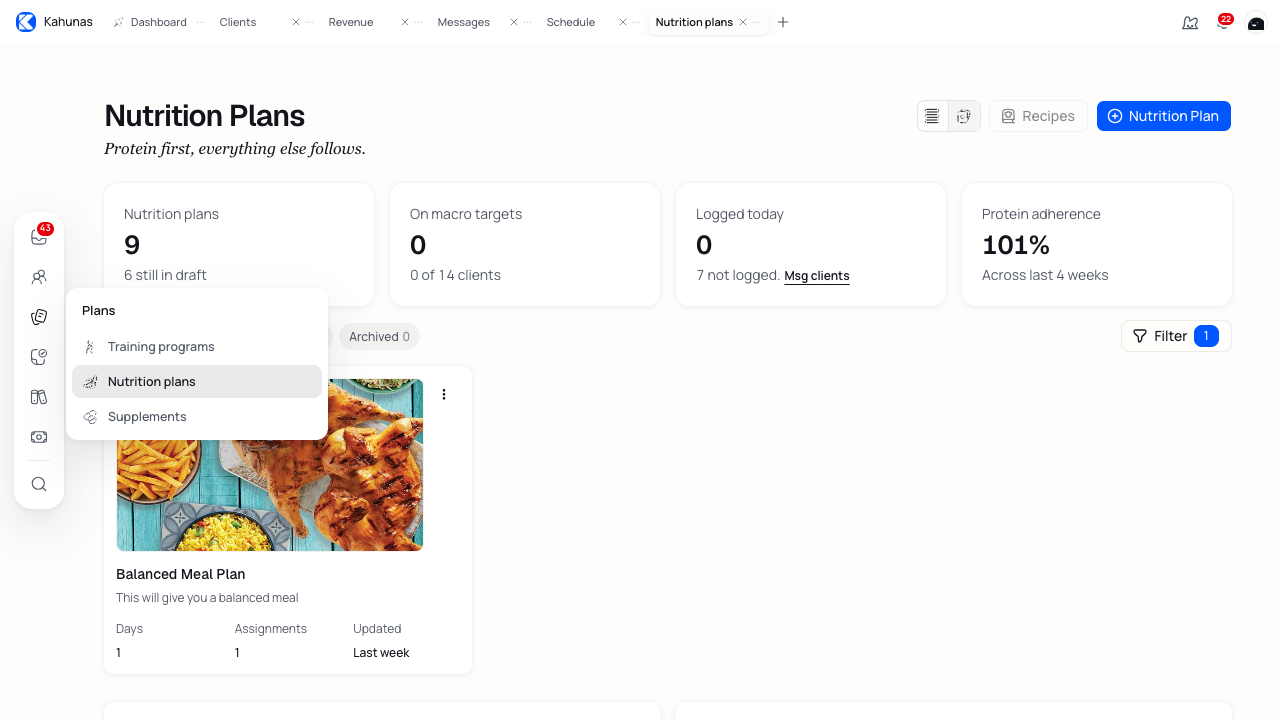
Use All to browse plans, or switch to Days, Meals or Foods for reusable items. Archived holds plans you have archived.
You can build the plan before assigning it. Saving a library plan does not send it to clients.
Some accounts show a format chooser before the builder:
| Format | Use it for |
|---|---|
| Macro targets | Calories, protein, carbs and fat without prescribed foods. Choose Macros for the day or Macros for each meal. |
| Detailed plan with foods | Meals with foods, serving sizes and portions. |
| Upload | A plan you have prepared as a document, PDF or spreadsheet. |
If the builder opens without this chooser, use the meal's Macros only switch to enter targets, or add foods to build meals.
Set up days and meals
Choose a week tab, then select the day you want to work on. Rename the day and meal, and add instructions where your client needs them.
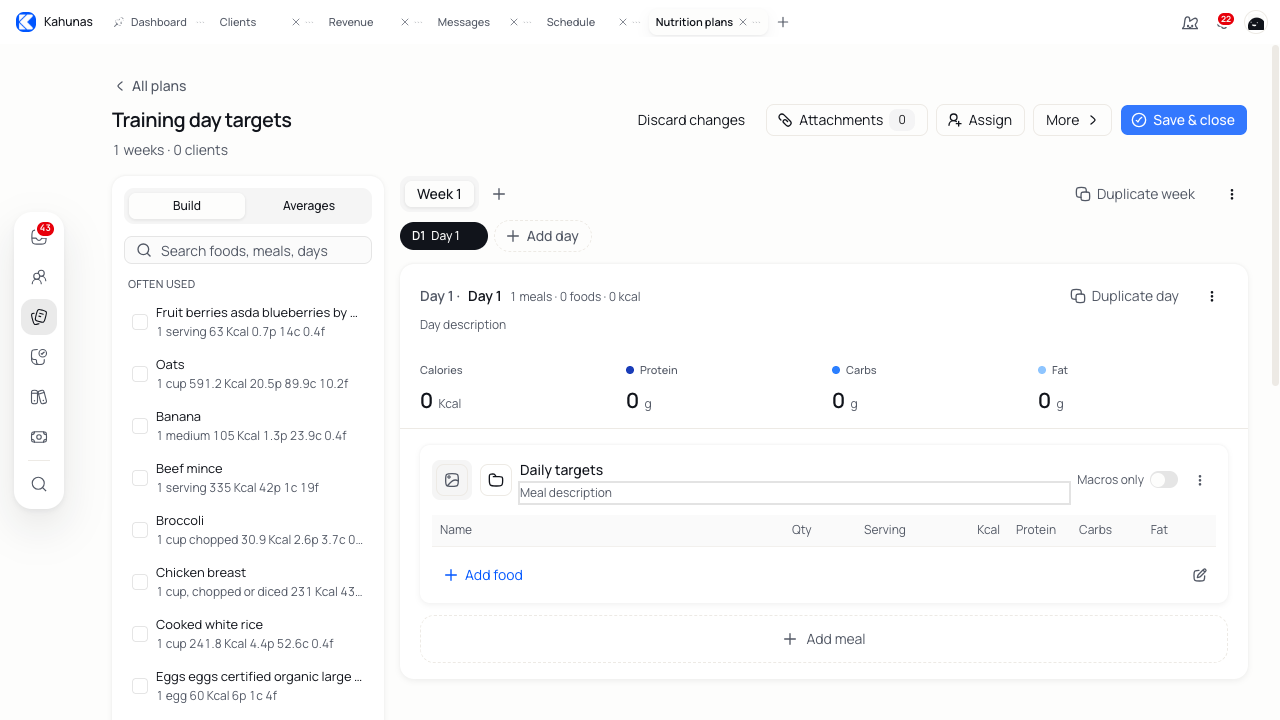
Use Add meal → Create new for another meal. Use Add day and Add week to extend the plan. You can drag the day handles to change their order within a week.
To reuse part of this plan:
- Open a meal's action menu for Duplicate or Copy to day.
- Open the day's action menu and choose Copy to…, then choose its destination.
- Open the week's action menu for Duplicate week.
Check the names, foods and quantities after copying. Use the corresponding delete action to remove an unwanted meal, day or week.
Add foods and set portions
- Search for a food in the Build panel.
- Select the result you want. Check the food name and its serving information.
- Choose the destination meal under Add to. Create new adds a separate meal.
- Select the Add button showing the number of selected foods.
- Review Qty and Serving on each food row.
You can also select Add food within a meal. Use Create own if you need to enter a food that you cannot find. Accounts with recipe access can add recipes through the food picker.
Check both the number and the unit. A quantity of 100 means something different for grams and servings. After a change, review the meal totals and Day totals. Use the food's nutrition-values control for more detail, where available.
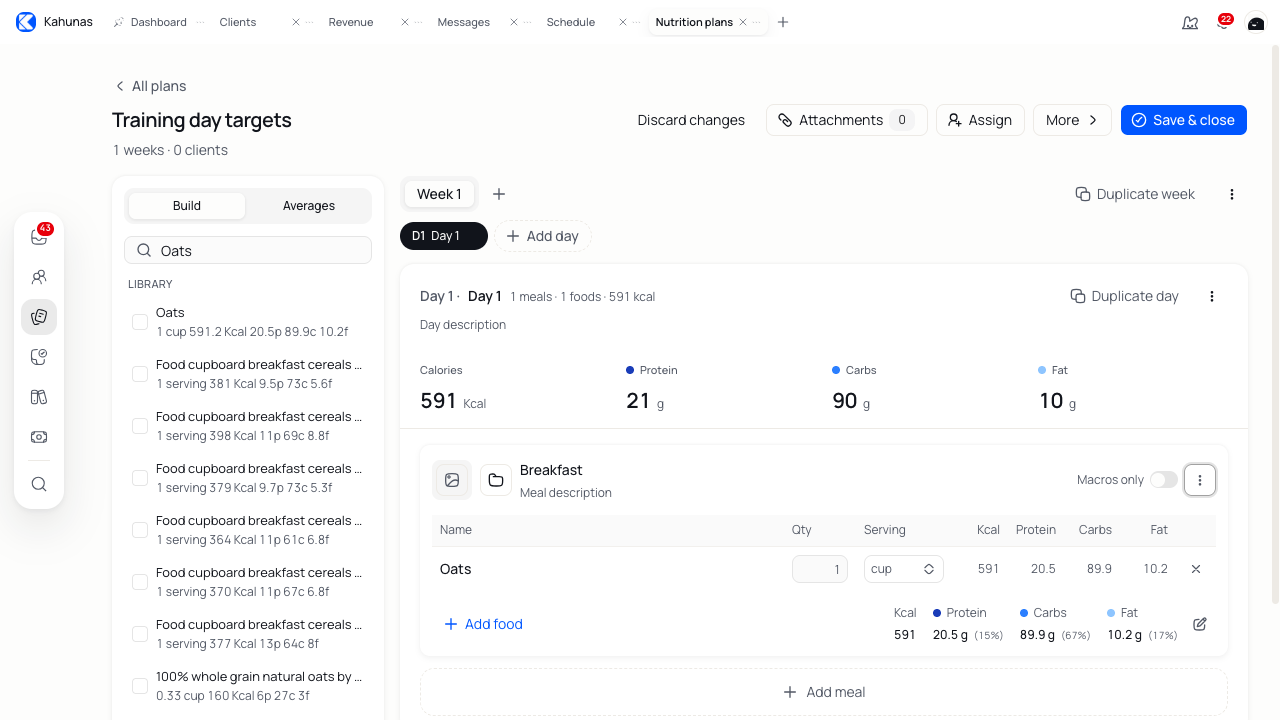
Remove a food you do not want, then add its replacement. The totals in this builder describe the plan you have written; they do not show what your client has eaten.
Set macro targets
To give a meal targets without prescribing foods:
- Open the meal you want to change.
- Turn on Macros only.
- Enter its calories, protein, carbs and fat.
- Check the values in the meal and its target summary.
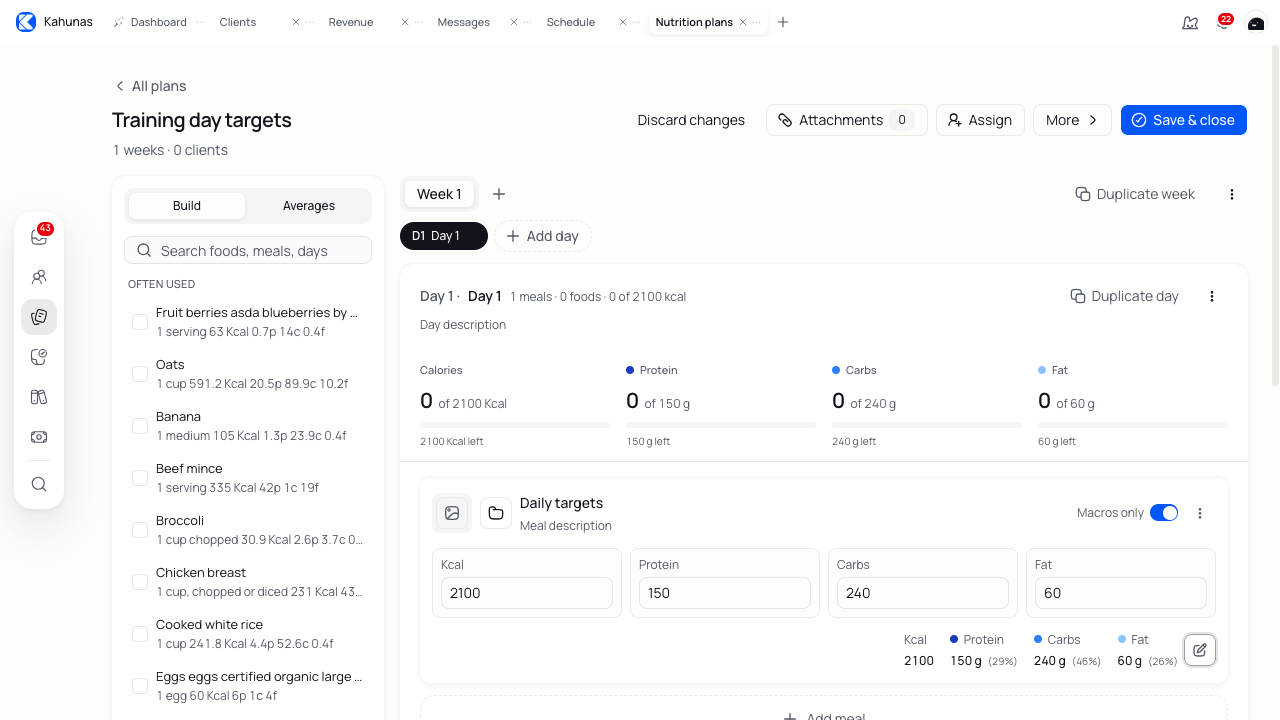
In this example, the day summary reads 0 of 2100 Kcal because the meal has targets but no foods. The 2100 in the meal is the prescribed target; the 0 does not mean the target failed to save. Choose targets for your client rather than copying the example values.
If the meal already contains foods or swaps, Kahunas asks you to confirm Clear foods. This removes those foods and alternatives from that meal. Check them before confirming.
Set targets for a day
Open the day's action menu and choose Set targets. In Day targets, choose:
- Manual to enter targets you have chosen for the client.
- Calculator to estimate targets from the details you enter, such as body measurements, activity level and goal. Review the result before applying it.
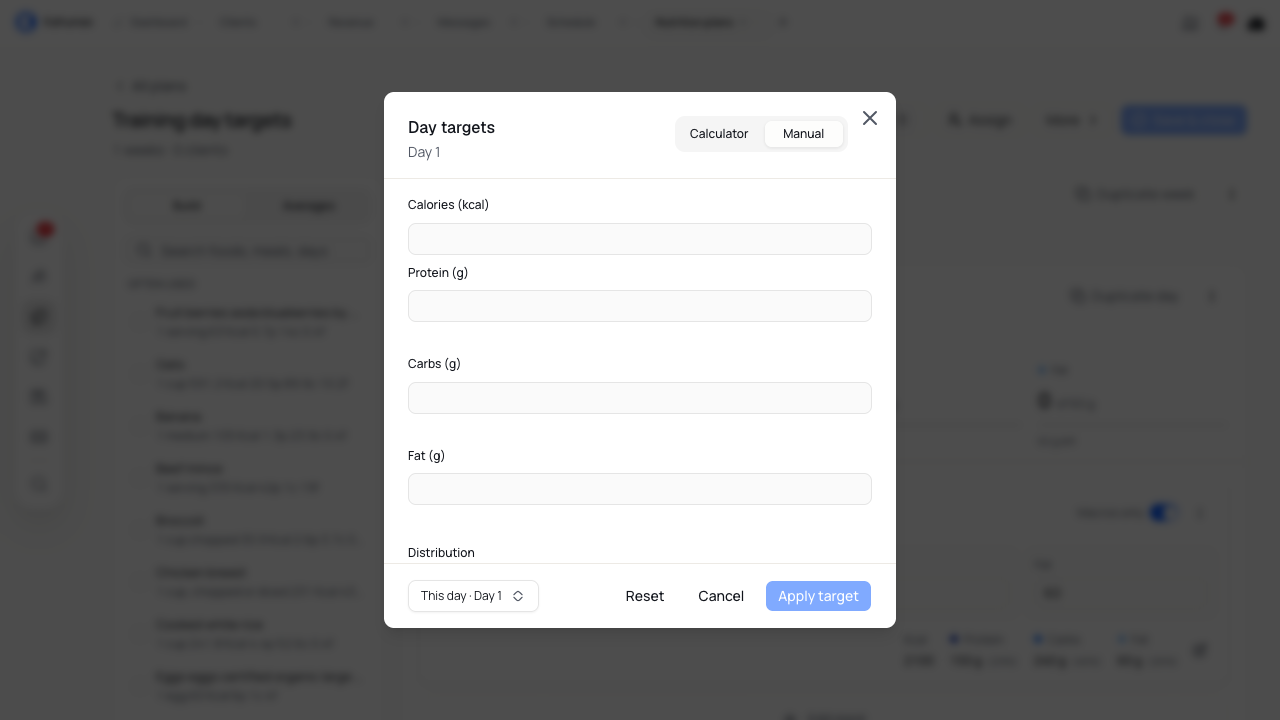
Check the meal count or distribution options, then choose whether to apply the result to this day or all days. If you split targets between meals by hand, make sure the meal values match the daily total. Select Apply target.
On a food-based plan, these targets let you compare the foods you add with your intended intake. On a macro-only plan, they set the prescribed macro values. Review the result on each affected day before saving.
Reuse days and meals
Save items you use often so you can bring them into another plan:
- For a whole day, open its action menu and select Save day as template.
- For one meal, open its action menu and select Save as template.
Find these items under Days and Meals in the nutrition library. To reuse a meal while building, select Add meal → Import from template. To reuse a day, select Import day from an empty day's action menu.
An occupied day cannot accept a day import. Add an empty day first. Plans created with the Macro targets format cannot import day templates. If you chose Macros for the day, you cannot import meal templates either.
Offer alternative meals
Add a swap when you want your client to choose an alternative to a meal.
- Add foods to the main meal.
- Open that meal's action menu.
- Select Add swap meal, then Create new or Import from template.
- Enter the alternative's name, foods, portions and instructions.
Use the Swaps control to move between the main meal and its alternatives. Check which version you have selected before editing. If you import into a swap that already contains foods, review the Replace foods confirmation.
Check the totals for each choice. The displayed day totals change when you select a swap, so you can compare alternatives. Swaps are not extra meals for the client to eat alongside the main meal.
Macro-only meals and meals without foods cannot have swaps.
Check totals across the week
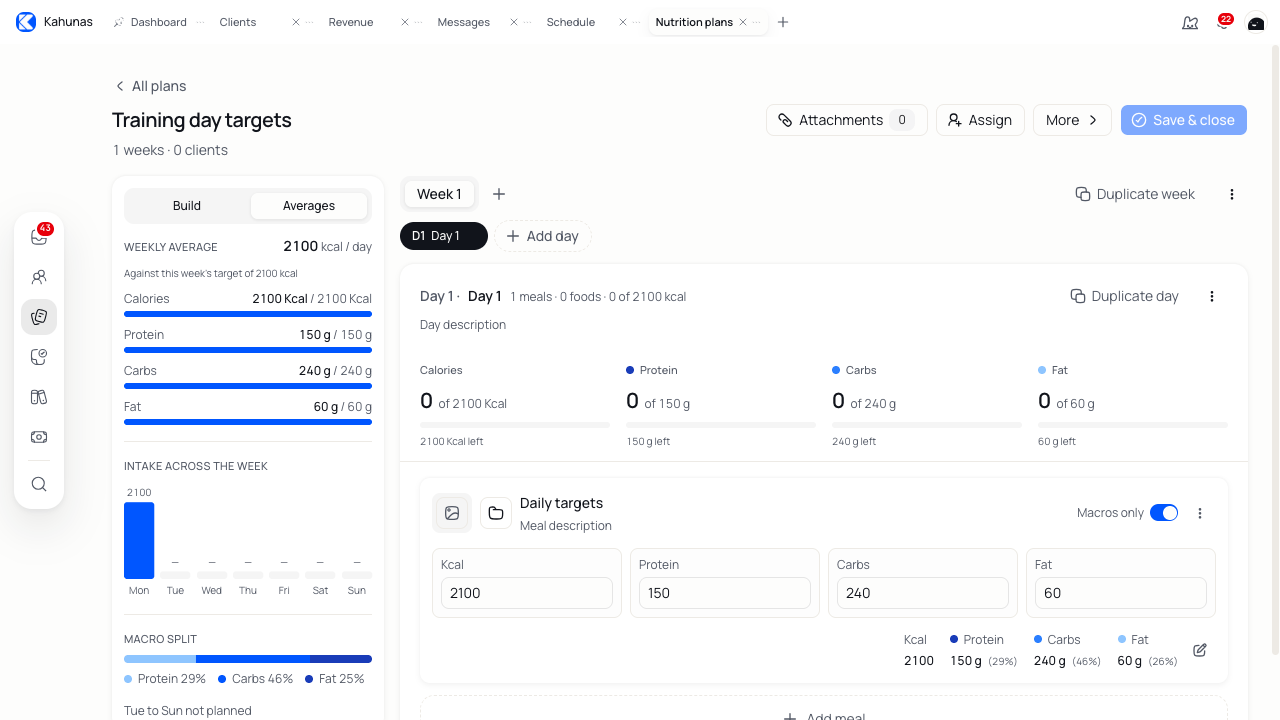
Open Averages to see Weekly average and Intake across the week. Compare the days you have planned and check for gaps or unexpected changes.
The average uses the days you have added content to. An empty day slot does not count as a zero-intake day in that average.
Add instructions, files and a cover
Select More to open Plan details and add a description and Plan tags. Use tags to help find the plan in your library.
Add a cover image if your account supports it. You can also add cover images to meals. Use Attachments in the header to add supporting files, such as preparation notes or a shopping checklist.
Choose what clients can see
Select More, then open Field settings in Plan details. Choose whether clients can see calories, protein, fats, carbs and the summary panel, along with the available micronutrient fields.
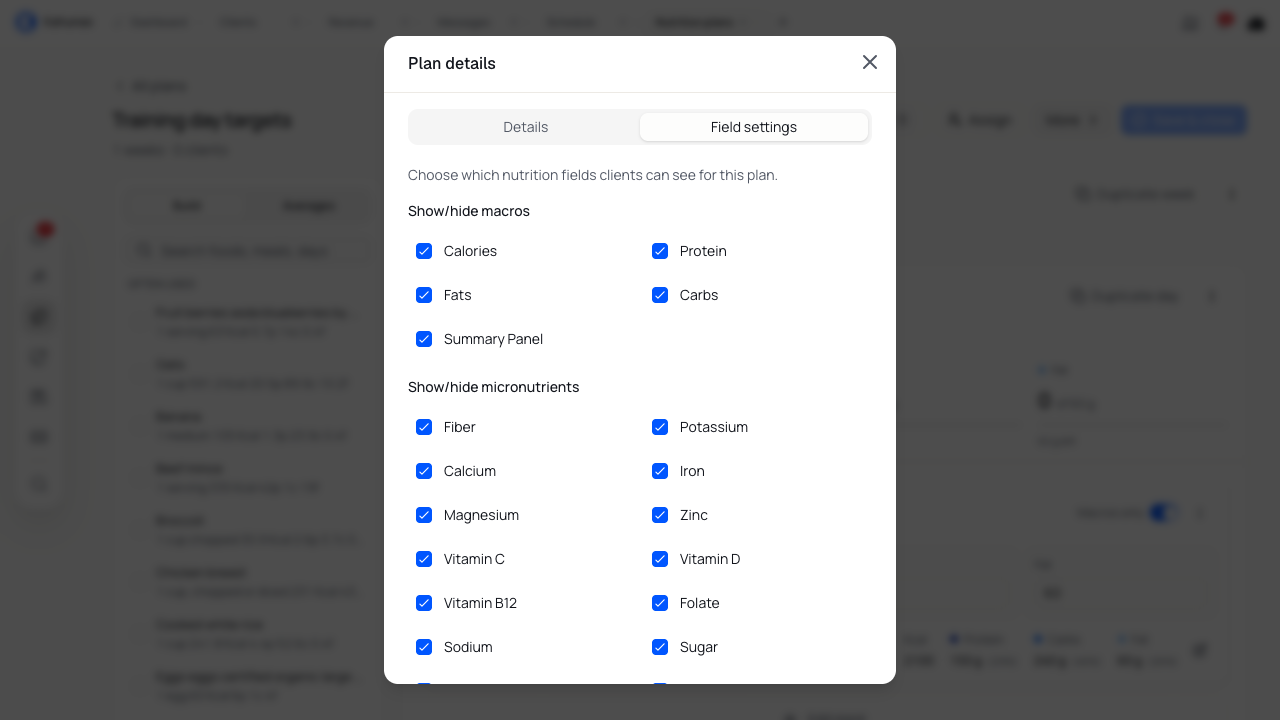
Hiding a value changes what your client sees. It does not change the foods or portions in the plan. Check these settings if a client cannot see information you expected them to have.
View a shopping list
Select More, then Shopping list in Plan details to review the foods and quantities in the plan. A macro-only plan has no prescribed foods to list.
Where available, choose View micronutrients to inspect more nutrition detail for a plan, day or meal.
Review and save
Check the days, meal names, portions, targets and instructions. Review any copied templates or swap meals, then select Save & close.
Wait for the saved confirmation and the return to the library. Open the plan again to check your changes. The save button stays disabled when you have no changes to save.
If you leave with unsaved edits, read the confirmation. Choose Discard changes only when you want to lose those edits.
Assign the plan to clients
- Open the saved plan and select Assign. This opens Assign to clients.
- Search for and select the intended clients.
- Check Assignment type.
- Select Assign plan and choose whether to notify the clients when prompted.
| Assignment type | Future changes |
|---|---|
| Shared group | Clients stay linked to this plan. Changes to the shared original affect the linked clients. |
| Individual copy | Each client gets a separate copy that you can adjust for them. Later edits to the library original do not update that copy. |
Assigning a nutrition plan replaces the client's current active meal plan. Check the client selection and the plan they already have before you confirm.
After assigning, review the plan's assigned-client list and the client's Nutrition section. Saving in the library and assigning to a client are separate actions.
Include a nutrition plan in a coaching package
Add a nutrition plan to a package when you want clients who join through that package to receive it during setup.
- Open Revenue → Packages, then create or edit the package.
- Continue to Attach coaching resources.
- Open Nutrition plan, search for the saved plan and select it.
- Review the other resources and package details, then save a draft or publish when the offer is ready.
Changing this package default does not replace plans for clients who already have an assignment. Use Assign on the nutrition plan to update those clients, and review the replacement and sharing choices before confirming.
See Create a coaching package for the full package setup and publishing steps.
Update an existing plan
Open the plan from your library, make your changes, then select Save & close. Before editing a shared plan, check its assigned clients in Plan details. Use an individual copy when one client needs different instructions or targets.
When you save a plan with active assignments, review the notification choice. Save the change even if you choose not to send a notification.
Archive or delete a plan
Select More and choose Archive plan in Plan details to move a plan out of your active library. To use an archived plan again, open it and choose Unarchive plan. Archiving is not the same as removing a client's assignment.
Use Delete plan only when you intend to remove the plan and its days, meals and foods. Read the confirmation before continuing. Deleting a shared original also ends assignments linked to that original; client copies have their own plans.