
Global food search
If a food search shows only your own foods, Global food search is switched off. Turn it on in Settings and the full Kahunas food database appears next to your own foods.
Read video transcript
Only seeing your own foods when you search? Turn on Global food search. Open Settings, then General. Find Global food search and choose On. Then select Save. Now search again, and the full food database appears next to your own foods.
Before you start
Only the business owner can change this setting, because Settings is an owner-only area. If you are a team member, ask the owner to turn it on.
The setting belongs to the whole business. Once the owner turns it on, you and your team members get database foods when you search.
Turn on Global food search
- Select your avatar at the top right, then choose Settings.
- Open General.
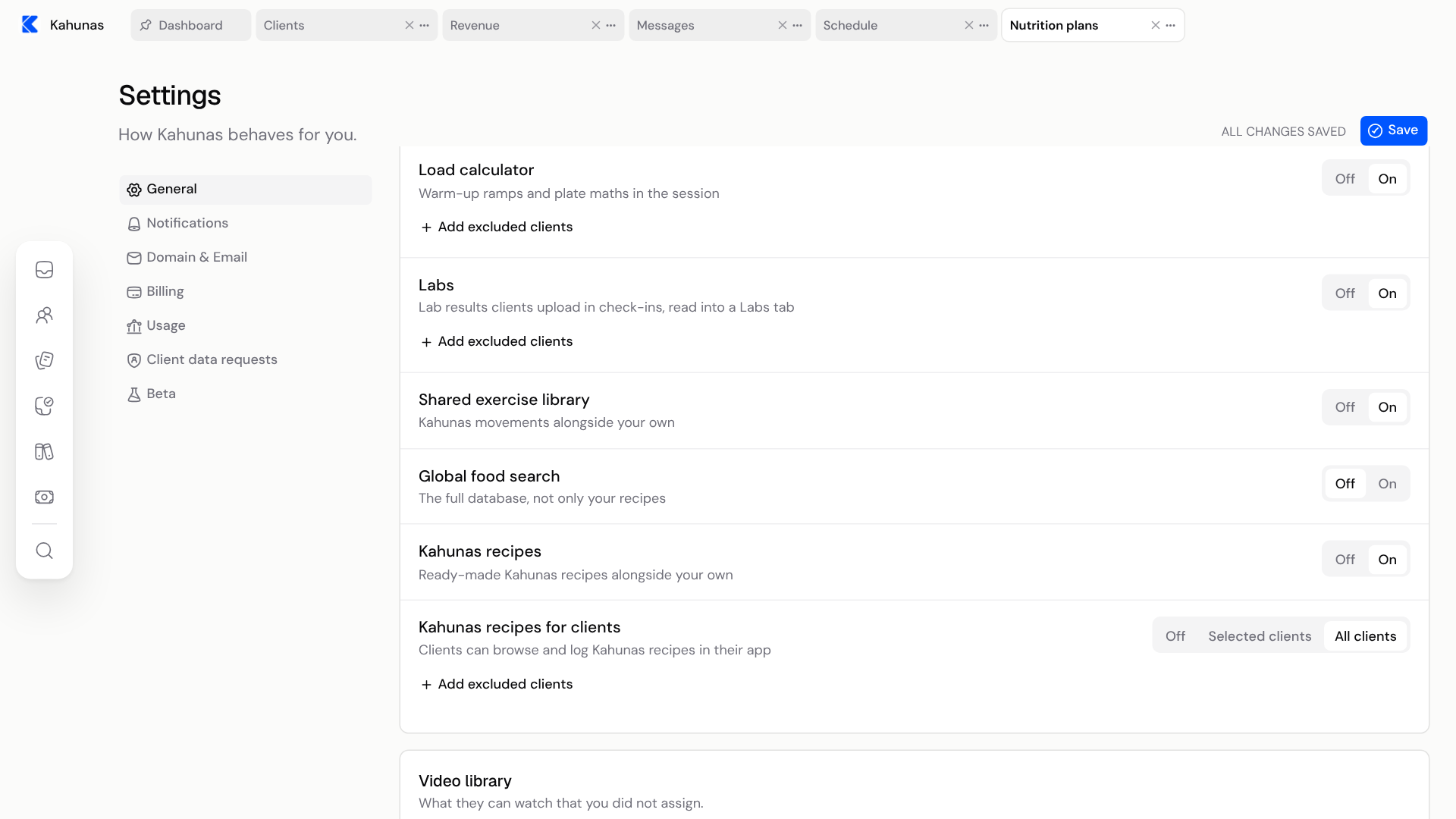
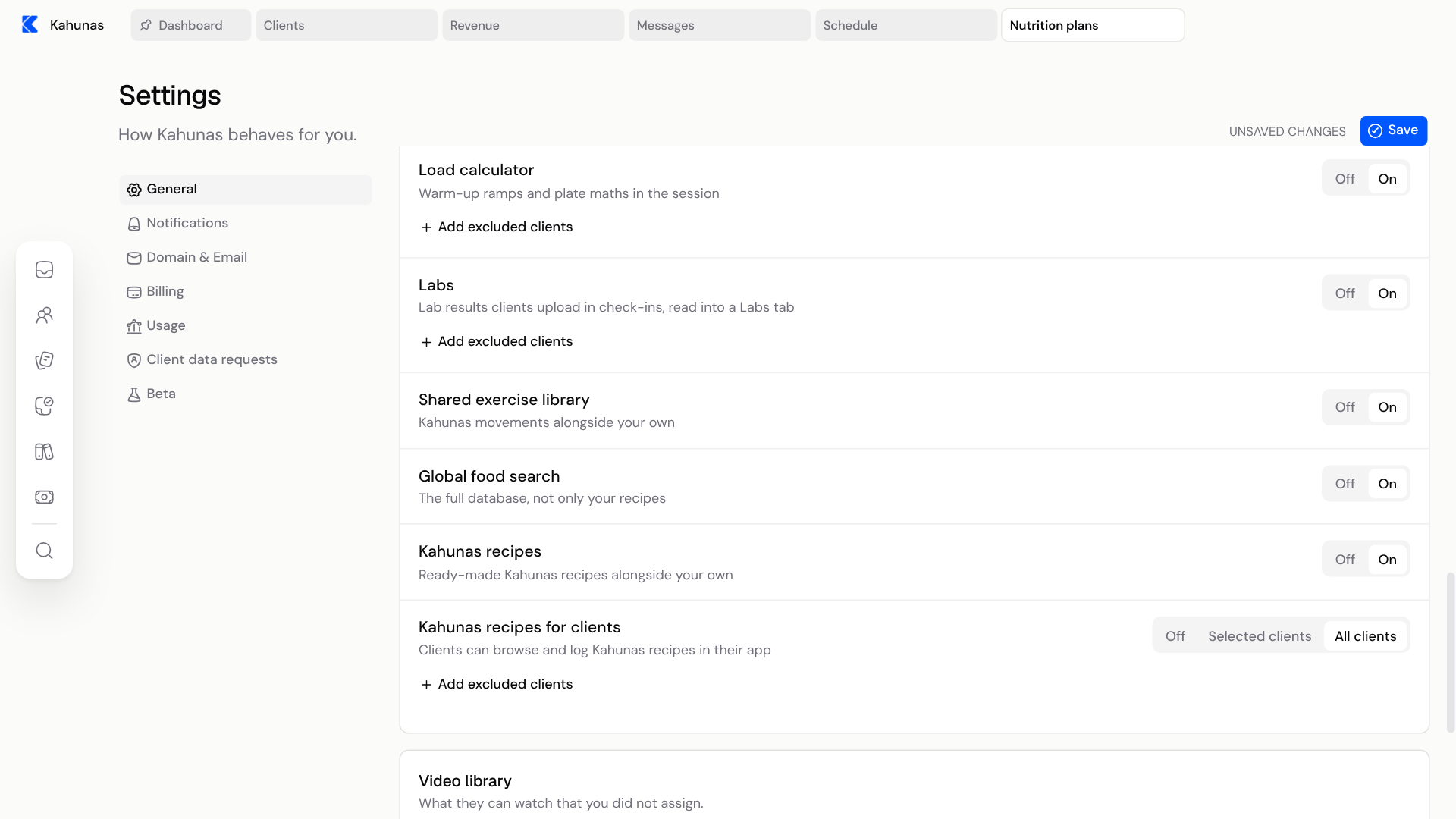
- Scroll to Feature flags and find Global food search. Its description reads "The full database, not only your recipes".
- Choose On.
- Select Save at the top right. The page shows ALL CHANGES SAVED and a Settings saved message.
The setting does not change until you select Save. Until then, the page shows UNSAVED CHANGES.
What changes in your search
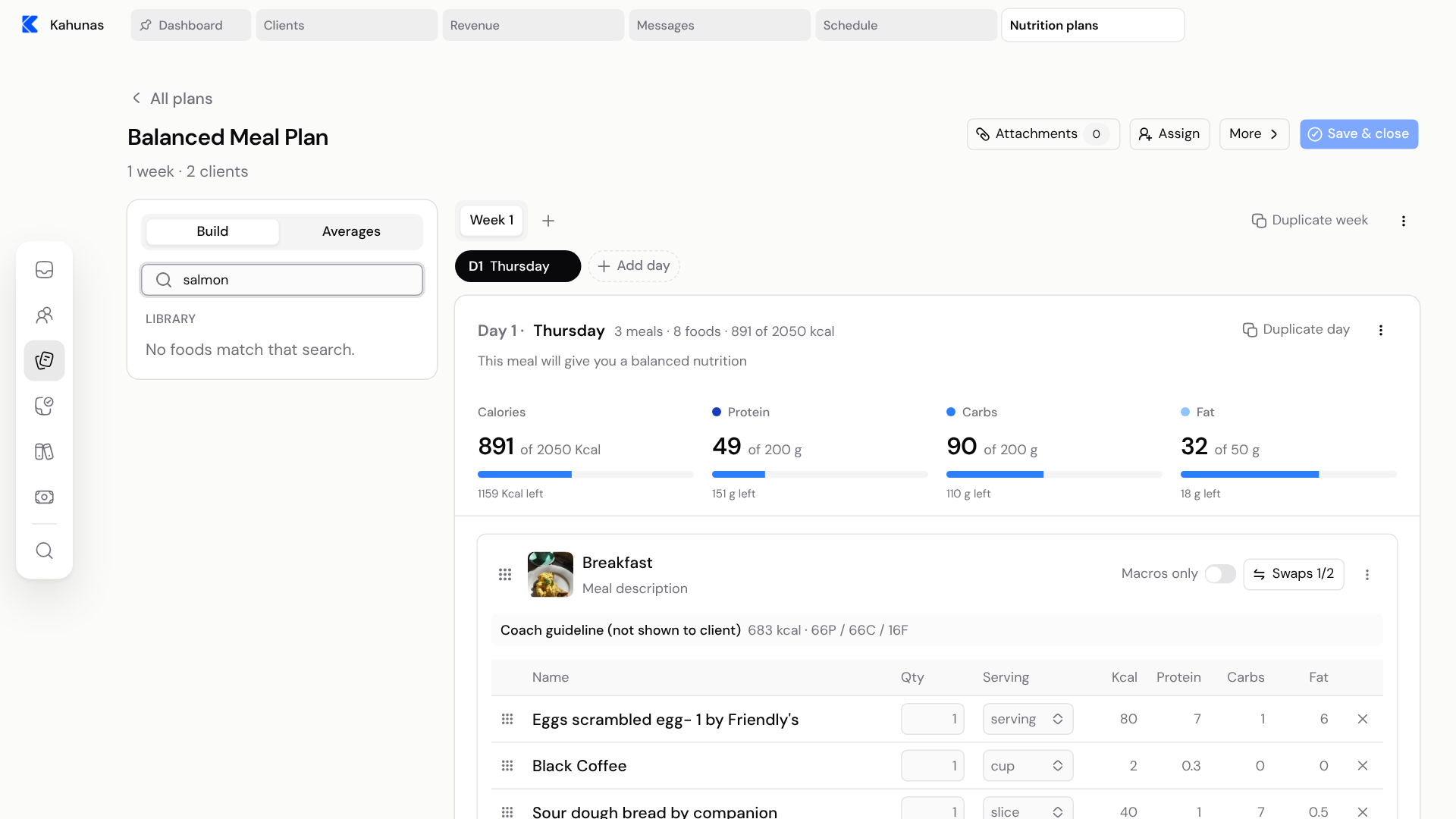
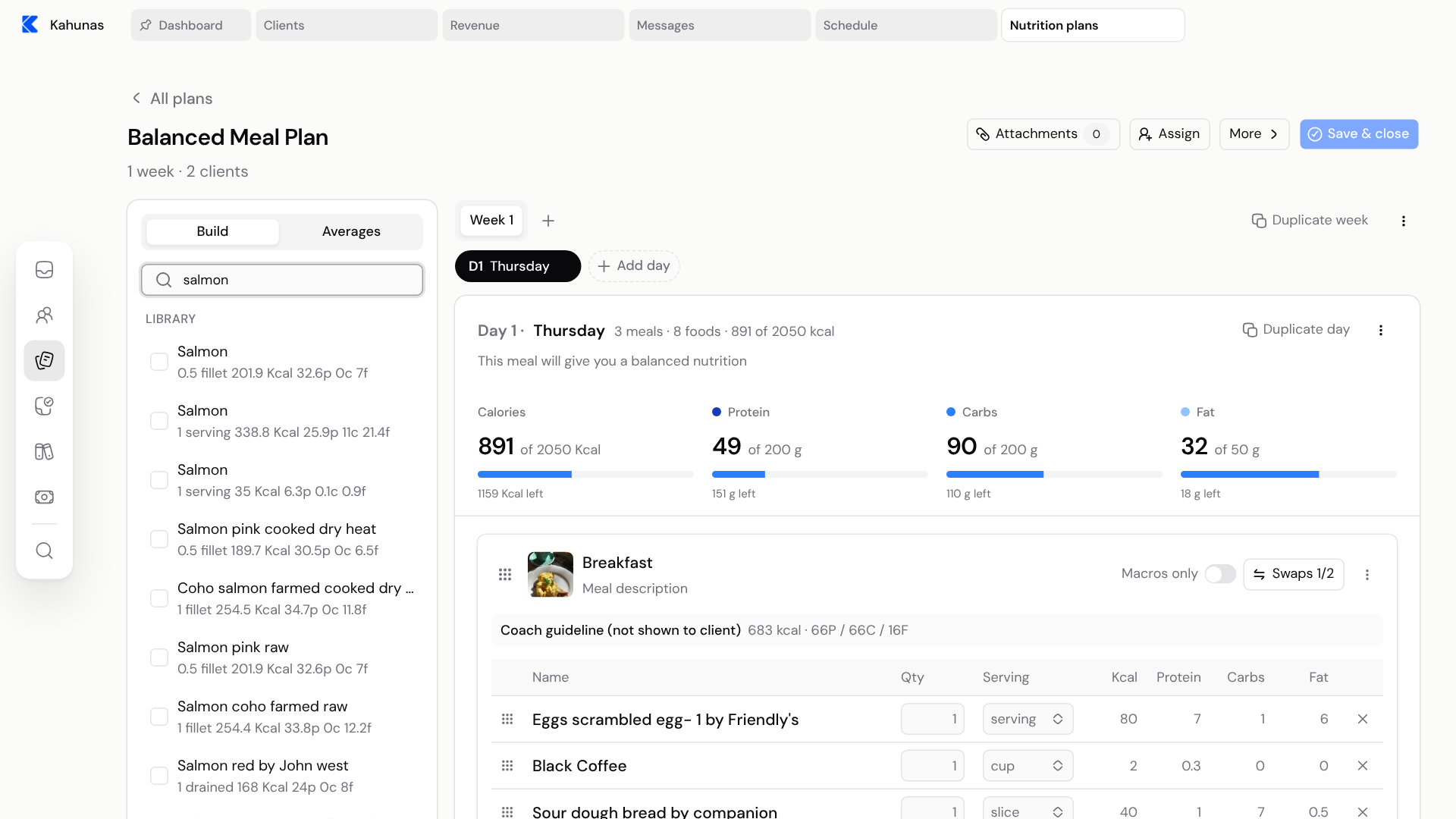
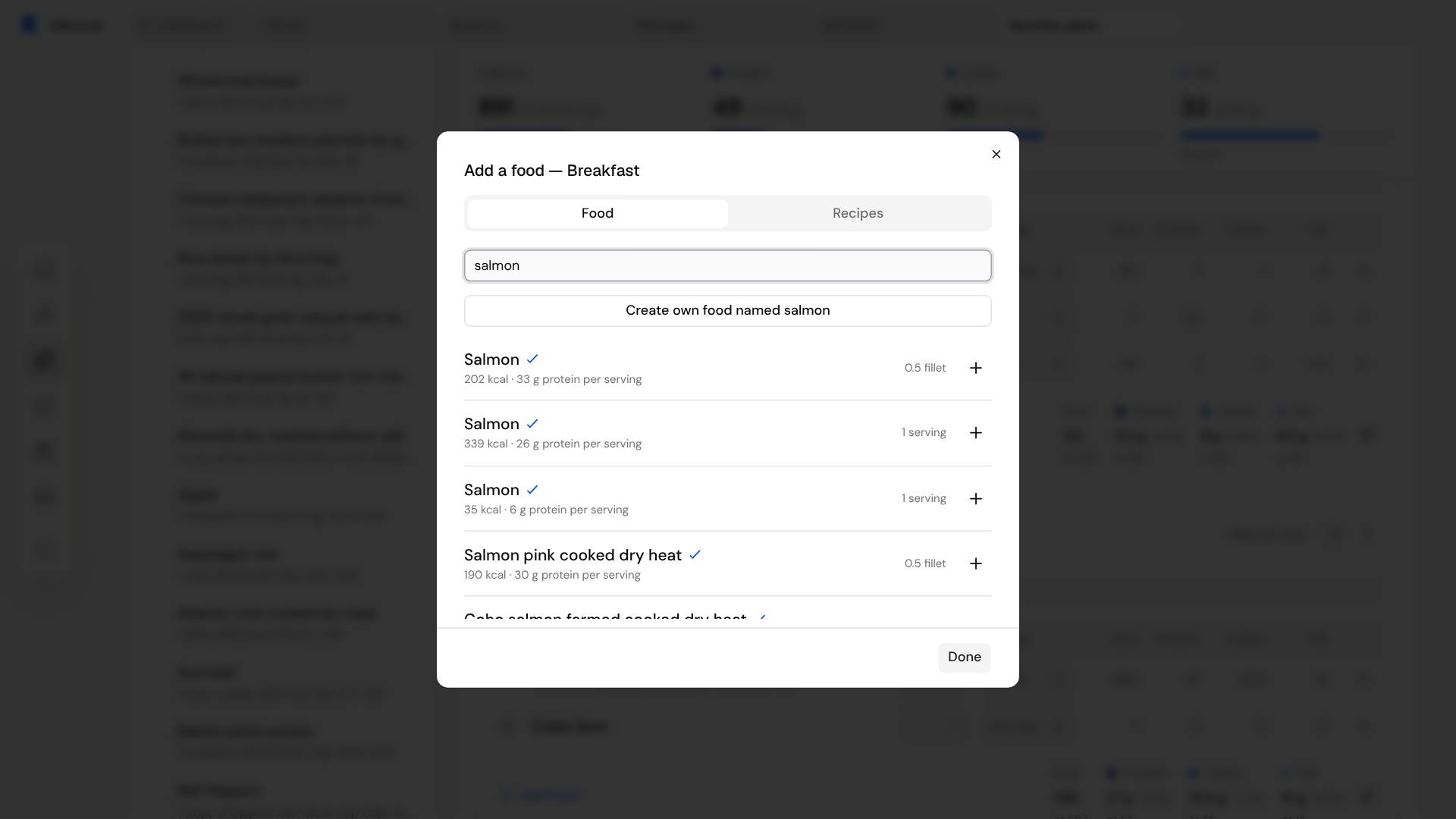
Try a common food, such as salmon, in the plan builder.
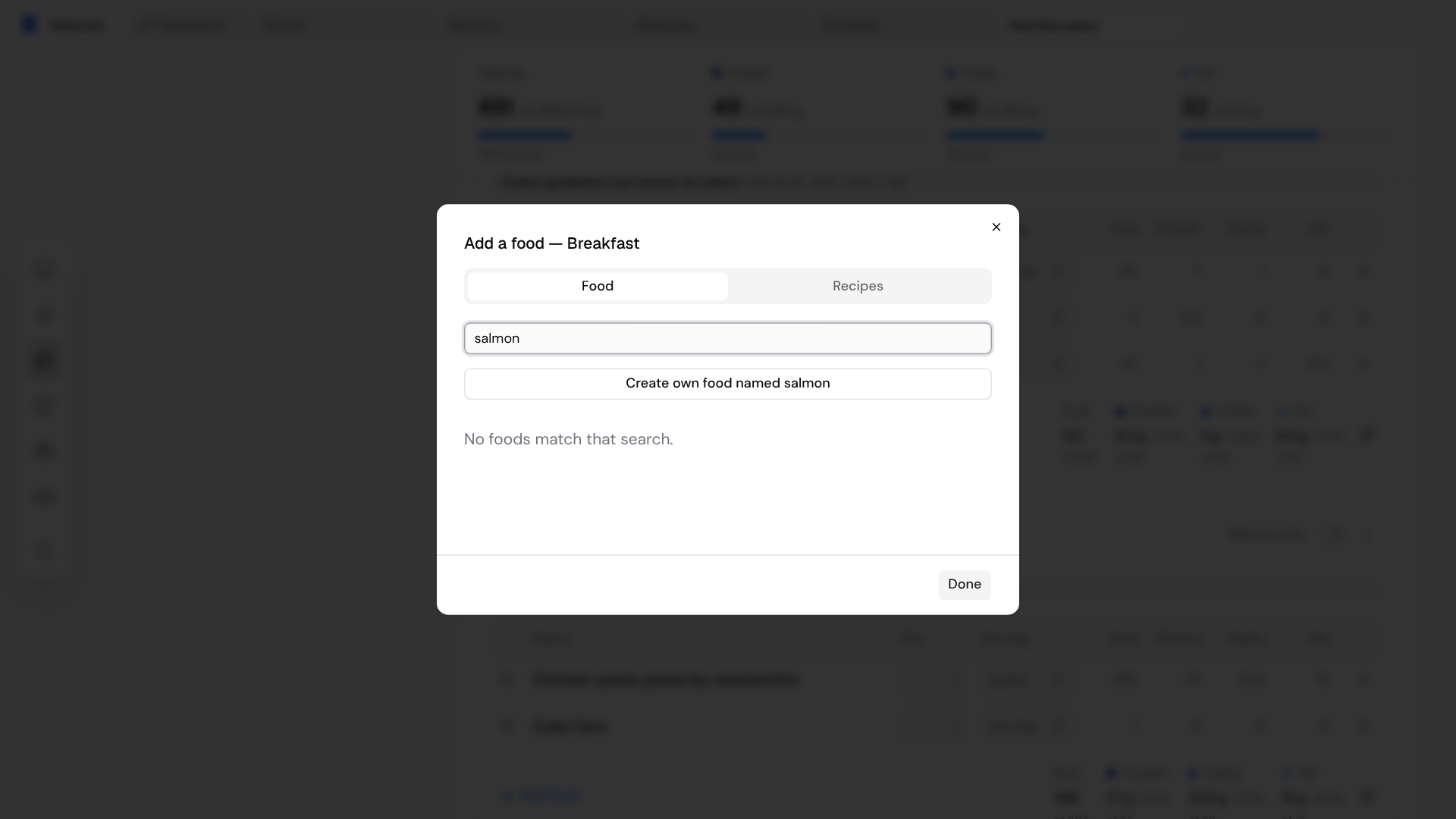
Before. With Global food search off, a search lists only foods you created. If none of yours match, the Build panel says No foods match that search.
After. With Global food search on, the same search lists matching foods from the Kahunas database, each with its serving size, calories and macros. Your own matching foods are listed too.
Choose a result and add it as you would any food. For the steps, see Add foods and set portions.
Where it applies
The setting applies wherever you search for foods:
- Build panel in a nutrition plan. The Often used list can include database foods too.
- Add food in a meal. With the setting off, the Food tab offers only Create own food named and the name you typed.
- Ingredients step when you create a recipe.
- Meal templates, when you add foods to a reusable meal.
- Nutrition plans that Moss drafts for you. Moss searches only your own foods unless Global food search is on.
Turning the setting off again hides database foods from these searches. Foods that are already in a plan stay in it.
This setting is for the searches you and your team make. It does not control the food search clients use in their own app.
If something looks different
| What you see | What it means |
|---|---|
| You cannot open Settings | Only the business owner can open Settings and change this setting. Ask the owner to turn it on. |
| You chose On, but searches still show only your foods | Check that you selected Save and the page shows ALL CHANGES SAVED. |
| A food you expect is missing | In Add food, select Create own food named and the name to add it to your own foods. |
Screenshots show the English interface with example data. Your foods and plans will differ.
If you still need help, create a ticket from Support in your account menu and say where you got stuck.