







Getting started with Crew
Crew is the AI area of Kahunas. It has five assistants, and each one has a single job:
| Assistant | Job | What it does |
|---|---|---|
| Whim | General chat | Answers questions about your clients, plans and business, and passes work to a specialist when you confirm it. |
| Ora | Client triage | Reads check-ins, logs and messages, and tells you which clients need you. |
| Moss | Nutrition & training | Drafts programmes, meal plans and forms for you to review. |
| Tru | Marketing | Coming soon. |
| Flint | Business coach | Coming soon. |
Crew works for you, not your clients. No assistant messages a client or changes a live plan. Moss's drafts stay with you until you review them, and Moss never assigns or sends them.
Open Crew
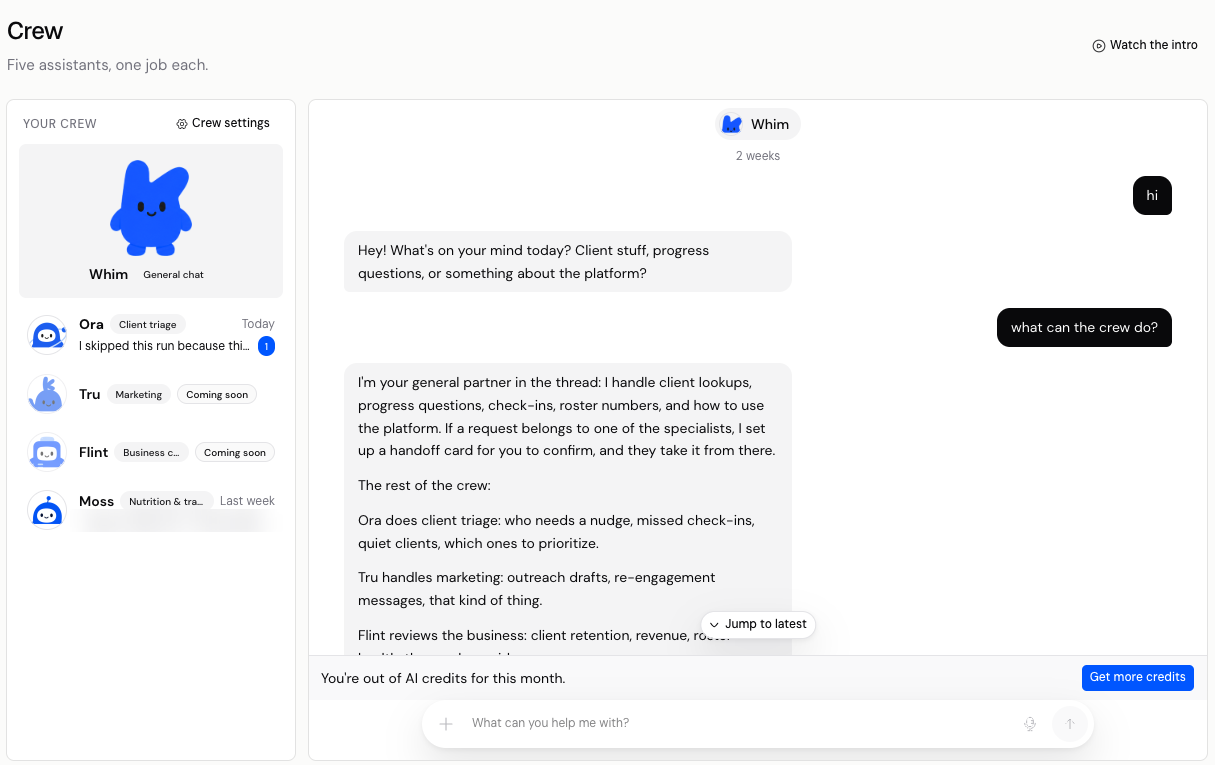
Select the Crew icon at the top right of the header. Its tooltip reads Crew. This opens the Crew page, "Five assistants, one job each."

Your assistants are listed under Your Crew on the left. Select one to open its conversation on the right. Links to the old assistant page now open Crew.
If the icon reads Unlock your Crew, your account doesn't have an AI plan yet. The Crew page offers See AI plans instead.
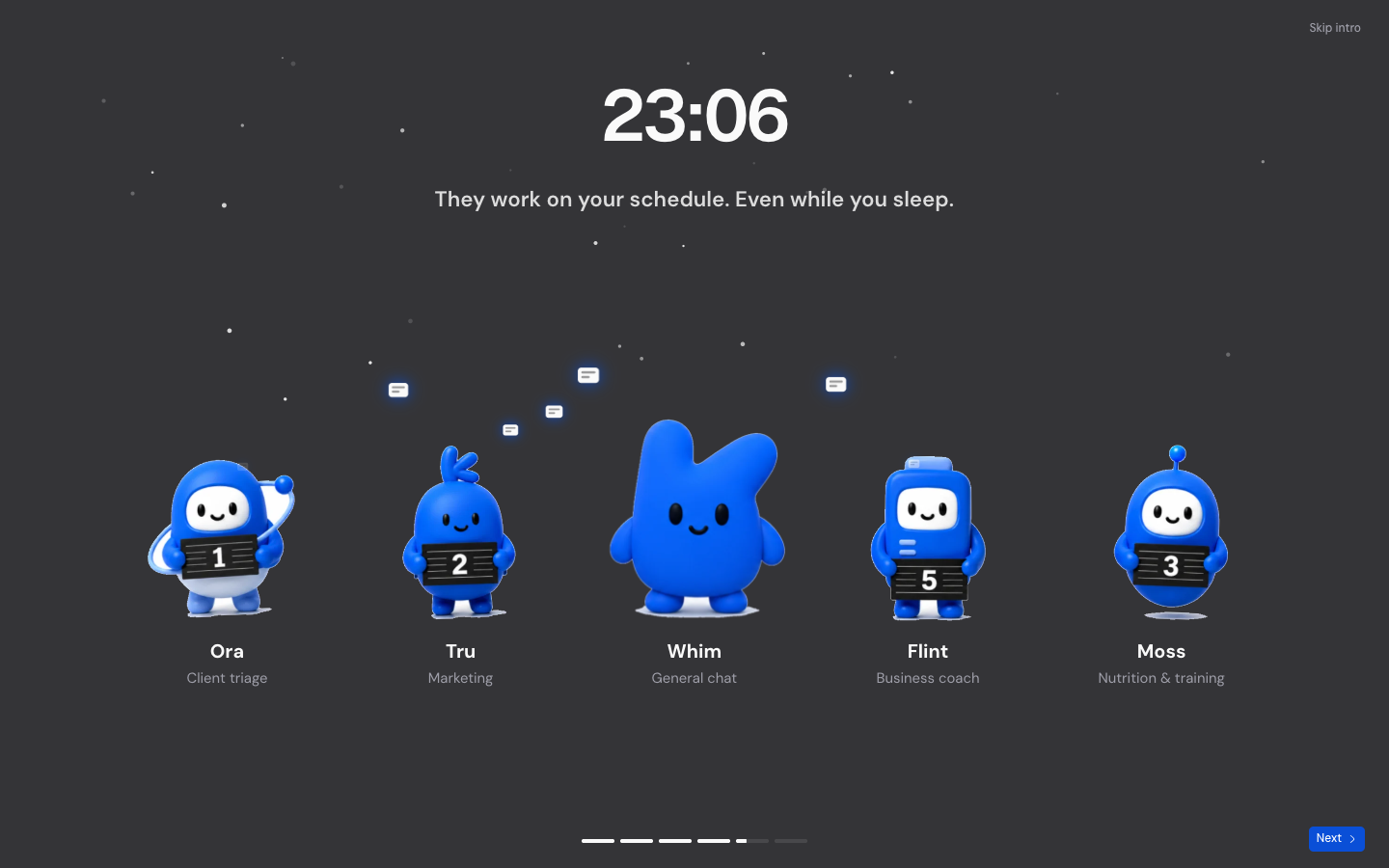
Select Watch the intro at the top right of the Crew page for a short walkthrough of the five assistants. Use Next to move through it, or Skip intro to close it.
Find a page or client with search
Search has its own palette. Select the search icon at the bottom of the left navigation, or press ⌘K on a Mac. Type in Search anything… to find pages, actions and people.
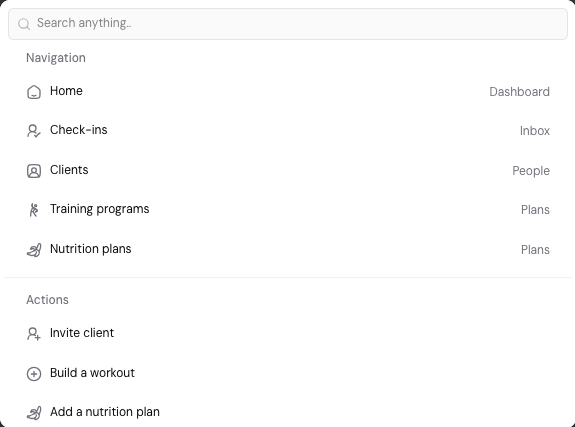
Select a result to open it. Matching clients appear under People.
Ask Whim a question
Whim is your general assistant. You can reach it two ways:
- From search: type your question, then select Ask AI about "…". Whim opens with your question already typed, so you can check it before you send it.
- From Crew: select Whim and type in the message box, then select the send arrow.

Whim can look up your clients, their details, check-ins, progress, metric charts and roster numbers. It can also tell you which clients need attention. It reads this information but can't change it. To change a client's details, open their profile yourself.
Each reply shows Used N credits underneath, so you can see what it cost.
Ask with useful context
Name the client, the time period or the result you want. For example: "Which clients missed a check-in this week?" If an answer misses the point, ask a follow-up in the same conversation.
Check an answer before you act on it. A reply never sends a message or changes a plan.
Hand work to Ora or Moss
When you ask Whim for something a specialist does, such as a meal plan, Whim prepares a Send this to Moss card. The card sets out the request. Nothing happens until you confirm it.
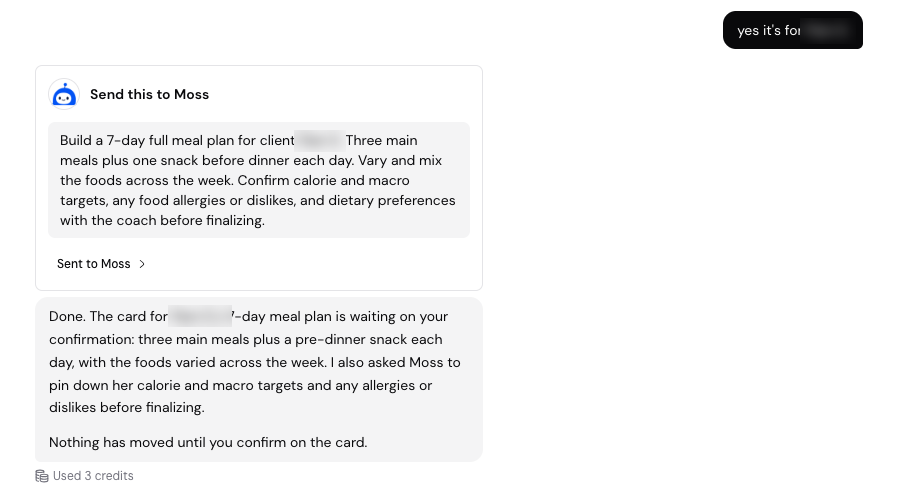
After you confirm, the card shows Sent to Moss. The request appears in Moss's conversation marked From Whim. Whim can hand work to Ora and Moss. Tru and Flint can't take handoffs while they're coming soon.
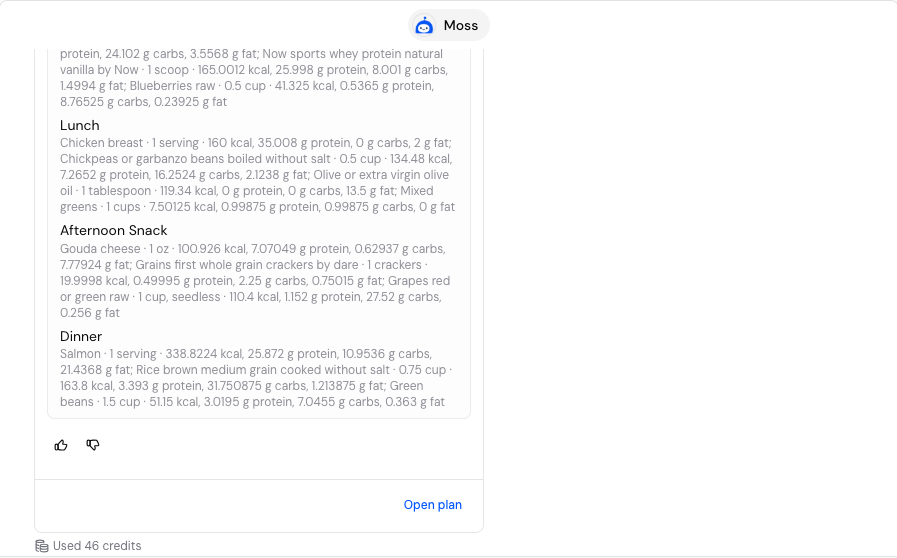
Moss replies with a draft for you to review. Select Open plan to open a draft plan. Moss doesn't assign it to a client or send it.
Return to a conversation
Each assistant keeps one continuous conversation. There's no New chat and no list of past conversations. Select the assistant again to carry on where you left off.
Messages are grouped by date. Scroll up to read older messages, or select Show earlier messages to load more. Jump to latest takes you back to the newest reply. Kahunas summarises long conversations automatically.
Conversations from the old assistant aren't shown in Crew.
Add images or dictate
- Attach images: select + in the message box. You can add up to 5 images to a message.
- Dictate a message: select the microphone, speak, then check the text before you send it.
Assistant settings and saved preferences
Open an assistant's Settings panel to see what it does and when it runs.
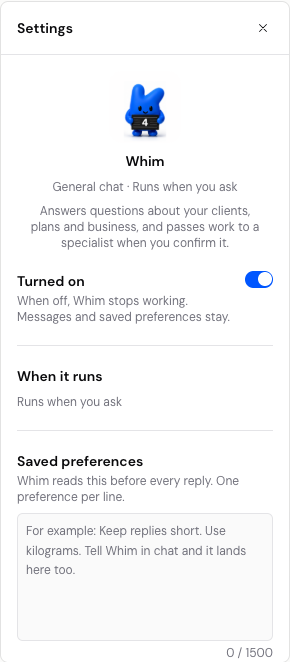
- Turned on: when it's off, the assistant stops working. Its messages and saved preferences stay.
- When it runs: Whim and Moss show Runs when you ask.
- Saved preferences: Whim reads these before every reply. Write one preference per line, such as "Keep replies short" or "Use kilograms". You can also tell Whim a preference in chat. It confirms with Added to preferences, and you can select Undo.
Ora's schedule and runs
Ora can run on a schedule as well as when you ask. In Ora's Settings:
- Select Run now to start a run straight away.
- Under When it runs, choose Daily, Weekly or When you ask, then pick the days and Time. Times are in UTC, and Next run shows when Ora will run next.
- Turn on Send me a voice recap to get a spoken summary. A voice recap uses extra credits.
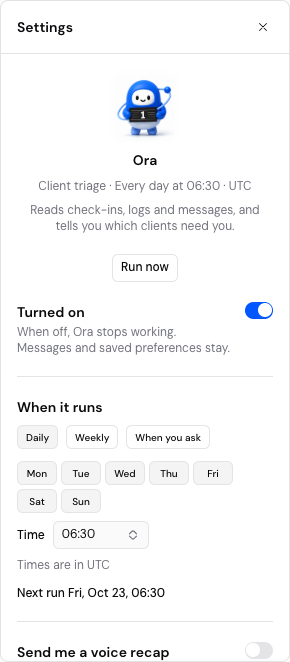
Ora's results appear in its conversation. Each result names a client and what they need from you, such as check-ins waiting for review.
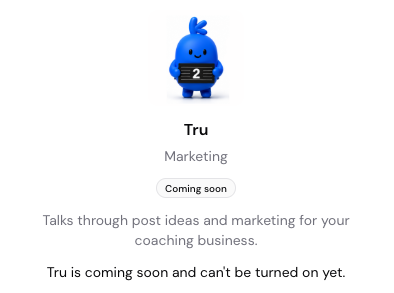
Tru and Flint show Coming soon. You can read what they'll do, but you can't turn them on yet.
Crew settings
Select Crew settings above your assistants. These settings apply to your whole crew.
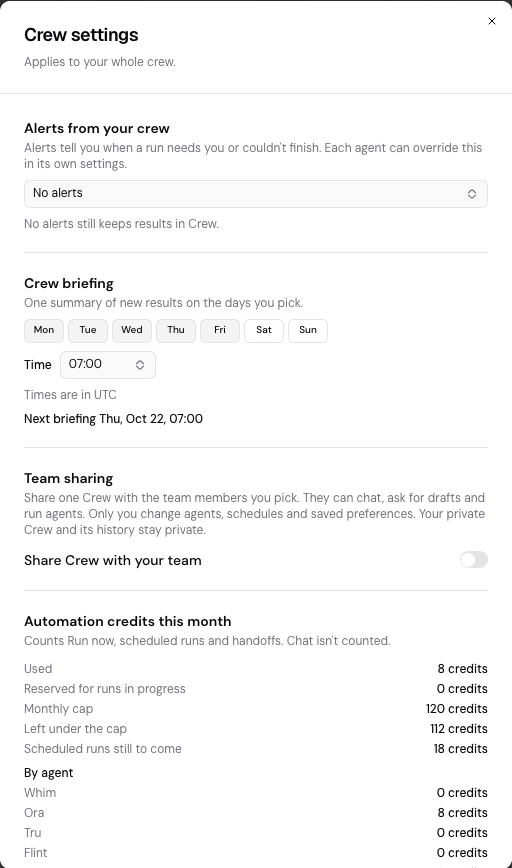
- Alerts from your crew: alerts tell you when a run needs you or couldn't finish. Each assistant can override this in its own settings. With No alerts, results still appear in Crew.
- Crew briefing: one summary of new results on the days and at the time you pick (in UTC).
- Team sharing: turn on Share Crew with your team to share one Crew with the team members you pick. They can chat, ask for drafts and run assistants. Only you can change assistants, schedules and saved preferences. Your private Crew and its history stay private.
- Automation credits this month: shows the credits used by Run now, scheduled runs and handoffs, against your monthly cap, with a breakdown by assistant. Chat isn't counted here. The account owner sets the monthly cap.
Whim suggestions on your dashboard
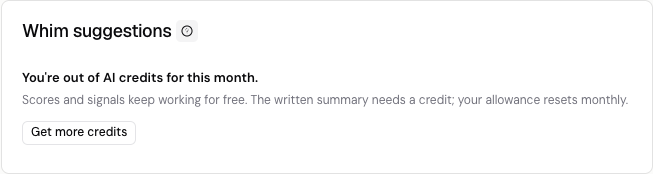
Some accounts see a Whim suggestions card on the dashboard. Select the help icon beside the title for How Whim suggestions work. Scores and signals keep working for free, but the written summary needs a credit.
New coaches may also see a setup guide from their crew on new screens. Select Hide setup for now or Minimise to put it away. Turn off Guides on new screens if you don't want it on later screens.
Credits and access
Crew uses AI credits. Chat replies, assistant runs, handoffs and voice recaps all use credits, and the cost depends on the work. Your allowance resets monthly.
When credits run out, you'll see "You're out of AI credits for this month." The message box is turned off and scheduled runs show Paused: out of AI credits. No credits are used for a skipped run, and the next scheduled run tries again. Select Get more credits to open Settings → Your plan.
To use Crew:
- Your account needs an AI credit plan.
- Team members also need the AI permission.
- Crew isn't available on accounts that use the original Kahunas mobile apps.
- On seat pricing, Crewbots are included from 50 seats.
If something looks different
- The icon reads Unlock your Crew: your account has no AI plan. Select See AI plans.
- You can't type in the message box: check for the out-of-credits message and select Get more credits.
- Ora skipped a run: check its conversation for Paused: out of AI credits, then check your credits and Ora's When it runs setting.
- You can't find an old conversation: each assistant has one conversation. Scroll up or select Show earlier messages. Conversations from the old assistant aren't shown.
- A team member can't open Crew: check they have the AI permission, or share your Crew with them in Crew settings.
- Tru or Flint won't turn on: they're coming soon.
To set up messages that send themselves when something happens, see Setting up automations.
If you still need help, use Contact support on this help site and describe where you got stuck.
Sharing content with clients
Add files, links and articles to your Library. Choose which packages can access them, set release timing, and keep resources up to date.
Setting up automations
Turn client-event automations on or off, add email, push, chat or webhook steps, set wait times and test your messages.